
It can be incredibly frustrating when your Windows 11 Start menu pinned apps disappeared without warning. You open the Start menu expecting to see your carefully curated shortcuts, only to find the Pinned section empty, reset to Microsoft’s default set, or filled with unusable blank icons. While it may seem like your software has been uninstalled, in most cases, your applications are still safely on your drive; it is the layout data itself that has been lost or obscured.
Why Did My Windows 11 Start Menu Pinned Apps Disappeared?
There are several documented reasons why your layout might vanish. These range from simple profile loading errors to complex organizational policies managed by an IT department. Identifying the specific symptom can help you choose the right fix from the start.
| Symptom | Likely Cause | Recommended Action |
|---|---|---|
| Empty Pinned section or blank icons | Start menu process glitch or data corruption | Restart PC / Fix #1 or #6 |
| Default Microsoft apps (Edge, Mail, etc.) only | Temporary profile or Layout reset | Check Profile / Fix #3 |
| Pins reset every time you sign in | Work/School MDM or Group Policy | Check Settings / Fix #7 |
| Missing files and wallpaper too | Corrupt User Profile | Fix #3 (Profile Repair) |
Identifying Your Windows Version
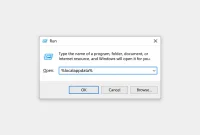
Before proceeding with advanced fixes, it is essential to know your specific Windows build. Some layout data behaviors changed significantly with the release of Windows 11 version 24H2. To check your version, press Win + R, type winver, and press Enter. Keep this build number in mind, especially if you intend to use the unsupported file restoration methods described later in this guide.
Standard Fixes: Safe and Supported Methods
The following steps are Microsoft-supported and do not involve modifying sensitive system files. You should always try these before moving to more invasive workarounds.
1. Perform a Full Restart
A simple restart can solve many UI glitches. Note that “Sleep” or “Hibernate” does not count; you must perform a full Restart. This forces Windows to terminate the StartMenuExperienceHost.exe process and reload your user profile data from the disk. If a temporary glitch prevented the Start menu from reading your pins, a restart often resolves it immediately.
2. Check Layout Options and Scrolling
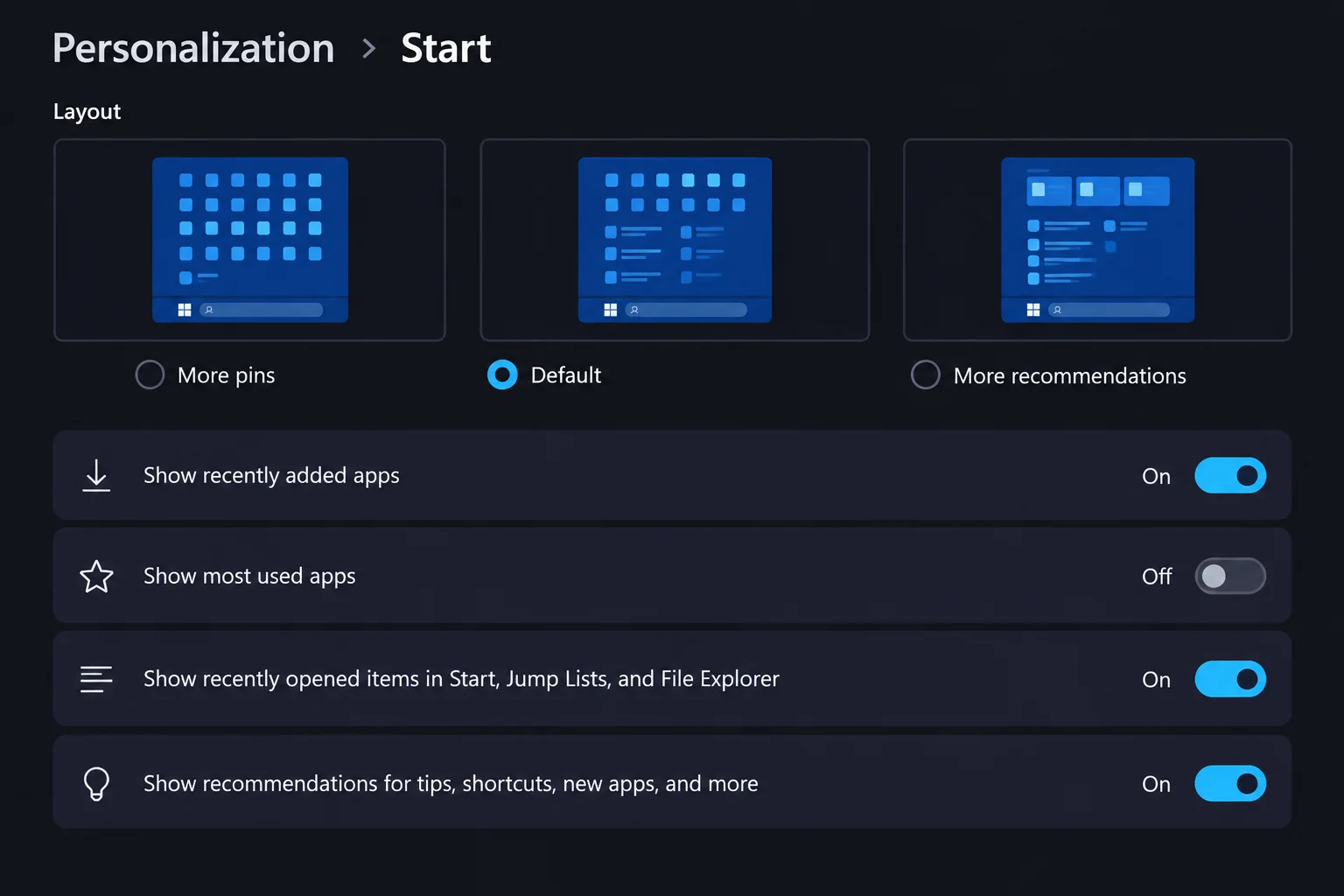
Sometimes your pins aren’t gone—they are just hidden. Depending on your Windows 11 version, the Start menu may be configured to show fewer rows of pins. Check the following:
- Scroll the Pinned Section: Use your mouse wheel or touchpad to scroll down within the Pinned area. Extra pins may be on a second page or hidden below the visible fold.
- Adjust Layout Settings: Go to Settings > Personalization > Start. If your build supports it, select the “More pins” option to maximize the space available for your shortcuts.
3. Verify Your User Profile
If your Windows 11 Start menu pinned apps disappeared alongside your desktop files, wallpaper, and browser bookmarks, Windows has likely loaded a Temporary Profile. This happens when the system cannot access your main profile folder, often due to file system errors or corruption.
Look for a notification stating, “You’ve been signed in with a temporary profile.” If this is the case, do not bother re-pinning apps yet, as changes made in a temporary profile are usually discarded upon sign-out. You must fix the underlying profile issue or restore your user folder from a backup to regain your settings.
4. Manual Re-pinning
If only a few pins are missing and your profile is otherwise healthy, manual re-pinning is the most stable solution. This ensures the layout is saved using the current build’s logic.
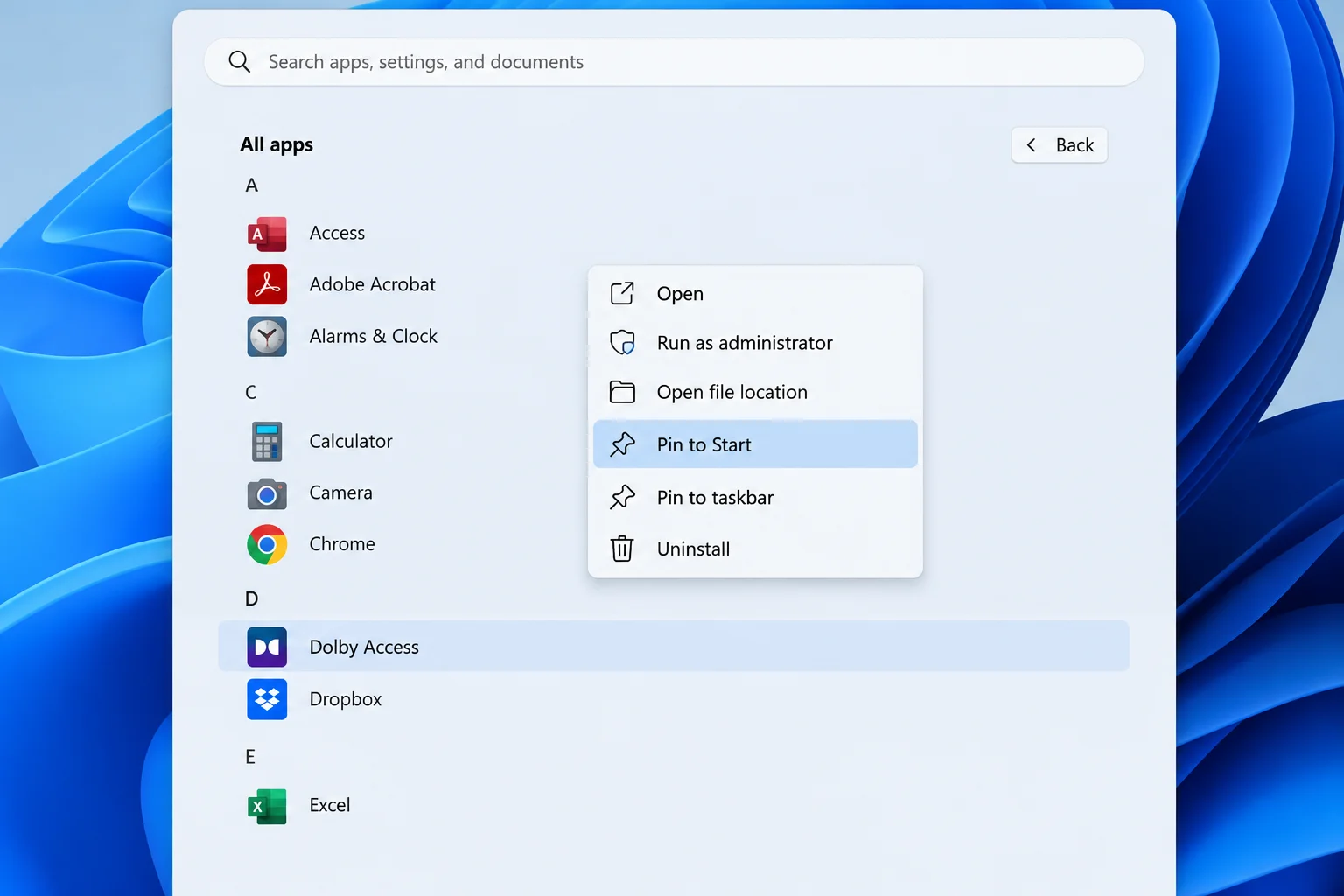
- Click All apps in the top-right of the Start menu.
- Right-click the desired app and select Pin to Start.
- Drag and drop icons to rearrange them. You can create folders by dragging one icon onto another.
Troubleshooting Managed Devices (Work or School)
If you are using a laptop provided by your employer or school, your Start menu layout may be controlled by an administrator. Organizations use “Configure Start Pins” policies to ensure essential tools are always visible.
To check if your device is managed, go to Settings > Accounts > Access work or school. If an account is listed here, your IT department may be pushing a specific layout via MDM (Mobile Device Management) or Group Policy. On Windows 11 21H2 and later, MDM policies can override personal pins. For those on Windows 11 24H2, Group Policy settings (KB5062660 or later) may also be active. If a policy is in place, any manual changes you make will likely be overwritten the next time you sign in.
Advanced Recovery: Restoring the LocalState Folder
For power users who have lost a complex layout and have a backup, there is an unsupported community workaround. Windows 11 stores Start layout data in a specific, undocumented folder. Because Microsoft does not officially support backing up these specific files, treat this as an experiment.
Locating the Layout Data
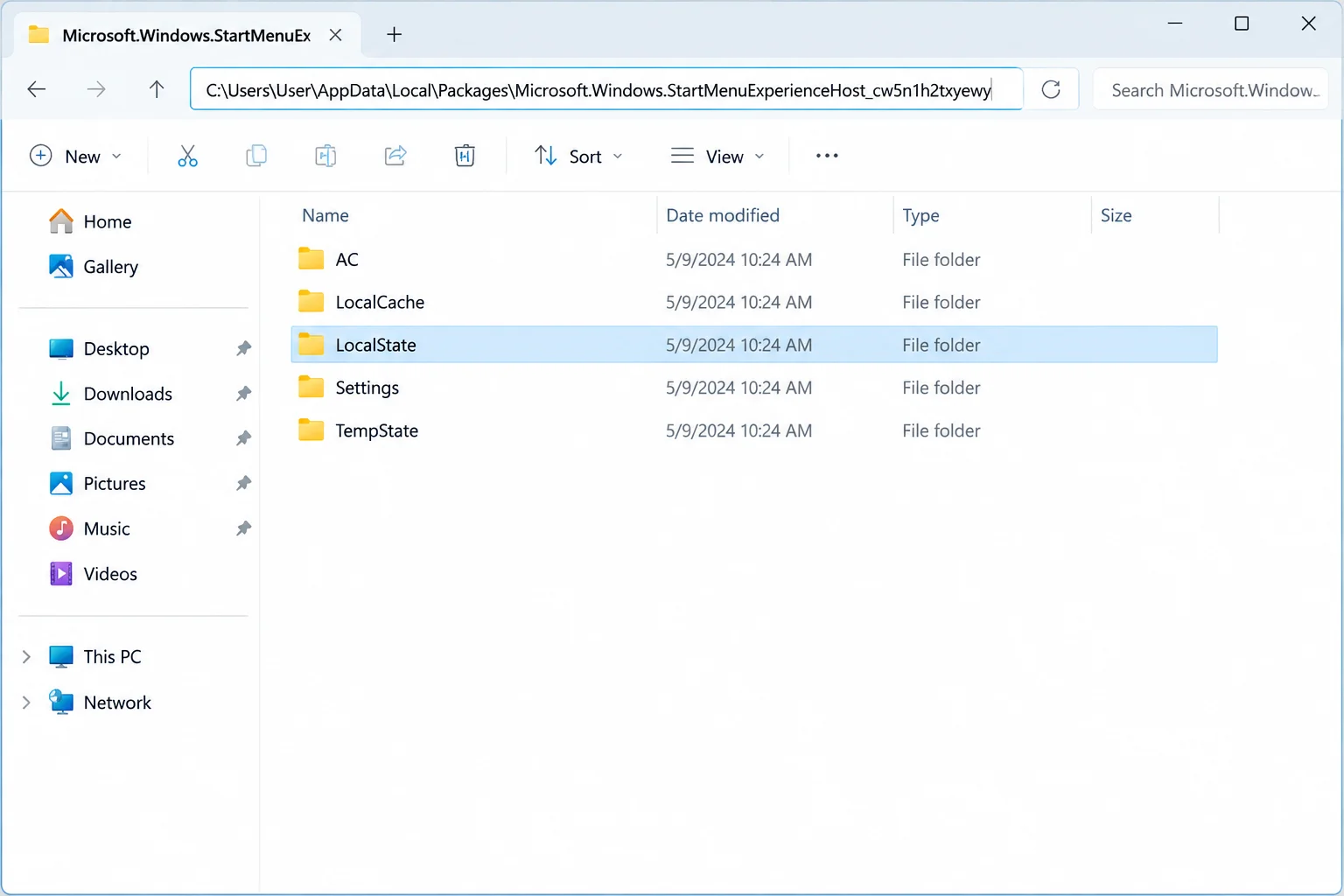
The community-identified path for Start layout data is:
%LocalAppData%PackagesMicrosoft.Windows.StartMenuExperienceHost_cw5n1h2txyewyLocalState
Inside this folder, users often find files like start.bin or start2.bin (the latter is more common on version 24H2). Microsoft does not document which file does what, so you should always handle the entire LocalState folder as a single unit.
The Sign-Out Restoration Method
You cannot simply paste a backup into this folder while signed into your account, as the Start menu process will lock the files or overwrite them. Follow these steps precisely:
- Ensure you have a second administrator account on the PC.
- Sign out of your main account completely (do not just “Switch User”).
- Sign in to the secondary administrator account.
- Navigate to your main account’s folder:
C:UsersYOUR-USERNAMEAppDataLocalPackagesMicrosoft.Windows.StartMenuExperienceHost_cw5n1h2txyewyLocalState. - Rename the existing
LocalStatefolder toLocalState.old. - Copy your backup
LocalStatefolder into that same location. - Sign out of the secondary account and sign back into your main account.
If the Start menu appears blank or broken after this, the backup may be incompatible with your current Windows build. In that case, revert the changes by restoring the LocalState.old folder.
Repairing Start Menu Components
If the Start menu refuses to save any new pins or displays “Critical Error,” the system components themselves may be damaged. Before attempting deep system repairs, create a System Restore Point. This provides a safety net if the repair process causes further instability.
Avoid using third-party “debloat” scripts or registry cleaners. These tools frequently remove essential Start menu dependencies, which can lead to the very problem where your Windows 11 Start menu pinned apps disappeared. Instead, use built-in Windows repair tools or follow official Microsoft troubleshooting guides for Start menu errors.
Prevention: How to Back Up Your Start Menu Layout
Since Windows does not provide a one-click “Backup Start Menu” button, you must use a combination of methods to protect your layout.
- Manual Folder Backups: Periodically copy the
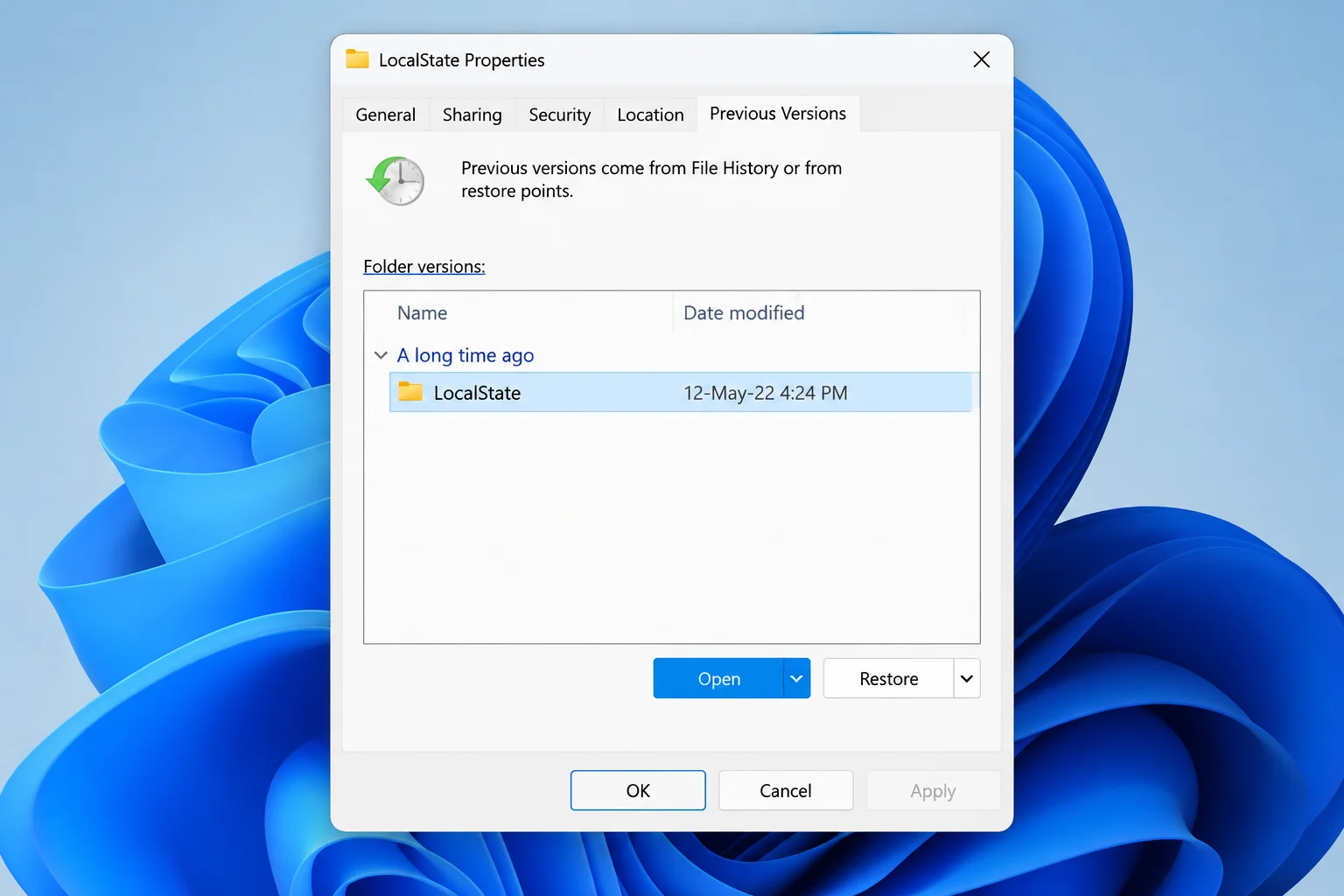
LocalStatefolder mentioned above to an external drive. This is your best chance at a manual restoration. - Enable File History: Use Windows File History to back up your User folders. If your pins disappear, you can use the “Previous Versions” tab in the folder properties to find an older copy of the
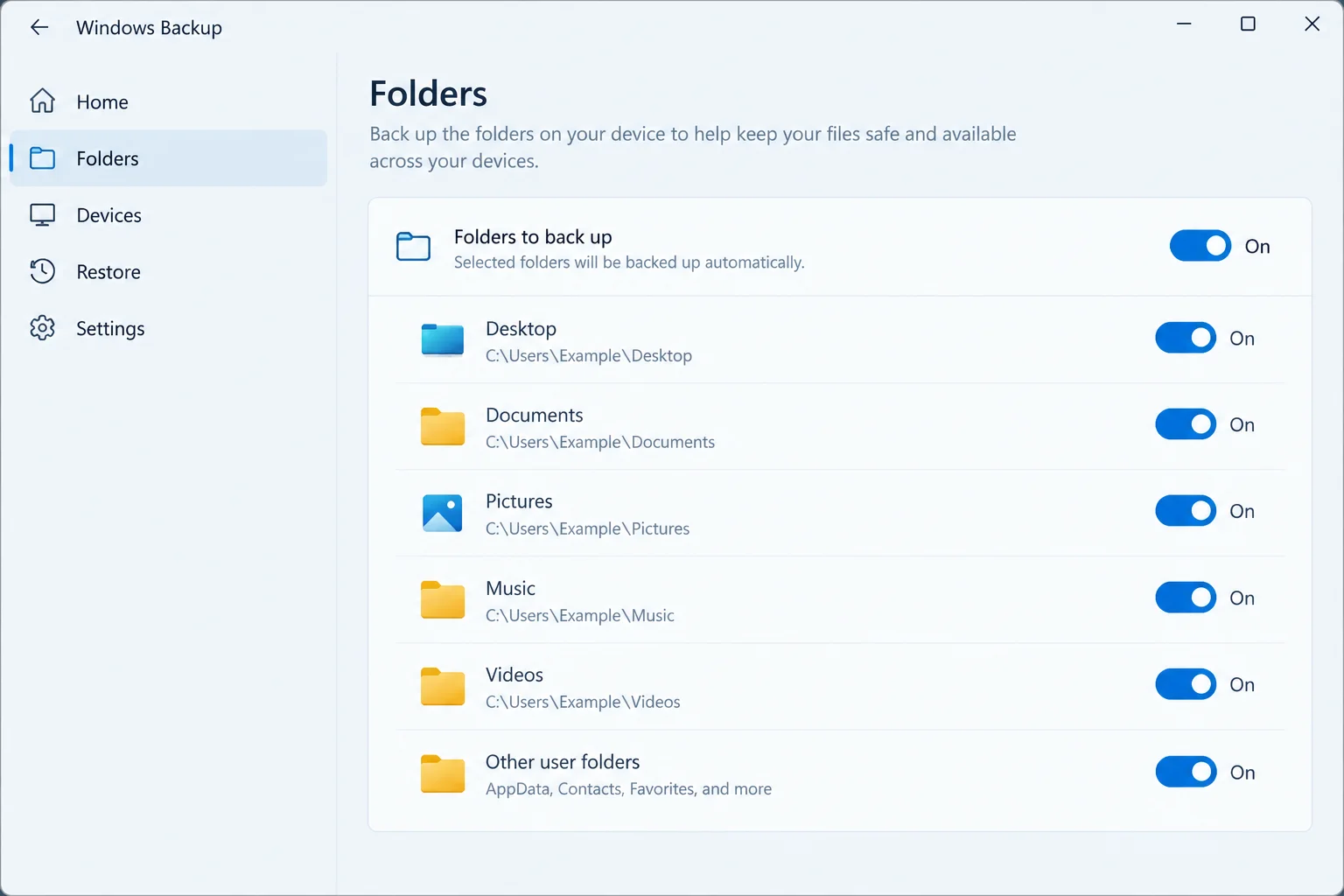
LocalStatedata. - Windows Backup App: While primarily designed for migrating to a new PC, the Windows Backup app can sync certain settings and app shortcuts to OneDrive. It may not preserve the exact order of your pins, but it can help rebuild the list quickly on a reset device.
Frequently Asked Questions
Where is the file that stores my Start menu layout?
While undocumented by Microsoft, community research points to %LocalAppData%PackagesMicrosoft.Windows.StartMenuExperienceHost_cw5n1h2txyewyLocalState. Files within, such as start.bin, are believed to hold the layout data.
Why can’t I replace the LocalState folder while I am signed in?
The StartMenuExperienceHost process is constantly active while you are signed in. It locks the files in the LocalState folder to prevent data corruption. Replacing them while the process is running usually results in an “In Use” error or the system immediately overwriting your changes.
Does Windows 11 24H2 change how pins are stored?
Yes, community reports indicate that version 24H2 and newer builds may use different file names, such as start2.bin. Backups made on older versions of Windows 11 (like 22H2 or 23H2) may not be compatible with the 24H2 layout engine.
By following these steps, you can identify the root cause and effectively solve the issue of when Windows 11 Start menu pinned apps disappeared.