A high-speed internet subscription does not always guarantee fast performance across every connected device in a home. Routers often broadcast multiple frequency bands, yet automatic network configurations can cause devices to use the wrong frequency. This mismatch results in unexpected download bottlenecks and video buffering, even when the Wi-Fi signal appears strong.
Understanding the differences between wireless frequency bands helps clarify why network selection matters for connection quality. Most modern routers support both the 2.4GHz and 5GHz bands, while newer hardware introduces a third 6GHz frequency.
Understanding Wi-Fi Frequency Bands
The 2.4GHz band dates back to the initial Wi-Fi standard released in 1997. It excels at penetrating walls and physical obstacles, making it ideal for maximum range and legacy smart home devices. However, this band offers lower speeds and suffers from significant interference from other household electronics.
The 5GHz band carries substantially more data, supporting gigabit speeds and above. Its limitation lies in physical range because higher frequencies struggle to penetrate solid objects effectively. Newer Wi-Fi 6E and 7 standards expanded this progression by introducing the 6GHz band, which further increases data capacity while reducing effective range.
The Problem with Band Steering
Many home networks suffer from slow performance due to a feature called band steering. This function combines separate frequency bands under a single network name or SSID. While routers and devices theoretically select the best frequency automatically, real-world conditions often cause devices to cling to the slower 2.4GHz band instead of shifting to an available 5GHz signal.
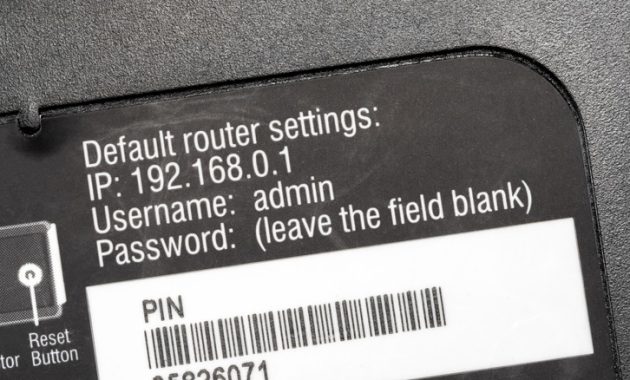
Disabling band steering gives users direct control over which frequencies their devices utilize. Network administrators can access this setting by logging into the router administration panel using a web browser or a companion smartphone app. Navigating to the wireless settings section reveals options typically labeled as Band Steering, Auto-Band Selection, or Smart Connect, which can then be turned off.
How to Separate Your Networks
Turning off band steering usually prompts the router to create distinct network names for each frequency, often adding suffixes like ‘_5G’ to identify the faster band. Users can then reconnect individual devices to the most appropriate frequency. Smartphones and laptops benefit greatly from a 5GHz connection even at a distance, while stationary smart home accessories function reliably on the wider-reaching 2.4GHz band.
Some internet service provider routers restrict access to these advanced wireless settings. Users facing this limitation can bypass carrier restrictions by connecting their own independent Wi-Fi router or access point.

Exploring Multi-Link Operation in Wi-Fi 7
Although simultaneous multi-band communication was historically impossible for most hardware, Wi-Fi 7 introduces a technology called Multi-Link Operation. MLO combines multiple frequency bands concurrently to enhance bandwidth and reduce latency depending on network demands. Real-world results vary, and utilizing this feature requires both an MLO-capable client device and a compatible Wi-Fi 7 router.
Identifying and Resolving Network Congestion
Network performance can degrade due to local congestion even after configuring proper band settings. Wi-Fi bands divide into smaller frequency ranges called channels, comparable to separate lanes on a highway. Dense urban environments frequently experience interference when multiple nearby networks occupy identical channels.
Scanning tools like Wi-Fi Analyzer on Android or NetSpot on desktop computers help identify overcrowded channels. Administrators can then log back into the router interface to switch the network to a clearer, less crowded channel. On the 2.4GHz band, channels 1, 6, and 11 are generally recommended because they operate without overlapping.
Frequent dropouts on the 5GHz band can sometimes be resolved by disabling Dynamic Frequency Selection. While DFS allows access to specialized spectrum, it forces routers to vacate channels immediately when detecting weather or military radar signals, occasionally causing erratic behavior on certain client devices.