

A Windows update finishes, the desktop loads, and something feels off. The sound is gone, the Wi-Fi connection keeps dropping, or a game suddenly performs worse than it did the day before. Before blaming the hardware, checking the driver updater strategy behind the system often makes more sense.
Outdated drivers can interrupt communication between Windows and connected components, leading to stability issues, reduced compatibility, and inconsistent performance.
A reliable maintenance routine includes reviewing driver updates whenever hardware starts behaving unexpectedly. Some users rely on built-in Windows tools, while others prefer official manufacturer downloads or trusted third-party utilities to update drivers more efficiently.
The right approach depends on the device, the type of hardware involved, and how frequently the PC receives new software or feature updates.
What Is a Driver Updater?
A driver updater is a utility that checks whether the software connecting Windows with installed hardware is current. Drivers act as translators between the operating system and physical components such as graphics cards, wireless adapters, storage controllers, printers, and audio devices.
When that communication breaks down, hardware may lose features, behave unpredictably, or stop working altogether.
Instead of checking each component one by one, a driver updater scans the system, compares installed versions with available releases, and identifies outdated entries. That process reduces the amount of manual searching, especially on computers with numerous device drivers installed.
Automatic detection makes routine maintenance easier, although it should not replace official support pages in every case. Graphics processors, enterprise hardware, and specialized peripherals sometimes receive new packages directly from the manufacturer before they appear elsewhere.
For those devices, downloading files from the original source remains a sensible option.
Stable Windows drivers can remain untouched if the computer runs without issues. New releases usually target specific bugs, compatibility adjustments, or hardware support rather than delivering visible improvements on every PC.
Choosing when to install drivers or apply a driver update software recommendation is often more practical than updating everything automatically.
Why Keeping Drivers Updated Matters
Fresh software releases do more than add new capabilities. A well-timed driver updater check can improve compatibility with newer Windows builds, address known issues, and keep hardware communicating correctly with the operating system.
At the same time, installing every available release without a clear reason can create unnecessary compatibility problems.
Performance and Hardware Compatibility
Communication between hardware and Windows depends on software written for each device. Fresh graphics drivers can improve rendering efficiency, while updated software for Wi-Fi adapters may resolve connection instability.
Audio devices, printers, storage controllers, and chipset drivers also receive revisions that refine hardware compatibility, especially after major Windows feature releases. Using a trusted driver updater makes identifying relevant updates much easier than searching component by component.
Stability and Reliability
Driver revisions often address software defects discovered after earlier releases. A fix may eliminate random crashes, remove Device Manager errors, or restore proper operation after a major Windows update.
Applying carefully selected packages instead of delaying maintenance can reduce problems caused by outdated drivers while keeping existing hardware working as expected.
When You Should Leave a Driver Alone
A stable workstation does not always benefit from the newest release. Office computers and enterprise systems commonly stay on validated versions until scheduled maintenance windows. Replacing stable software without a practical reason may introduce fresh compatibility issues, especially when no hardware problem exists.
Before deciding to update drivers, confirm that the newer package addresses an actual need rather than simply replacing an existing version.
How We Selected These Driver Updater Tools
Popularity alone did not determine which applications appear in this comparison. Each driver updater was reviewed using practical standards that reflect long-term reliability, maintenance quality, and day-to-day usability instead of marketing claims or download numbers.
Evaluation Criteria
Every recommendation was assessed using the same checklist. Driver database quality came first, followed by the reliability of driver sources and the frequency of catalog maintenance.
We also examined automatic scanning, update safety, recovery features such as driver backup and rollback drivers, Windows compatibility, pricing, and the practical value offered by each free edition.
Developer reputation also influenced the final selection. Software maintained by established publishers with a consistent release history generally inspires greater confidence than products receiving infrequent updates.
Independent reviews consistently rank reliable driver sources, rollback support, backup capabilities, and compatibility with current Windows releases among the most important qualities when evaluating driver update software. Those factors lower the chance of installing incompatible files while making recovery much easier if an update causes unexpected behavior.
This evaluation process also makes it easier to identify a trusted driver updater, whether the preferred option is a free driver updater or a premium alternative.
8 Best Driver Updater Software for Windows
No single utility fits every Windows user. Some applications automate routine maintenance, others focus on offline deployment, detailed hardware analysis, or long-term driver management.
The right choice depends on your experience, the type of PC you use, and how much control you want over the update process.
1. Driver Booster

Routine maintenance feels much simpler with Driver Booster, a popular driver updater developed for users who prefer automatic scanning instead of manually checking each hardware vendor’s website. Its clean layout keeps navigation straightforward, even for first-time users.
Overview
Developed by IObit, IObit Driver Booster supports modern Windows releases, including Windows 10 and Windows 11. The application scans installed hardware, identifies outdated drivers, and recommends suitable replacements from its driver database. Years of active development and regular database updates have made it one of the better-known names in this category.
Key Features
The software performs automatic scans after installation and displays outdated components in a single dashboard. Updating supported devices usually requires one click, reducing the need to search for individual downloads.
Before installing new packages, the software creates a restore point so the previous system state remains available if something goes wrong. Scheduled scans can run automatically, while support for Game Ready components gives gamers faster access to newer graphics-related packages after a driver update becomes available.
Pros
A large driver database covers a broad collection of hardware from popular manufacturers. The interface remains easy to navigate, scan times are quick, and automatic restore point creation adds another layer of protection before changes are applied.
Cons
The free edition includes occasional upgrade reminders. Certain convenience features, including automatic background downloads, higher download speeds, and expanded automation, remain reserved for the paid version.
Free vs Paid
Driver Booster Free includes hardware scanning, manual installation, and restore point creation before updates. The Pro edition expands automation with scheduled downloads, faster servers, broader driver coverage, and priority access to newer database releases. Users who maintain multiple computers may notice the additional convenience.
Best For
This driver updater fits beginners looking for a simple interface, home users who prefer minimal manual work, and gamers who want an easier way to update drivers after installing new hardware or major Windows releases.
Our Verdict
Driver Booster delivers a polished experience without requiring much technical knowledge. Automatic scanning, a frequently refreshed database, and straightforward navigation make routine maintenance easy to manage.
Advanced users looking for portable offline deployment or deeper manual control may find alternatives such as Snappy Driver Installer Origin more suitable. Driver Booster 11 remains one of the strongest choices for everyday Windows users seeking reliable automation without unnecessary complexity.
2. Snappy Driver Installer Origin
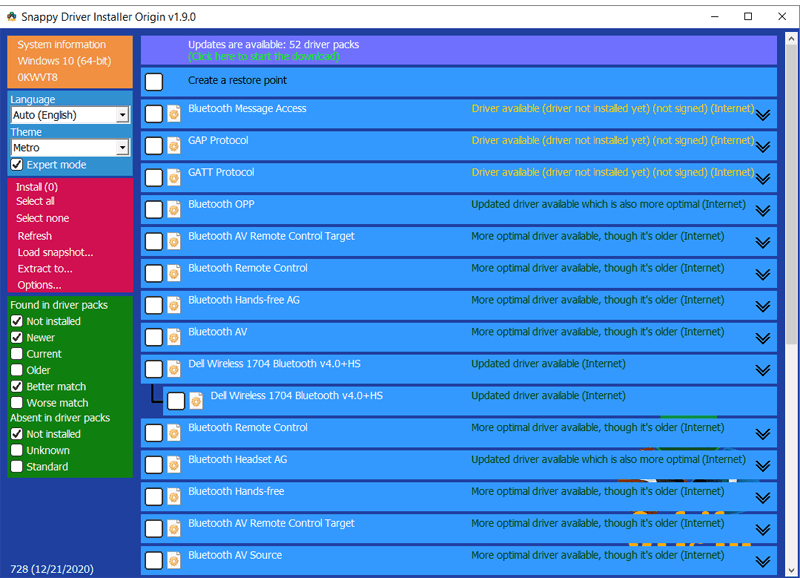
Plenty of utilities depend on cloud downloads, yet Snappy Driver Installer Origin follows a different path. This open-source driver updater runs as a portable application and supports complete offline installations, making it a practical choice for technicians who maintain computers without a reliable internet connection.
Overview
Originally developed as an open-source community project, Snappy Driver Installer Origin works on modern Windows versions without requiring installation.
Everything can run directly from a USB drive, making it easy to carry between systems. Its focus stays on accurate driver deployment rather than polished visuals or commercial extras.
Key Features
The software supports massive offline driver packs that can be downloaded once and reused across multiple computers. Portable mode allows the entire application and its database to travel on external storage without changing the host system.
Experienced users can fine-tune scanning behavior, filter recommended packages, and decide exactly which components should be installed. That level of control is rarely found in mainstream utilities. For environments without internet access, its offline driver update capability remains one of the strongest reasons to choose it.
Pros
There are no advertisements, subscription plans, or locked premium features. Every major function is available at no cost. The open-source nature of the project also gives technically minded users greater transparency into how the software is maintained. Combined with extensive offline support, it becomes a dependable option for workshops and field service.
Cons
The interface feels dated compared with newer commercial alternatives. Menus contain more technical options than casual users usually expect, and the first scan can feel overwhelming without prior experience. Beginners may need extra time before feeling comfortable with the available controls.
Best For
This driver updater suits IT technicians, computer repair shops, system administrators, and advanced Windows users who regularly maintain multiple machines or reinstall operating systems. Anyone searching for a way to update drivers free without licensing restrictions will also appreciate what the software offers.
Our Verdict
Snappy Driver Installer remains one of the strongest free utilities available. Its appearance may look old-fashioned, yet the underlying functionality is remarkably capable.
Users comfortable with a more technical interface gain portable deployment, extensive offline support, and precise installation controls without paying for premium features. For experienced users, Snappy Driver continues to set a high standard among free maintenance tools.
3. Driver Easy

Routine maintenance does not need a crowded interface filled with technical settings. Driver Easy keeps the process straightforward, making it suitable for users who prefer quick scans and clear recommendations without spending time adjusting advanced options.
Its design favors simplicity from the first launch.
Overview
Driver Easy is developed by Easeware Technology Limited and has been available for Windows users for years. The software scans installed hardware, detects outdated components, and recommends suitable replacements from its driver catalog. It also includes system information tools that make identifying hardware much easier before installing new packages.
Key Features
The application scans installed devices within minutes and lists available driver updates in an organized view. Built-in hardware information provides detailed specifications for processors, storage devices, graphics cards, and other components.
Backup and restore features allow users to preserve existing drivers before making changes. Another useful addition is Offline Scan, which collects hardware information from a computer without internet access so drivers can be downloaded on another machine.
Pros
The interface remains clean and easy to navigate from beginning to end. Reliable driver sources reduce the chance of installing incompatible files, while the overall workflow stays uncomplicated for users who only want routine maintenance without extra configuration.
Cons
The free edition places noticeable limits on convenience. Downloads are slower, and installation remains manual after each file is retrieved. Users expecting fully automated maintenance may find those restrictions inconvenient over time.
Free vs Paid
The free version covers hardware scanning and basic detection, making it suitable for occasional maintenance. The paid edition removes download speed limits, installs updates automatically, and unlocks additional recovery features. Those additions make recurring maintenance much more convenient.
Best For
This driver updater works well for casual users, home computers, and office PCs that receive routine maintenance without requiring advanced management features. Anyone searching for a Windows driver updater free option with an easy learning curve will likely feel comfortable using Driver Easy to update drivers.
Our Verdict
Driver Easy earns its reputation through simplicity rather than an extensive feature list. Navigation feels polished, hardware scanning is reliable, and essential maintenance tools remain easy to access.
Users looking for deeper administrative controls may prefer another driver updater, while those wanting a clean everyday utility will find Driver Easy a sensible choice.
4. DriverMax

System recovery matters just as much as installing newer drivers. DriverMax places strong emphasis on restoration features, making it attractive for users who regularly replace hardware, reinstall Windows, or prefer having a recovery plan before applying changes.
Overview
Developed by Innovative Solutions, DriverMax supports current Windows versions and focuses on long-term driver maintenance rather than simple detection alone. Besides identifying outdated components, it records installation history and preserves previous versions for future recovery when needed.
Key Features
Its strongest capability centers on driver backup and restoration. Existing drivers can be exported before maintenance begins, allowing them to be restored after reinstalling Windows or replacing storage devices.
The software also supports scheduled scans, tracks driver history, and provides rollback drivers functionality whenever a newly installed version creates unexpected behavior. Keeping earlier releases available reduces downtime during troubleshooting.
Pros
Recovery features stand out immediately. Backup tools are comprehensive, rollback options work reliably, and maintenance functions remain well organized. Users who rebuild systems frequently can save considerable time by restoring previously exported drivers instead of locating every package again.
Cons
The free edition limits the number of downloads allowed each day, while certain maintenance features remain exclusive to premium subscribers. Those restrictions become noticeable on computers requiring multiple driver installations.
Best For
DriverMax suits users who upgrade hardware regularly, technicians rebuilding Windows systems, and anyone who values dependable recovery tools before installing the latest drivers. Its maintenance utilities also appeal to users looking beyond basic driver update software.
Our Verdict
DriverMax delivers greater value than standard update utilities by giving recovery equal attention. Automatic detection is useful, though its backup, restore, and rollback capabilities remain the real strengths.
Users who reinstall Windows on a regular basis or frequently modify hardware will likely appreciate this driver updater more than simpler maintenance applications.
5. DriversCloud

DriversCloud starts by examining the computer itself. Detailed hardware reports come first, followed by driver recommendations based on the detected components. That process makes it especially useful when Windows cannot correctly identify a device or a newly installed component refuses to work.
Overview
DriversCloud is designed to analyze installed hardware before suggesting replacement drivers. Users can perform a browser-based scan or install an optional desktop utility for more detailed system detection. The collected information covers nearly every major component, making the software valuable when identifying missing or incompatible device drivers.
Key Features
Hardware detection remains the application’s strongest capability. The software identifies processors, graphics adapters, storage controllers, network devices, and peripheral hardware before presenting available driver recommendations.
Detailed system information, driver history, and optional offline detection add another layer of flexibility. Those reports often reveal hardware details that standard Windows utilities do not display, making troubleshooting much easier before deciding to update drivers.
Pros
The reports are detailed without feeling cluttered once users become familiar with the interface. Driver identification is highly accurate, even for less common hardware. That precision makes the software particularly useful during hardware diagnostics, especially after hardware replacements or Windows reinstallations.
Cons
DriversCloud presents far more technical information than casual users usually need. Navigation may feel intimidating at first, and automation is not its primary focus. Users expecting one-click maintenance could find other utilities more convenient.
Best For
This driver updater suits advanced users, repair technicians, and anyone investigating hardware-related problems. Detailed system reports provide a clearer picture before replacing components or installing the latest drivers on Windows systems.
Our Verdict
DriversCloud stands out because it emphasizes analysis rather than automation. Accurate hardware detection, detailed reports, and strong diagnostic capabilities make it an excellent choice when identifying hardware issues matters more than installing updates with a single click.
Users seeking deeper insight into Windows drivers will likely appreciate what this driver updater offers.
6. Driver Genius
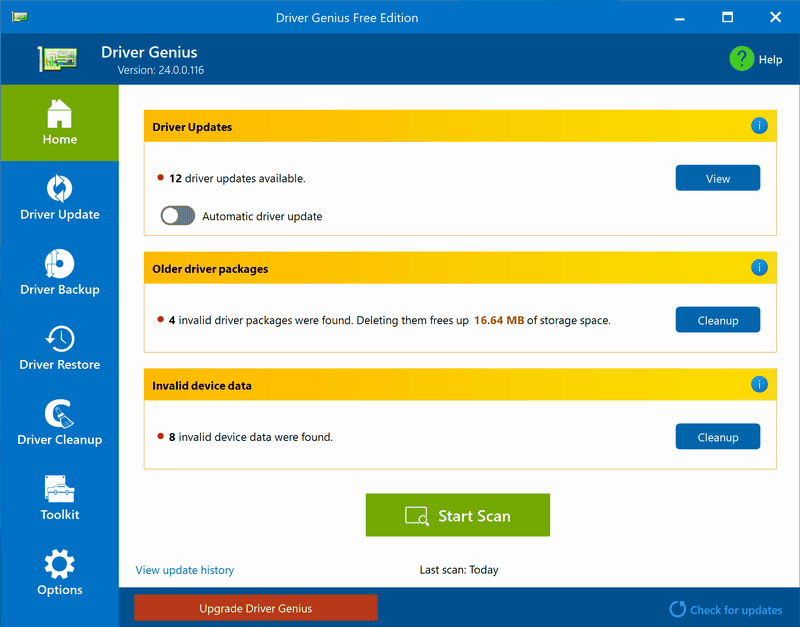
Driver Genius places equal attention on preserving, restoring, and organizing existing driver collections, making it particularly useful before reinstalling Windows or migrating to new hardware.
Overview
Driver Genius has built its reputation around long-term driver management instead of simple update detection. Alongside identifying outdated components, it includes maintenance tools designed to preserve working drivers and simplify future system recovery.
Key Features
Its toolkit includes driver backup, restore, migration, and cleanup utilities. Users preparing for a fresh Windows installation can save existing drivers, reinstall the operating system, and restore compatible versions without searching each manufacturer’s support page again.
Hardware information utilities provide a detailed inventory of installed components, making future maintenance easier. Driver cleanup features also remove obsolete packages that remain after hardware upgrades, reducing unnecessary clutter.
Pros
Maintenance capabilities extend well beyond routine scanning. Backup tools are dependable, organization is straightforward, and restoring previously saved drivers requires only a few steps. Those features become especially useful for users who rebuild or maintain multiple systems over time.
Cons
Some of the most attractive functions remain locked behind the paid edition. The interface also reflects an older design philosophy compared with newer competitors, although navigation remains clear once familiar with the layout.
Best For
Driver Genius fits IT administrators, advanced home users, and anyone preparing Windows for reinstallation. Users who regularly update drivers while maintaining organized recovery files will benefit from its broader maintenance toolkit.
Our Verdict
Driver Genius offers capabilities rarely found in a typical driver updater. Its emphasis on preservation, migration, and recovery gives it a distinct advantage over utilities focused almost entirely on downloading newer releases.
Users who value long-term maintenance instead of occasional updates will find this driver updater a worthwhile addition to their toolkit, especially when reliable restore drivers functionality is a priority.
7. Windows Update and Device Manager

Extra software is not always necessary. Windows already includes built-in utilities capable of installing and maintaining a large portion of common hardware drivers, making them a sensible starting point before looking for a dedicated driver updater.
Overview
Windows Update regularly delivers security patches, feature updates, and compatible hardware drivers through Microsoft’s distribution system. Alongside it, Device Manager gives users direct access to installed hardware, allowing individual devices to be inspected, disabled, or updated without leaving Windows.
Used together, these tools cover routine maintenance for a broad range of computers. Windows Update retrieves available packages, while Device Manager provides manual control whenever a specific component requires attention.
Advantages
Both utilities are included with Windows at no extra cost. Drivers distributed through Microsoft’s update service undergo compatibility testing before release, reducing the chance of installation issues on supported hardware.
For standard desktop and office systems, this built-in solution is often sufficient to update drivers on pc windows safely without additional software.
Limitations
The Microsoft driver catalog does not always contain the newest releases. Graphics cards, gaming peripherals, and specialized workstation hardware often receive newer packages directly from their manufacturers first.
Built-in tools also lack advanced management features such as backup libraries, rollback archives, and scheduled maintenance beyond standard driver updates.
Best For
Everyday users, office environments, classrooms, and production systems that prioritize stability over the newest releases will usually find these built-in utilities adequate for maintaining Windows drivers.
Our Verdict
A dedicated driver updater becomes more practical when detailed management features, broader driver databases, or automatic scanning are priorities. For everyday maintenance on stable systems, Windows Update and Device Manager remain dependable choices that cover the needs of most users without installing additional software.
8. Official Manufacturer Drivers

Certain hardware receives new software directly from its manufacturer long before those files appear anywhere else. Graphics cards, storage controllers, wireless adapters, and professional devices often fall into that category, making official download pages the preferred source.
Overview
Hardware manufacturers publish driver packages through their official support websites. Those downloads are created specifically for supported products and frequently include bug fixes, compatibility improvements, and new hardware features before they reach other distribution channels.
Common Examples
Well-known vendors offering direct downloads include NVIDIA, AMD, Intel, and Realtek for core hardware components. Computer manufacturers such as ASUS, MSI, Dell, HP, Lenovo, and Acer also maintain support pages containing drivers customized for their own systems.
Advantages
Downloading NVIDIA drivers, AMD drivers, Intel drivers, or Realtek drivers directly from the source gives users access to the newest releases as soon as they become available. Vendor-tested packages often include hardware-specific improvements that are unavailable through Windows Update or third-party utilities.
Limitations
Manual downloads require users to identify the correct hardware model before selecting a package. Maintaining multiple computers can also become time-consuming because each manufacturer uses a separate support portal. That process is less convenient than relying on a centralized driver updater.
Best For
Gamers, content creators, engineers, and professionals using specialized hardware generally benefit the most from downloading software directly from the manufacturer, particularly when performance improvements or new hardware support are released.
Our Verdict
Official download pages remain the preferred destination whenever the newest hardware-specific improvements matter most. A driver updater offers greater convenience for routine maintenance, while official drivers from hardware vendors remain the strongest choice for users seeking the latest features, fixes, and performance refinements supplied by manufacturer drivers.
How to Choose the Right Driver Updater
The right utility depends on the computer, the person using it, and the amount of maintenance expected over time. A first-time PC owner usually looks for simplicity, while an IT technician may prioritize offline deployment, recovery tools, or detailed hardware information over automation.
No single driver updater fits every situation. Ease of use matters for everyday maintenance, whereas backup capabilities become far more valuable before reinstalling Windows. Some users prefer automatic scans, while others would rather review every recommendation before installing anything.
Driver source reliability deserves equal attention since trusted catalogs reduce the chance of installing incompatible files.
Free editions often cover basic scanning and detection, though premium versions typically include automation, scheduled maintenance, or faster downloads. Long-term usability should also influence the decision.
Software that receives regular database updates and active developer support is usually a safer investment than products with infrequent maintenance.
| User Type | Recommended Solution | Primary Reason |
|---|---|---|
| Beginner | Driver Booster | Simple interface and automatic updates |
| Home User | Driver Easy | Straightforward workflow |
| IT Technician | Snappy Driver Installer Origin | Portable with offline driver packs |
| Troubleshooting | DriversCloud | Detailed hardware analysis |
| Backup & Recovery | DriverMax | Strong backup and rollback features |
| Advanced Maintenance | Driver Genius | Comprehensive driver management |
| Everyday Windows User | Windows Update & Device Manager | Built-in and safe |
| Gamers & Creators | Official Manufacturer Drivers | Latest vendor-specific drivers |
Microsoft recommends obtaining drivers through Windows Update whenever suitable packages are available. Graphics cards and other specialized hardware may receive newer releases directly from the manufacturer’s support website before Microsoft distributes them.
For those devices, the vendor’s official download page remains the preferred source. Keeping that balance in mind makes selecting the best driver updater, a trusted driver updater, a free driver updater, or another type of driver update software much easier.
Common Mistakes When Updating Drivers
Installing newer software is usually straightforward, yet small mistakes can create unnecessary troubleshooting later.
Paying attention to where drivers come from, deciding when updates are actually needed, and keeping a recovery option available can prevent hours of frustration.
Installing Drivers from Unverified Sources
Unknown download websites sometimes package modified or outdated files that do not match the intended hardware. Installing software from those sources increases the chance of compatibility issues or security risks.
Whenever possible, download official drivers from the hardware manufacturer or use a reputable driver updater with verified driver sources.
Updating Every Driver Without a Reason
A newer release does not automatically improve a stable computer. Production workstations and office PCs often remain on validated driver versions for extended periods.
Before deciding to update drivers, check whether the release addresses a specific issue, supports new hardware, or fixes a known compatibility problem.
Skipping Backup or Restore Options
Recovery becomes much easier when a previous version is available. Creating a driver backup, using rollback drivers, or keeping restore drivers available before major maintenance provides a reliable fallback if newly installed software introduces unexpected behavior.
Final Thoughts
Choosing the right driver updater comes down to how you use your computer rather than which application lists the longest feature set.
Automatic utilities save time for routine maintenance, built-in Windows tools cover everyday needs, and manufacturer downloads remain the preferred choice for hardware that receives frequent performance or compatibility improvements.
Before installing new software, consider whether the update solves a real problem or simply replaces a stable version.
Using trusted sources reduces compatibility risks, while creating a backup or restore point provides a safe recovery path if something unexpected happens.
Routine maintenance does not have to be complicated. Pick a utility that matches your experience level, verify the source before installing driver updates, and rely on official drivers whenever vendor-specific improvements matter.
A trusted driver updater can simplify maintenance, though Windows drivers still benefit from thoughtful decisions instead of installing every available release.
FAQs
Is a driver updater safe to use?
Yes, provided the software comes from a reputable developer and downloads drivers from verified sources. Well-established utilities are generally safer than unknown applications that retrieve files from unverified locations.
Do I really need a driver updater?
Not always. Windows Update is often sufficient for routine maintenance. Dedicated software becomes more useful when you need automatic scanning, backup features, or simpler ways to update drivers across multiple devices.
Which driver updater is completely free?
Snappy Driver Installer Origin is a free driver updater with no advertisements or subscription requirements. Its technical interface makes it a better fit for experienced users than complete beginners.
Should I download drivers from the manufacturer instead?
Yes, especially for graphics cards, professional hardware, and specialized peripherals. Official drivers from the manufacturer usually arrive before they appear through Windows Update and may include hardware-specific improvements.
How often should drivers be updated?
There is no fixed schedule. Check for updates after installing new hardware, major Windows feature releases, or while troubleshooting device issues. Outside those situations, updating only when necessary is usually more practical than chasing the latest drivers or searching for the best driver updater every time.


