• About
  • Contact
  • Disclaimer
  • Sitemap
  • Privacy Policy
  • Terms Of Service
Information Technology for You
  • Home
  • Guides
  • ChromeOS
  • MacOS
  • Windows
  • Utilities
  • Reviews
  • Tech Basics
    • Hardware
    • Software
    • Operating System
    • Networking
No Result
View All Result
  • Home
  • Guides
  • ChromeOS
  • MacOS
  • Windows
  • Utilities
  • Reviews
  • Tech Basics
    • Hardware
    • Software
    • Operating System
    • Networking
No Result
View All Result
Intechfy
No Result
View All Result

Chromebook Storage Full? 8 Ways to Free Up Space Fast

Ethan Carter by Ethan Carter
November 10, 2026
Home Windows
Share on FacebookShare on Twitter

Your Chromebook says “Device is low on space,” and you’re not sure what’s safe to delete. Chromebooks ship with small local drives, so Downloads, offline Drive copies, Android apps, and extra user profiles fill them up fast. ChromeOS may automatically remove downloaded files, browsing data, cache, or unused accounts if space becomes critically low, making it essential to clean up your drive before the system takes action.
Chromebook Storage Full? 8 Ways to Free Up Space Fast

Table of Contents

Toggle
  • Local Storage vs. Google Drive: What’s the Difference?
  • Step 1: Diagnose the Problem with Storage Management
  • 8 Ways to Free Up Space on Your Chromebook
    • 1. Clean Out Your Downloads Folder
    • 2. Move Files to an SD Card or USB Drive
    • 3. Manage Offline Google Drive Access
    • 4. Clear Browsing Data and Cache
    • 5. Audit and Uninstall Android Apps
    • 6. Remove Unused User Profiles
    • 7. Resize or Remove the Linux Environment
    • 8. The Last Resort: Perform a Powerwash
  • Why Does ChromeOS Auto-Delete Files?
  • Proactive Tips: How to Never See the ‘Low Space’ Warning Again
  • Frequently Asked Questions
    • What is actually using up space on my Chromebook?
    • How do I delete files without losing something important?
    • Can I add more storage with an SD card or USB drive?

Local Storage vs. Google Drive: What’s the Difference?

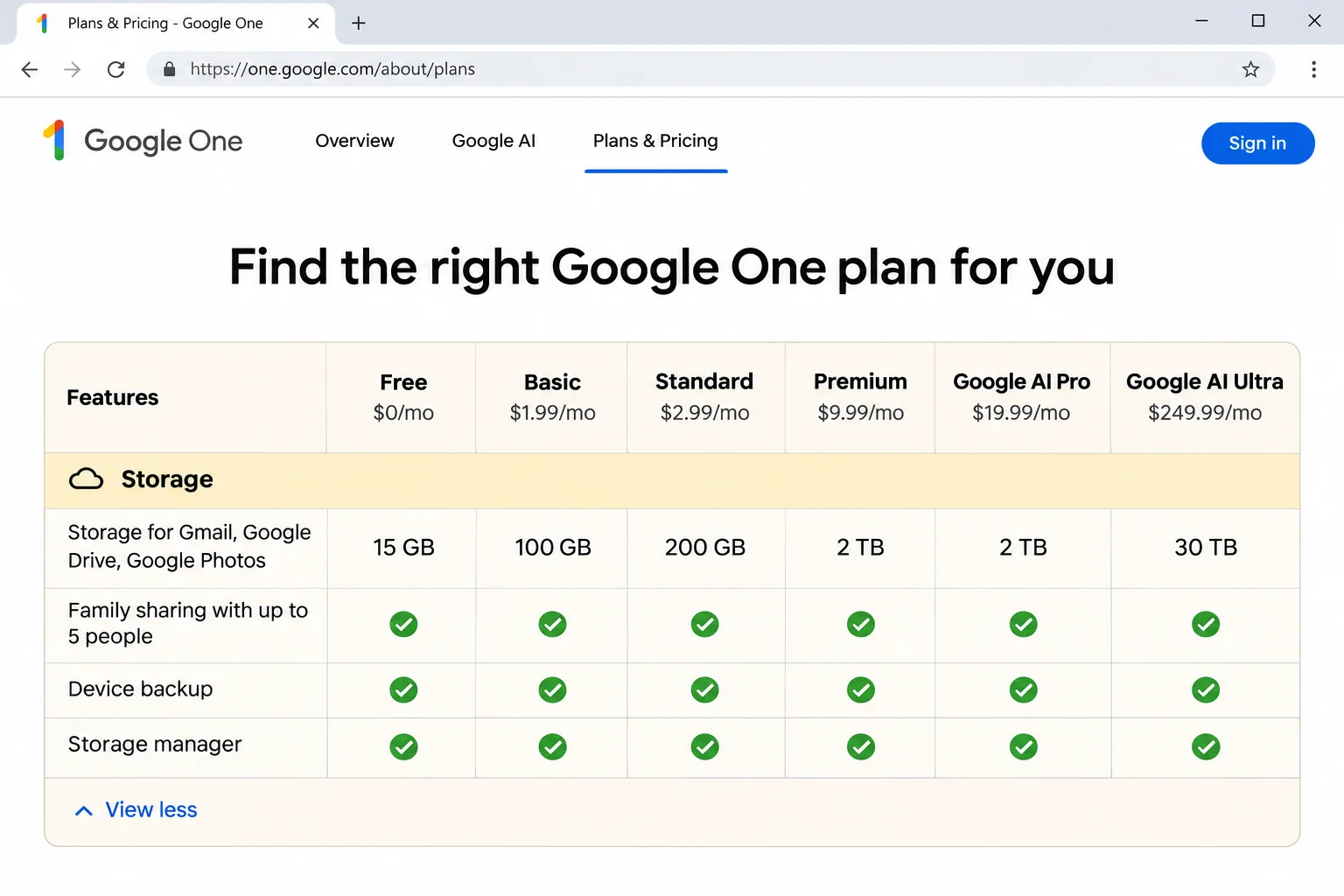
A common misconception is that purchasing cloud storage will resolve a local storage warning. However, your Chromebook has two separate storage pools. Local storage is the physical drive inside the device, while Google Account storage lives in the cloud and is shared by Drive, Gmail, and Photos. Buying more cloud space through Google One (plans start at $1.99 per month for 100GB, per November 2026 research) doesn’t add a single byte to your Chromebook’s internal drive. If the warning comes from ChromeOS, you must fix it locally.
Chromebook Storage Full? 8 Ways to Free Up Space Fast

Step 1: Diagnose the Problem with Storage Management

Before you delete anything, find out which category is responsible. Google’s storage management page puts this breakdown front and center so you can track your progress.
Chromebook Storage Full? 8 Ways to Free Up Space Fast

Go to Settings > System preferences > Storage management. If the label differs on your build, type storage into the Settings search bar. Look at the total used and available space at the top, and note which category is the largest. Write down the biggest category’s size so you can come back after each fix to confirm it dropped.
Chromebook Storage Full? 8 Ways to Free Up Space Fast
Storage Category Corresponding Fix
Downloads Folder Delete old files or move them externally
Offline Files Disable offline access in Google Drive
Browsing Data / Cache Clear cached images and files
Android Storage Uninstall unused apps and games
Other Users Remove unused user profiles
Linux Shrink or remove the Linux environment

8 Ways to Free Up Space on Your Chromebook

Once you have identified the culprit, apply the specific fix targeted at that category.
Chromebook Storage Full? 8 Ways to Free Up Space Fast

1. Clean Out Your Downloads Folder

By default, ChromeOS typically saves downloaded files to internal storage until you move or delete them. Months of school PDFs, photos, or installers quickly pile up here.
Chromebook Storage Full? 8 Ways to Free Up Space Fast
  1. Open the Files app and switch to list view.
  2. Click the Size column header to put the largest files on top.
  3. Open anything you’re unsure about, but don’t delete it until you know what it is.
  4. Copy items you want to keep to Google Drive in the sidebar or to an external drive.
  5. Select the files you don’t need while holding the Ctrl key to pick several.
  6. Press Alt + Backspace (or right-click and choose Delete).
  7. Open the Trash folder in the sidebar and empty it, as items in the trash still consume space.

2. Move Files to an SD Card or USB Drive

Many Chromebooks feature small internal drives, making an external drive the cheapest way to add room. A microSD card like a SanDisk Extreme works if your Chromebook has a card slot, while a USB flash drive or portable SSD like the Samsung T7 works through a USB port.
Chromebook Storage Full? 8 Ways to Free Up Space Fast
  • Insert your SD card or USB drive so it appears in the Files sidebar.
  • Drag large files from Downloads to the drive, holding Ctrl while dragging to copy instead of move.
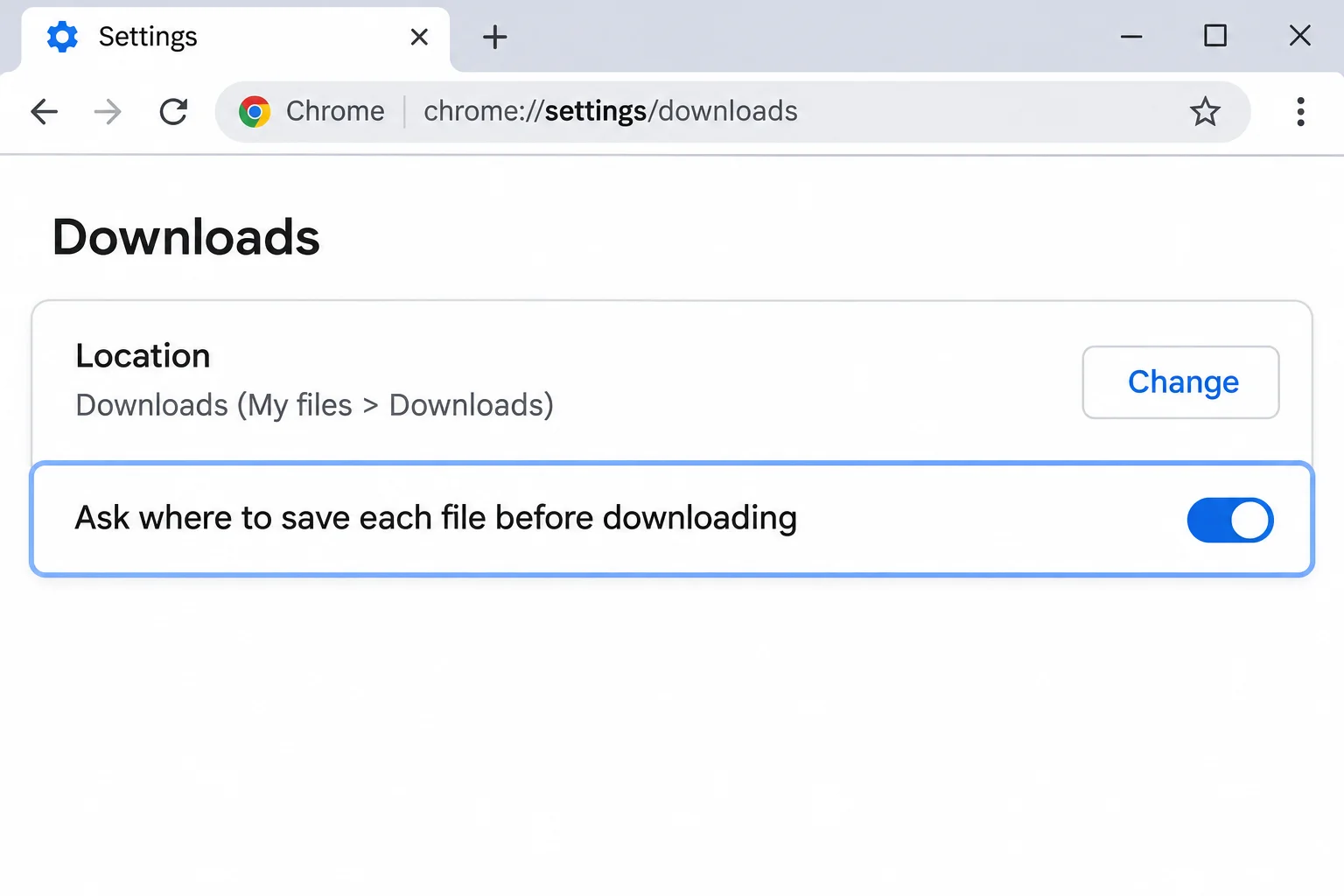
  • Open the Chrome browser three-dot menu, go to Settings > Downloads, and click Change next to Location to pick the external drive.

3. Manage Offline Google Drive Access

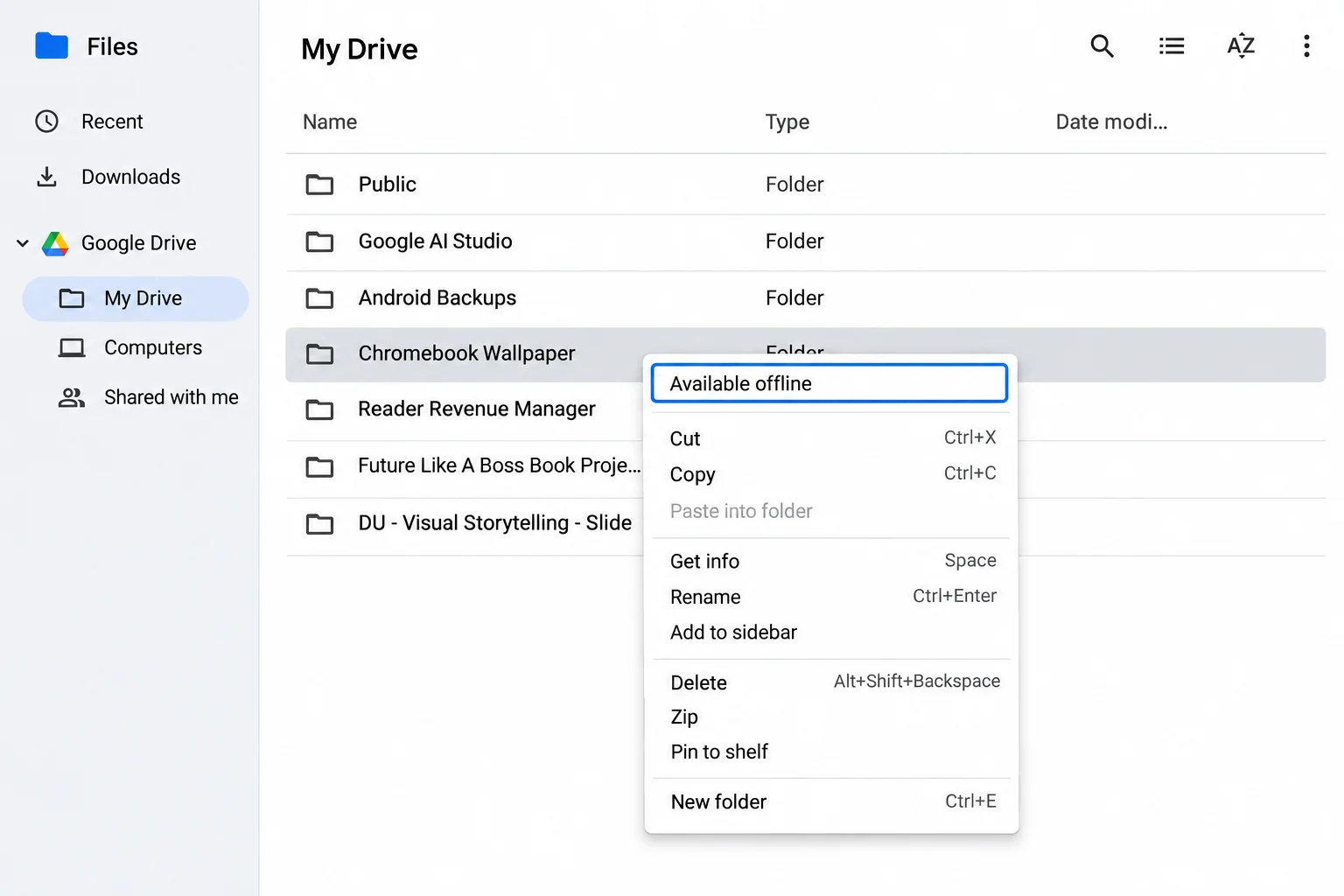
Marking a Drive file as “available offline” stores a local copy on the Chromebook. Turning that setting off removes only the local copy, leaving the file safe in Google Drive.
Chromebook Storage Full? 8 Ways to Free Up Space Fast
  • Open the Files app and click Google Drive in the sidebar.
  • Find files or folders you previously marked for offline use and disable the setting.
  • Check Storage management again to confirm the offline files figure has shrunk.

4. Clear Browsing Data and Cache

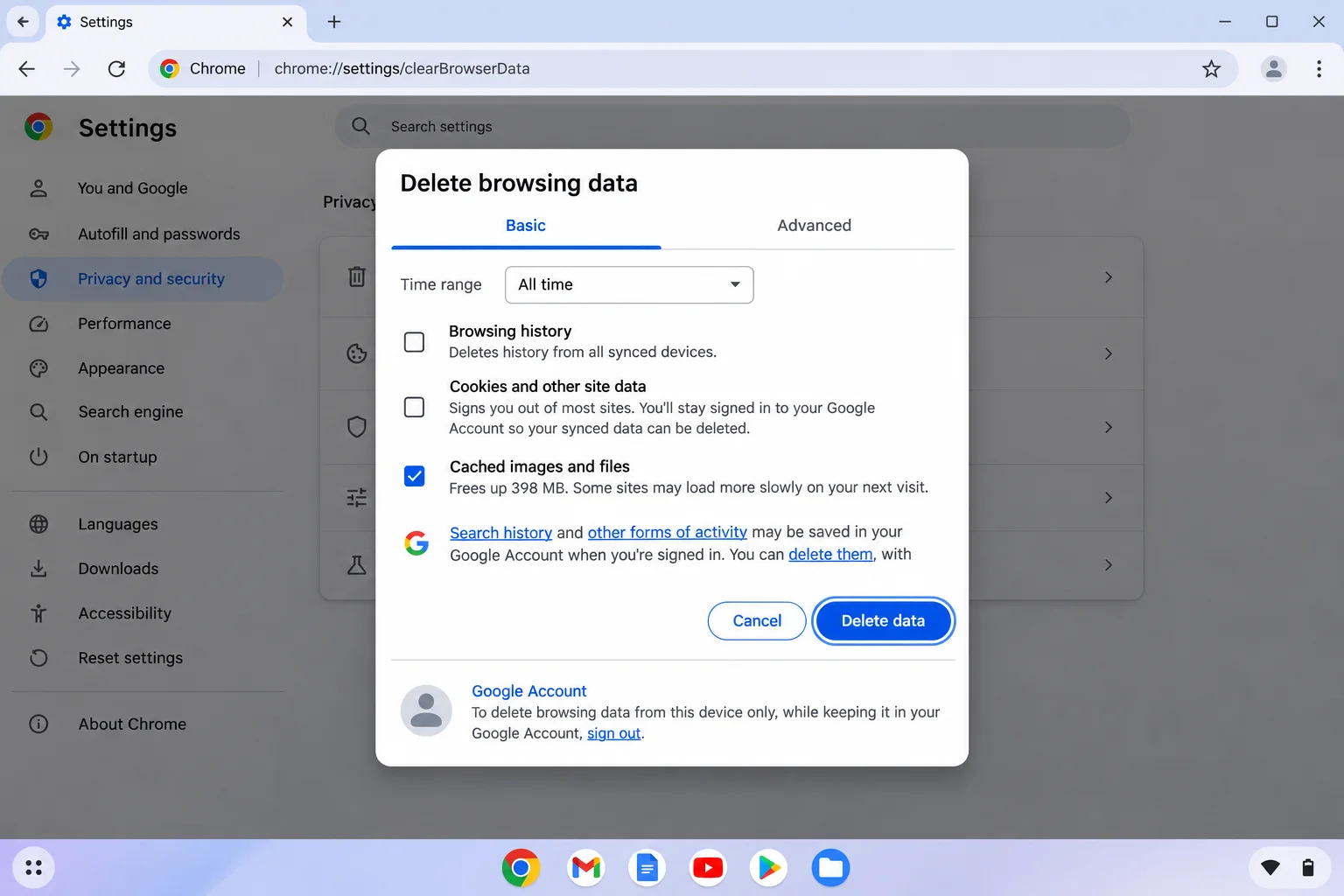
Over time, browsing history, cached images, files, and saved form data grow large enough to slow down Chrome and consume storage.

  • Press Ctrl + Shift + Backspace or open the three-dot menu and select Delete browsing data.

5. Audit and Uninstall Android Apps

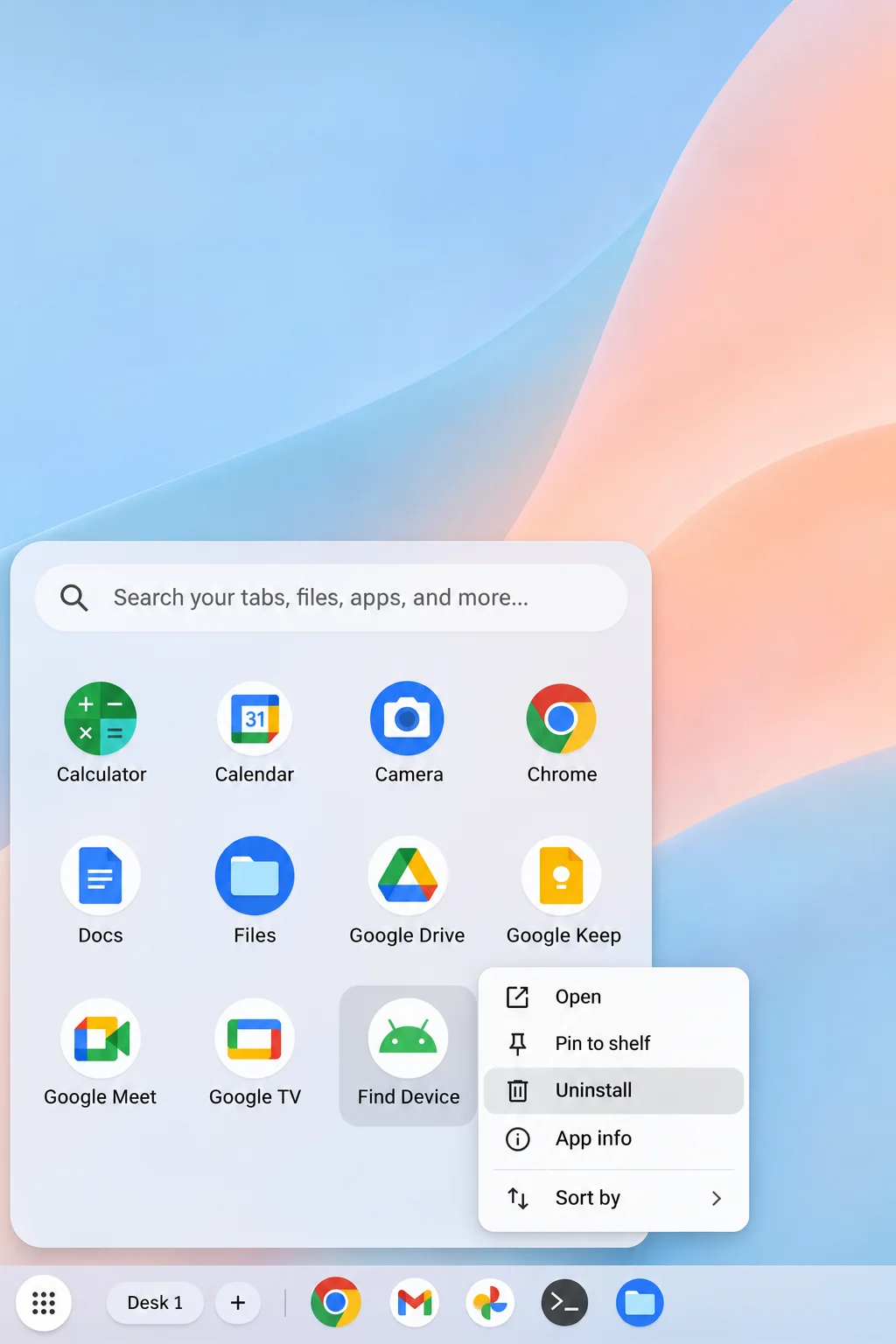
Android apps from Google Play keep their own data locally, and games or apps with downloaded video or music grow quietly.

  • Right-click or two-finger click unused Android apps and uninstall them to remove both the app and its local data.

6. Remove Unused User Profiles

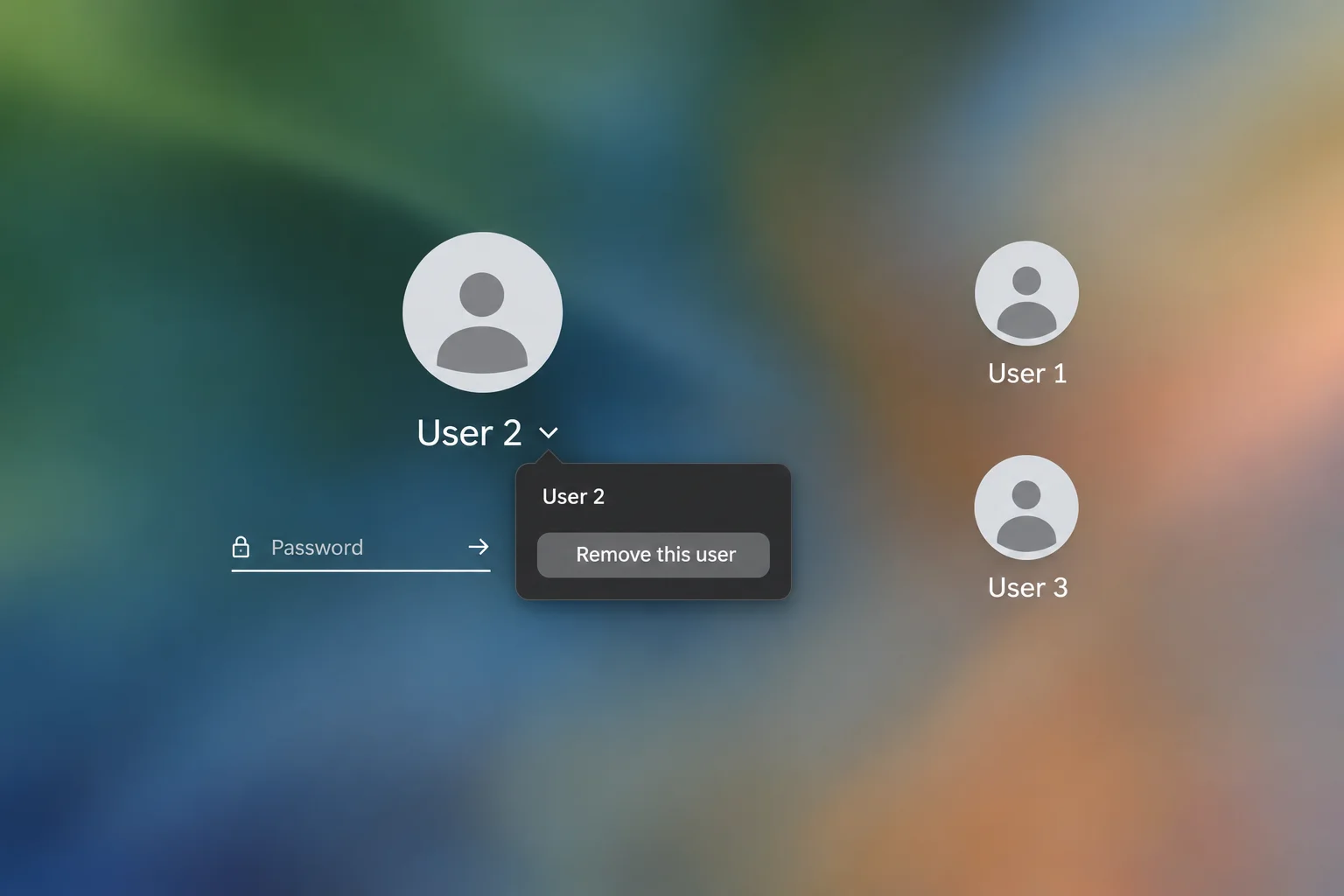
On shared family or classroom Chromebooks, each Google Account signed into the device keeps its own local files, apps, and app data.

  • On the sign-in screen, select the account you want to remove.
  • Click the down arrow next to the account name and select the option to remove the profile. This deletes only that account’s local data while leaving their cloud files untouched.

7. Resize or Remove the Linux Environment

The Linux development environment (Crostini) reserves its own chunk of the drive whether you are using it or not.

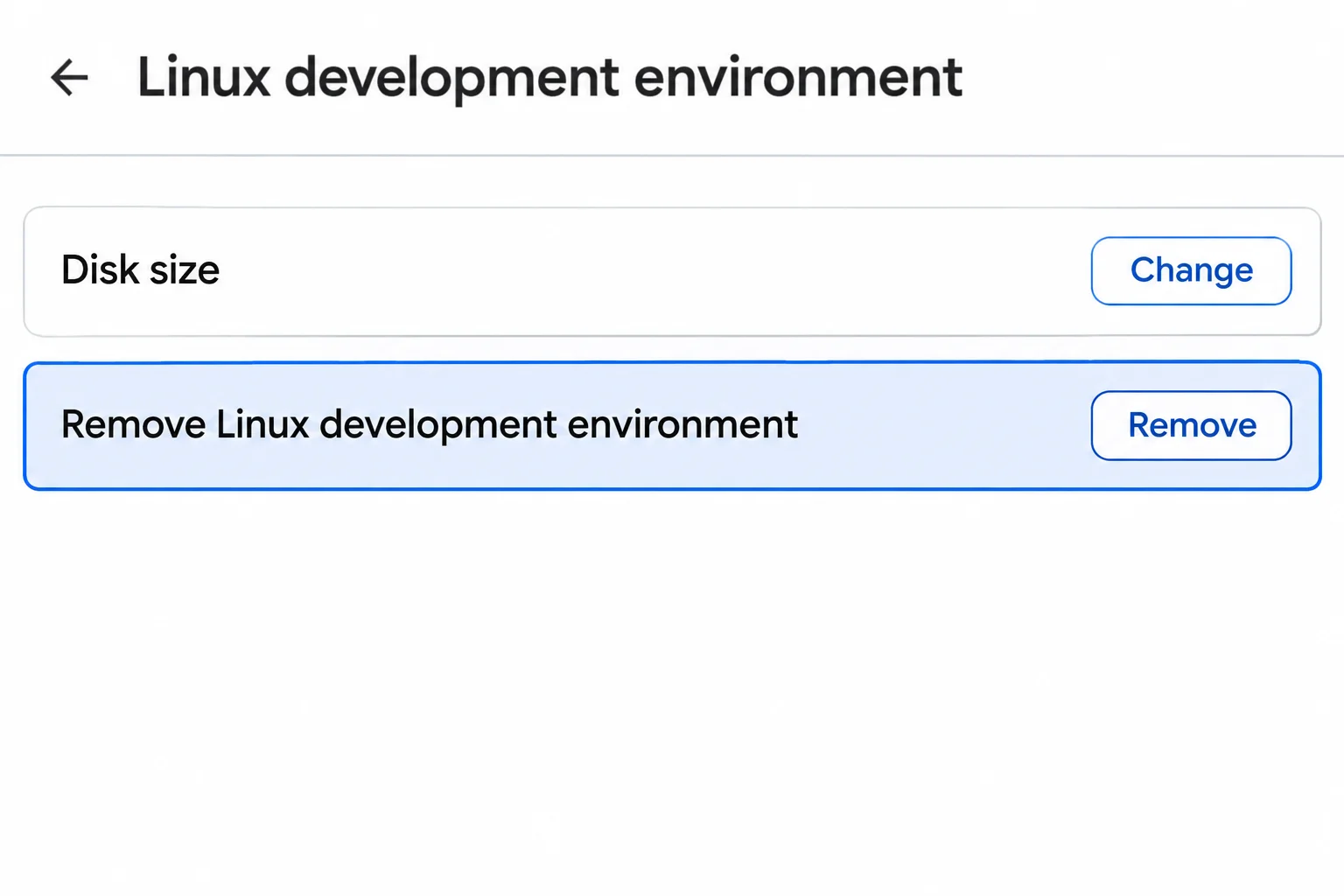
  • Open Settings > About ChromeOS > Developers > Linux development environment.
  • Next to Disk size, click Change and pick a smaller size, or click Remove if you do not use Linux at all. Note that removing Linux deletes every Linux app and file.

8. The Last Resort: Perform a Powerwash

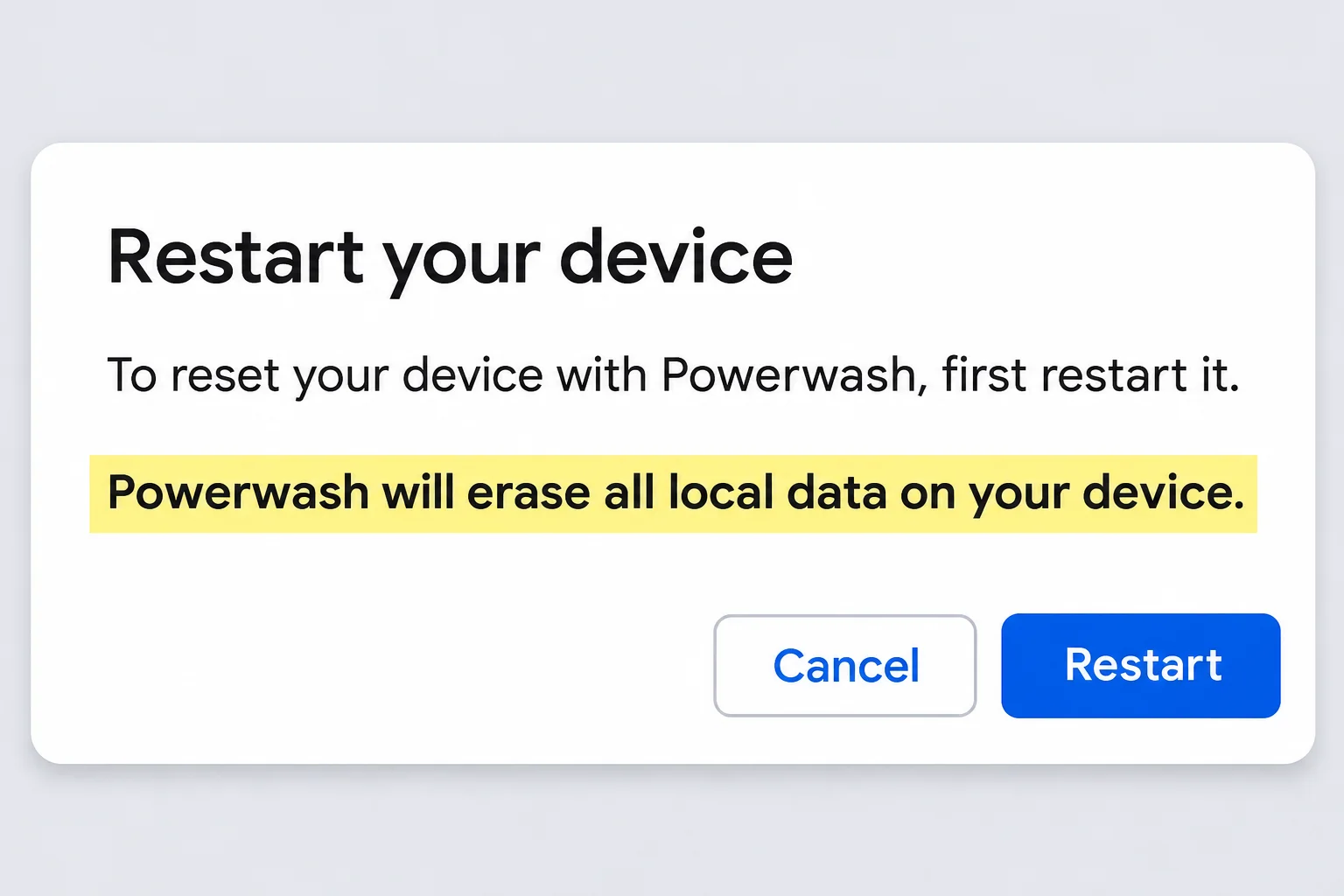
If you have worked through all other fixes and space remains tight, or if you are selling, returning, or handing off the device, a factory reset may be required. Powerwash is designed to erase local data and restore the device to its default state. Back up your files to Google Drive or an external drive before going to Settings > System preferences > Reset settings to initiate the reset.

Why Does ChromeOS Auto-Delete Files?

When local space gets critically low, ChromeOS can remove downloaded files, browsing data, cache, or unused accounts to keep running. The permanent fix is to maintain available room before it reaches critical levels by utilizing external drives and cloud syncing.

Proactive Tips: How to Never See the ‘Low Space’ Warning Again

  • Check Storage management monthly to catch storage growth early.
  • Send downloads to an external drive or keep working files directly in Google Drive.
  • Audit your Android apps and prune shared user profiles on a regular schedule.

Frequently Asked Questions

What is actually using up space on my Chromebook?

Open Storage management in your system settings. Downloads, Android storage, and Other users are typically the largest space consumers.

How do I delete files without losing something important?

Sort your Downloads folder by size, open unfamiliar files to verify their contents, and copy anything important to Google Drive before hitting delete.

Can I add more storage with an SD card or USB drive?

Yes. While internal capacity remains unchanged, you can store large files and route new downloads directly to an external SD card or USB flash drive.
Views: 10

Share this:

Related posts:

  • How to Block, Allow, or Force-Install Microsoft Edge Extensions with Group Policy

  • How to Open and Use %LocalAppData% in Windows 11 and 10

  • Windows 11 Insider Builds Add Option to Silence Sticky Keys Prompts

Ethan Carter

Ethan Carter

Ethan Carter is a tech writer focused on Windows optimization, lightweight software, and practical PC troubleshooting. He enjoys testing utilities, improving low-end PC performance, and sharing simple tech solutions that help everyday users get more from their devices.

Next Post
How to Open and Use %LocalAppData% in Windows 11 and 10

How to Open and Use %LocalAppData% in Windows 11 and 10

Leave a Reply Cancel reply

Your email address will not be published. Required fields are marked *

Recommended.

8 Free File Recovery Software for Windows 11 Compared: Which Ones Let You Recover Files Without Paying?

8 Free File Recovery Software for Windows 11 Compared: Which Ones Let You Recover Files Without Paying?

June 16, 2026
How to Add and Switch Between Multiple Accounts in Microsoft Teams

How to Add and Switch Between Multiple Accounts in Microsoft Teams

November 2, 2026

Trending.

Is CCleaner Worth It in 2026? Honest Review After Testing It on Modern Windows PCs

Is CCleaner Worth It in 2026? Honest Review After Testing It on Modern Windows PCs

June 17, 2026
Microsoft PC Manager Review: Surprisingly Useful, But Not the PC Booster You Expect

Microsoft PC Manager Review: Surprisingly Useful, But Not the PC Booster You Expect

June 16, 2026
20 Operating System Examples Categorized by Device and Purpose

20 Operating System Examples Categorized by Device and Purpose

June 27, 2026
7 Best Free Antivirus for Windows 11 Ranked by Performance and Security

7 Best Free Antivirus for Windows 11 Ranked by Performance and Security

June 19, 2026
Apple’s November 2026 Lineup: Hardware Shipping, OS 27.3, and New TV+ Shows

Apple’s November 2026 Lineup: Hardware Shipping, OS 27.3, and New TV+ Shows

November 3, 2026
12 Best PC Boosters for Gaming, Low-End PCs, and Everyday Performance

12 Best PC Boosters for Gaming, Low-End PCs, and Everyday Performance

June 17, 2026
How to Update Your BIOS (UEFI)

How to Update Your BIOS (UEFI): When You Should, When You Shouldn’t, and How to Do It Safely

October 25, 2026
Best Free Screen Recorders for Windows We Tested No Watermarks, No Time Limits

9 Best Free Screen Recorders for Windows We Tested in 2026 (No Watermarks, No Time Limits)

June 23, 2026
What Is Programming Software? Types, Functions, and Best Tools for Beginners

What Is Programming Software? Types, Functions, and Best Tools for Beginners

June 14, 2026
25 Examples of Programming Software Used by Modern Developers

25 Examples of Programming Software Used by Modern Developers

June 14, 2026
Best PC Cleaner for Windows 11: 7 Safe Tools to Clean Junk Files and Free Up Storage

Best PC Cleaner for Windows 11: 7 Safe Tools to Clean Junk Files and Free Up Storage

June 17, 2026
Internal Hardware of a Computer: Definition, Components, and How Internal Computer Hardware Works

Internal Hardware of a Computer: Definition, Components, and How Internal Computer Hardware Works

March 9, 2026
What Is Utility Software? Functions, 5 Types, Benefits, and Real-World Examples

What Is Utility Software? Functions, 5 Types, Benefits, and Real-World Examples

June 16, 2026
What Is a Device Driver in a Computer? Functions, Types, How It Works, and Examples

What Is a Device Driver in a Computer? Functions, Types, How It Works, and Examples

July 2, 2026
How Good Is Microsoft Defender Antivirus? Is It Really Enough for Windows 11?

How Good Is Microsoft Defender Antivirus? Is It Really Enough for Windows 11?

May 14, 2026
Excel File Locked for Editing? How to Fix It (Even If It’s You)

Excel File Locked for Editing? How to Fix It (Even If It’s You)

November 2, 2026
What Are the Communication Devices? Definition, Key Characteristics, Types, and Real-World Examples

What Are the Communication Devices? Definition, Key Characteristics, Types, and Real-World Examples

June 19, 2026
What Does MLO Mean on Your Router and Should You Enable It?

What Does MLO Mean on Your Router and Should You Enable It?

October 26, 2026
iPad mini (A20 Pro): Release Date, OLED, Price, and Specifications

iPad mini (A20 Pro): Release Date, OLED, Price, and Specifications

October 29, 2026
New Apple Products Coming in 2026 and 2027: What’s Next for Mac, iPhone, and iPad

New Apple Products Coming in 2026 and 2027: What’s Next for Mac, iPhone, and iPad

October 29, 2026
MSI Afterburner Review: The Tool Most Gamers Use for Monitoring, Not Overclocking

MSI Afterburner Review: The Tool Most Gamers Use for Monitoring, Not Overclocking

June 17, 2026
What Is Firmware? Functions, How It Works, Types, and Examples

What Is Firmware? Functions, How It Works, Types, and Examples

June 19, 2026
Why Is My CPU Temp So High at Idle? Real Causes and How to Fix It

Why Is My CPU Temp So High at Idle? Real Causes and How to Fix It

September 14, 2026
Windows 11 version 26H2 Now Broadly Available for Eligible Devices

Windows 11 version 26H2 Now Broadly Available for Eligible Devices

October 26, 2026
What Is a Distributed Operating System? Architecture, How It Works, Functions, Benefits, and Examples

What Is a Distributed Operating System? Architecture, How It Works, Functions, Benefits, and Examples

June 27, 2026
Microsoft Edge Using Too Much Memory or CPU? 8 Ways to Fix It

Microsoft Edge Using Too Much Memory or CPU? 8 Ways to Fix It

October 28, 2026
What to Expect at Apple’s October 28 Pro and Tell Event

What to Expect at Apple’s October 28 Pro and Tell Event

October 25, 2026
How to Troubleshoot and Fix Word Mail Merge Errors

How to Troubleshoot and Fix Word Mail Merge Errors

October 28, 2026
What to Do With Your Unsupported Kindle Instead of Throwing It Away

What to Do With Your Unsupported Kindle Instead of Throwing It Away

October 29, 2026
macOS 27 Golden Gate: What’s New, Compatible Macs, and Features

macOS 27 Golden Gate: What’s New, Compatible Macs, and Features

October 29, 2026
Intechfy

Intechfy.com is a technology-focused information platform created to make everyday tech concepts easier to understand, more practical, and more accessible.

  • About
  • Contact
  • Disclaimer
  • Sitemap
  • Privacy Policy
  • Terms Of Service

© 2026 Intechfy.com - Information Technology for You

No Result
View All Result
  • Home
  • Guides
  • Utilities
  • Reviews
  • Tech Basics
    • Computer
    • Hardware
    • Software
    • Operating System
    • Networking

© 2026 Intechfy.com - Information Technology for You