
Someone told you to “go to %localappdata% and clear the cache,” and now you’re staring at a File Explorer window with no AppData folder in sight. AppData is hidden by default, but one Run-box command takes you straight to it, and a few simple rules keep you from deleting the wrong thing.
%localappdata% is a built-in Windows environment variable that points to C:Users<username>AppDataLocal for whoever is signed in. It works the same way in Windows 10 and Windows 11, and you don’t need to download anything or have admin rights.
These Local, LocalLow, and Roaming roles are long-standing Windows conventions. Microsoft doesn’t publish one definitions page for them, and individual apps don’t always follow the rules perfectly. Windows gives every user profile its own AppData tree. The Local branch holds data tied to this specific PC, so it’s where you’ll find the files behind local-only glitches. A corrupted cache, a bloated Temp folder, or a broken GPU shader cache all point here.
Local is also where some big data files live. Outlook’s offline OST files typically live under AppDataLocalMicrosoftOutlook. In Outlook 2016 and newer, new PST data files are saved under DocumentsOutlook Files by default. Only earlier Outlook versions saved the archive PST under AppDataLocalMicrosoftOutlook, as Microsoft’s Outlook data file guide explains. Don’t move or delete a PST you find there unless you know which Outlook profile uses it.
What Is %LocalAppData% and Why Is It Hidden?
Understanding how Windows structures user directories helps clarify why certain files are tucked away out of sight.
Environment Variables and Directory Structure
The %localappdata% shortcut is an environment variable designed to bypass the need for navigating complex user profile directory paths manually. Every Windows user profile contains an AppData directory split into three primary subfolders:
- Local: Contains machine-specific application data, caches, and temporary files that do not sync across different computers.
- LocalLow: Designed for lower-integrity processes with restricted security privileges (such as web browsers running in sandboxed modes).
- Roaming: Holds data that follows a user profile across a network domain, such as application settings and configuration files.
Why AppData Is Hidden by Default
Microsoft hides the AppData folder by default to prevent casual users from accidentally modifying, moving, or deleting critical configuration files and application data. Accidental alterations can break installed programs, reset customized user preferences, or corrupt local databases.
Pre-Checks Before You Modify AppData
Before you open the how to open localappdata folder windows 11 10 path or begin clearing files, verify that you meet the necessary conditions to prevent file locks and data loss:
- Signed in to the account that actually uses the misbehaving app.
- Using a standard local or Microsoft account (no admin rights are needed to open the folder).
- The target app you are troubleshooting is fully closed.
- A few minutes set aside to move folders to the Desktop as a temporary backup before deleting anything.
3 Ways to Open the %LocalAppData% Folder
Depending on your preference, you can access your local application directory using shortcut commands, address bars, or by unhiding system directories in File Explorer.
Fix #1: Using the Run Dialog (Windows + R)
This is the fastest route and skips the hidden-folder problem entirely.
- Press the Windows Key + R on your keyboard to open the Run dialog box.
- Type
%localappdata%in the Open field, making sure to include both percent signs. - Press Enter or click OK.
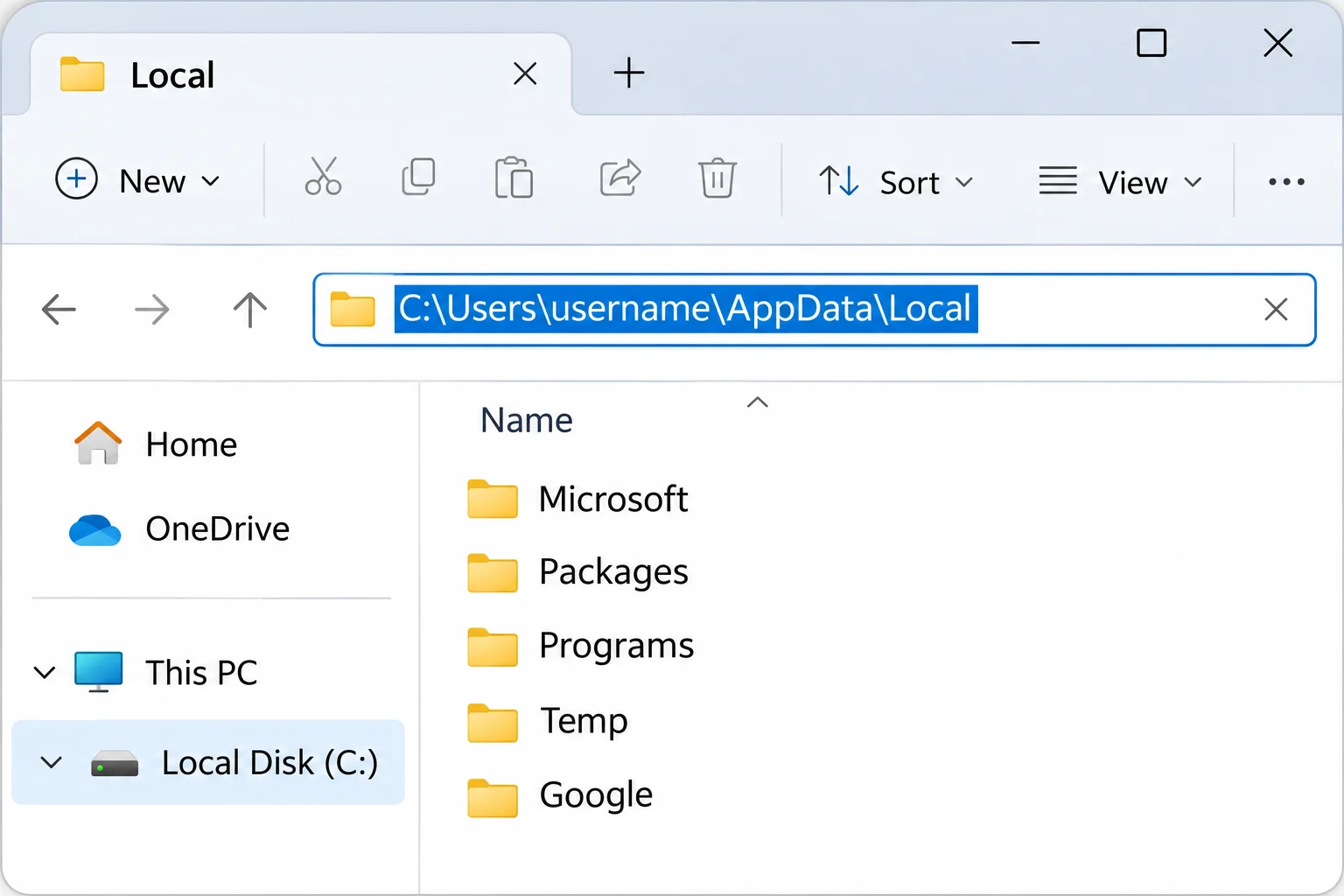
Check the File Explorer address bar. It should show C:Users<username>AppDataLocal, with your account name in place of the username placeholder. If you see a “Windows cannot find” error instead, you almost certainly have a typo. Retype the variable with both percent signs.
To confirm what the variable resolves to on your machine, open Command Prompt and run echo %userprofile%. It prints the full path, which is handy when your profile folder name doesn’t match your account display name.
Fix #2: Typing Into the File Explorer Address Bar or Search
You can also navigate directly using File Explorer or taskbar search features.
- Click once in the address bar at the top of an open File Explorer window, type
%localappdata%, and press Enter to land in the same AppDataLocal folder. - Type
%localappdata%into the Windows Search box on the taskbar. Note that results depend on your search settings, making the Run dialog the more reliable route.
The same trick works for sibling folders. Type %appdata% for Roaming, or %userprofile%AppDataLocalLow for LocalLow. LocalLow has no short variable of its own, so you have to type out the longer path.
Fix #3: Unhiding the AppData Folder in File Explorer
You only need this manual method if you want to browse to AppData by clicking through C:Users<username>. The variables in Fix #1 and Fix #2 work even while AppData stays hidden.
- Open File Explorer and navigate to your user profile directory (typically
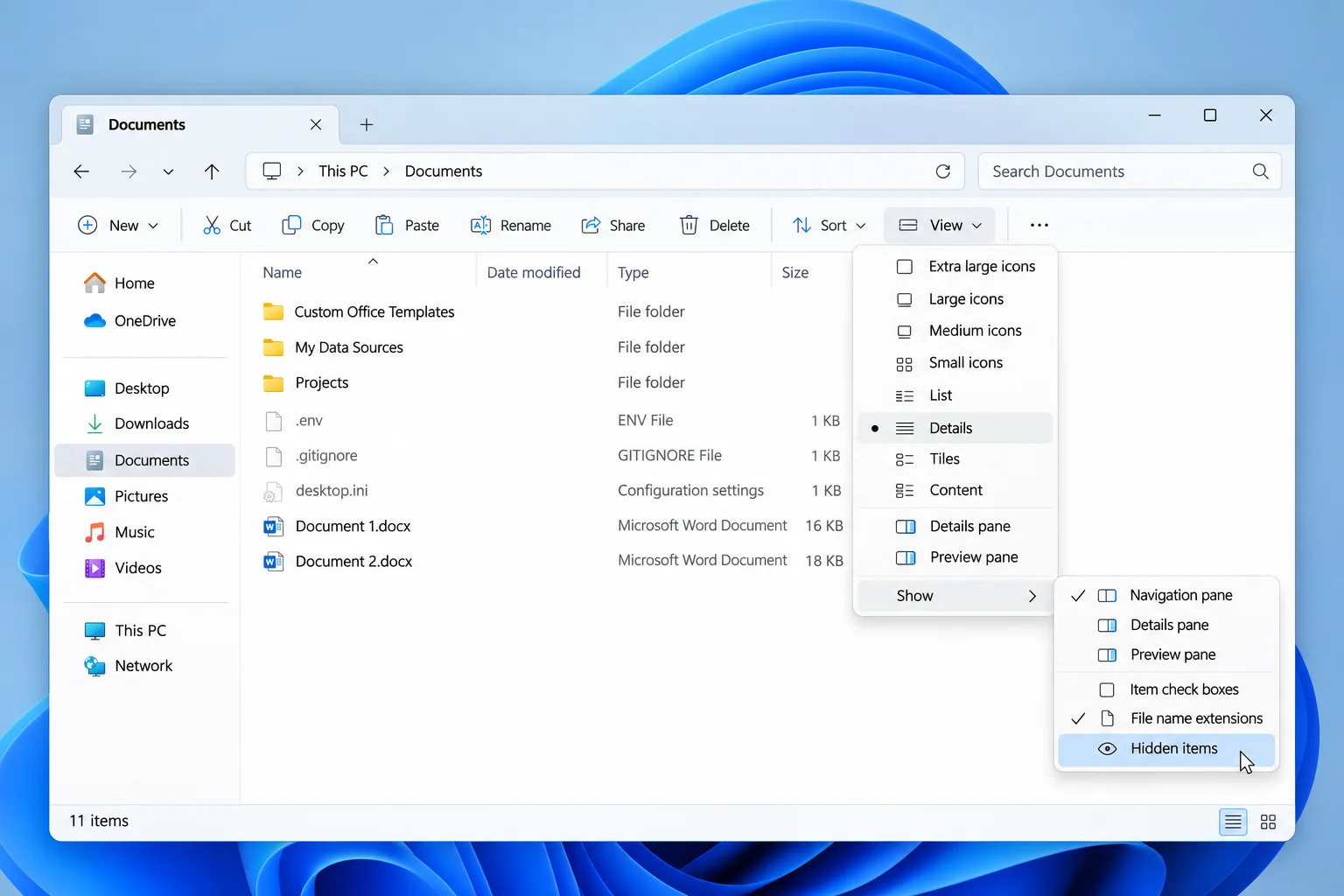
C:UsersYourUsername). - On Windows 11, click the View menu at the top, hover over Show, and click Hidden items so a check mark appears next to it.
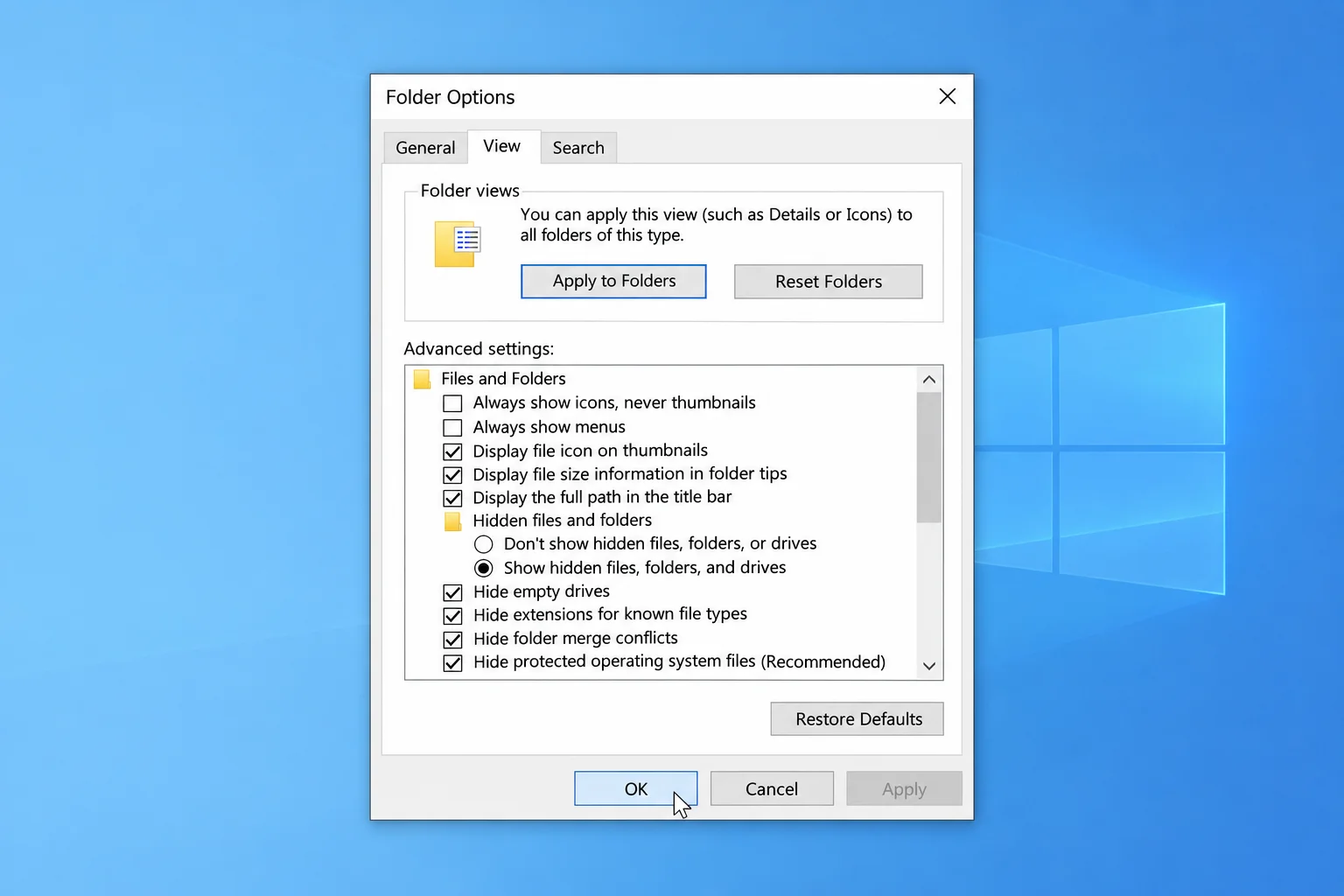
- On Windows 10 (or the classic route on Windows 11), select View > Options > Change folder and search options. Under the View tab in Advanced settings, select Show hidden files, folders, and drives.
A slightly faded AppData folder will now show up inside your user profile directory. The faded icon is normal for hidden items. Microsoft documents both routes in official support articles.
How to Find and Clean App Files Safely
Once you are inside the directory, locating specific files and performing maintenance requires caution.
Fix #4: Locating App and Publisher Subfolders
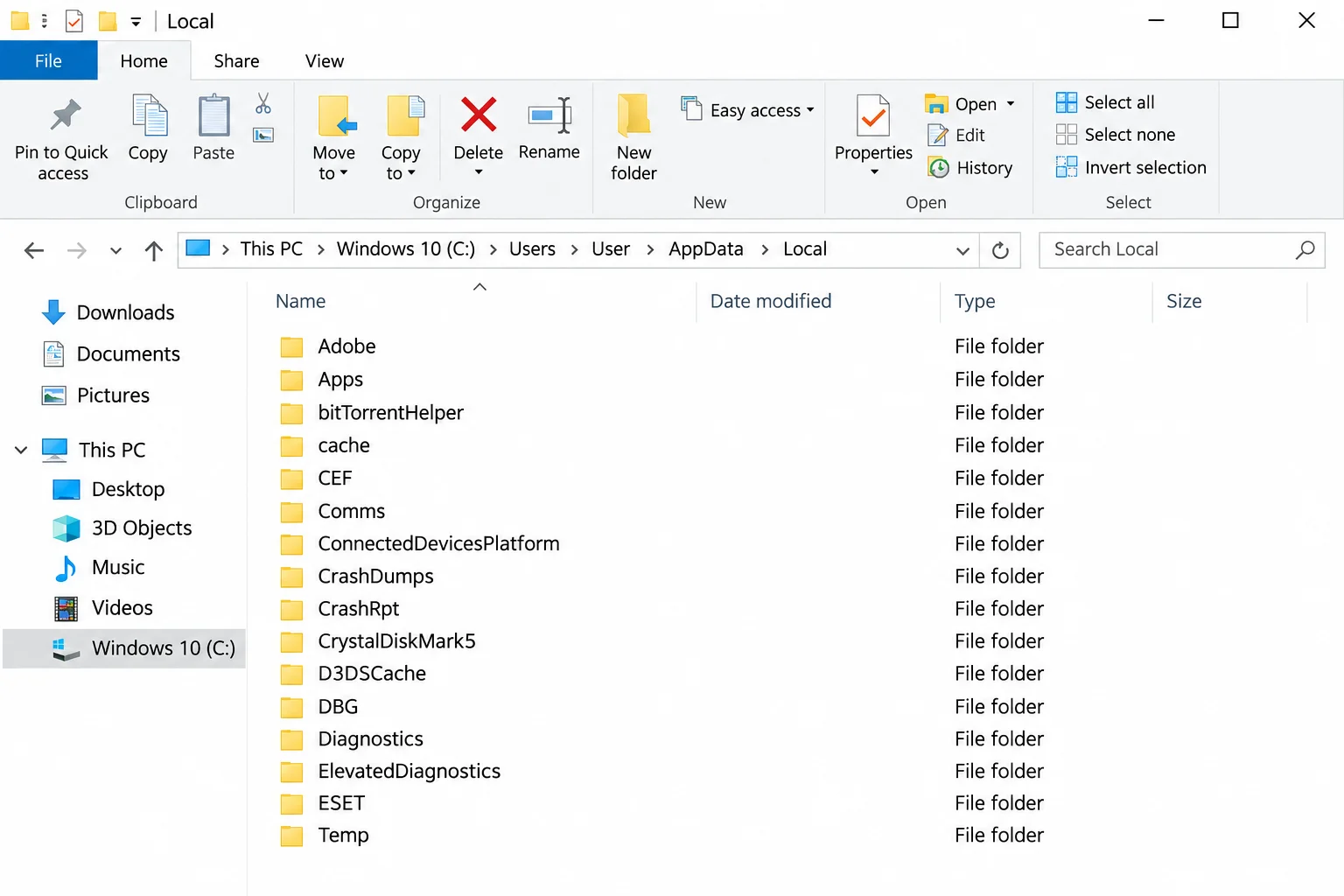
Apps file their data in different ways. Some use their own name, while others sit under a publisher folder.
- Look for a folder named directly after the app, such as
Discord, or after its publisher, such asMicrosoftorGoogle. - If you find a publisher folder, open it and look for the app’s specific subfolder inside.
- Note the subfolder names you see. Folders named
CacheorGPUCacheare common cleanup targets, though safety varies by app. Always check the app’s own settings or support documentation before deleting anything you’re unsure about.
If the app’s folder looks empty or missing, confirm hidden items are showing (Fix #3) and make sure you’re signed in to the account that actually runs the app, as each account maintains its own %localappdata% directory.
Fix #5: Clearing Corrupt App Caches Without Losing Settings
This is the primary fix for an application that crashes, shows stale content, or fails to load properly. Clear the cache contents and leave the rest of the app’s folder alone; deleting the whole app folder can wipe user settings, saved sessions, and local sign-in data.
- Close the app completely, including any icon running in the system tray.
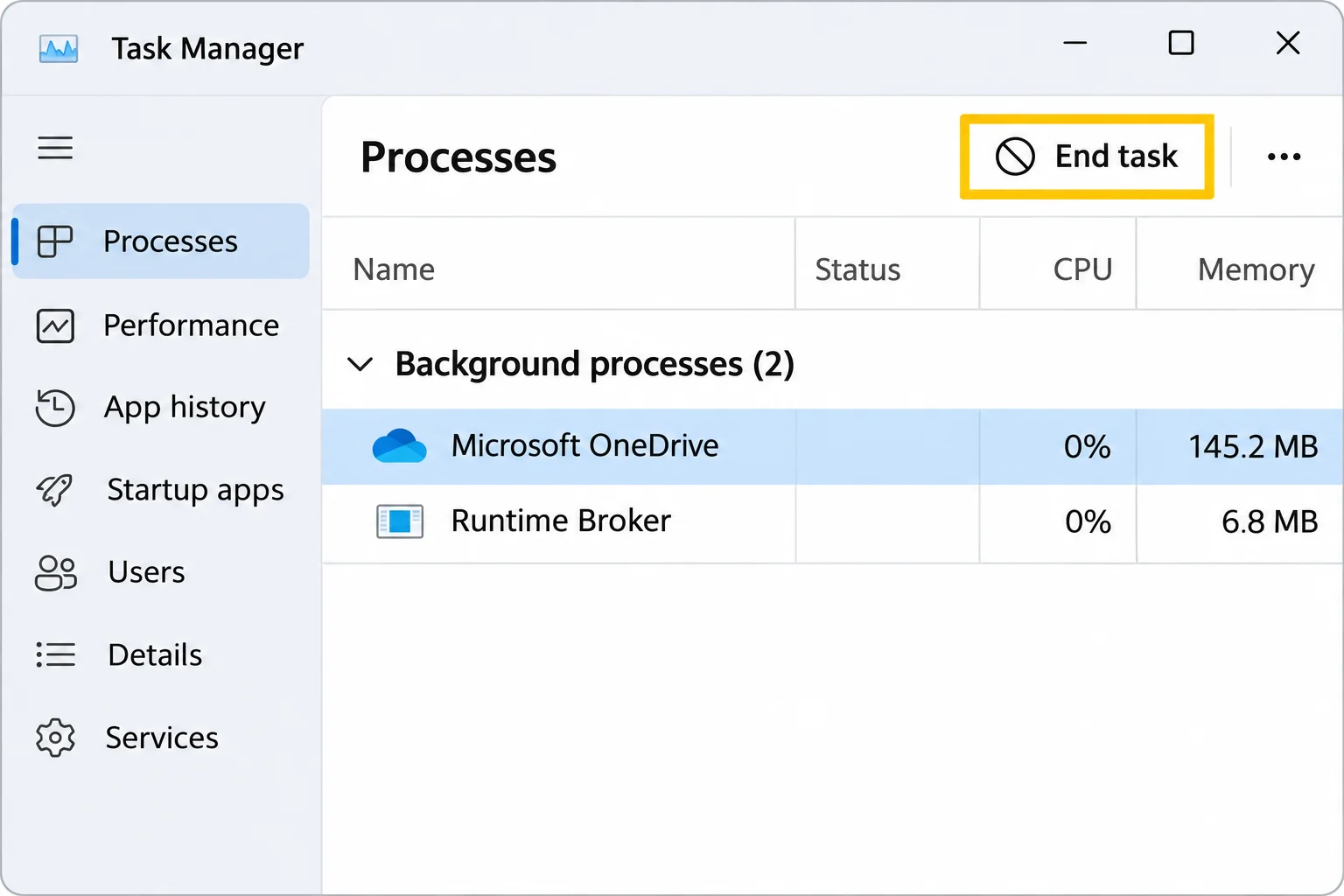
- Press Ctrl + Shift + Esc to open Task Manager.
- Find any leftover background process for the app, select it, and click End task.
- Open %localappdata% and navigate into the app’s folder.
- Right-click the Cache (or similarly named) folder and choose Cut.
- Paste it onto your Desktop to serve as an instant backup.
When you relaunch the app, it will start and quietly create a fresh, empty cache folder. That new folder shows the app successfully rebuilt its cache. If the app now works and you are still signed in, you can safely delete the Desktop copy.
If the problem persists, the cache wasn’t the cause. Move the backup folder back where it came from, then use the app’s built-in repair or reset options, or reinstall it. Do not keep deleting more of AppData.
Fix #6: Emptying the Temp Folder to Reclaim Space
The %localappdata%Temp directory collects temporary files from Windows and installed applications, which can accumulate over time and consume significant storage space.
- Close as many open apps as you can, and avoid performing this step while an installer or system update is running.
- Press Windows + R, type
%localappdata%Temp, and press Enter. - Select all files and press Delete.
- If you encounter a “file in use” prompt, check the box for “Do this for all current items” and click Skip.
Most temporary files will disappear. Files that Windows or a running application currently has locked will remain in place, which is entirely normal. Skip anything Windows refuses to delete rather than forcing it. If you prefer automated maintenance, tools like Windows Disk Cleanup and Storage Sense can clear temporary locations without manual intervention.
Troubleshooting Common %LocalAppData% Issues
When navigating or modifying files within the local directory, minor syntax errors or active background processes can trigger errors. Review these solutions for common roadblocks:
- “Windows cannot find” error: Usually caused by a missing percent sign or a misspelling. Retype
%localappdata%exactly. If it fails, type your explicit path into File Explorer or verify your profile path via Command Prompt. - “The action can’t be completed because the file is open”: Happens when an app or background process still has the file locked. End the process in Task Manager (Fix #5) or restart your PC.
- Deleting a folder reset an app or signed you out: Indicates you removed more than a cache folder, likely deleting the app’s core data folder or user settings. Restore it immediately from the Recycle Bin or your Desktop backup.
If an application breaks repeatedly right after a clean cache, look past AppData. Persistent problems across multiple apps warrant running a full Microsoft Defender scan and checking drive health to ensure system stability.