• About
  • Contact
  • Disclaimer
  • Sitemap
  • Privacy Policy
  • Terms Of Service
Information Technology for You
  • Home
  • Guides
  • ChromeOS
  • MacOS
  • Windows
  • Utilities
  • Reviews
  • Tech Basics
    • Hardware
    • Software
    • Operating System
    • Networking
No Result
View All Result
  • Home
  • Guides
  • ChromeOS
  • MacOS
  • Windows
  • Utilities
  • Reviews
  • Tech Basics
    • Hardware
    • Software
    • Operating System
    • Networking
No Result
View All Result
Intechfy
No Result
View All Result

How to Add and Switch Between Multiple Accounts in Microsoft Teams

Ethan Carter by Ethan Carter
November 2, 2026
Home Windows
Share on FacebookShare on Twitter

Managing multiple profiles across professional and personal boundaries can become tedious when juggling constant sign-outs. Fortunately, multi-account support allows the current Teams desktop app to stay signed in to several accounts simultaneously. Users can effortlessly link work, school, and personal Microsoft accounts in any combination, streamlining communication across different spaces without constantly logging in and out.

It is important to note that these steps apply specifically to the current Microsoft Teams desktop app for Windows and macOS. Classic Teams stopped working on July 1, 2005—or rather, July 1, 2025—according to Microsoft. If a menu appears missing, the cause could be an out-of-date application, a specific account type, or a strict organization policy.

Table of Contents

Toggle
  • Understanding Multi-Account Support in Microsoft Teams
  • Prerequisites Before You Begin
  • Step-by-Step Instructions to Add and Switch Accounts
    • Step 1: Sign in with Your First Account
    • Step 2: Add a Second Work, School, or Personal Account
    • Step 3: Switch Accounts, Pin Items, and Manage Notifications
  • Troubleshooting Common Microsoft Teams Account Issues
    • Fix #1: Switch From the Profile Menu, Not a Notification
    • Fix #2: Turn On Notifications for the Second Account
    • Fix #3: Accept the Guest Invite and Restart Teams
    • Fix #4 & #5: Resolving Missing Options and Loading Freezes
    • Fix #6: Addressing IT Department Policy Blocks

Understanding Multi-Account Support in Microsoft Teams

The core philosophy of multi-account support is maintaining simultaneous sessions. Your main application window displays one account at a time. Instead of signing out and back in, you pick another profile directly from the account list under your profile picture.
How to Add and Switch Between Multiple Accounts in Microsoft Teams

A second account is a separate sign-in that you add manually, such as a personal Microsoft account placed alongside a corporate profile. On the other hand, a guest organization represents another company’s or school’s Teams environment that invited you as a guest. In most scenarios, you do not add a guest organization as a separate account; once you accept the official invitation, it appears automatically under the account that received it.

However, some guest invitations operate differently. Depending on the inviting organization’s internal policies, you might first need to redeem the guest account, sign in directly, or accept additional permissions before that organization displays properly.

Prerequisites Before You Begin

Before diving into the setup procedure, ensure you have all necessary components ready:
How to Add and Switch Between Multiple Accounts in Microsoft Teams
  • The current Microsoft Teams desktop app installed on Windows or macOS.
  • At least one account already signed in to Teams, which can be a work, school, or personal profile.
  • The email address and password for the second account you intend to add.
  • For a free personal account, a valid Microsoft account, noting that Teams for personal use is completely free.
  • For a guest organization, the official guest invitation email sent by that organization.
  • For a work or school account, your normal login credentials, keeping in mind that organization policies may limit whether the account can sign in on your specific device.

Mobile Note: On iOS and Android mobile apps, the option is labeled Add account instead of Add another account, and the interface menus differ from desktop versions. Use Microsoft’s mobile-specific instructions if you are configuring handheld devices.

Step-by-Step Instructions to Add and Switch Accounts

Configuring multiple profiles and managing daily navigation requires just a few precise clicks within the desktop application interface.

Step 1: Sign in with Your First Account

The internal setup steps inside Teams are identical across both Windows and macOS platforms, though launching methods vary slightly.
How to Add and Switch Between Multiple Accounts in Microsoft Teams
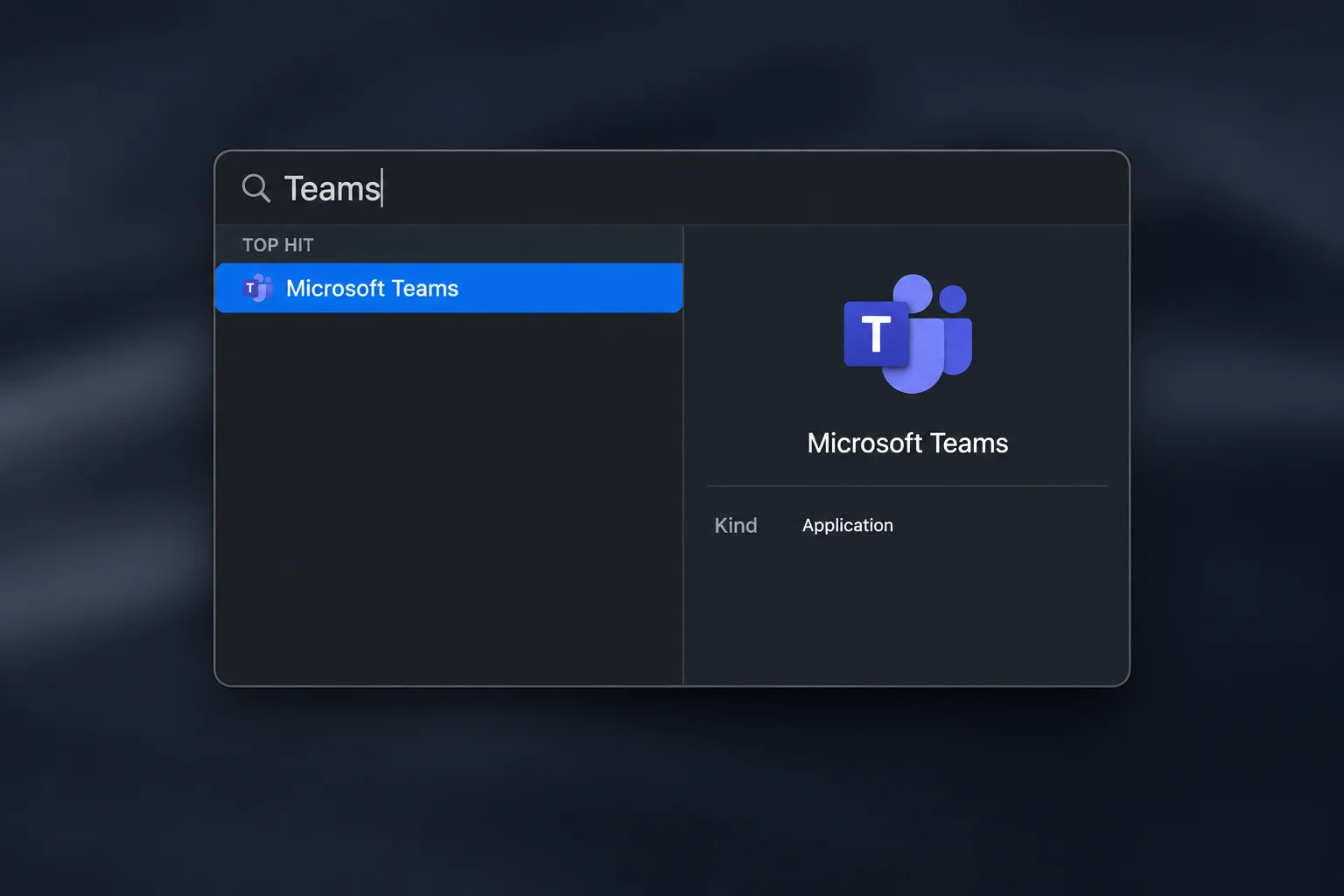
  • On Windows, type Teams into your taskbar search and select Microsoft Teams from the results. If prompted, enter your main account email and password.
  • On macOS, open Finder and navigate to Applications, or press Cmd + Space and type Teams.

Once opened, Teams loads your main account, and your profile picture displays in the top-right corner of the window.

Step 2: Add a Second Work, School, or Personal Account

Adding supplementary profiles takes only moments through the main user interface:

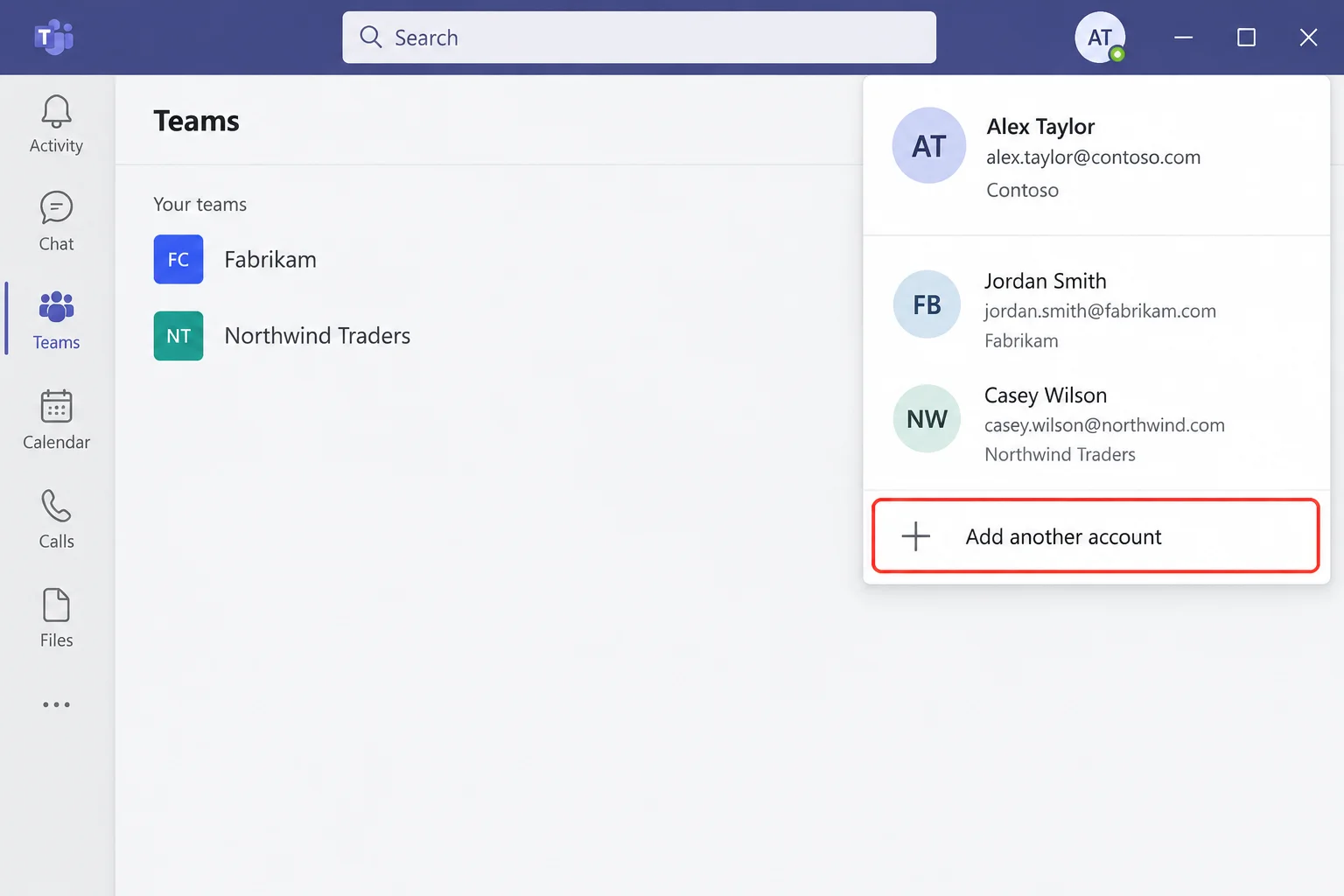
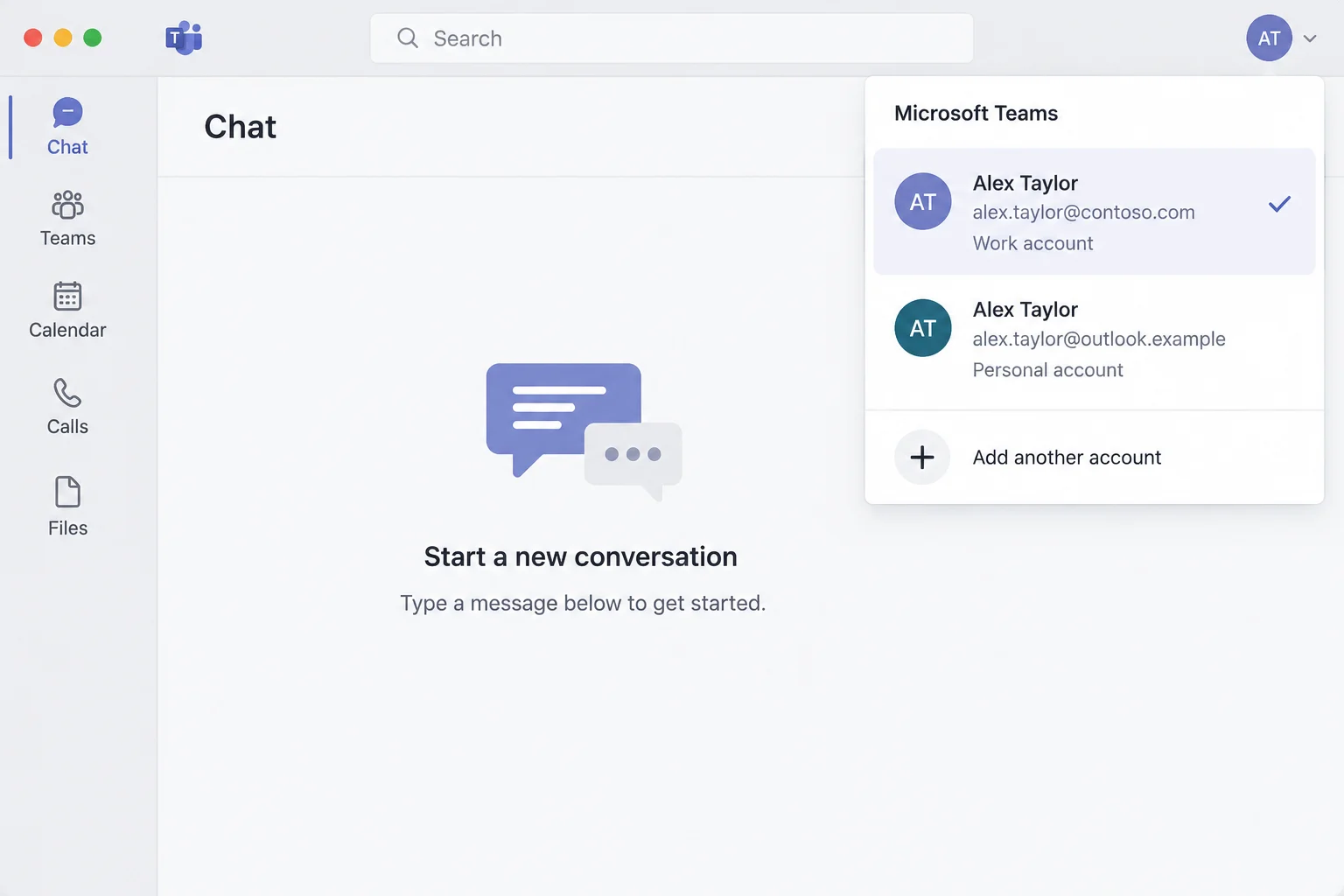
  • Select your profile picture in the top-right corner of Teams.
  • Choose from the options displayed: select Choose an account you’ve used before if the profile is already recognized by your PC or Mac, or select Create or use another account to type in a brand-new email address.
  • Enter the email address for the second account and select Next.
  • Provide the password and finish any authentication prompts, such as entering a security code from your authenticator application.

Teams finishes signing in, and the new account subsequently appears in the drop-down list whenever you select your profile picture. You can repeat this step for a third account, such as a combination of work, school, and personal profiles. Microsoft’s documentation specifies a three-account pin limit for the sidebar, though it does not detail an overall hard limit on how many total accounts you can keep signed in concurrently.
How to Add and Switch Between Multiple Accounts in Microsoft Teams

Step 3: Switch Accounts, Pin Items, and Manage Notifications

To change your primary viewing space, open the list of accounts and organizations under your profile picture and select the one you want to use. Your main Teams window reloads into that specific account, displaying its unique chats, teams, and calendar.

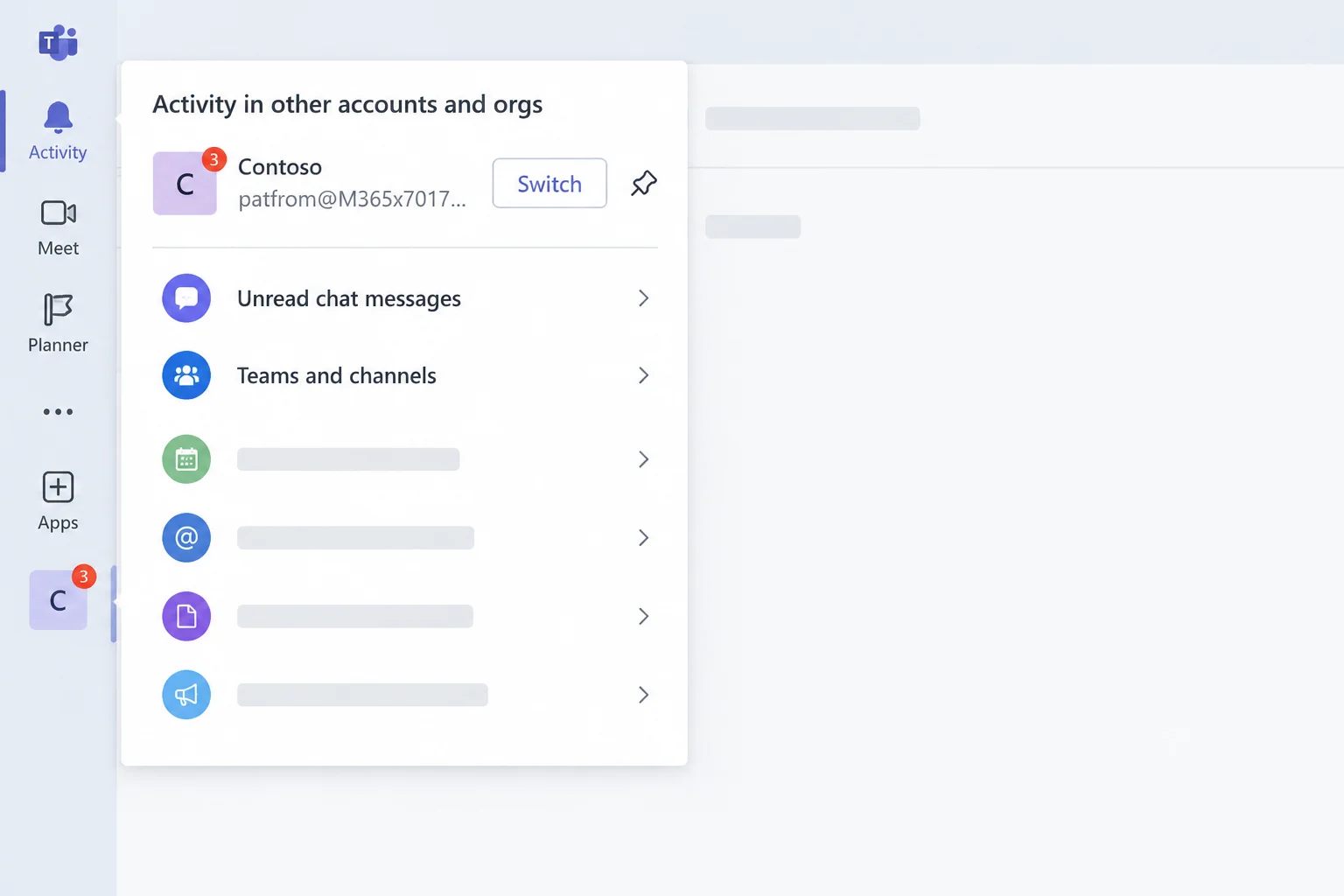
Remember that selecting an activity notification from another account opens that specific item in a separate window without altering your main window view. Furthermore, if you are handling guest invitations:

  • Accept the guest invitation directly from the email sent by the organization.
  • Look under the account that received the invitation; the guest organization usually populates automatically.
  • If it fails to appear, check the invitation email for a direct sign-in or redemption link and follow those explicit steps instead.

To keep an active account visible directly in the Teams sidebar for one-click switching, hover over the account or organization you want to pin. You can pin up to three accounts to the sidebar, meaning you must unpin one before adding a fourth.
How to Add and Switch Between Multiple Accounts in Microsoft Teams

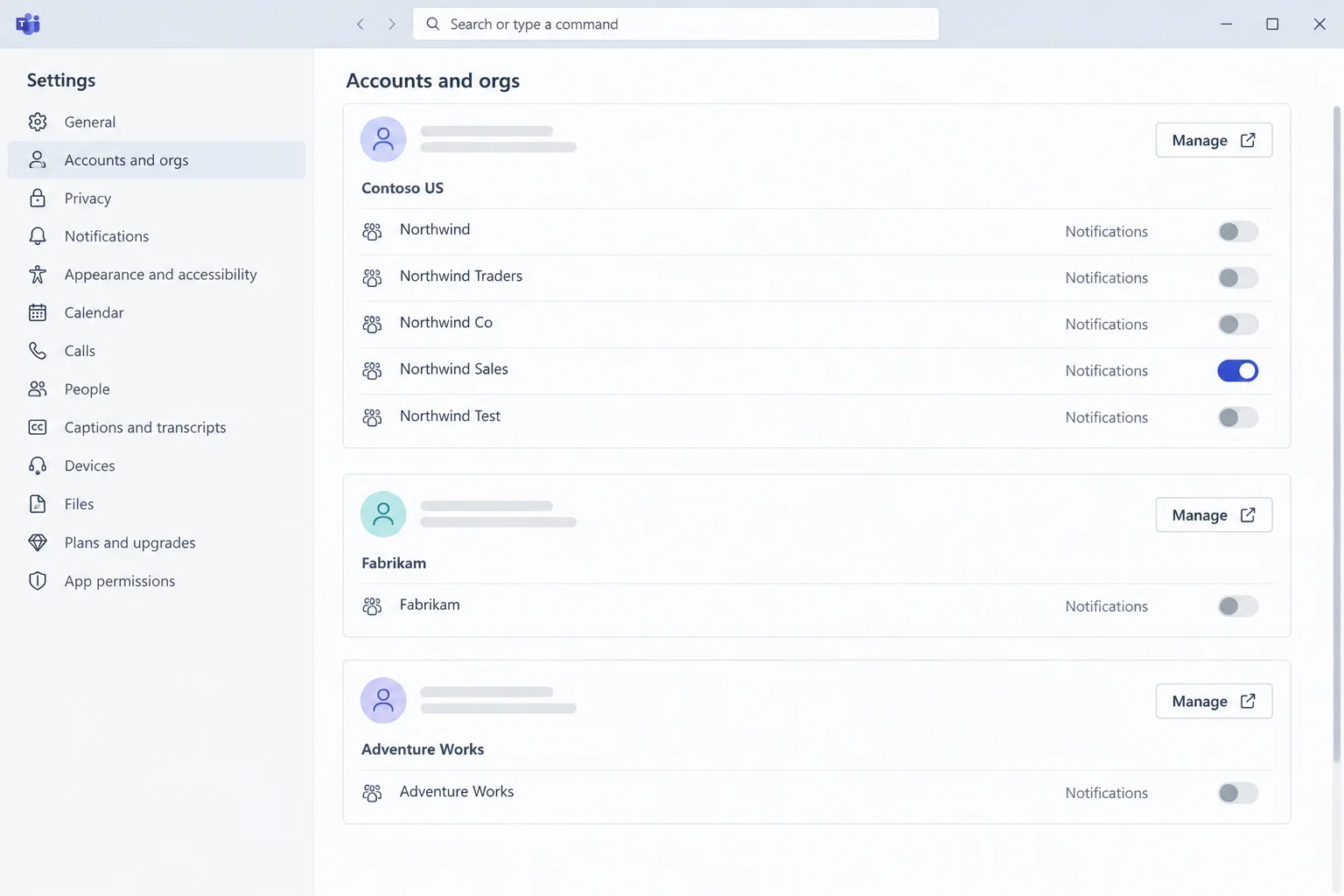
Finally, to control alerts, navigate to Settings and more (the three dots next to your profile picture), go to Settings, and select Accounts and orgs. Toggle notification settings on or off for each individual account depending on your preferences.

Troubleshooting Common Microsoft Teams Account Issues

Even with a streamlined design, technical snags can occasionally occur when managing multi-account environments. Here are targeted fixes for frequent user challenges:

Fix #1: Switch From the Profile Menu, Not a Notification

If you attempted to switch accounts by clicking a notification, but your main window still displays the old profile, close any extra windows that opened. Always select your profile picture in the main window or use the sidebar Switch button, as activity notifications are intentionally designed to open in standalone windows rather than altering your primary session.

Fix #2: Turn On Notifications for the Second Account

If you notice a complete lack of alerts from a personal account or guest organization, navigate to Settings and more (…) > Settings > Accounts and orgs. Because notifications are strictly controlled on a per-account basis, a single disabled toggle is frequently the root cause.

Fix #3: Accept the Guest Invite and Restart Teams

When an inviting organization fails to appear anywhere in your interface, search your email for the official invitation and ensure you accepted it properly. If a redemption link was included, use that specific link. Afterward, quit Teams completely—right-click the system tray icon on Windows or press Cmd + Q on macOS—and reopen the application to verify the organization.

Fix #4 & #5: Resolving Missing Options and Loading Freezes

If the Add another account option is entirely absent from your profile menu, confirm you are using the desktop application rather than a browser tab or mobile app. If your version is outdated, download the current software package directly from Microsoft. If Teams gets stuck loading or displays outdated information after adding profiles, quit the app completely, reopen it, and select each account once to force a refresh.

Fix #6: Addressing IT Department Policy Blocks

If a work or school account refuses to add or displays policy-based error messages, your organization’s IT administrator may restrict whether that account can operate on your specific device or run alongside other profiles. Send your IT department the exact error text to verify if multi-account sign-in is permitted for your corporate tenant.
Views: 33

Share this:

Related posts:

  • How to Restart the Clipboard User Service (cbdhsvc) Without Rebooting Windows

  • Microsoft Removes Windows 11 PC-to-PC Migration: What to Do Now

  • How to See Signed-In Devices on Your Google Account (and Sign Them Out)

Ethan Carter

Ethan Carter

Ethan Carter is a tech writer focused on Windows optimization, lightweight software, and practical PC troubleshooting. He enjoys testing utilities, improving low-end PC performance, and sharing simple tech solutions that help everyday users get more from their devices.

Next Post
Run DVDneXtCOPY on Your Mac With Parallels: Deal Breakdown

Run DVDneXtCOPY on Your Mac With Parallels: Deal Breakdown

Leave a Reply Cancel reply

Your email address will not be published. Required fields are marked *

Recommended.

Why the FCC Ban Affects Davolink Minions Routers

Why the FCC Ban Affects Davolink Minions Routers

October 28, 2026
How to Use Old Speakers for Your TV and Upgrade Your Audio

How to Use Old Speakers for Your TV and Upgrade Your Audio

October 26, 2026

Trending.

Microsoft PC Manager Review: Surprisingly Useful, But Not the PC Booster You Expect

Microsoft PC Manager Review: Surprisingly Useful, But Not the PC Booster You Expect

June 16, 2026
Is CCleaner Worth It in 2026? Honest Review After Testing It on Modern Windows PCs

Is CCleaner Worth It in 2026? Honest Review After Testing It on Modern Windows PCs

June 17, 2026
7 Best Free Antivirus for Windows 11 Ranked by Performance and Security

7 Best Free Antivirus for Windows 11 Ranked by Performance and Security

June 19, 2026
20 Operating System Examples Categorized by Device and Purpose

20 Operating System Examples Categorized by Device and Purpose

June 27, 2026
How to Update Your BIOS (UEFI)

How to Update Your BIOS (UEFI): When You Should, When You Shouldn’t, and How to Do It Safely

October 25, 2026
12 Best PC Boosters for Gaming, Low-End PCs, and Everyday Performance

12 Best PC Boosters for Gaming, Low-End PCs, and Everyday Performance

June 17, 2026
iPad mini (A20 Pro): Release Date, OLED, Price, and Specifications

iPad mini (A20 Pro): Release Date, OLED, Price, and Specifications

October 29, 2026
Best Free Screen Recorders for Windows We Tested No Watermarks, No Time Limits

9 Best Free Screen Recorders for Windows We Tested in 2026 (No Watermarks, No Time Limits)

June 23, 2026
What to Expect at Apple’s October 28 Pro and Tell Event

What to Expect at Apple’s October 28 Pro and Tell Event

October 25, 2026
Best PC Cleaner for Windows 11: 7 Safe Tools to Clean Junk Files and Free Up Storage

Best PC Cleaner for Windows 11: 7 Safe Tools to Clean Junk Files and Free Up Storage

June 17, 2026
What Is Utility Software? Functions, 5 Types, Benefits, and Real-World Examples

What Is Utility Software? Functions, 5 Types, Benefits, and Real-World Examples

June 16, 2026
Internal Hardware of a Computer: Definition, Components, and How Internal Computer Hardware Works

Internal Hardware of a Computer: Definition, Components, and How Internal Computer Hardware Works

March 9, 2026
What Is Programming Software? Types, Functions, and Best Tools for Beginners

What Is Programming Software? Types, Functions, and Best Tools for Beginners

June 14, 2026
Windows 11 version 26H2 Now Broadly Available for Eligible Devices

Windows 11 version 26H2 Now Broadly Available for Eligible Devices

October 26, 2026
Apple’s November 2026 Lineup: Hardware Shipping, OS 27.3, and New TV+ Shows

Apple’s November 2026 Lineup: Hardware Shipping, OS 27.3, and New TV+ Shows

November 3, 2026
macOS 27 Golden Gate: What’s New, Compatible Macs, and Features

macOS 27 Golden Gate: What’s New, Compatible Macs, and Features

October 29, 2026
New Apple Products Coming in 2026 and 2027: What’s Next for Mac, iPhone, and iPad

New Apple Products Coming in 2026 and 2027: What’s Next for Mac, iPhone, and iPad

October 29, 2026
How Good Is Microsoft Defender Antivirus? Is It Really Enough for Windows 11?

How Good Is Microsoft Defender Antivirus? Is It Really Enough for Windows 11?

May 14, 2026
What Is a Device Driver in a Computer? Functions, Types, How It Works, and Examples

What Is a Device Driver in a Computer? Functions, Types, How It Works, and Examples

July 2, 2026
PowerToys 0.102 Adds Mouse Utilities, Quick Commands, and Dictation

PowerToys 0.102 Adds Mouse Utilities, Quick Commands, and Dictation

October 27, 2026
iPhone Duo Guide: Price, Specifications, Availability, and Reviews

iPhone Duo Guide: Price, Specifications, Availability, and Reviews

October 26, 2026
How to Resize the Windows 11 Start Menu With New Built-In Controls

How to Resize the Windows 11 Start Menu With New Built-In Controls

October 26, 2026
iOS 27 Features, Compatibility, and Siri AI Overview

iOS 27 Features, Compatibility, and Siri AI Overview

October 29, 2026
Apple Unveils Thinner, Lighter iPad mini (A20 Pro) with OLED Screen and Major Power Boosts

Apple Unveils Thinner, Lighter iPad mini (A20 Pro) with OLED Screen and Major Power Boosts

October 29, 2026
Best CPU Temperature Monitor Tools for Gaming and Real-Time Tracking

7 Best CPU Temperature Monitor Tools for Gaming and Real-Time Tracking

May 31, 2026
How to Fix a USB Device That Keeps Disconnecting

How to Fix a USB Device That Keeps Disconnecting

October 26, 2026
Microsoft Tests Controller-Friendly Gaming Task View for Windows 11

Microsoft Tests Controller-Friendly Gaming Task View for Windows 11

October 26, 2026
What Are the Communication Devices? Definition, Key Characteristics, Types, and Real-World Examples

What Are the Communication Devices? Definition, Key Characteristics, Types, and Real-World Examples

June 19, 2026
What Is a Distributed Operating System? Architecture, How It Works, Functions, Benefits, and Examples

What Is a Distributed Operating System? Architecture, How It Works, Functions, Benefits, and Examples

June 27, 2026
Windows 11 Start Menu Search Not Working? 9 Ways to Fix It

Windows 11 Start Menu Search Not Working? 9 Ways to Fix It

October 26, 2026
Intechfy

Intechfy.com is a technology-focused information platform created to make everyday tech concepts easier to understand, more practical, and more accessible.

  • About
  • Contact
  • Disclaimer
  • Sitemap
  • Privacy Policy
  • Terms Of Service

© 2026 Intechfy.com - Information Technology for You

No Result
View All Result
  • Home
  • Guides
  • Utilities
  • Reviews
  • Tech Basics
    • Computer
    • Hardware
    • Software
    • Operating System
    • Networking

© 2026 Intechfy.com - Information Technology for You