• About
  • Contact
  • Disclaimer
  • Sitemap
  • Privacy Policy
  • Terms Of Service
Information Technology for You
  • Home
  • Guides
  • ChromeOS
  • MacOS
  • Windows
  • Utilities
  • Reviews
  • Tech Basics
    • Hardware
    • Software
    • Operating System
    • Networking
No Result
View All Result
  • Home
  • Guides
  • ChromeOS
  • MacOS
  • Windows
  • Utilities
  • Reviews
  • Tech Basics
    • Hardware
    • Software
    • Operating System
    • Networking
No Result
View All Result
Intechfy
No Result
View All Result

How to Restart the Clipboard User Service (cbdhsvc) Without Rebooting Windows

Ethan Carter by Ethan Carter
November 4, 2026
Home Windows
Share on FacebookShare on Twitter

Copy and paste can occasionally stop working on Windows 10 and Windows 11, or pressing the Win + V shortcut might open an empty clipboard history panel or fail to open entirely. When this happens, you do not need to reboot your entire PC. Restarting the background process known as the Clipboard User Service can resolve the glitch immediately. PowerShell offers the most dependable way to handle this, though the Services console and Task Manager also provide restart options depending on your Windows build and account permissions.

Table of Contents

Toggle
  • Understanding the Clipboard User Service (cbdhsvc)
  • How to Restart the Clipboard User Service Without Rebooting
    • Fix #1: Restart cbdhsvc in the Services Console
    • Fix #2: Restart cbdhsvc via Task Manager
    • Fix #3: Use PowerShell to Target and Restart the Service
  • Additional Troubleshooting When the Clipboard Still Fails
    • Fix #4: End the TextInputHost.exe Process
    • Fix #5: Toggle Clipboard History and Clear Data
    • Fix #6: Rule Out Office, Remote Desktop, and Third-Party Tools
  • Advanced Recovery Steps

Understanding the Clipboard User Service (cbdhsvc)

The Clipboard User Service is a built-in Windows service responsible for powering your clipboard history (Win + V) and cross-device clipboard synchronization. You do not need to download or install any external tools to use it.

Crucially, it operates as a per-user service. Windows generates a separate, dynamic copy of this service for every distinct user account that signs into the machine. Each generated copy receives a random suffix, such as cbdhsvc_726b9, and Windows automatically cleans up and removes that specific copy when the user signs out. Because of this dynamic architecture:
How to Restart the Clipboard User Service (cbdhsvc) Without Rebooting Windows
  • You will not find a single, fixed service named exactly “cbdhsvc” in your active session management tools. Instead, look for an entry starting with cbdhsvc_ or a display name beginning with “Clipboard User Service”.
  • The suffix on your specific PC will differ from examples and can even change between different sign-in sessions. Do not type literal temporary hashes into system commands.
  • You must be signed in as the exact user experiencing the clipboard failure, as that user’s service instance only exists during their active session.
  • Managing the service may require administrator approval. Permissions vary depending on the method used, your Windows build, and whether you are logged in as an administrator or standard user.

Before you begin restarting services, pin any important items in your Clipboard history that you want to preserve. It remains unclear whether unpinned items consistently survive background resets.

How to Restart the Clipboard User Service Without Rebooting

You can choose from three different native tools to restart the clipboard service. Each method accomplishes the exact same goal, so pick the interface you feel most comfortable using.

Fix #1: Restart cbdhsvc in the Services Console

  1. Press the Windows Key, type services.msc, and press Enter to open the Services window.
  2. Click the Name column header to sort the service entries alphabetically.
  3. Scroll down to locate the entry beginning with Clipboard User Service (it will include your session’s unique suffix).
  4. Right-click the service and select Restart. If the restart option is grayed out and you only see Start, click Start instead to bring the service online.
  5. Confirm any administrator prompts if requested.

A short progress bar typically appears, and the Status column should display as Running afterward. The definitive test is copying plain text in Notepad and pasting it successfully.
How to Restart the Clipboard User Service (cbdhsvc) Without Rebooting Windows

Fix #2: Restart cbdhsvc via Task Manager

  1. Press Ctrl + Shift + Esc to open Task Manager.
  2. Access the services list based on your operating system version:
    • Windows 11: Click the Services icon in the left sidebar. If the sidebar is collapsed, click the three-line menu icon at the top left first.
    • Windows 10: Click More details if Task Manager opens in compact view, then select the Services tab.
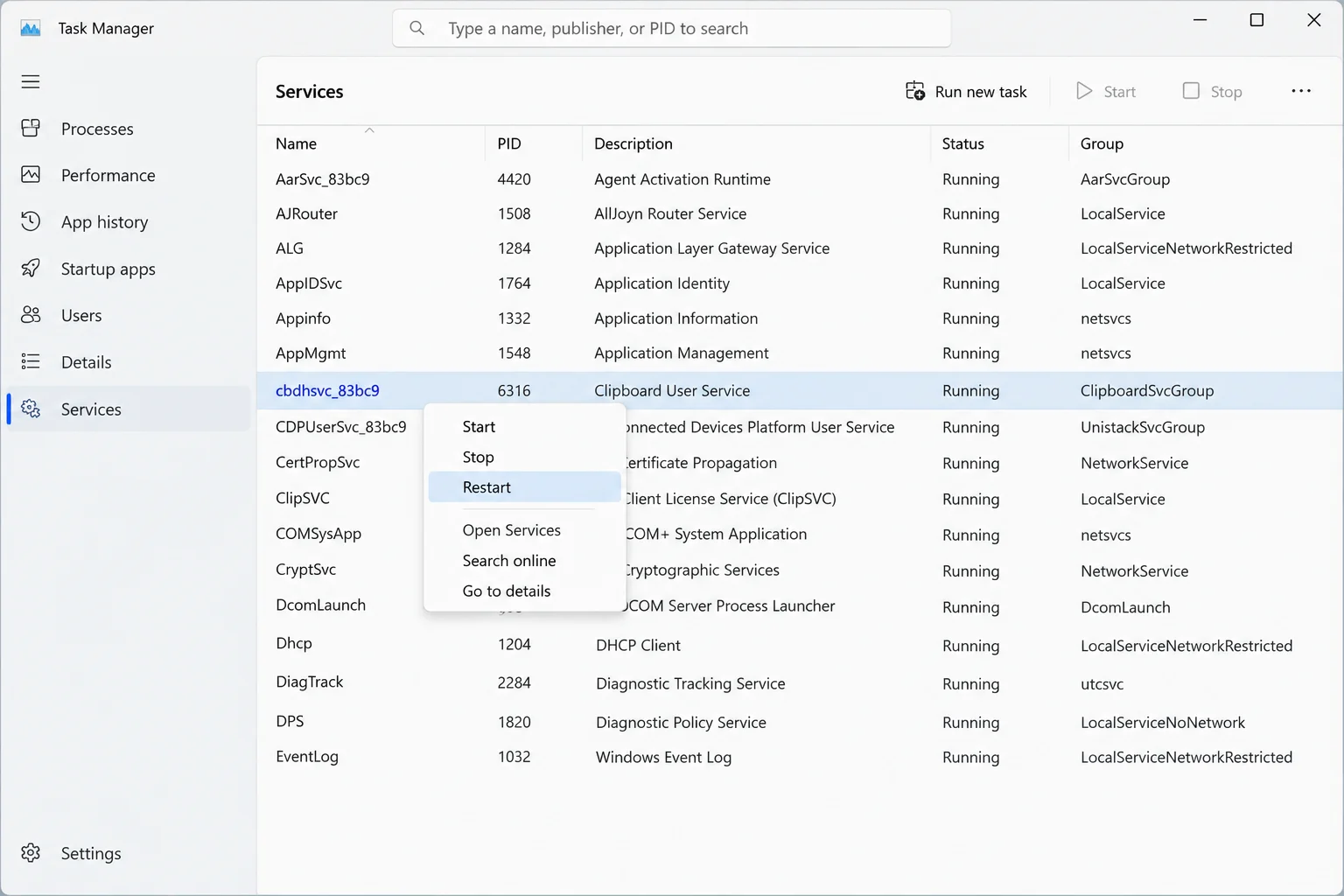
  3. Click the Name column header to sort alphabetically and locate the row starting with cbdhsvc_ (its Description will read Clipboard User Service).
  4. Right-click the row and choose Restart if available. If the option is missing, use PowerShell or the Services console instead.

Fix #3: Use PowerShell to Target and Restart the Service

PowerShell is highly reliable because it displays the exact service name and suffixed identifier tied to your active session before you make any changes.

  1. Right-click the Start button and choose Terminal (Admin) on Windows 11 or Windows PowerShell (Admin) on Windows 10.
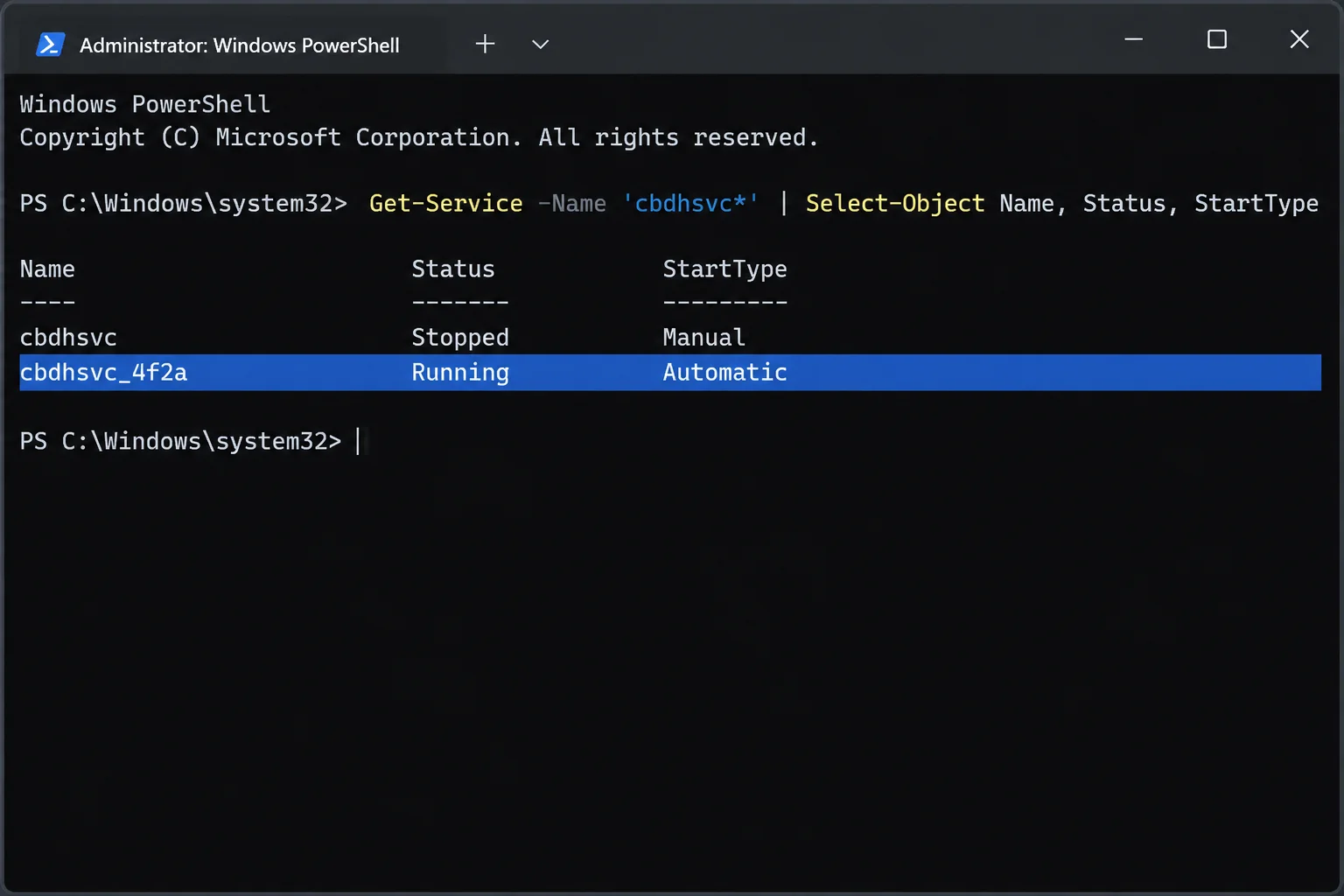
  2. Run the following command to view your active clipboard instances:
    Get-Service -Name cbdhsvc*
  3. Review the output. Locate the suffixed entry belonging to your session (for example, cbdhsvc_726b9). Ignore any template entry named just cbdhsvc without a suffix.
  4. Execute the restart command using your specific suffix:
    Restart-Service -Name cbdhsvc_726b9

If the restart cmdlet stalls or throws an error, you can stop and start the instance separately using Stop-Service followed by Start-Service.

Additional Troubleshooting When the Clipboard Still Fails

If restarting the underlying service does not completely restore your copy-and-paste capabilities or fix a broken history panel, apply these secondary troubleshooting steps.
How to Restart the Clipboard User Service (cbdhsvc) Without Rebooting Windows

Fix #4: End the TextInputHost.exe Process

Community reports frequently link a frozen or blank Win + V panel to a separate host process called TextInputHost.exe, even when the underlying clipboard service functions normally.

  1. Open Task Manager and navigate to the Details tab (or the Details section in the Windows 11 sidebar).
  2. Scroll down to find TextInputHost.exe.
  3. Right-click the process and select End task.

Treat this as a reversible troubleshooting action. Windows will automatically relaunch the process when you open the Clipboard history panel again. If it fails to appear, press Win + V manually or sign out and back into Windows.

Fix #5: Toggle Clipboard History and Clear Data

Refreshing your stored history items can clear corrupted cache data blocking the panel interface.

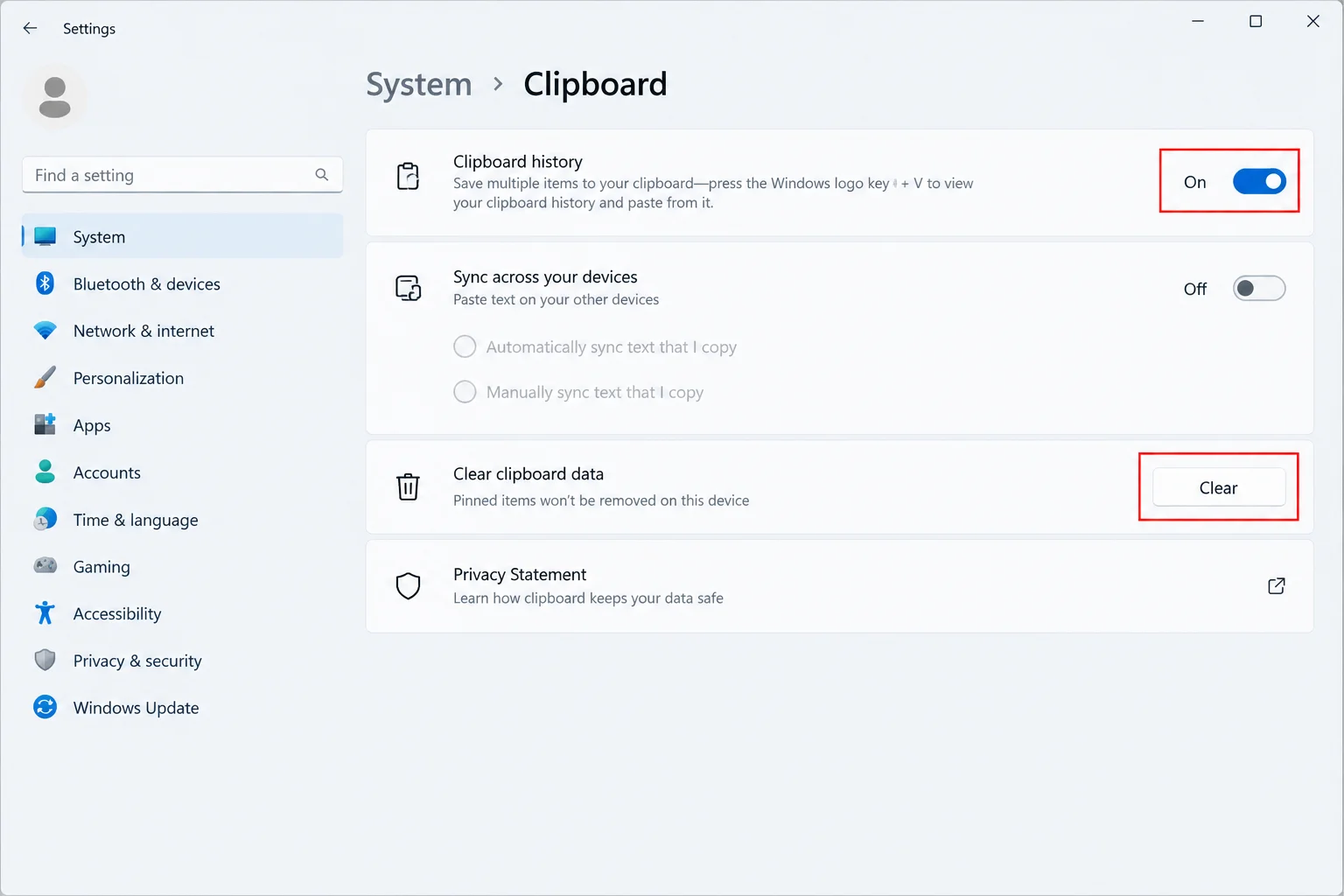
  • Press Win + R, type ms-settings:clipboard, and press Enter to open Clipboard settings directly.
  • Click the Clear button next to “Clear clipboard data” to wipe unpinned items from your device and cloud history.
  • Toggle the main Clipboard history switch off and back on to re-initialize the feature interface.

Fix #6: Rule Out Office, Remote Desktop, and Third-Party Tools

Certain applications and background utilities frequently interfere with clipboard functionality:

  • Single-App Failures: Test copying text in Notepad, File Explorer, and your web browser. If pasting fails in only one specific program, investigate that application’s settings or repair its installation.
  • Microsoft Office: Close Word, Excel, and Outlook to test whether an Office integration conflict is causing the breakdown. Run an online repair via Windows Settings if a specific app continues to trigger issues.
  • Remote Desktop (RDP): Remote clipboard synchronization relies on the rdpclip.exe process. Ending and relaunching this process inside the remote session often restores sync.
  • Clipboard Managers: Quit third-party clipboard utilities like Ditto from your system tray to verify whether they conflict with the native Windows clipboard.

Advanced Recovery Steps

If basic service restarts, process terminations, and settings toggles fail to resolve your clipboard issues, deeper system maintenance may be required. Begin by signing completely out of Windows and signing back in to force the operating system to generate a fresh per-user service instance.

Should the problem persist across sessions, open an elevated terminal and run system file integrity checks using sfc /scannow and DISM /Online /Cleanup-Image /RestoreHealth. As a final resort before performing an in-place Windows repair upgrade, ensure your personal files are securely backed up to an external storage drive.
Views: 2

Share this:

Related posts:

  • Microsoft Removes Windows 11 PC-to-PC Migration: What to Do Now

  • How to See Signed-In Devices on Your Google Account (and Sign Them Out)

  • Windows 11 Time Wrong or Auto-Sync Failing? How to Fix It

Ethan Carter

Ethan Carter

Ethan Carter is a tech writer focused on Windows optimization, lightweight software, and practical PC troubleshooting. He enjoys testing utilities, improving low-end PC performance, and sharing simple tech solutions that help everyday users get more from their devices.

Leave a Reply Cancel reply

Your email address will not be published. Required fields are marked *

Recommended.

Get Microsoft Office 2024 Home for Mac at a One-Time Price

Get Microsoft Office 2024 Home for Mac at a One-Time Price

November 2, 2026
How to Fix a TPM Device Not Detected Error in Windows 11

How to Fix a TPM Device Not Detected Error in Windows 11

October 30, 2026

Trending.

Microsoft PC Manager Review: Surprisingly Useful, But Not the PC Booster You Expect

Microsoft PC Manager Review: Surprisingly Useful, But Not the PC Booster You Expect

June 16, 2026
Is CCleaner Worth It in 2026? Honest Review After Testing It on Modern Windows PCs

Is CCleaner Worth It in 2026? Honest Review After Testing It on Modern Windows PCs

June 17, 2026
7 Best Free Antivirus for Windows 11 Ranked by Performance and Security

7 Best Free Antivirus for Windows 11 Ranked by Performance and Security

June 19, 2026
20 Operating System Examples Categorized by Device and Purpose

20 Operating System Examples Categorized by Device and Purpose

June 27, 2026
How to Update Your BIOS (UEFI)

How to Update Your BIOS (UEFI): When You Should, When You Shouldn’t, and How to Do It Safely

October 25, 2026
12 Best PC Boosters for Gaming, Low-End PCs, and Everyday Performance

12 Best PC Boosters for Gaming, Low-End PCs, and Everyday Performance

June 17, 2026
Best Free Screen Recorders for Windows We Tested No Watermarks, No Time Limits

9 Best Free Screen Recorders for Windows We Tested in 2026 (No Watermarks, No Time Limits)

June 23, 2026
iPad mini (A20 Pro): Release Date, OLED, Price, and Specifications

iPad mini (A20 Pro): Release Date, OLED, Price, and Specifications

October 29, 2026
What to Expect at Apple’s October 28 Pro and Tell Event

What to Expect at Apple’s October 28 Pro and Tell Event

October 25, 2026
What Is Utility Software? Functions, 5 Types, Benefits, and Real-World Examples

What Is Utility Software? Functions, 5 Types, Benefits, and Real-World Examples

June 16, 2026
What Is Programming Software? Types, Functions, and Best Tools for Beginners

What Is Programming Software? Types, Functions, and Best Tools for Beginners

June 14, 2026
Internal Hardware of a Computer: Definition, Components, and How Internal Computer Hardware Works

Internal Hardware of a Computer: Definition, Components, and How Internal Computer Hardware Works

March 9, 2026
Best PC Cleaner for Windows 11: 7 Safe Tools to Clean Junk Files and Free Up Storage

Best PC Cleaner for Windows 11: 7 Safe Tools to Clean Junk Files and Free Up Storage

June 17, 2026
Windows 11 version 26H2 Now Broadly Available for Eligible Devices

Windows 11 version 26H2 Now Broadly Available for Eligible Devices

October 26, 2026
New Apple Products Coming in 2026 and 2027: What’s Next for Mac, iPhone, and iPad

New Apple Products Coming in 2026 and 2027: What’s Next for Mac, iPhone, and iPad

October 29, 2026
How Good Is Microsoft Defender Antivirus? Is It Really Enough for Windows 11?

How Good Is Microsoft Defender Antivirus? Is It Really Enough for Windows 11?

May 14, 2026
macOS 27 Golden Gate: What’s New, Compatible Macs, and Features

macOS 27 Golden Gate: What’s New, Compatible Macs, and Features

October 29, 2026
Apple’s November 2026 Lineup: Hardware Shipping, OS 27.3, and New TV+ Shows

Apple’s November 2026 Lineup: Hardware Shipping, OS 27.3, and New TV+ Shows

November 3, 2026
What Is a Device Driver in a Computer? Functions, Types, How It Works, and Examples

What Is a Device Driver in a Computer? Functions, Types, How It Works, and Examples

July 2, 2026
iPhone Duo Guide: Price, Specifications, Availability, and Reviews

iPhone Duo Guide: Price, Specifications, Availability, and Reviews

October 26, 2026
PowerToys 0.102 Adds Mouse Utilities, Quick Commands, and Dictation

PowerToys 0.102 Adds Mouse Utilities, Quick Commands, and Dictation

October 27, 2026
How to Resize the Windows 11 Start Menu With New Built-In Controls

How to Resize the Windows 11 Start Menu With New Built-In Controls

October 26, 2026
iOS 27 Features, Compatibility, and Siri AI Overview

iOS 27 Features, Compatibility, and Siri AI Overview

October 29, 2026
Best CPU Temperature Monitor Tools for Gaming and Real-Time Tracking

7 Best CPU Temperature Monitor Tools for Gaming and Real-Time Tracking

May 31, 2026
Microsoft Tests Controller-Friendly Gaming Task View for Windows 11

Microsoft Tests Controller-Friendly Gaming Task View for Windows 11

October 26, 2026
What Are the Communication Devices? Definition, Key Characteristics, Types, and Real-World Examples

What Are the Communication Devices? Definition, Key Characteristics, Types, and Real-World Examples

June 19, 2026
How to Fix a USB Device That Keeps Disconnecting

How to Fix a USB Device That Keeps Disconnecting

October 26, 2026
Apple Unveils Thinner, Lighter iPad mini (A20 Pro) with OLED Screen and Major Power Boosts

Apple Unveils Thinner, Lighter iPad mini (A20 Pro) with OLED Screen and Major Power Boosts

October 29, 2026
What Is a Distributed Operating System? Architecture, How It Works, Functions, Benefits, and Examples

What Is a Distributed Operating System? Architecture, How It Works, Functions, Benefits, and Examples

June 27, 2026
What Does MLO Mean on Your Router and Should You Enable It?

What Does MLO Mean on Your Router and Should You Enable It?

October 26, 2026
Intechfy

Intechfy.com is a technology-focused information platform created to make everyday tech concepts easier to understand, more practical, and more accessible.

  • About
  • Contact
  • Disclaimer
  • Sitemap
  • Privacy Policy
  • Terms Of Service

© 2026 Intechfy.com - Information Technology for You

No Result
View All Result
  • Home
  • Guides
  • Utilities
  • Reviews
  • Tech Basics
    • Computer
    • Hardware
    • Software
    • Operating System
    • Networking

© 2026 Intechfy.com - Information Technology for You