• About
  • Contact
  • Disclaimer
  • Sitemap
  • Privacy Policy
  • Terms Of Service
Information Technology for You
  • Home
  • Guides
  • ChromeOS
  • MacOS
  • Windows
  • Utilities
  • Reviews
  • Tech Basics
    • Hardware
    • Software
    • Operating System
    • Networking
No Result
View All Result
  • Home
  • Guides
  • ChromeOS
  • MacOS
  • Windows
  • Utilities
  • Reviews
  • Tech Basics
    • Hardware
    • Software
    • Operating System
    • Networking
No Result
View All Result
Intechfy
No Result
View All Result

Windows 11 Time Wrong or Auto-Sync Failing? How to Fix It

Ethan Carter by Ethan Carter
November 3, 2026
Home Windows
Share on FacebookShare on Twitter

Is your Windows 11 clock or time zone wrong, even though the “Set time automatically” toggle is turned on? Automatic timekeeping relies on a working internet connection, the background Windows Time service, and a reachable time server, while your motherboard’s clock battery keeps track of time while your PC is powered off. When these components fall out of sync, your system clock can drift or display completely incorrect information.

This troubleshooting guide walks you through everything from basic Settings adjustments and background service configurations to command-line tools, dual-boot registry tweaks, and hardware battery replacements.

Table of Contents

Toggle
  • Understanding Why Windows 11 Clocks Go Wrong
  • Quick Settings Fixes: Forcing Sync and Correcting Time Zones
    • 1. Force an Immediate Time Sync
    • 2. Correct Wrong Time Zone Offsets
    • 3. Set a Manual Date and Time
  • Advanced Software Fixes: Services, Servers, and Command Line
    • 4. Configure the Windows Time Service
    • 5. Switch to an Alternative Time Server
    • 6. Use Command Prompt to Resync
    • 7. Re-register the Windows Time Service
  • Specialized Fixes: Dual-Boot Time Jumps and Hardware Battery Failure
    • Fixing Dual-Boot Time Jumps (Windows and Linux)
    • Replacing a Failing Motherboard CMOS Battery

Understanding Why Windows 11 Clocks Go Wrong

Automatic time synchronization depends on several underlying components working together seamlessly. Understanding how your system keeps time helps identify where a failure might be occurring.

The core prerequisites for automatic time sync include:
Windows 11 Time Wrong or Auto-Sync Failing? How to Fix It
  • A currently supported version of Windows 11.
  • An administrator account (required for advanced service and registry fixes).
  • A working internet connection. If you are offline, fix your network connection first.
  • The Windows Time (w32time) background service, which checks your clock against an internet time server (defaulting to time.windows.com).

If you are using a work or school PC, domain-joined computers get their time from the organization’s domain hierarchy (NT5DS) rather than an open internet server. If your time settings are greyed out or keep reverting, you will need to contact your IT team for assistance.

Quick Settings Fixes: Forcing Sync and Correcting Time Zones

Before diving into complex command-line utilities or hardware checks, start with the built-in Windows 11 Settings app to address immediate synchronization and zone errors.

1. Force an Immediate Time Sync

The “Sync now” button forces Windows to check in with the time server immediately instead of waiting for the next scheduled sync interval.

  1. Open Start > Settings > Time & language > Date & time.
  2. Ensure that Set time automatically is turned on. If it is already enabled, toggle it off and back on.
  3. Scroll down to Additional settings and click Sync now.
  4. Review the text beneath the button, which should display a recent “last successful time synchronization” timestamp and the server name.

If the sync fails, the background service is likely inactive or your network is blocking the server.
Windows 11 Time Wrong or Auto-Sync Failing? How to Fix It

2. Correct Wrong Time Zone Offsets

If your minutes are accurate but the hour is completely off, your hardware clock is functioning fine; Windows is simply displaying it for the wrong geographical zone.

  1. Navigate to Settings > Time & language > Date & time.
  2. Turn off Set time zone automatically (as automated location detection can occasionally select the wrong zone, particularly when connected to a VPN).
  3. Open the Time zone drop-down menu and manually select your correct region (for example, (UTC-05:00) Eastern Time (US & Canada)).
  4. Ensure Adjust for daylight saving time automatically remains active if your region observes it.

3. Set a Manual Date and Time

If automatic sync fails entirely and you need the correct time immediately (such as to clear certificate errors in your web browser), you can configure a manual stopgap:

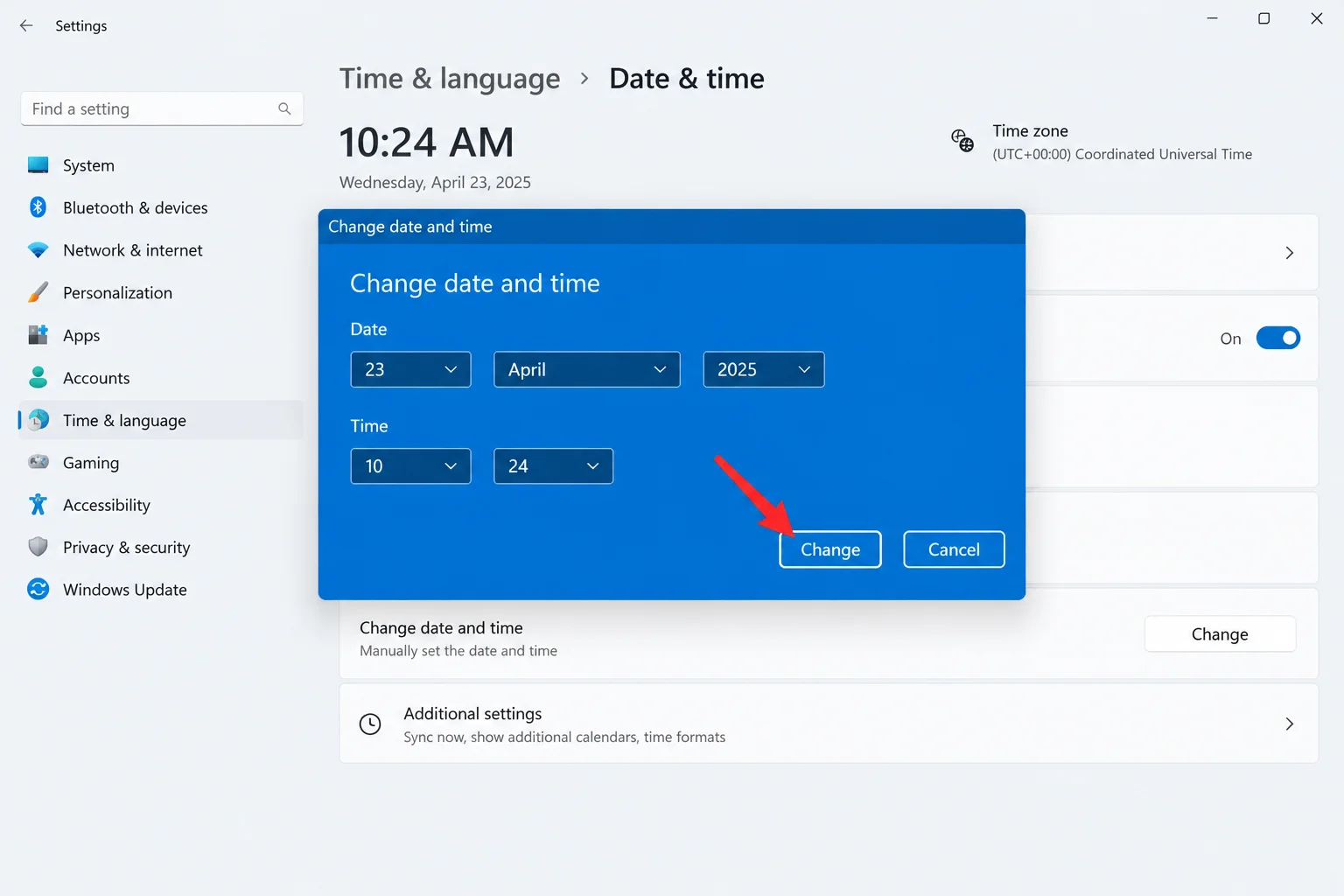
  1. Go to Settings > Time & language > Date & time and turn off Set time automatically.
  2. Next to Set the date and time manually, click Change.
  3. Enter the correct date and time in the dialog box.

Keep in mind that a manual clock will drift over time. Treat this as a temporary fix and re-enable automatic time once you resolve the underlying sync issue.

Advanced Software Fixes: Services, Servers, and Command Line

When basic Settings toggles do not resolve the problem, you must investigate the background services, network routing, and system registration tools.
Windows 11 Time Wrong or Auto-Sync Failing? How to Fix It

4. Configure the Windows Time Service

When automatic time is enabled but the clock remains wrong, the Windows Time service is frequently inactive or misconfigured.

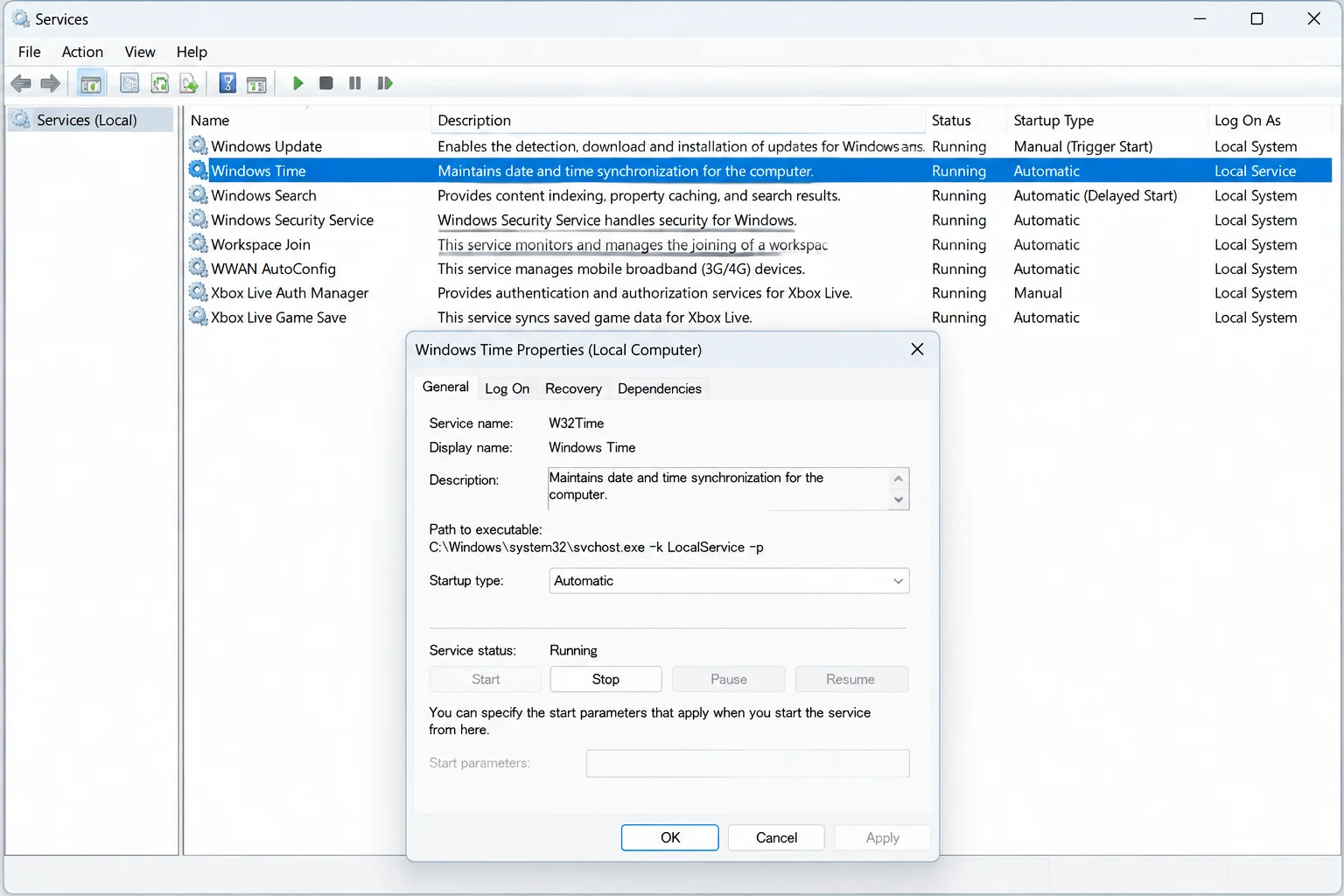
  1. Press Win + R, type services.msc, and press Enter.
  2. Scroll down and double-click on Windows Time.
  3. Set the Startup type to Automatic to ensure reliable synchronization.
  4. Under Service status, click Stop, and then click Start (if it was already stopped, simply click Start).
  5. Return to Settings > Time & language > Date & time and click Sync now.

5. Switch to an Alternative Time Server

Strict routers, corporate networks, and VPNs often block default servers like time.windows.com. Pointing Windows toward an alternative public time server can restore synchronization.

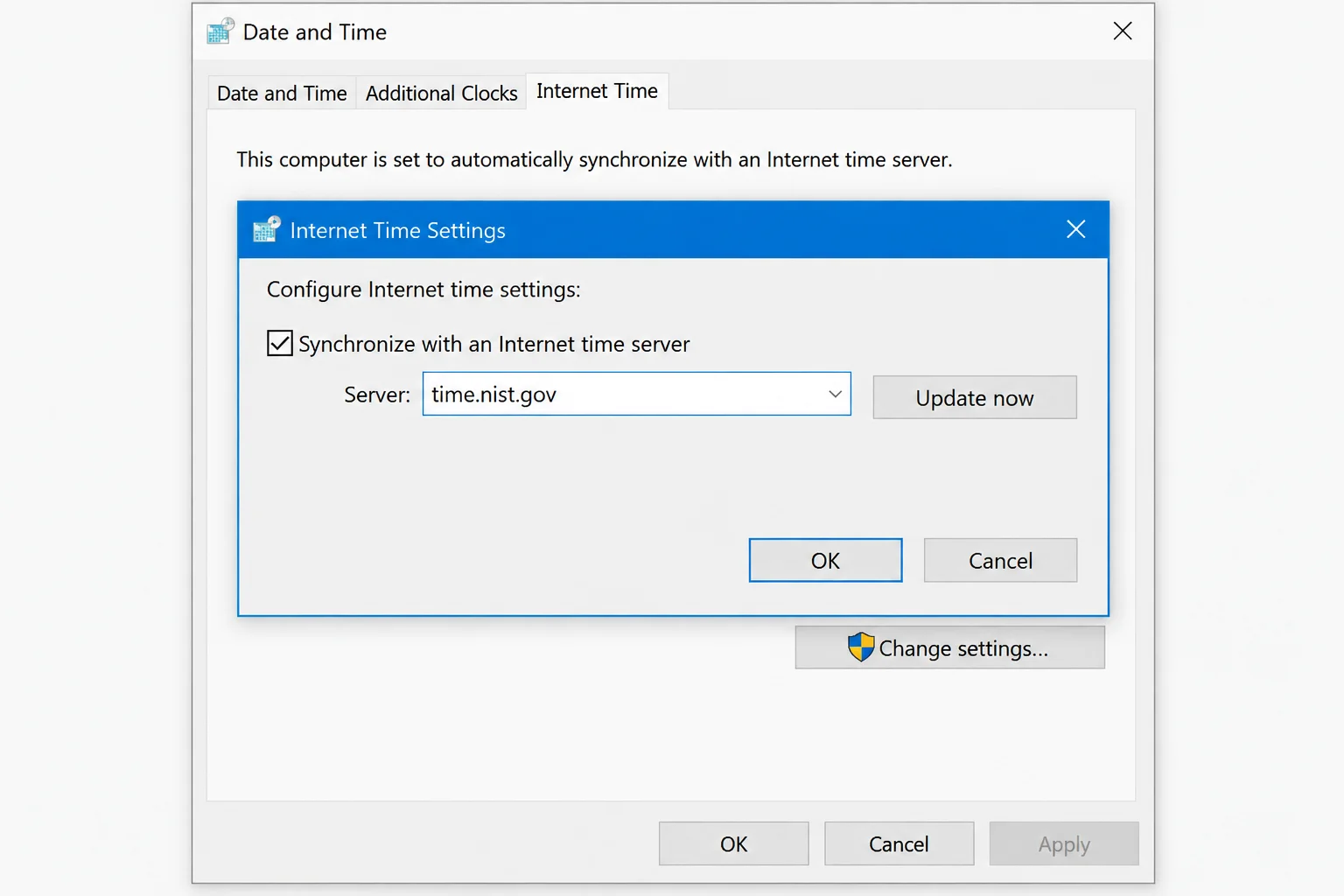
  1. Press Win + R, type timedate.cpl, and press Enter.
  2. Navigate to the Internet Time tab and click Change settings.
  3. Ensure Synchronize with an Internet time server is checked.
  4. In the Server field, input an alternative server such as time.nist.gov.
  5. Click Update now. A success message confirms that synchronization is operational.

6. Use Command Prompt to Resync

The w32tm command-line utility interacts directly with the Windows Time service to force discovery and synchronization.

  • Open the Start menu, search for Command Prompt, right-click it, and choose Run as administrator.
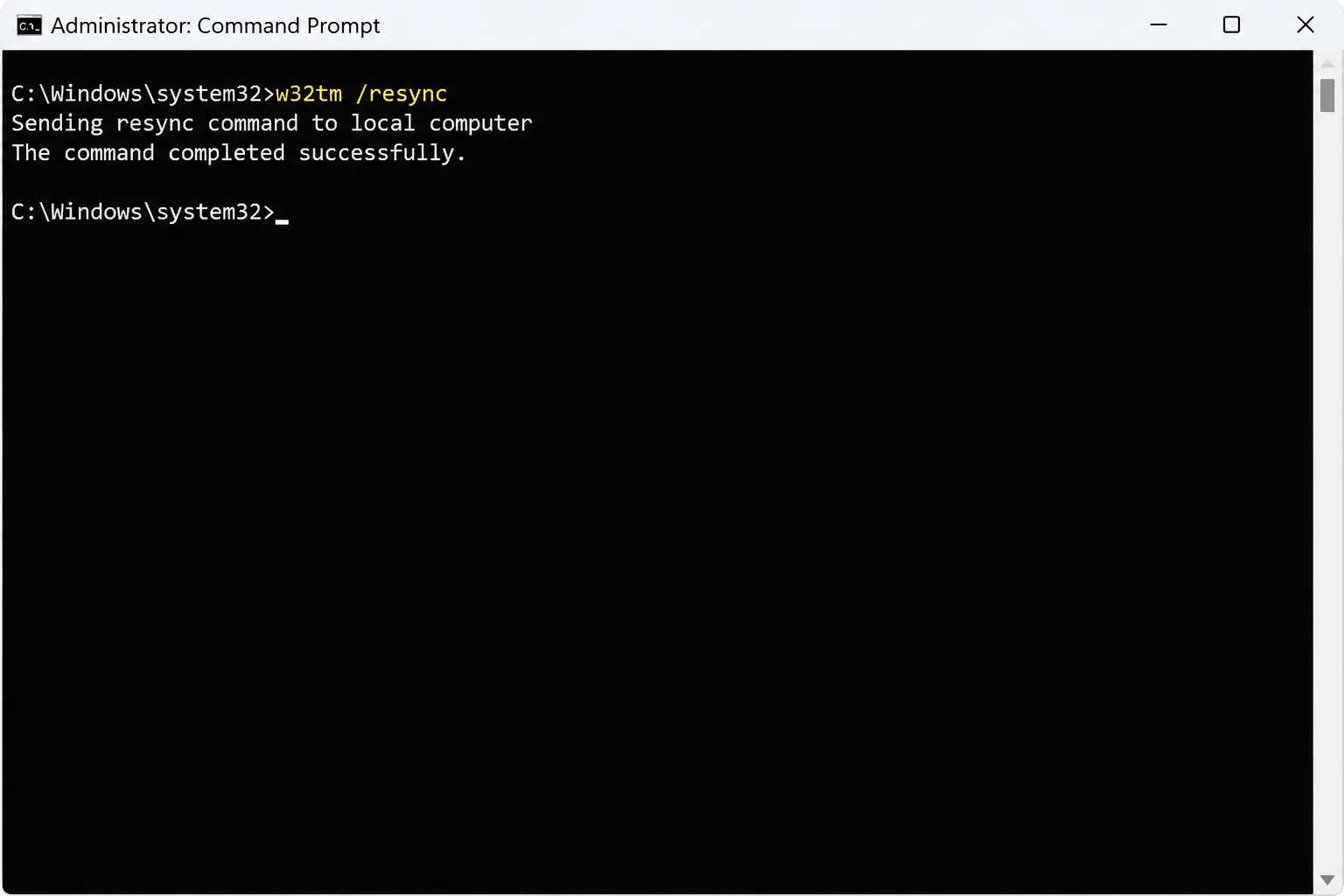
  • To force an immediate synchronization check, type w32tm /resync and press Enter.
  • To check the status of your time source, type w32tm /monitor and press Enter.

Interpreting the command outputs helps guide your next steps:
Windows 11 Time Wrong or Auto-Sync Failing? How to Fix It
  • “The command completed successfully.” indicates that synchronization is complete.
  • “The service has not been started.” means you must return to Fix #4 and start the Windows Time service.
  • “The computer did not resync because no time data was available.” indicates Windows could not reach a server, requiring you to try an alternative server or check your network.

7. Re-register the Windows Time Service

If the service continues to malfunction after a restart, its underlying system registration may be corrupted. This process resets configuration files to default settings.

  1. Open an administrator Command Prompt.
  2. Stop the service by typing net stop w32time and pressing Enter.
  3. Unregister the service using w32tm /unregister.
  4. Re-register the service using w32tm /register.
  5. Restart the service with net start w32time.
  6. Optionally, point the service to a specific server and resync using w32tm /config /manualpeerlist:time.windows.com /syncfromflags:manual /update followed by w32tm /resync.

Specialized Fixes: Dual-Boot Time Jumps and Hardware Battery Failure

Some time discrepancies stem from operating system conflicts or failing physical components rather than standard software configurations.

Fixing Dual-Boot Time Jumps (Windows and Linux)

If your system clock jumps by several hours every time you switch between Windows and Linux, the two operating systems disagree on how to interpret the hardware clock (local time versus UTC). To make Windows treat the hardware clock as UTC:

  1. Back up your registry first by pressing Win + R, typing regedit, clicking File > Export, setting Export range to All, and saving the backup file safely.
  2. Navigate to HKEY_LOCAL_MACHINESYSTEMCurrentControlSetControlTimeZoneInformation.
  3. Right-click in the right-hand pane, choose New > DWORD (32-bit) Value, and name it RealTimeIsUniversal.
  4. Double-click the new value and set its data to 1.

Replacing a Failing Motherboard CMOS Battery

A coin-cell battery on your motherboard powers the hardware clock while the PC is turned off. When this battery weakens, the PC loses track of time while unplugged.

Common signs of a failing CMOS battery include:

    To diagnose and fix this hardware issue, shut down and unplug your PC for a few minutes, boot into your BIOS/UEFI setup utility, and check the system clock. If the time has reset inside the BIOS, replace the physical battery (typically a CR2032 coin-cell on desktops, or a specialized battery on laptops). Once replaced, set the correct time in BIOS, boot into Windows, and run an immediate sync.

    Views: 17

    Share this:

    Related posts:

    • Microsoft Removes Windows 11 PC-to-PC Migration: What to Do Now

    • How to See Signed-In Devices on Your Google Account (and Sign Them Out)

    • How to Fix Smart App Control Grayed Out in Windows 11

    Ethan Carter

    Ethan Carter

    Ethan Carter is a tech writer focused on Windows optimization, lightweight software, and practical PC troubleshooting. He enjoys testing utilities, improving low-end PC performance, and sharing simple tech solutions that help everyday users get more from their devices.

    Next Post
    Swap Doom-Scrolling for Memory Training With This $90 Lifetime App Deal

    Swap Doom-Scrolling for Memory Training With This $90 Lifetime App Deal

    Leave a Reply Cancel reply

    Your email address will not be published. Required fields are marked *

    Recommended.

    Best Mac 2026: Every Apple Mac and MacBook Compared

    Best Mac 2026: Every Apple Mac and MacBook Compared

    November 2, 2026
    What is a Computer: Definition, History, Types, Components, and How It Works

    What is a Computer: Definition, History, Types, Components, and How It Works

    March 9, 2026

    Trending.

    Microsoft PC Manager Review: Surprisingly Useful, But Not the PC Booster You Expect

    Microsoft PC Manager Review: Surprisingly Useful, But Not the PC Booster You Expect

    June 16, 2026
    Is CCleaner Worth It in 2026? Honest Review After Testing It on Modern Windows PCs

    Is CCleaner Worth It in 2026? Honest Review After Testing It on Modern Windows PCs

    June 17, 2026
    7 Best Free Antivirus for Windows 11 Ranked by Performance and Security

    7 Best Free Antivirus for Windows 11 Ranked by Performance and Security

    June 19, 2026
    How to Update Your BIOS (UEFI)

    How to Update Your BIOS (UEFI): When You Should, When You Shouldn’t, and How to Do It Safely

    October 25, 2026
    20 Operating System Examples Categorized by Device and Purpose

    20 Operating System Examples Categorized by Device and Purpose

    June 27, 2026
    12 Best PC Boosters for Gaming, Low-End PCs, and Everyday Performance

    12 Best PC Boosters for Gaming, Low-End PCs, and Everyday Performance

    June 17, 2026
    iPad mini (A20 Pro): Release Date, OLED, Price, and Specifications

    iPad mini (A20 Pro): Release Date, OLED, Price, and Specifications

    October 29, 2026
    What to Expect at Apple’s October 28 Pro and Tell Event

    What to Expect at Apple’s October 28 Pro and Tell Event

    October 25, 2026
    Best Free Screen Recorders for Windows We Tested No Watermarks, No Time Limits

    9 Best Free Screen Recorders for Windows We Tested in 2026 (No Watermarks, No Time Limits)

    June 23, 2026
    What Is Programming Software? Types, Functions, and Best Tools for Beginners

    What Is Programming Software? Types, Functions, and Best Tools for Beginners

    June 14, 2026
    Best PC Cleaner for Windows 11: 7 Safe Tools to Clean Junk Files and Free Up Storage

    Best PC Cleaner for Windows 11: 7 Safe Tools to Clean Junk Files and Free Up Storage

    June 17, 2026
    What Is Utility Software? Functions, 5 Types, Benefits, and Real-World Examples

    What Is Utility Software? Functions, 5 Types, Benefits, and Real-World Examples

    June 16, 2026
    Internal Hardware of a Computer: Definition, Components, and How Internal Computer Hardware Works

    Internal Hardware of a Computer: Definition, Components, and How Internal Computer Hardware Works

    March 9, 2026
    Windows 11 version 26H2 Now Broadly Available for Eligible Devices

    Windows 11 version 26H2 Now Broadly Available for Eligible Devices

    October 26, 2026
    macOS 27 Golden Gate: What’s New, Compatible Macs, and Features

    macOS 27 Golden Gate: What’s New, Compatible Macs, and Features

    October 29, 2026
    New Apple Products Coming in 2026 and 2027: What’s Next for Mac, iPhone, and iPad

    New Apple Products Coming in 2026 and 2027: What’s Next for Mac, iPhone, and iPad

    October 29, 2026
    How Good Is Microsoft Defender Antivirus? Is It Really Enough for Windows 11?

    How Good Is Microsoft Defender Antivirus? Is It Really Enough for Windows 11?

    May 14, 2026
    PowerToys 0.102 Adds Mouse Utilities, Quick Commands, and Dictation

    PowerToys 0.102 Adds Mouse Utilities, Quick Commands, and Dictation

    October 27, 2026
    What Is a Device Driver in a Computer? Functions, Types, How It Works, and Examples

    What Is a Device Driver in a Computer? Functions, Types, How It Works, and Examples

    July 2, 2026
    How to Resize the Windows 11 Start Menu With New Built-In Controls

    How to Resize the Windows 11 Start Menu With New Built-In Controls

    October 26, 2026
    iPhone Duo Guide: Price, Specifications, Availability, and Reviews

    iPhone Duo Guide: Price, Specifications, Availability, and Reviews

    October 26, 2026
    iOS 27 Features, Compatibility, and Siri AI Overview

    iOS 27 Features, Compatibility, and Siri AI Overview

    October 29, 2026
    Apple’s November 2026 Lineup: Hardware Shipping, OS 27.3, and New TV+ Shows

    Apple’s November 2026 Lineup: Hardware Shipping, OS 27.3, and New TV+ Shows

    November 3, 2026
    Best CPU Temperature Monitor Tools for Gaming and Real-Time Tracking

    7 Best CPU Temperature Monitor Tools for Gaming and Real-Time Tracking

    May 31, 2026
    What Are the Communication Devices? Definition, Key Characteristics, Types, and Real-World Examples

    What Are the Communication Devices? Definition, Key Characteristics, Types, and Real-World Examples

    June 19, 2026
    How to Fix a USB Device That Keeps Disconnecting

    How to Fix a USB Device That Keeps Disconnecting

    October 26, 2026
    Apple Unveils Thinner, Lighter iPad mini (A20 Pro) with OLED Screen and Major Power Boosts

    Apple Unveils Thinner, Lighter iPad mini (A20 Pro) with OLED Screen and Major Power Boosts

    October 29, 2026
    Microsoft Tests Controller-Friendly Gaming Task View for Windows 11

    Microsoft Tests Controller-Friendly Gaming Task View for Windows 11

    October 26, 2026
    What Is a Distributed Operating System? Architecture, How It Works, Functions, Benefits, and Examples

    What Is a Distributed Operating System? Architecture, How It Works, Functions, Benefits, and Examples

    June 27, 2026
    What Does MLO Mean on Your Router and Should You Enable It?

    What Does MLO Mean on Your Router and Should You Enable It?

    October 26, 2026
    Intechfy

    Intechfy.com is a technology-focused information platform created to make everyday tech concepts easier to understand, more practical, and more accessible.

    • About
    • Contact
    • Disclaimer
    • Sitemap
    • Privacy Policy
    • Terms Of Service

    © 2026 Intechfy.com - Information Technology for You

    No Result
    View All Result
    • Home
    • Guides
    • Utilities
    • Reviews
    • Tech Basics
      • Computer
      • Hardware
      • Software
      • Operating System
      • Networking

    © 2026 Intechfy.com - Information Technology for You