• About
  • Contact
  • Disclaimer
  • Sitemap
  • Privacy Policy
  • Terms Of Service
Information Technology for You
  • Home
  • Guides
  • ChromeOS
  • MacOS
  • Windows
  • Utilities
  • Reviews
  • Tech Basics
    • Hardware
    • Software
    • Operating System
    • Networking
No Result
View All Result
  • Home
  • Guides
  • ChromeOS
  • MacOS
  • Windows
  • Utilities
  • Reviews
  • Tech Basics
    • Hardware
    • Software
    • Operating System
    • Networking
No Result
View All Result
Intechfy
No Result
View All Result

How to Use Edge Flags (edge://flags) to Fix Problems and Reset Them

Ethan Carter by Ethan Carter
November 9, 2026
Home Windows
Share on FacebookShare on Twitter

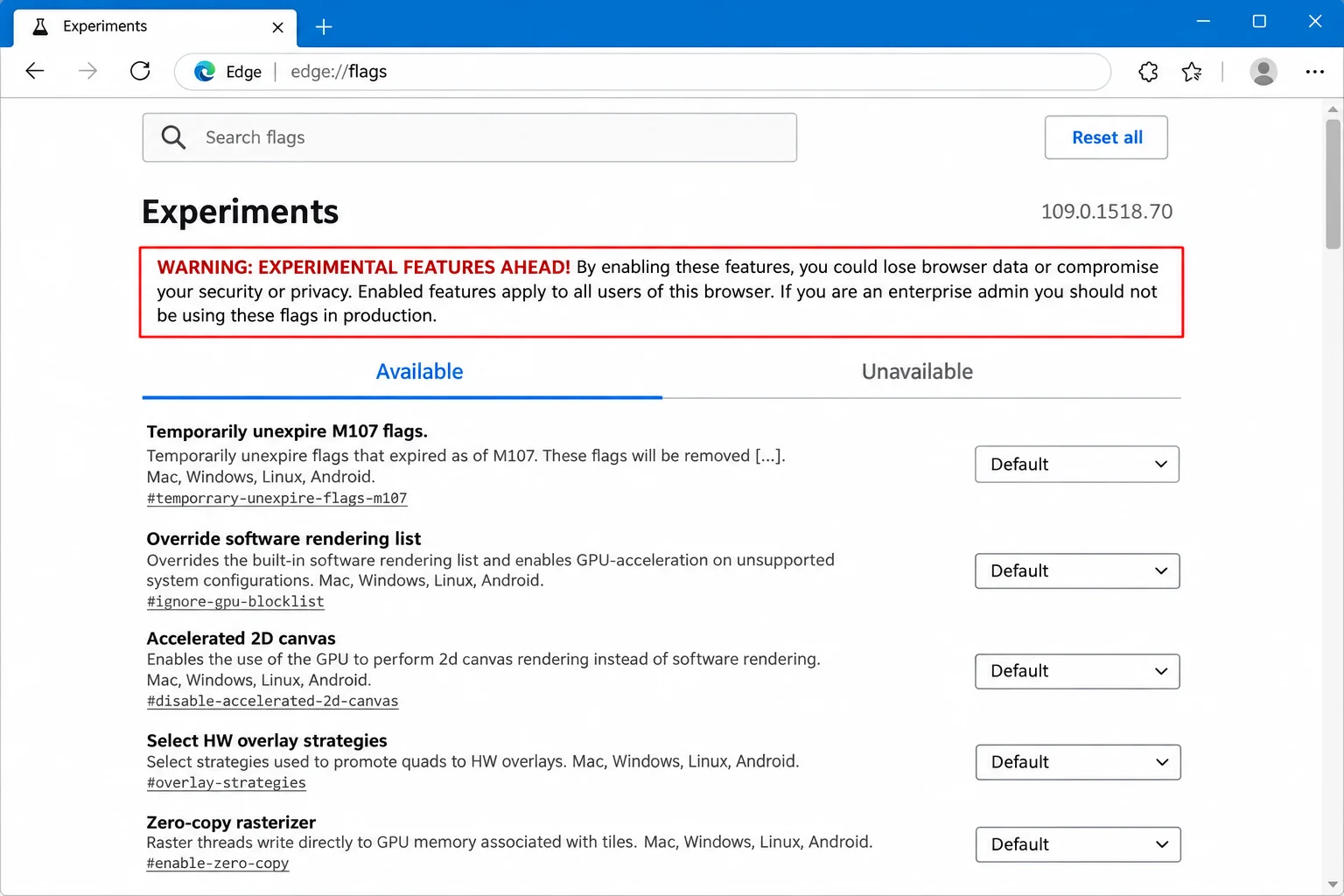
Microsoft Edge can sometimes start crashing, freezing, or drawing web pages incorrectly. This often happens after a setting is changed on the edge://flags page, or because a forum post recommended flipping a flag to resolve a specific browser glitch. While you can test experimental features one by one, a single master control button called Reset all returns every experiment on that page back to its default state. Importantly, this feature is strictly meant for flag settings and does not alter your saved bookmarks, passwords, or browsing history.

Table of Contents

Toggle
  • What Are Edge Flags (edge://flags)?
  • Before You Begin: Safety and Requirements
  • How to Access and Search for Flags
    • Checking Your Edge Version
    • Navigating to edge://flags
    • Searching for Specific Flags
  • Modifying Flags: The ‘One at a Time’ Rule
  • How to Reset Edge Flags to Default
    • Reverting a Single Flag
    • Using the ‘Reset all’ Master Button
  • Advanced Troubleshooting: When Flags Aren’t the Cause

What Are Edge Flags (edge://flags)?

The edge://flags utility is a hidden configuration page in Microsoft Edge that lists experimental browser features. Because Microsoft Edge is built on the open-source Chromium engine—the same foundation that powers Google Chrome—it inherits the Chromium flags system. Developers and testers use these flags to try out upcoming features before they are officially rolled out to the general public.
How to Use Edge Flags (edge://flags) to Fix Problems and Reset Them

Opening the page itself is completely safe, and simply looking at the available options changes nothing. The risk begins when you actively modify a flag, as these experiments lack official support for everyday browsing. A changed flag can easily trigger unexpected crashes, rendering glitches, or features that suddenly stop working entirely.

Furthermore, these flags remain strictly tied to your installed version of Microsoft Edge. Microsoft retains the ability to rename a flag, convert it into a permanent browser setting, or remove it entirely during any software update. Consequently, you should treat any flag-based fix as temporary. No single flag serves as a permanent, Microsoft-recommended fix for routine browser problems.
How to Use Edge Flags (edge://flags) to Fix Problems and Reset Them

Before You Begin: Safety and Requirements

Before you start experimenting with browser flags on Windows or macOS, ensure you have met the necessary operational requirements to protect your data:

  • Compatible Platform: Microsoft Edge installed on a desktop computer running Windows or macOS.
  • Targeted Reference: The exact flag name from a trusted source if you are performing a targeted fix.
  • Saved Progress: All unsaved work in open Edge tabs should be saved, as the browser automatically relaunches during these steps.
  • Administrative Approval: If you are using a work or school PC, you may need permission from your IT administrator to modify browser policies or settings.

Pro Tip: If you share your computer with family members, consider setting up a separate Edge profile specifically for testing flags. This isolates the experimental features away from your everyday browsing data.
How to Use Edge Flags (edge://flags) to Fix Problems and Reset Them

How to Access and Search for Flags

To begin troubleshooting or testing, you must first confirm your browser version and navigate to the hidden configuration interface.

Checking Your Edge Version

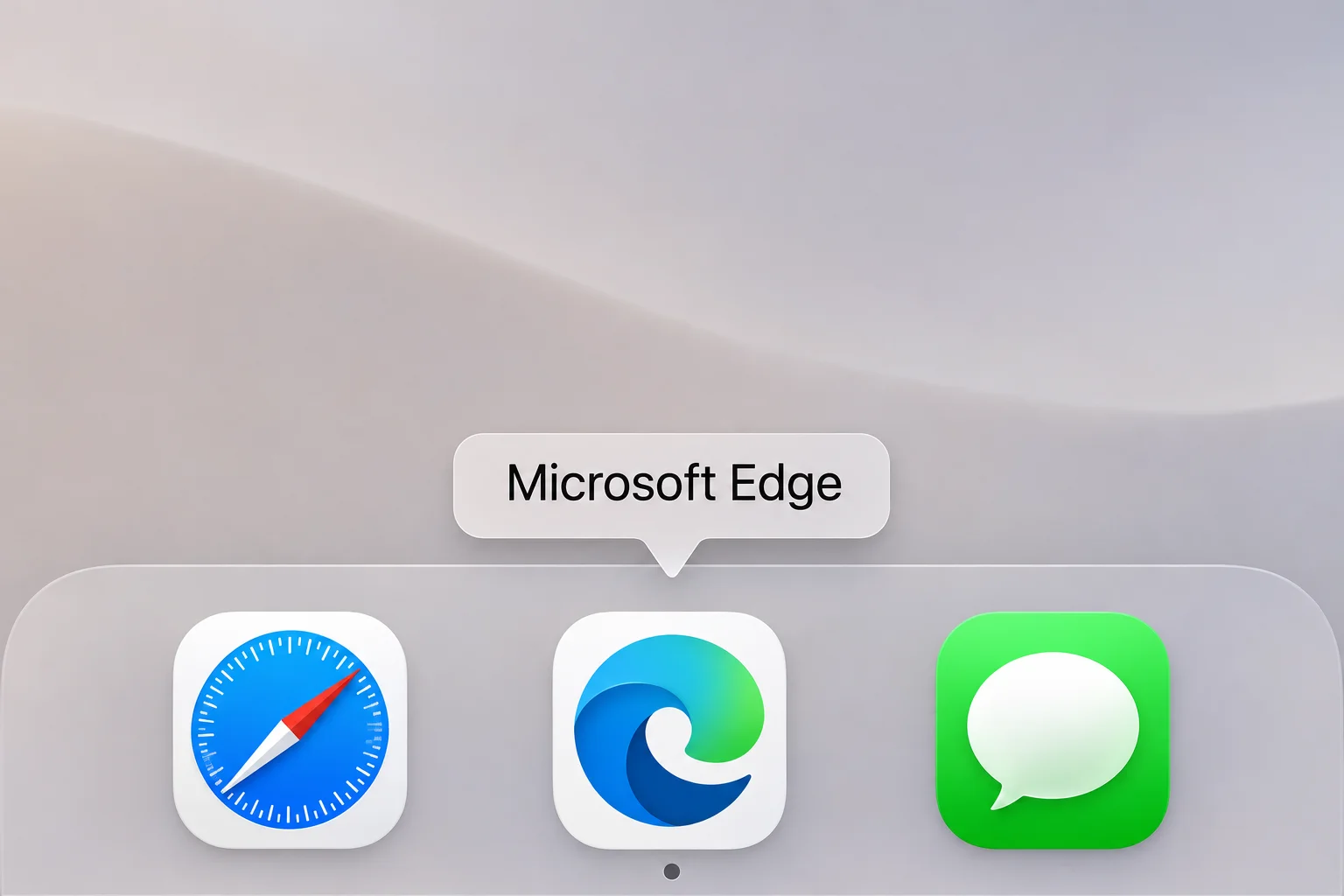
  1. Open Edge from the Windows Start menu, taskbar, or desktop shortcut (or use the Dock, Launchpad, or Spotlight on macOS by pressing Cmd + Space and typing “Edge”).
  2. Click the three-dot Settings and more menu located in the top-right corner.
  3. Select Help and feedback followed by About Microsoft Edge.
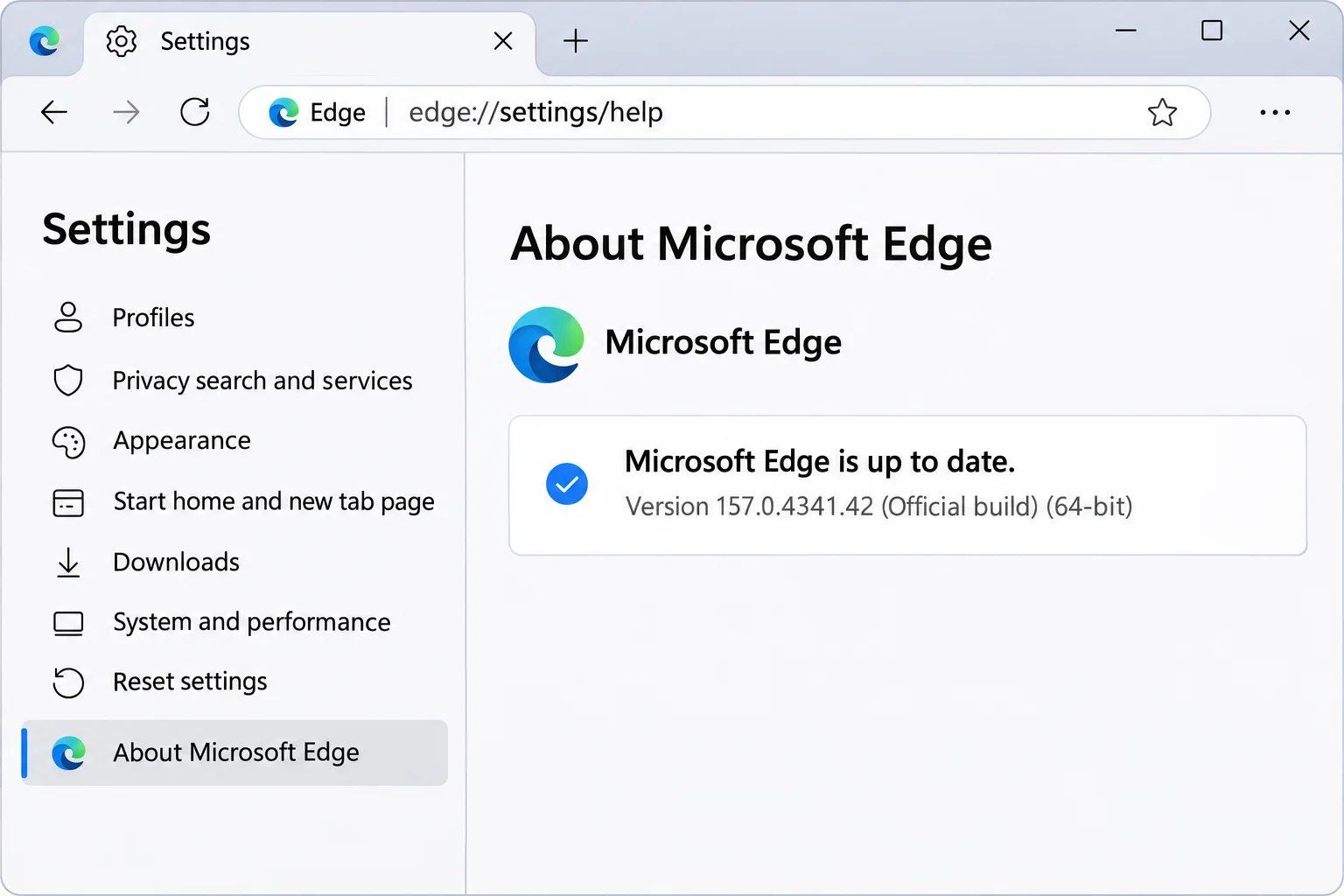
  4. Read your version number on the About page. Edge will check for updates here automatically; if an update installs, click Restart.

Navigating to edge://flags

  1. Click into the address bar, type edge://flags, and press Enter (or Return on macOS).
  2. Review the warning banner about experimental features displayed at the top of the interface.
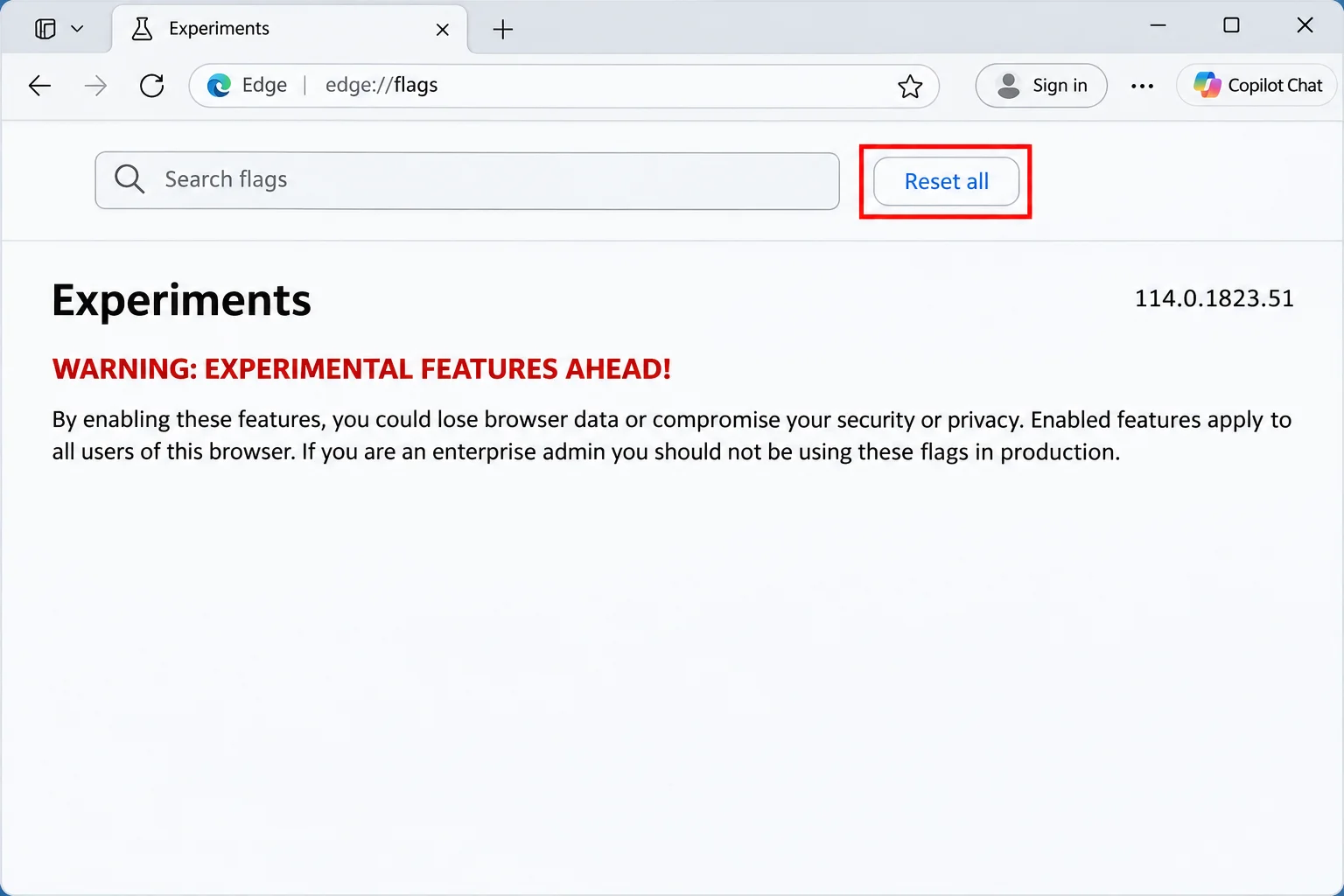
  3. Locate the Reset all button near the search box and scroll down slightly to view the categorized list of experiments, each featuring a name, description, and selection dropdown.

Searching for Specific Flags

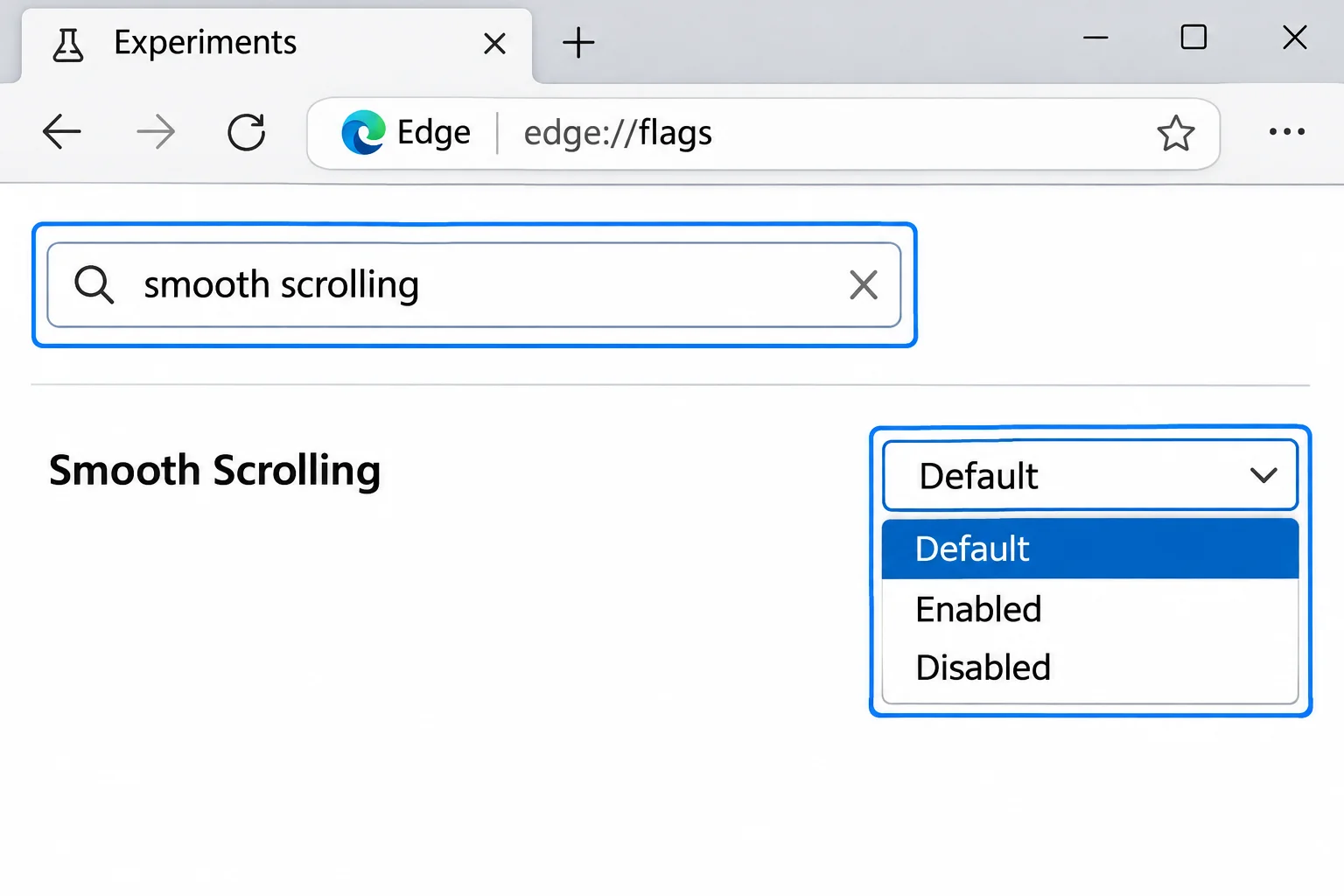
Because the list of experiments is extensive and changes frequently between software builds, avoid scrolling through it manually. Instead, utilize the built-in search functionality:
How to Use Edge Flags (edge://flags) to Fix Problems and Reset Them
  • Click the search box positioned at the top of the edge://flags page.
  • Type the exact flag name or a specific keyword provided by your source.
  • Watch the list filter dynamically as you type, with matching text highlighted for visibility.
  • Read the description beneath each result to confirm it is the correct feature.

Alternatively, if a guide provides a direct URL in the format edge://flags/#flag-name, paste the full address directly into your address bar and press Enter to jump straight to that specific highlight.

Modifying Flags: The ‘One at a Time’ Rule

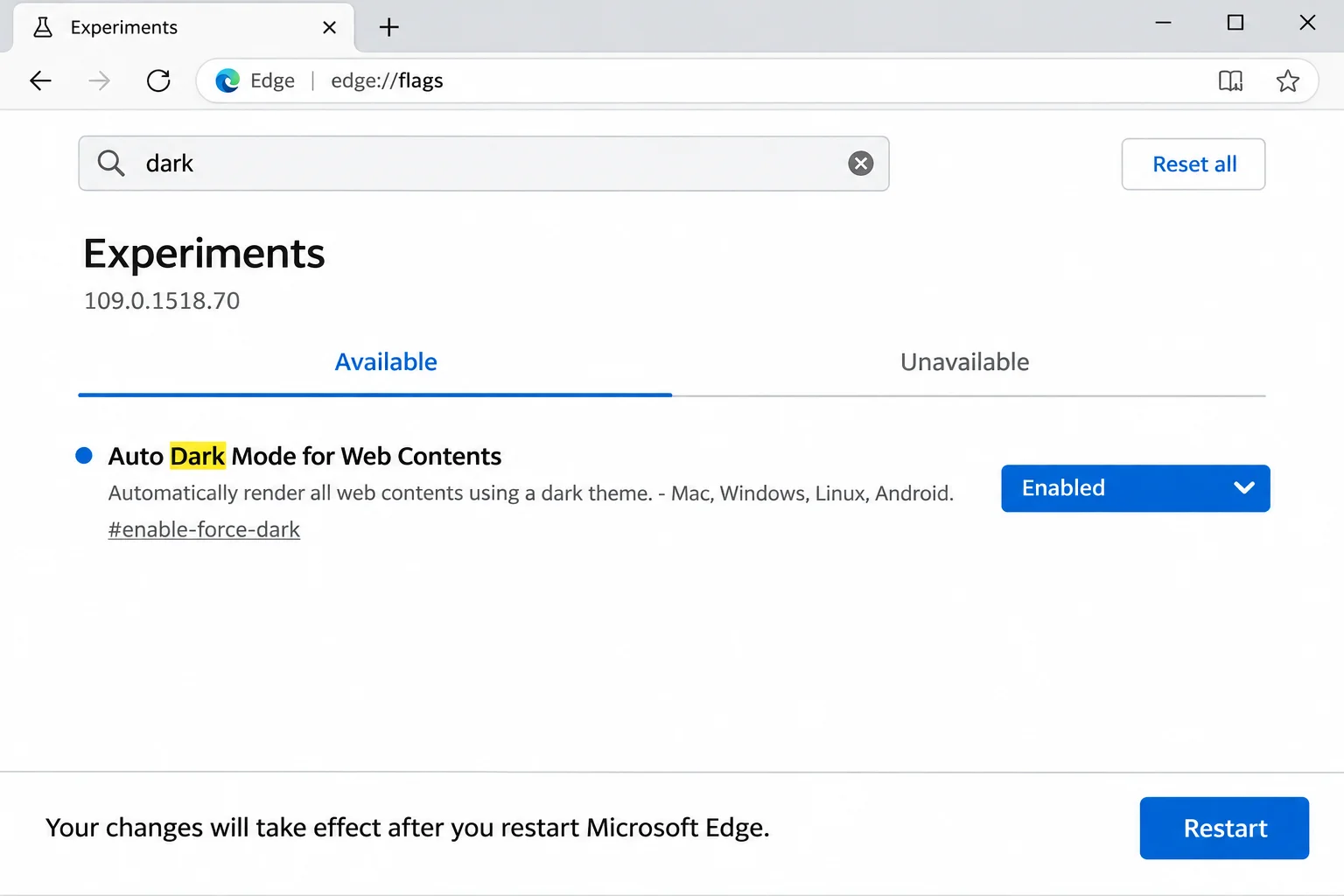
When implementing a fix, disciplined methodology prevents troubleshooting headaches. Always follow a structured, cautious approach:
How to Use Edge Flags (edge://flags) to Fix Problems and Reset Them
  • Change one flag per test: If you modify three settings simultaneously and Edge breaks, isolating the culprit becomes nearly impossible.
  • Log original states: Write down the flag’s name and its current configuration on a sticky note or phone before making adjustments.
  • Match exact terminology: Select the state specified by your source. Most flags offer Default, Enabled, and Disabled, while others include extra variants.
  • Relaunch the browser: Look at the bottom of the page for the banner indicating that your changes take effect after restarting. Click Restart (or Relaunch depending on your build).
  • Test thoroughly: Validate the exact problem you set out to fix by reloading the glitchy page or repeating the crashing action.

How to Reset Edge Flags to Default

If an experiment causes instability, you can reverse changes using either surgical reversion or a global reset.

Reverting a Single Flag

If you know precisely which flag you modified and Edge began misbehaving afterward, search for that specific flag again and manually toggle its state back to Default. This instructs Edge to decide whether the experiment should remain active based on standard version rollouts and policies.
How to Use Edge Flags (edge://flags) to Fix Problems and Reset Them

Using the ‘Reset all’ Master Button

The Reset all button serves as the ultimate cleanup tool. Use it when multiple flags have been altered over time, when you inherit someone else’s computer, or when you cannot remember which settings you touched.

Executing a global reset reverts every single experiment on the page back to Default in one quick action. Click the Restart banner at the bottom of the page to finalize the process.
How to Use Edge Flags (edge://flags) to Fix Problems and Reset Them

Advanced Troubleshooting: When Flags Aren’t the Cause

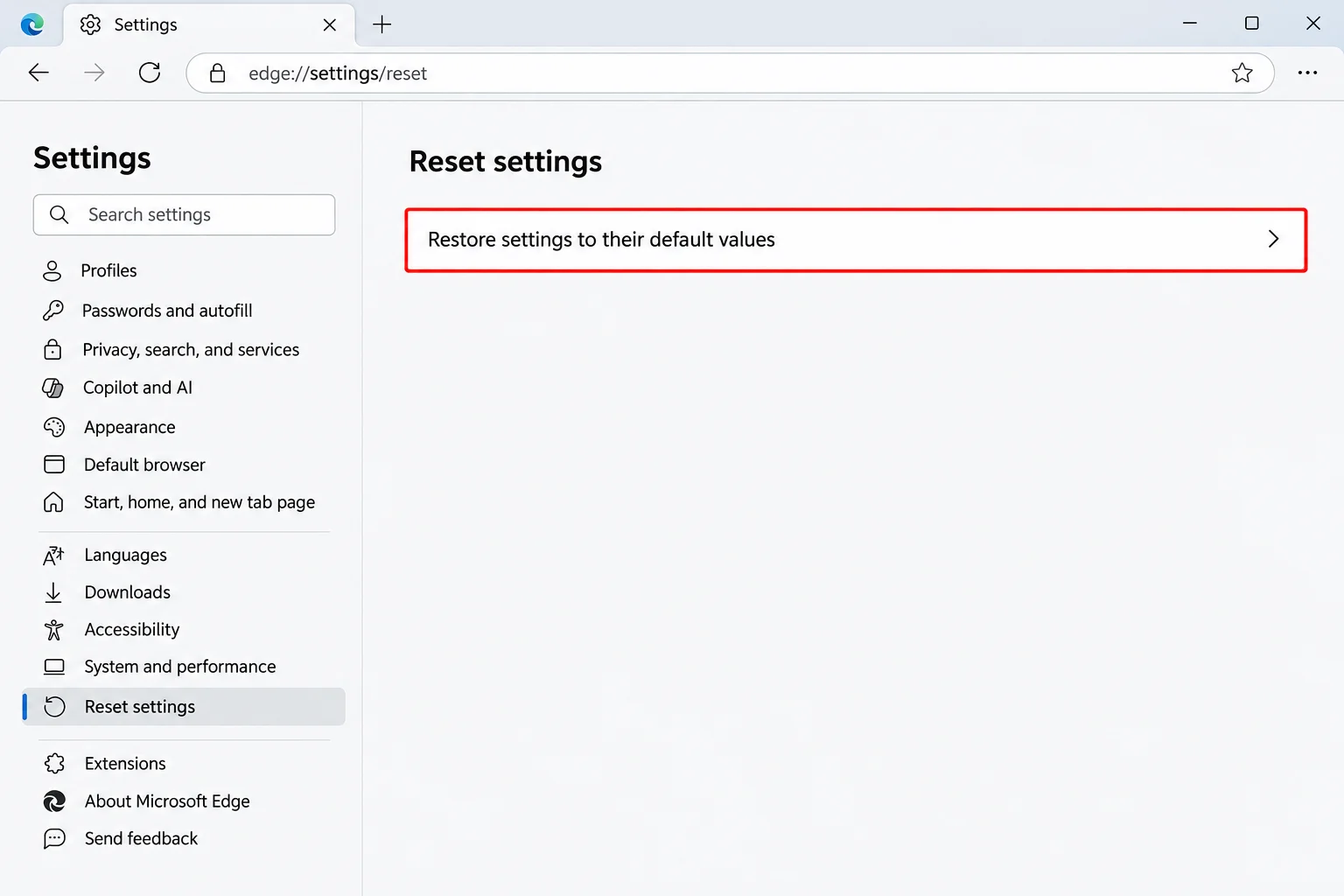
If resetting your experimental flags fails to resolve browser instability, the underlying issue likely stems from standard browser options, extensions, or profile corruption.

To help distinguish between experimental tweaks and core browser management, review the differences outlined below:

Feature / Action Reset all (Flags Page) Reset settings (Normal Browser Settings)
Target Scope Experimental features found in edge://flags. Standard browser options, startup pages, and search engines.
Impact on Extensions Does not affect installed extensions. Turns off all browser extensions.
Impact on Personal Data Leaves bookmarks, history, and passwords untouched. Clears temporary data like cookies while preserving favorites, history, and saved passwords.

If normal settings adjustments, fresh profile testing, or cache clearing do not stop random browser crashes, you may need to evaluate broader system factors, such as running a malware scan or investigating underlying hardware components like failing RAM or a degrading SSD.
Views: 16

Share this:

Related posts:

  • How to Block, Allow, or Force-Install Microsoft Edge Extensions with Group Policy

  • How to Open and Use %LocalAppData% in Windows 11 and 10

  • Chromebook Storage Full? 8 Ways to Free Up Space Fast

Ethan Carter

Ethan Carter

Ethan Carter is a tech writer focused on Windows optimization, lightweight software, and practical PC troubleshooting. He enjoys testing utilities, improving low-end PC performance, and sharing simple tech solutions that help everyday users get more from their devices.

Next Post
How to Completely Remove Old Printer Drivers in Windows 11

How to Completely Remove Old Printer Drivers in Windows 11

Leave a Reply Cancel reply

Your email address will not be published. Required fields are marked *

Recommended.

What Is Ring Topology? How It Works, Advantages, Disadvantages, and Why It Uses Token Passing

What Is Ring Topology? How It Works, Advantages, Disadvantages, and Why It Uses Token Passing

May 11, 2026
Hybrid Computer Definition: History, Architecture, How It Works, Types, Pros and Cons

Hybrid Computer Definition: History, Architecture, How It Works, Types, Pros and Cons

February 15, 2026

Trending.

Is CCleaner Worth It in 2026? Honest Review After Testing It on Modern Windows PCs

Is CCleaner Worth It in 2026? Honest Review After Testing It on Modern Windows PCs

June 17, 2026
Microsoft PC Manager Review: Surprisingly Useful, But Not the PC Booster You Expect

Microsoft PC Manager Review: Surprisingly Useful, But Not the PC Booster You Expect

June 16, 2026
20 Operating System Examples Categorized by Device and Purpose

20 Operating System Examples Categorized by Device and Purpose

June 27, 2026
7 Best Free Antivirus for Windows 11 Ranked by Performance and Security

7 Best Free Antivirus for Windows 11 Ranked by Performance and Security

June 19, 2026
Apple’s November 2026 Lineup: Hardware Shipping, OS 27.3, and New TV+ Shows

Apple’s November 2026 Lineup: Hardware Shipping, OS 27.3, and New TV+ Shows

November 3, 2026
12 Best PC Boosters for Gaming, Low-End PCs, and Everyday Performance

12 Best PC Boosters for Gaming, Low-End PCs, and Everyday Performance

June 17, 2026
How to Update Your BIOS (UEFI)

How to Update Your BIOS (UEFI): When You Should, When You Shouldn’t, and How to Do It Safely

October 25, 2026
Best Free Screen Recorders for Windows We Tested No Watermarks, No Time Limits

9 Best Free Screen Recorders for Windows We Tested in 2026 (No Watermarks, No Time Limits)

June 23, 2026
What Is Programming Software? Types, Functions, and Best Tools for Beginners

What Is Programming Software? Types, Functions, and Best Tools for Beginners

June 14, 2026
Best PC Cleaner for Windows 11: 7 Safe Tools to Clean Junk Files and Free Up Storage

Best PC Cleaner for Windows 11: 7 Safe Tools to Clean Junk Files and Free Up Storage

June 17, 2026
25 Examples of Programming Software Used by Modern Developers

25 Examples of Programming Software Used by Modern Developers

June 14, 2026
What Is Utility Software? Functions, 5 Types, Benefits, and Real-World Examples

What Is Utility Software? Functions, 5 Types, Benefits, and Real-World Examples

June 16, 2026
Internal Hardware of a Computer: Definition, Components, and How Internal Computer Hardware Works

Internal Hardware of a Computer: Definition, Components, and How Internal Computer Hardware Works

March 9, 2026
How Good Is Microsoft Defender Antivirus? Is It Really Enough for Windows 11?

How Good Is Microsoft Defender Antivirus? Is It Really Enough for Windows 11?

May 14, 2026
What Is a Device Driver in a Computer? Functions, Types, How It Works, and Examples

What Is a Device Driver in a Computer? Functions, Types, How It Works, and Examples

July 2, 2026
What Are the Communication Devices? Definition, Key Characteristics, Types, and Real-World Examples

What Are the Communication Devices? Definition, Key Characteristics, Types, and Real-World Examples

June 19, 2026
Excel File Locked for Editing? How to Fix It (Even If It’s You)

Excel File Locked for Editing? How to Fix It (Even If It’s You)

November 2, 2026
iPad mini (A20 Pro): Release Date, OLED, Price, and Specifications

iPad mini (A20 Pro): Release Date, OLED, Price, and Specifications

October 29, 2026
What Does MLO Mean on Your Router and Should You Enable It?

What Does MLO Mean on Your Router and Should You Enable It?

October 26, 2026
New Apple Products Coming in 2026 and 2027: What’s Next for Mac, iPhone, and iPad

New Apple Products Coming in 2026 and 2027: What’s Next for Mac, iPhone, and iPad

October 29, 2026
MSI Afterburner Review: The Tool Most Gamers Use for Monitoring, Not Overclocking

MSI Afterburner Review: The Tool Most Gamers Use for Monitoring, Not Overclocking

June 17, 2026
What Is Firmware? Functions, How It Works, Types, and Examples

What Is Firmware? Functions, How It Works, Types, and Examples

June 19, 2026
Windows 11 version 26H2 Now Broadly Available for Eligible Devices

Windows 11 version 26H2 Now Broadly Available for Eligible Devices

October 26, 2026
Why Is My CPU Temp So High at Idle? Real Causes and How to Fix It

Why Is My CPU Temp So High at Idle? Real Causes and How to Fix It

September 14, 2026
What Is a Distributed Operating System? Architecture, How It Works, Functions, Benefits, and Examples

What Is a Distributed Operating System? Architecture, How It Works, Functions, Benefits, and Examples

June 27, 2026
Microsoft Edge Using Too Much Memory or CPU? 8 Ways to Fix It

Microsoft Edge Using Too Much Memory or CPU? 8 Ways to Fix It

October 28, 2026
What to Expect at Apple’s October 28 Pro and Tell Event

What to Expect at Apple’s October 28 Pro and Tell Event

October 25, 2026
macOS 27 Golden Gate: What’s New, Compatible Macs, and Features

macOS 27 Golden Gate: What’s New, Compatible Macs, and Features

October 29, 2026
What to Do With Your Unsupported Kindle Instead of Throwing It Away

What to Do With Your Unsupported Kindle Instead of Throwing It Away

October 29, 2026
How to Troubleshoot and Fix Word Mail Merge Errors

How to Troubleshoot and Fix Word Mail Merge Errors

October 28, 2026
Intechfy

Intechfy.com is a technology-focused information platform created to make everyday tech concepts easier to understand, more practical, and more accessible.

  • About
  • Contact
  • Disclaimer
  • Sitemap
  • Privacy Policy
  • Terms Of Service

© 2026 Intechfy.com - Information Technology for You

No Result
View All Result
  • Home
  • Guides
  • Utilities
  • Reviews
  • Tech Basics
    • Computer
    • Hardware
    • Software
    • Operating System
    • Networking

© 2026 Intechfy.com - Information Technology for You