Need to know which motherboard is inside your PC? These four methods will help you find its manufacturer, exact model, revision, and BIOS version in Windows.
Checking your computer’s specs is usually straightforward. Windows makes it easy to find your processor, graphics card, and installed memory, but the motherboard model is a little less obvious.
Fortunately, you do not need to take your PC apart in most cases. The quickest option in Windows 11 is a one-line PowerShell command. You can also use System Information, a free hardware-identification tool, or the model number printed on the board itself.
Quick answer: Open a PowerShell tab in Windows Terminal, paste the following command, and press Enter:
Get-CimInstance -ClassName Win32_BaseBoard | Select-Object Manufacturer, Product, Version, SerialNumber
The value under Product is usually your motherboard model. If the result is blank or generic, use one of the other methods below.
Method 1: Use PowerShell to Check Your Motherboard
PowerShell is the fastest built-in method on a modern Windows PC. You do not need administrator access for this query.
Right-click the Start button and select Terminal. Alternatively, search for PowerShell from the Start menu.
If Terminal opens to Command Prompt, use the arrow beside the tab and open a Windows PowerShell or PowerShell tab.
Paste the following command and press Enter:
Get-CimInstance -ClassName Win32_BaseBoard | Select-Object Manufacturer, Product, Version, SerialNumber
Read the results. Manufacturer is the board maker, Product is the model, Version may contain the board revision, and SerialNumber is the unit’s unique identifier when the manufacturer has provided one.
For a laptop or prebuilt desktop, the baseboard result may be an internal part number rather than a consumer-facing model. Run this second command to identify the complete computer instead:
Get-CimInstance -ClassName Win32_ComputerSystem | Select-Object Manufacturer, Model

Use that system model—or the service tag on the case—on the PC manufacturer’s support site when looking for drivers, manuals, or firmware.
Why not use WMIC? Older guides often recommend wmic baseboard get product,manufacturer,version,serialnumber. As of August 2026, Microsoft says the WMIC command-line tool has been removed from Windows 11 and is no longer available as a Feature on Demand. The underlying Windows Management Instrumentation system remains supported, so PowerShell’s Get-CimInstance is the correct replacement.
Method 2: Check Your Motherboard in System Information
You can also find the motherboard model without entering a command by using Windows System Information.
Press Windows key + R to open Run.
Type msinfo32 and press Enter.
Select System Summary in the left pane.
Look for BaseBoard Manufacturer, BaseBoard Product, and BaseBoard Version.

System Information sometimes displays only the manufacturer or a generic entry such as Base Board Product Name. That does not mean anything is wrong with your motherboard; it usually means the PC maker did not add a useful model string to the system’s SMBIOS data.
When the information is available, BaseBoard Product is the field you want. The same window also lists BIOS Version/Date, which is useful if you are checking whether a particular CPU or security update requires newer firmware.
These steps work in Windows 11 and Windows 10. However, Microsoft ended standard support for Windows 10 on October 14, 2025; eligible PCs need Extended Security Updates or an upgrade to remain supported in 2026.
Method 3: Use CPU-Z or Speccy
If Windows returns a vague model name, a free system-information utility may provide a clearer result. Download tools only from their official websites and decline any optional bundled offers you do not want.
Check the Motherboard With CPU-Z
Download CPU-Z from CPUID. You can choose the installer or the ZIP version.
Install and open CPU-Z, or extract and run the portable version.

Select the Mainboard tab.
Check the Manufacturer, Model, and Rev. fields. CPU-Z also shows the chipset and BIOS version on the same tab.
CPU-Z is free and is usually the most direct third-party option. Speccy Free is another option; its Motherboard section also displays the manufacturer, model, chipset, and BIOS information. You do not need Speccy Professional just to see those details.
If you want to monitor temperatures and other sensor readings as well, see our roundup of the best hardware-monitoring tools for Windows.
Method 4: Open the PC and Read the Model on the Motherboard
If the computer will not boot—or if software reports only a generic name—you can inspect the motherboard itself. Before opening a desktop PC, shut it down, switch off and unplug the power supply, press the power button for a few seconds, and touch an unpainted metal part of the case to reduce static buildup.
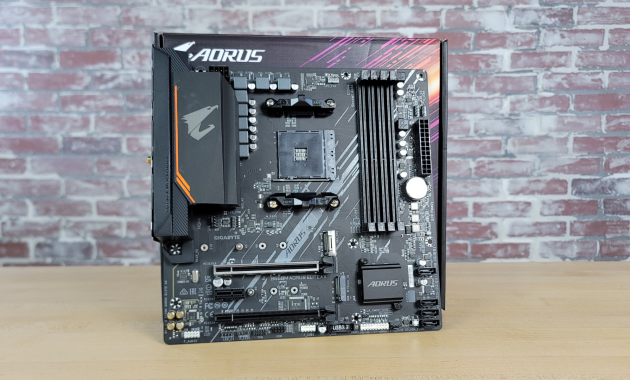
First, look for a manufacturer name such as ASUS, ASRock, Gigabyte, MSI, Biostar, or EVGA.
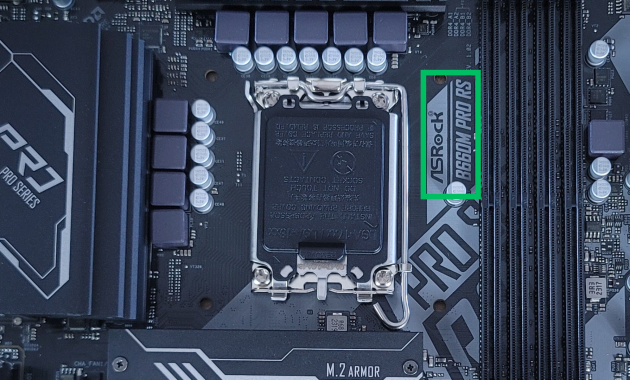
The exact model is usually printed in larger lettering near the PCIe slots, RAM slots, CPU socket, or chipset heatsink. A model might look like MAG B650 TOMAHAWK WIFI or ROG STRIX Z890-E GAMING WIFI. Some boards also print a separate hardware revision, such as REV: 1.0, near a corner or along the bottom edge. Record the revision because different revisions can use different BIOS files or drivers.

Do not mistake the chipset for the full model. Labels such as B650, X870E, B860, and Z890 identify the chipset family, but many different motherboards use the same chipset. Likewise, an M in a model name often indicates a microATX board, but naming conventions vary by manufacturer.
The printed model may be hidden beneath a graphics card or heatsink. Do not remove hardware unless you are comfortable doing so. You may be able to find the same information on the motherboard box, in the original order confirmation, or on the manufacturer’s support page for your prebuilt PC.
Verify the Model Before Downloading Anything
After you find a likely model number, search for the complete name on the motherboard manufacturer’s official website. Compare the product photos, form factor, port layout, and printed revision with your board.
This verification matters most before you download a BIOS update. Closely related models can have different firmware, and installing a BIOS file intended for another board or revision can prevent the PC from booting. If you plan to update the firmware, follow our guide to updating a motherboard BIOS safely and the instructions on the manufacturer’s support page for your exact model.
Motherboard Identification FAQ
The following are answers to common questions about identifying a motherboard in 2026.
1. Why doesn’t Get-CimInstance work in Command Prompt? Get-CimInstance is a PowerShell command, so Command Prompt does not recognize it. Open a PowerShell tab in Windows Terminal, or search for PowerShell from the Start menu, and run the command there.
2. Why doesn’t the old WMIC command work? Microsoft removed WMIC from Windows 11 in 2026, and it is no longer available as a Feature on Demand. Only the legacy wmic.exe command-line tool was removed; Windows Management Instrumentation itself remains supported. Use Get-CimInstance -ClassName Win32_BaseBoard in PowerShell instead.
3. Why does Windows show a generic motherboard name? Windows displays the identification data supplied by the motherboard or system manufacturer. If that data was left blank or contains a placeholder, PowerShell and System Information will show the same vague result. Try CPU-Z, check the label on the board, or—for a laptop or prebuilt—look up the computer’s complete model or service tag.
4. What is the difference between the model, chipset, socket, and revision? The model identifies the exact motherboard. The chipset controls a family of platform features, and the socket is the CPU interface. The revision identifies a particular hardware version of that model. A matching socket alone does not guarantee CPU support; always check the board’s CPU support list and required BIOS version.
5. How do I find my BIOS/UEFI version? Open msinfo32 and look for BIOS Version/Date, or run this command in PowerShell: Get-CimInstance -ClassName Win32_BIOS | Select-Object SMBIOSBIOSVersion, ReleaseDate. Do not assume a newer BIOS is always necessary. Read the release notes and update only when the new version adds compatibility, security, or stability improvements you need.
6. Can Windows show the motherboard serial number? Usually. Run Get-CimInstance -ClassName Win32_BaseBoard | Select-Object Manufacturer, Product, SerialNumber. If the serial number is blank or looks like a placeholder, check the board, its packaging, or the computer’s service-tag label. Do not share a complete serial number publicly.
7. Where is the model printed on the motherboard? It is commonly printed near the PCIe slots, RAM slots, CPU socket, chipset heatsink, or bottom edge. A separate serial-number or QR-code sticker may appear near the 24-pin power connector or SATA ports, but that sticker is not always the model name.
8. Do I need the exact model to buy RAM? Yes. Confirm the DDR generation, maximum capacity, supported speeds, and recommended slot layout in the motherboard manual. The manufacturer’s memory QVL can also show kits tested with that board, although a kit does not necessarily have to appear on the QVL to work.
9. Can I find the motherboard model in BIOS/UEFI? Often. The main or system-information page may list the board model and BIOS version. On an OEM laptop or prebuilt desktop, it may show the computer model instead. If Windows will not start, you can usually enter BIOS/UEFI by pressing Delete or F2 during startup, although the key varies by manufacturer.
Keep your motherboard model handy whenever you download drivers, update your BIOS, or check component compatibility.