

If your PC storage keeps shrinking for no obvious reason, junk files are usually the reason behind it. Many users try to clean junk files in Windows 11 only after the system starts feeling sluggish, apps take longer to open, or Windows update notifications begin appearing because storage is running low. The good news is that you do not need advanced software or risky optimization tools to fix the problem.
Windows 11 constantly creates temporary files, cache data, thumbnails, leftover update files, and other background system data during everyday use. Over time, these files pile up silently and consume valuable storage space. On laptops with smaller SSDs, the impact becomes noticeable much faster.
Many people immediately download a third-party pc cleaner for windows 11 without realizing the operating system already includes several safe cleanup features. In fact, most users can free up disk space windows 11 devices already waste simply by using built-in tools correctly.
According to Microsoft, Windows 11 includes a built-in feature called Storage Sense that can automatically remove temporary files, recycle bin items, and other unnecessary data to free up storage space and keep the system running efficiently.
Features like storage sense windows 11, Disk Cleanup, and Cleanup Recommendations are designed specifically for this purpose. Learning how to clean junk files in Windows 11 properly can help keep your computer organized without putting important files or system stability at risk.
What Are Junk Files in Windows 11?
Junk files are unnecessary files created by Windows, apps, browsers, and background processes during normal use. These files are not usually harmful, but they often remain on the system long after they are no longer needed. As they continue building up, they can consume storage space and make file management harder.
When people clean junk files in Windows 11, they are usually targeting several common file categories. Temporary files are one of the biggest examples. Windows and applications create them while installing updates, loading software, processing media, or saving temporary working data. Many of these files stay behind even after the related task is finished.
Cache files are another major contributor. Browsers, apps, and Windows itself store cache data to improve loading speed. While cache can help performance in some situations, large amounts of outdated cache eventually become clutter. This is why many users regularly delete cache files windows 11 systems accumulate over time.
Other examples include:
- leftover Windows update files
- thumbnail cache
- DirectX shader cache
- delivery optimization files
- recycle bin data
- temporary internet files
One common misconception is that every junk file must be removed immediately. In reality, some cached data helps apps load faster. The goal is not to delete everything aggressively, but to remove unnecessary files windows 11 no longer benefits from keeping.
Another misunderstanding is that manual cleanup requires advanced technical knowledge. Modern Windows versions already provide safe methods to clean temporary files windows 11 creates automatically. Most users only need built-in cleanup features to manage storage efficiently.
Knowing which files are safe to remove is important because random deletion inside system folders can create stability problems. Safe cleanup focuses on temporary and leftover data rather than critical operating system files.
Can Junk Files Slow Down Windows 11?
Junk files alone will not magically destroy system performance overnight, but excessive clutter can gradually affect the overall experience. Systems with limited storage are usually impacted the most, especially budget laptops and older PCs running smaller SSDs.
As storage fills up, Windows has less room to manage temporary operations efficiently. This can affect update installations, virtual memory usage, and app responsiveness. Startup processes may also slow down if too many cached or temporary files accumulate in the background.
Large cache folders and leftover update files can create additional pressure on storage devices. Traditional HDDs may experience slower file access when heavily cluttered, while SSDs can also become less efficient when nearly full. That is one reason many users clean junk files in Windows 11 regularly as part of normal maintenance.
Still, expectations should remain realistic. Removing junk files will not suddenly transform an old computer into a high-end gaming machine. The improvements are usually more noticeable in storage availability, smoother responsiveness, and reduced clutter rather than dramatic benchmark gains.
A common question is: does deleting junk files improve performance? In many cases, yes — especially when storage space is critically low. Freeing up room allows Windows to operate more comfortably and reduces unnecessary background data buildup.
Consistent cleanup can also help boost windows 11 performance indirectly by improving storage management and reducing wasted space. Users who periodically clean junk files in Windows 11 often notice faster updates, fewer storage warnings, and a cleaner overall system experience.
The Safest Ways to Clean Junk Files in Windows 11
Many users assume they need powerful third-party software to clean junk files in Windows 11, but that is rarely necessary. Microsoft already includes several built-in cleanup tools designed to remove temporary data safely without touching critical system files. For most people, these features are more than enough to manage storage and keep the computer organized.
One reason built-in tools are safer is that they focus mainly on temporary and disposable data instead of modifying sensitive areas of the operating system. Some aggressive cleanup apps promise dramatic speed improvements, but they often rely on risky registry cleaning or deep system modifications that can create stability problems later.
A smarter approach is to follow a simple cleanup workflow. Start with automated cleanup features first, then move to manual cleanup tools only when needed. This method helps reduce clutter while lowering the risk of deleting something important accidentally.
The safest order usually looks like this:
- Enable Storage Sense
- Remove temporary files from Windows Settings
- Use Disk Cleanup for deeper system cleanup
- Empty the Recycle Bin
- Clear outdated browser cache
This process helps clean junk files in Windows 11 gradually and safely without relying on unnecessary optimization software.
Use Storage Sense to Automatically Remove Junk Files

Storage Sense is one of the most useful built-in features for users who want a low-maintenance way to manage storage. Instead of manually searching for temporary files every few weeks, Windows can handle much of the cleanup automatically in the background.
The feature is available in:
Settings > System > Storage > Storage Sense
Once enabled, Windows can automatically remove temporary files, clear old Recycle Bin content, and manage unused cloud files. This makes storage sense windows 11 functionality especially useful for laptops or smaller SSDs where space runs out quickly.
Here is how to enable it:
- Open Settings
- Select System
- Click Storage
- Turn on Storage Sense
- Open the feature settings to customize cleanup behavior
Users can then choose how often Windows performs automatic cleanup. Available schedules usually include:
- Every day
- Every week
- Every month
- During low free disk space
For most users, a monthly cleanup schedule works well without becoming too aggressive.
Storage Sense also allows you to control specific cleanup categories. Temporary files are usually safe to remove automatically, while the Downloads folder should be handled more carefully. Some people store important files there without realizing automated cleanup may eventually remove older items.
One major advantage of this feature is convenience. Instead of constantly trying to optimize windows 11 storage manually, the operating system handles routine cleanup tasks on its own. This reduces clutter buildup over time and helps maintain healthier storage usage.
| Storage Sense Feature | What It Removes | Safe to Use |
|---|---|---|
| Temporary Files | Cached temporary system data | Yes |
| Recycle Bin Cleanup | Deleted files after selected days | Yes |
| Downloads Cleanup | Old downloads | Use carefully |
| Cloud Content Cleanup | Unused OneDrive local files | Yes |
For users looking for the easiest way to clean junk files in Windows 11, Storage Sense should usually be the first tool to enable. It is built directly into the operating system, easy to configure, and far safer than many aggressive cleanup utilities found online.
Delete Temporary Files From Windows Settings
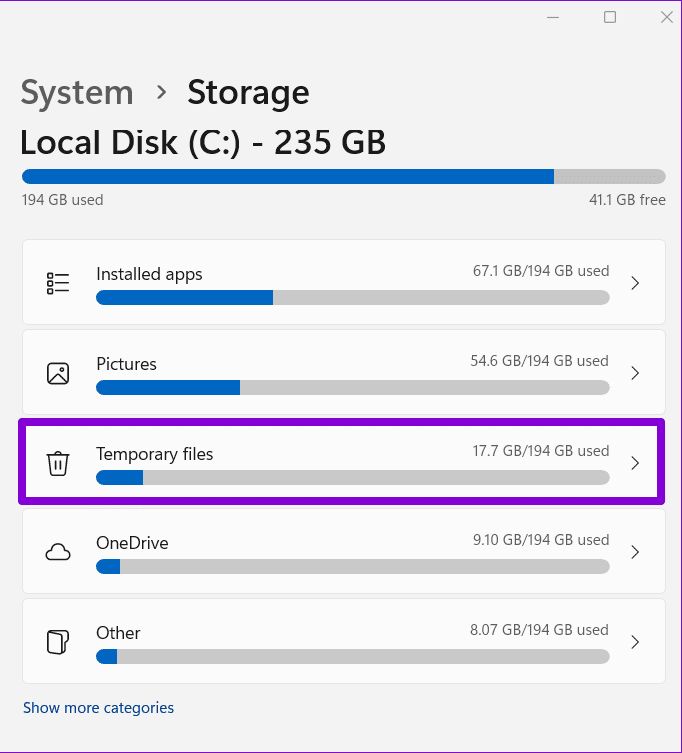
Another reliable way to clean junk files in Windows 11 is by using the Temporary Files section inside Windows Settings. This built-in cleanup area gives users more direct control over which files should be removed while still keeping the process beginner-friendly.
You can access it through:
Settings > System > Storage > Temporary Files
After scanning the system, Windows displays different file categories that are safe to review and remove. In many cases, users are surprised by how much storage space is being wasted by leftover update files, temporary app data, and cached system files.
Common categories usually include:
- Temporary files
- Windows Update Cleanup
- Delivery Optimization Files
- DirectX Shader Cache
- Temporary Internet Files
- Thumbnails
- Recycle Bin data
For most systems, these files are safe to delete. Windows automatically recreates many of them when needed. This is one reason the feature works well for people who want to clean temporary files windows 11 creates automatically during daily use.
To remove the files:
- Open Settings
- Go to System
- Select Storage
- Click Temporary Files
- Wait for Windows to scan the storage
- Select the categories you want to remove
- Click Remove Files
While most categories are harmless, users should avoid deleting items blindly. The Downloads category deserves extra attention because it may contain personal files, installers, or work documents. Accidentally removing important downloads is a common mistake during cleanup.
Windows Update Cleanup is usually safe and can free several gigabytes after major updates. Delivery Optimization Files can also be removed safely since they are mainly cached update-sharing data. DirectX Shader Cache files are temporary graphics-related files that Windows rebuilds automatically if needed.
Using this method regularly can help reduce clutter without relying on a separate pc cleaner for windows 11. It also gives users more visibility into which file types are consuming storage space behind the scenes.
For users who want better control over disk cleanup windows 11 processes, this section is often more transparent than automatic cleanup alone. It also works well alongside Storage Sense for ongoing maintenance.
Clean Junk Files Using Disk Cleanup
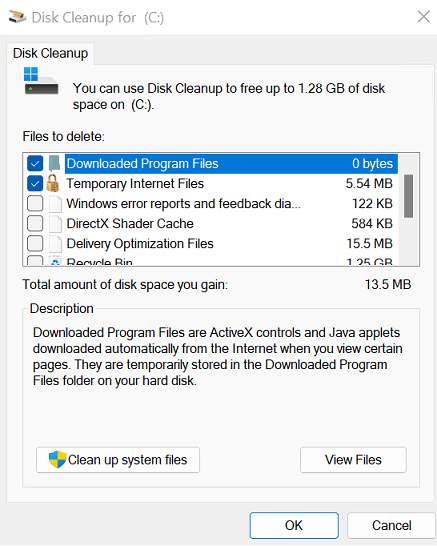
Although Windows 11 includes newer storage management features, Disk Cleanup still remains one of the most effective built-in utilities for deeper cleanup tasks. Many advanced users continue using it because it can remove certain system files more directly than the modern Settings interface.
Disk Cleanup is especially useful for clearing leftover Windows update files, system-generated temporary data, and older installation files that may consume large amounts of storage.
To open the utility:
- Press the Windows key
- Type Disk Cleanup
- Open the application
- Select the drive you want to scan
- Wait for Windows to calculate removable files
After the scan finishes, Windows displays multiple cleanup categories with estimated storage usage. Most users can safely remove temporary files, thumbnails, temporary internet files, and recycle bin data.
For deeper cleanup, click:
Clean up system files
This option restarts the scan with additional system-level cleanup categories. In many cases, this is where users discover large amounts of unnecessary update leftovers or old installation files.
One major difference between Disk Cleanup and Storage Sense is control. Storage Sense focuses more on automation, while Disk Cleanup provides a manual review process before anything gets deleted. Some users prefer this approach because it feels safer and more transparent.
Disk Cleanup also remains valuable for older systems or computers upgraded through several Windows versions. In these situations, old update files can consume significant storage space without users realizing it.
Using this utility software occasionally can help remove junk files windows 11 systems no longer need while improving overall storage organization. It is also one of the safest ways to clean system files windows 11 creates automatically over time because the tool was designed specifically by Microsoft for that purpose.
For users looking for a trusted disk cleanup tool windows 11 already includes, this utility is still one of the best built-in options available
Empty the Recycle Bin and Clear Browser Cache

Some of the easiest ways to recover storage space are also the most overlooked. Many users focus heavily on advanced cleanup methods while forgetting that deleted files and browser cache can quietly consume several gigabytes over time.
The Recycle Bin is a good example. Files placed there are not actually removed from the computer until the bin is emptied manually. Large videos, installers, and duplicate files can remain there for weeks without users noticing.
To empty it:
- Open the Recycle Bin
- Review the files briefly
- Click Empty Recycle Bin
This simple step can immediately free up disk space windows 11 systems may be wasting unnecessarily.
Browser cache is another common source of clutter. Modern browsers like Chrome and Edge store cached images, scripts, and website data to load pages faster. While this improves browsing speed temporarily, outdated cache files eventually become unnecessary.
To clear cache in Chrome:
- Open Chrome
- Press Ctrl + Shift + Delete
- Select Cached images and files
- Choose a time range
- Click Clear data
The process is nearly identical in Microsoft Edge.
Users who regularly delete cache files windows 11 browsers accumulate often notice improved storage management and fewer loading issues on certain websites. Still, cache should not be removed obsessively every day because browsers rebuild it continuously during normal use.
Small maintenance habits like these help clean junk files in Windows 11 without requiring advanced tools or risky system modifications.
Cleanup Recommendations in Windows 11 Explained
Cleanup Recommendations is one of the newer storage management features many users overlook. Unlike traditional cleanup utilities that simply display removable files, this feature analyzes storage usage patterns and suggests areas where space can be recovered safely.
You can find it through:
Settings > System > Storage > Cleanup Recommendations
The tool organizes cleanup suggestions into categories such as:
- Temporary files
- Large or unused files
- Rarely used apps
- Files synced to cloud storage
This approach makes windows 11 storage cleanup easier for beginners because Windows highlights items likely to be unnecessary instead of forcing users to search manually through folders.
Based on Microsoft’s documentation, Windows 11 can analyze storage usage and recommend files that are safe to remove, including temporary files, old Windows installation data, and rarely used applications.
One advantage of Cleanup Recommendations is visibility. Users can quickly identify apps they have not opened in months or oversized files consuming valuable SSD space. In many cases, removing unused applications provides more long-term storage improvement than deleting temporary files alone.
The feature also works well together with Storage Sense. While Storage Sense handles automatic maintenance in the background, Cleanup Recommendations gives users a broader overview of storage usage and helps optimize windows 11 storage more strategically.
For people who want safer cleanup guidance, this tool is often more approachable than manually exploring hidden system folders.
Files You Should NOT Delete in Windows 11
Not every file that looks unnecessary is safe to remove. One of the biggest mistakes users make while trying to clean junk files in Windows 11 is deleting important system data without understanding what it does.
Built-in cleanup tools are generally safe because Microsoft already filters categories that can usually be removed safely. Problems often happen when users manually delete random folders or rely on aggressive cleaner apps promising unrealistic performance gains.
Certain areas should never be modified carelessly, including:
- System32 folders
- unknown AppData directories
- driver packages
- recovery partitions
- manually selected Windows system files
Deleting these files can cause boot issues, hardware malfunctions, missing drivers, or application crashes.
Aggressive registry cleaners are another risk. Many third-party tools advertise “deep optimization” features that supposedly repair thousands of registry entries. In reality, registry cleanup rarely produces meaningful performance improvements on modern systems and can sometimes create stability problems instead.
This is why the safest way to delete junk files windows 11 systems accumulate is by sticking to built-in cleanup features whenever possible.
| File Type | Should You Delete It? | Reason |
|---|---|---|
| Temporary Files | Yes | Usually safe |
| Windows.old | Usually yes | Frees large storage |
| System32 Files | No | Critical system files |
| Driver Packages | No | Can break hardware |
| Browser Cache | Yes | Rebuilt automatically |
Some users install a pc cleaner for windows 11 expecting automatic performance boosts, but many cleanup tasks can already be handled safely through Windows itself. Understanding what should stay untouched is just as important as knowing what can be removed.
Do You Really Need a PC Cleaner for Windows 11?
Many Windows users eventually search for a pc cleaner for windows 11 after seeing storage warnings or noticing slower performance. Cleaner apps are heavily advertised online, often promising one-click optimization, dramatic speed boosts, and “deep cleaning” features that supposedly fix everything automatically.
In reality, most people do not need aggressive third-party cleanup software to maintain a healthy system.
Windows 11 already includes several reliable tools capable of handling the majority of cleanup tasks safely. Features like Storage Sense, Temporary Files cleanup, Disk Cleanup, and Cleanup Recommendations can remove temporary data, clear cache, and recover storage space without modifying sensitive system areas.
For everyday users, these built-in features are usually enough to clean junk files in Windows 11 effectively.
That does not mean every external utility is useless. Some tools can still be helpful in specific situations, especially when users want:
- duplicate file detection
- large file analysis
- advanced uninstall features
- centralized storage management
Microsoft PC Manager is one example that has gained attention because it focuses more on lightweight maintenance rather than aggressive “turbo optimization” claims. Even then, it should be viewed as optional rather than essential.
The bigger concern is overly aggressive cleanup software. Some applications push unnecessary registry cleaning, startup “repairs,” driver optimization, or automated background tweaking that can create more problems than benefits. Modern versions of Windows already manage many system processes efficiently on their own.
Another issue is that some cleaner apps exaggerate performance results. Removing a few gigabytes of temporary files may improve storage organization, but it will not magically transform old hardware into a high-performance machine. Users expecting instant gaming-level speed improvements are often disappointed.
A safer long-term approach is to combine regular maintenance with responsible storage habits. Periodically remove temporary files, empty the Recycle Bin, uninstall apps you no longer use, and monitor storage usage before it becomes critical.
For most systems, the built in cleaner windows 11 already provides is sufficient for routine maintenance. Users who simply want a dependable windows cleanup utility do not necessarily need to install additional software unless they require specialized features.
The smartest strategy is usually the simplest one: use Windows’ native cleanup tools first, avoid risky optimization gimmicks, and focus on consistent maintenance instead of chasing unrealistic “instant speed boost” promises.
How Often Should You Clean Junk Files in Windows 11?
There is no single cleanup schedule that works for every computer because usage habits vary from person to person. Some users barely install new software, while others constantly download games, edit videos, or move large files every day. Still, regular maintenance helps prevent storage clutter from building up over time.
For normal users, cleaning temporary files once every few weeks is usually enough. Browsing the web, streaming media, installing updates, and using office apps naturally generate cache files and leftover data in the background. A monthly cleanup schedule works well for most systems and helps clean junk files in Windows 11 before storage problems become noticeable.
Gaming PCs often need more frequent maintenance because modern games generate large shader caches, update leftovers, and temporary installation data. Gamers who install and remove titles regularly may benefit from checking storage every one or two weeks, especially on smaller SSDs.
Low-storage laptops require even more attention. Devices with 128GB or 256GB drives can fill up quickly after major Windows updates. In these situations, users may need to free up storage more frequently to avoid slowdowns and update installation issues.
Many people also ask: how often should you clean junk files? The safest answer is whenever storage starts becoming tight or temporary data begins accumulating excessively. There is no need to obsess over daily cleanup because Windows already manages many background processes automatically.
Using storage sense windows 11 settings can simplify the process significantly. Once enabled, Windows can automatically remove temporary files and manage routine cleanup without constant manual maintenance. For most users, combining automatic cleanup with occasional manual checks is enough to keep the system organized.
Best Practices to Keep Windows 11 Clean Longer
Cleaning unnecessary files helps, but preventing clutter from returning too quickly is even more important. Good storage habits can reduce maintenance needs and help the system stay organized for much longer between cleanups.
One of the easiest ways to reduce storage usage windows 11 systems experience is uninstalling apps you no longer use. Many computers collect old programs, trial software, and unused games that quietly consume storage space in the background. Reviewing installed applications every few months can recover far more space than temporary cleanup alone.
Managing the Downloads folder also makes a big difference. Many users save installers, ZIP archives, screenshots, and duplicate documents there without realizing how quickly the folder grows. Organizing or deleting outdated downloads regularly helps free up disk space windows 11 devices often waste unnecessarily.
Cloud storage can also help reduce local clutter. Services like OneDrive allow users to keep less frequently used files online instead of permanently storing everything on the SSD. This approach is especially helpful for smaller laptops where storage space is limited.
Automatic cleanup features should remain enabled whenever possible. Tools like storage sense windows 11 can handle temporary files and recycle bin cleanup automatically, reducing the amount of manual maintenance required later.
Duplicate files are another hidden source of wasted storage. Photos, videos, backups, and copied documents can slowly multiply across folders over time. Keeping files organized and avoiding unnecessary duplicates helps maintain cleaner storage overall.
The goal is not to constantly clean junk files in Windows 11 every day, but to create habits that stop clutter from becoming overwhelming in the first place. Consistent maintenance is usually more effective than waiting until the drive becomes nearly full.
Conclusion
Learning how to clean junk files in Windows 11 does not require advanced technical knowledge or expensive optimization software. In most cases, the safest and most effective tools are already included with the operating system itself.
Features like Storage Sense, Disk Cleanup, Temporary Files cleanup, and Cleanup Recommendations can remove unnecessary data safely without putting important system files at risk. These tools help recover storage space, organize clutter, and improve overall storage management without relying on aggressive cleanup applications.
The key is consistency rather than extreme optimization. Regular maintenance prevents temporary files, update leftovers, browser cache, and recycle bin data from building up excessively over time. Even small cleanup habits can make a noticeable difference on systems with limited storage.
It is also important to avoid risky cleaner utilities that promise unrealistic speed boosts. Many aggressive tools focus on unnecessary registry cleaning or deep system modifications that modern versions of Windows simply do not need.
For most users, the best strategy is simple: clean junk files in Windows 11 periodically, keep storage organized, and let storage sense windows 11 handle routine maintenance automatically whenever possible.
FAQs About How to Clean Junk Files in Windows 11
Is it safe to clean junk files in Windows 11?
Yes, using built-in Windows cleanup tools is generally safe for most users.
Does deleting junk files make Windows 11 faster?
It can improve responsiveness and storage efficiency, especially when the drive is nearly full, but results are usually moderate.
What is the best built-in cleaner in Windows 11?
Many users prefer Storage Sense because it automates cleanup tasks safely.
Can I delete temporary files while programs are running?
Some temporary files can be removed, but active applications may lock certain files until the program closes.
Why does junk keep coming back in Windows 11?
Windows, browsers, and apps continuously create temporary files during normal use.


