
On November 3, 2026, Microsoft rolled out Windows 11, version 26H2 (build 26300.9818 or later) via Windows Update, introducing significant architectural changes designed to improve system responsiveness on PCs equipped with 8GB of RAM. While budget laptops and older office desktops stand to benefit the most from these adjustments, understanding what the update actually changes helps set realistic expectations for everyday performance.
What Changes in Windows 11 Version 26H2 for 8GB PCs
Microsoft’s update specifically targets memory management bottlenecks on lower-spec hardware. By altering how system resources allocate memory and prioritize active workloads, the operating system aims to reduce the stuttering common when switching between multiple applications.
The update introduces two core mechanical improvements:
- Foreground task prioritization: Windows now dynamically prioritizes whatever application or task is actively running. When user activity is detected, the operating system temporarily curtails background resource hogs, such as Search indexing, to free up immediate processing power.
- Retuned memory compression: While memory compression has been a feature of Windows for years, Microsoft modified how aggressively the system compresses less-active data. This adjustment keeps more data cached directly in RAM instead of paging it out to slower drive storage, effectively providing up to 1GB more available headroom at idle.
To access these improvements, devices must be updated to version 26H2, build 26300.9818 or later, delivered directly through standard Windows Update channels.
Breaking Down Microsoft’s Performance Claims: 20% vs. 40%
Microsoft’s official announcement highlights two primary performance metrics, though tech outlets and analysts note that these figures measure entirely different scenarios.
The everyday metric claims that common actions respond up to 20% faster on 8GB PCs compared to the baseline January 2026 Windows build. This telemetry figure measures standard user interactions across a variety of typical workloads.
By contrast, the headline-grabbing “40% faster” claim originated from a single internal lab stress test. Tested on an HP OmniBook 3 configured with a Snapdragon X Plus processor and 8GB of RAM, Microsoft ran an intensive simultaneous multi-app workflow. Because this represents a heavy lab stress test rather than a representative average, everyday users running basic web browsing and email tasks should view the 20% telemetry figure as the more relevant benchmark.
Independent Testing and Real-World Expectations
Independent evaluations from tech publications provide a clearer picture of how Windows 11 26H2 8GB RAM performance translates outside Microsoft’s labs.
Testing by Windows Central offered concrete evidence of lower idle memory usage, confirming that the optimized compression routine successfully preserves headroom on constrained hardware. However, independent outlets have not broadly reproduced the 20% or 40% speedup percentages in controlled benchmarks.
Analysts emphasize that while software tuning provides a welcome boost, it cannot entirely bypass the physical limits of constrained hardware. For heavy multitaskers facing persistent system slowdowns, upgrading physical memory to 16GB remains the definitive hardware solution where the laptop’s motherboard permits.
How to Check, Install, and Troubleshoot the Update
For users looking to verify their current system state or deploy the update, Microsoft distributes version 26H2 broadly to eligible devices, though staggered deployments and safeguard holds may apply to specific hardware configurations.
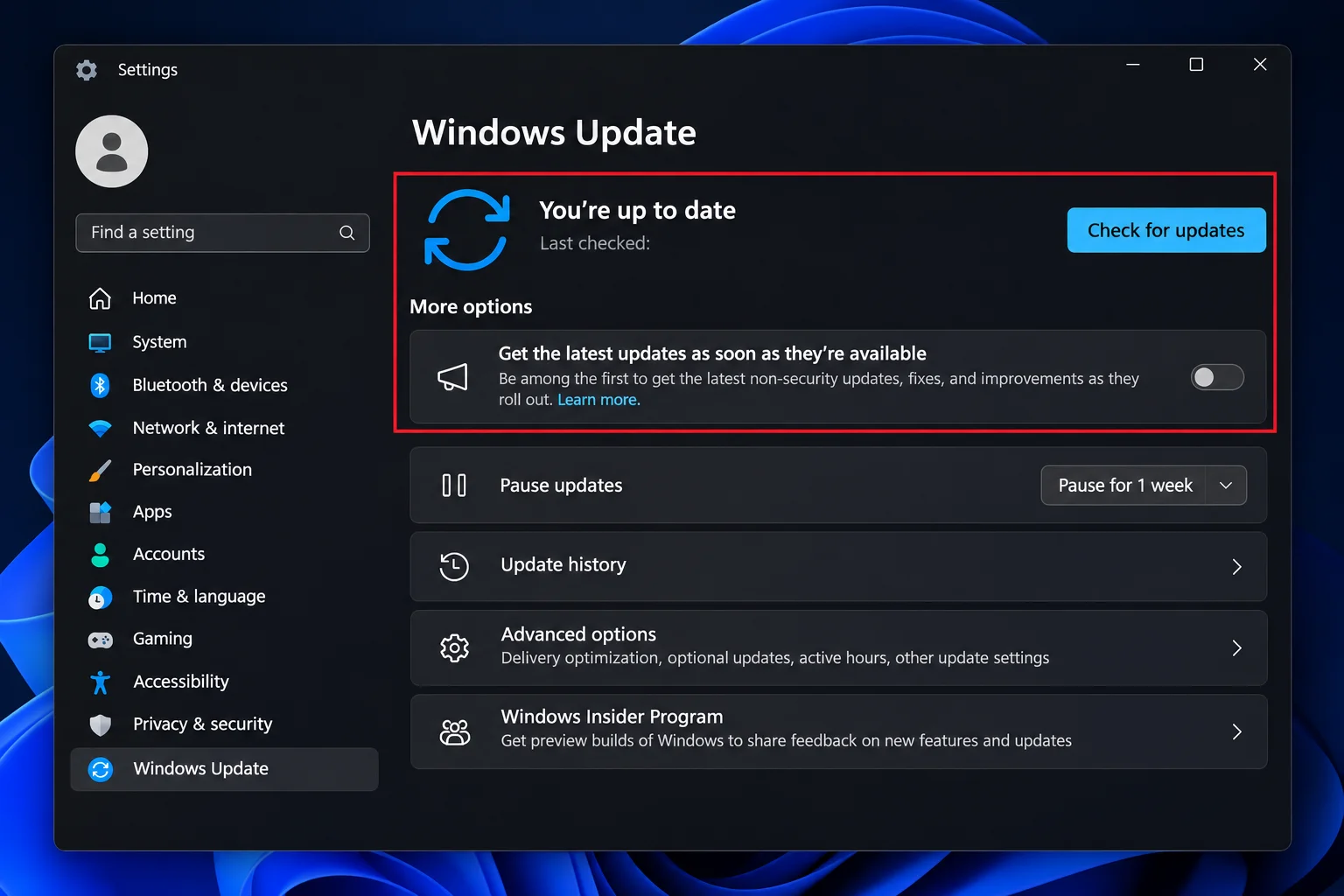
- Open Settings > Windows Update and select Check for updates. To expedite the process, toggle on the option to get the latest updates as soon as they are available.
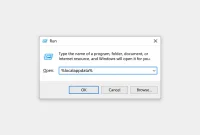
- Press Win + R, type
winver, and press Enter to confirm that your build is 26300.9818 or later. - Before deploying on enterprise systems or remote family computers, consult the Windows 11 version 26H2 release-health page. Enterprise administrators should note that prior virtual desktop environments, including Azure Virtual Desktop with FSLogix, encountered a known issue involving black screens upon sign-in, which Microsoft resolved via patch KB5127648.
Ultimately, Windows 11 26H2 provides a worthwhile optimization for sluggish 8GB machines without requiring hardware modifications, delivering a noticeably snappier experience for everyday multitasking.