
Popular communication and productivity tools like Slack, Discord, and Microsoft Teams frequently sit at the top of the Task Manager’s Memory column. When multiple applications of this type remain open simultaneously, your Windows 11 PC can slow down significantly. Many of these desktop programs are built using the Electron framework, which bundles its own copy of the Chromium browser engine and Node.js runtime. Fortunately, you do not need third-party RAM cleaners or admin rights to address this issue. By using built-in Windows 11 tools and adjusting app-level settings, you can successfully reduce memory usage Electron apps Windows 11 requires without losing functionality.
Why Electron Apps Consume So Much RAM
Electron is a development framework that allows engineers to build desktop software using web technologies. Applications such as Slack, Discord, Microsoft Teams, Visual Studio Code, and WhatsApp Desktop commonly rely on this architecture, although exact versions vary by release cycle. For instance, Electron 45 was released on October 21, 2026, featuring Chromium 156.0.8078.48 and Node 24.22.0.
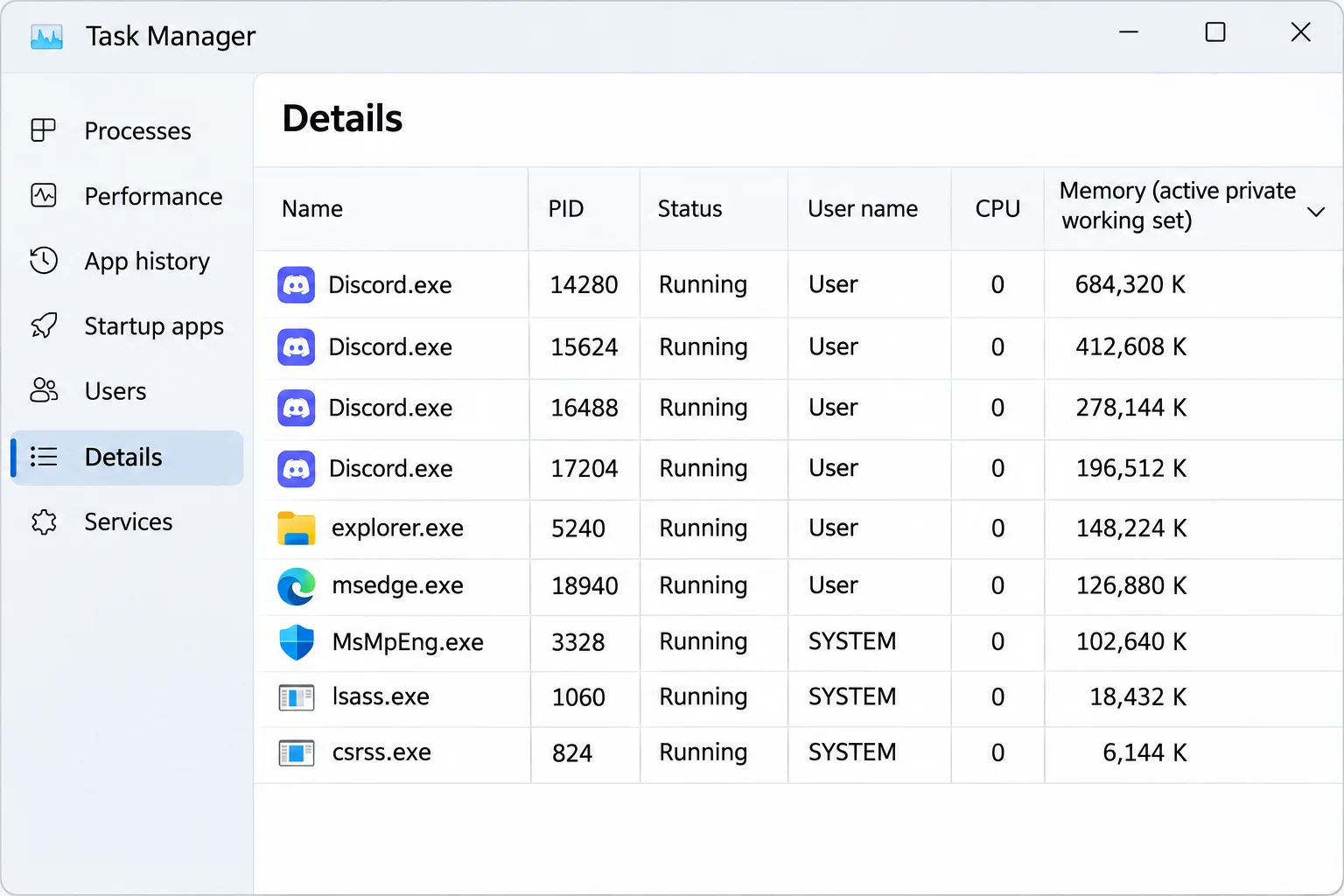
The primary architectural trade-off is memory consumption. Because every Electron app bundles its own Chromium engine and Node.js runtime, running four separate Electron apps is functionally equivalent to running four private web browsers side by side. This design also explains why a single app generates numerous entries in the Task Manager. Chromium divides its tasks into separate components, including a main process, individual processes for each open window, and a dedicated GPU process. While this isolation prevents the entire application from crashing if one component fails, the cumulative memory footprint can quickly overwhelm systems with limited RAM.
Prerequisites Before You Begin Troubleshooting
Before modifying your system settings or application configurations, review the following requirements and preparation steps:
- A PC running Windows 11. Note that Efficiency mode requires version 22H2 or later, while background app controls appear only for supported applications.
- The Electron apps you wish to manage (such as Slack, Discord, or Teams) installed and signed in.
- Any unsaved messages or active drafts sent or saved, as several troubleshooting steps require closing the application entirely.
- Microsoft Edge or Google Chrome, should you decide to test web or Progressive Web App (PWA) alternatives.
No administrative rights or third-party utility software are required to complete these procedures.
7 Ways to Cut Electron Memory Usage on Windows 11
Apply these built-in methods systematically to identify resource hogs and reclaim valuable system memory.
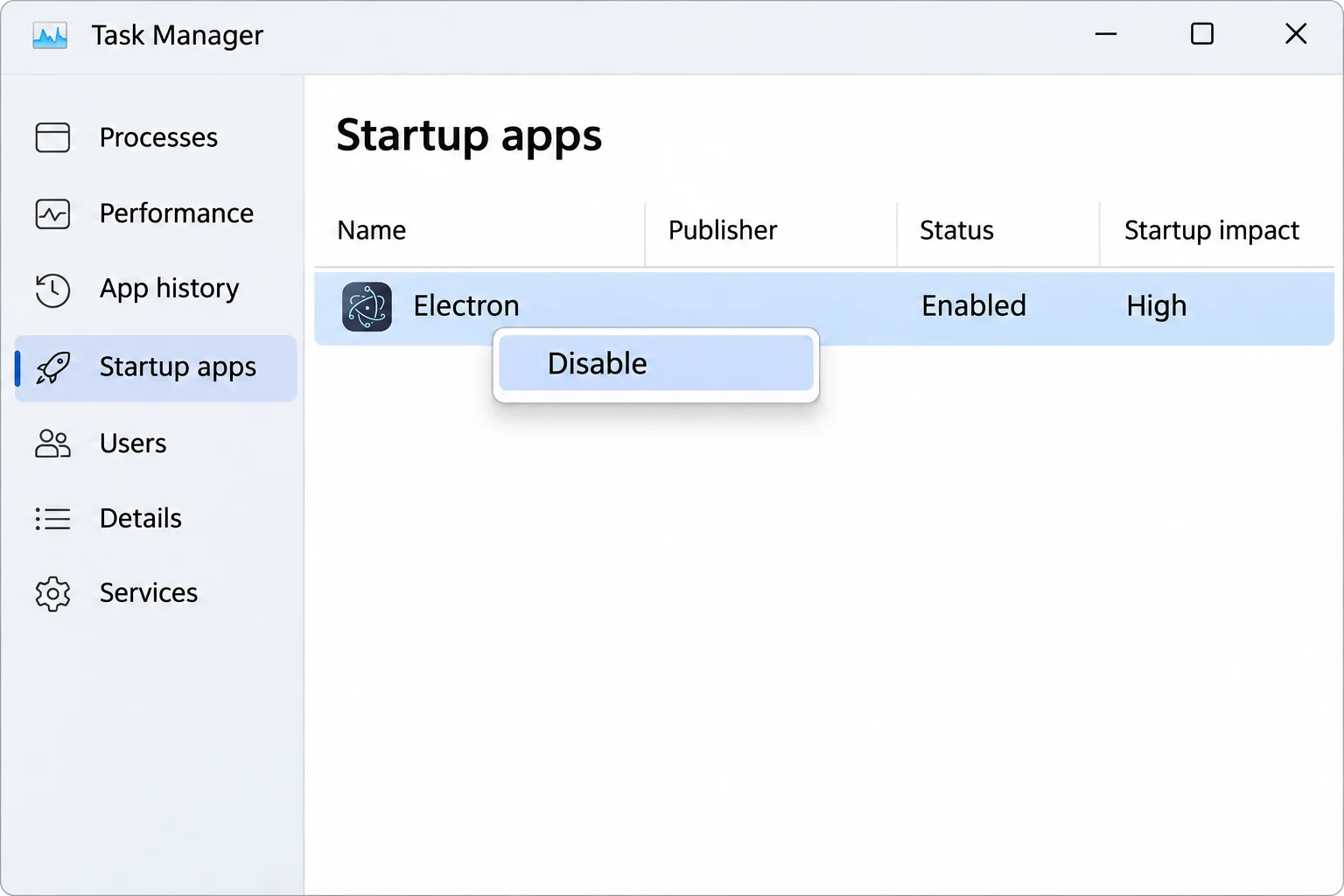
Fix #1: Find the Real Memory Hogs in Task Manager
Before changing any settings, identify which programs consume the most resources:
- Press Ctrl + Shift + Esc to open Task Manager.
- Click the Memory column header to sort applications by RAM consumption, placing the heaviest programs at the top.
- Click the arrow next to an app like Slack or Discord to expand its process tree and view all associated helper processes.
- Alternatively, select Details in the left menu and sort by its memory column header to inspect individual executables like multiple
slack.exeorDiscord.exeentries.
Expected result: You will have a clear, short list of the specific apps consuming the most RAM, pointing you directly toward your primary targets.
Fix #2: Properly Quit Apps from the System Tray
Clicking the “X” button in Discord, Slack, or Teams typically only hides the window while the app continues running silently in the background:
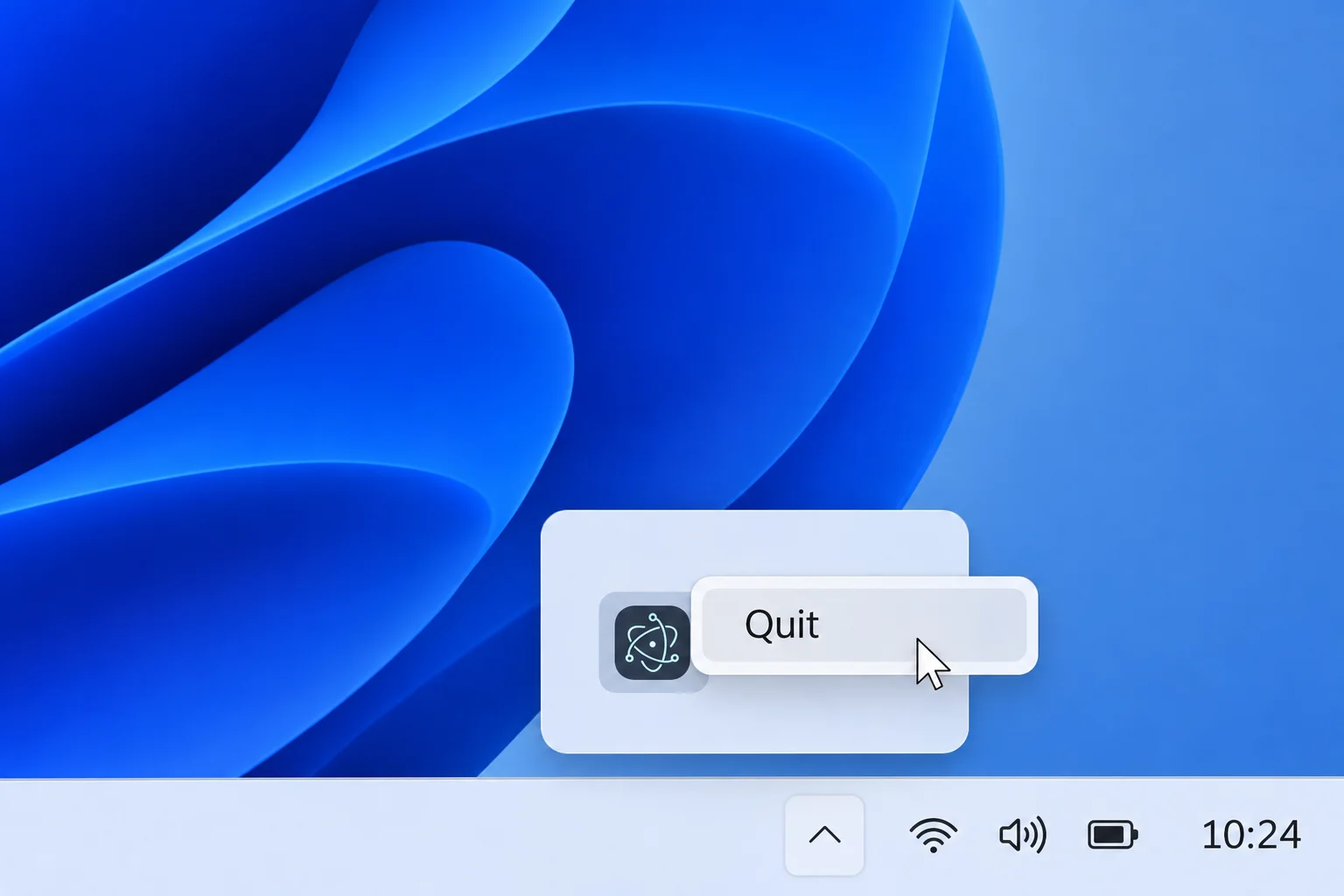
- Click the Show hidden icons arrow (^) on the taskbar near the clock.
- Right-click the app icon and choose Quit or Exit (exact labeling varies by application).
- Open Task Manager with Ctrl + Shift + Esc and verify that the app’s entry has disappeared from the Processes list.
Expected result: The app processes vanish from Task Manager, immediately releasing the memory they previously held.
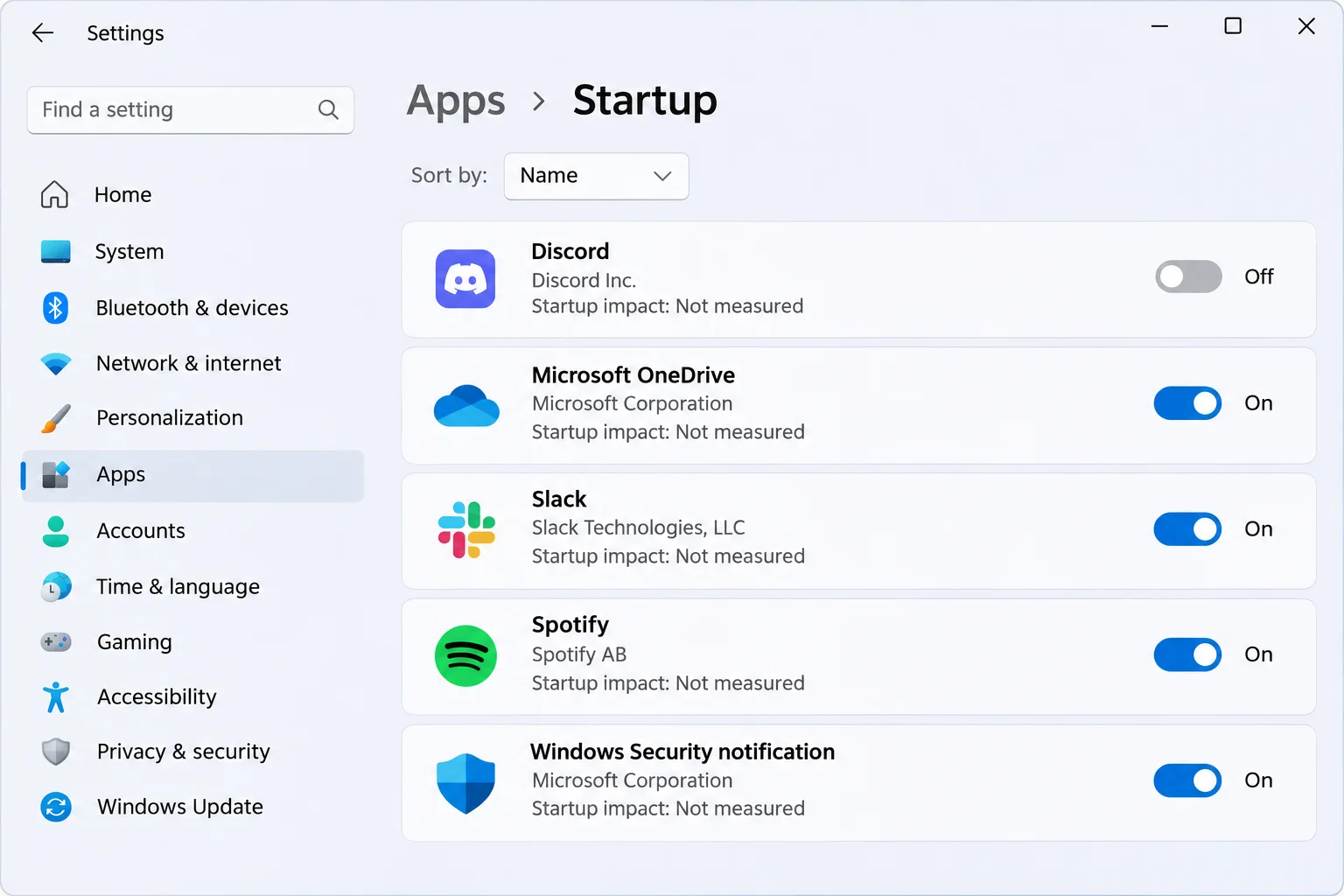
Fix #3: Stop Electron Apps From Launching at Startup
Preventing resource-heavy apps from launching automatically after a system reboot ensures they never consume memory unless explicitly opened:
- Open Task Manager and select Startup apps from the left-hand menu.
- Locate the target application, right-click it, and select Disable. The Status column will update to Disabled.
Expected result: Upon your next restart, the application remains dormant until you choose to open it yourself. Disabling startup does not uninstall the software.
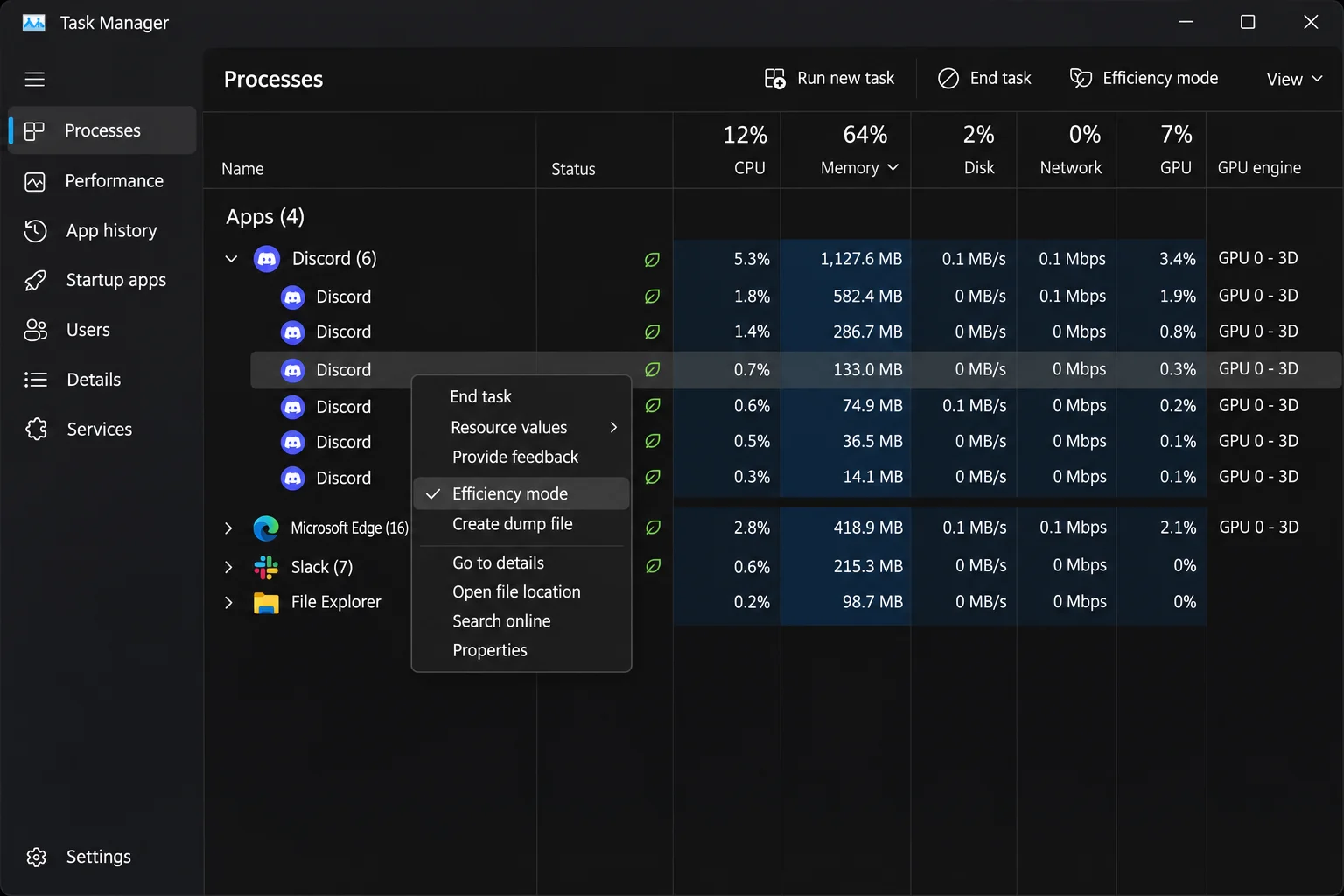
Fix #4: Turn On Efficiency Mode for Apps You Keep Open
Efficiency mode lowers process priority and applies Microsoft’s EcoQoS behavior. Available in Windows 11 version 22H2 and later, this feature primarily targets CPU and power usage:
- In Task Manager, expand the target app’s process group and right-click its main process.
- Select Turn on Efficiency mode and confirm if prompted.
- Look for the leaf icon in the Status column to confirm active throttling.
Expected result: System slowdowns caused by active background apps are minimized, though direct RAM reduction may be modest.
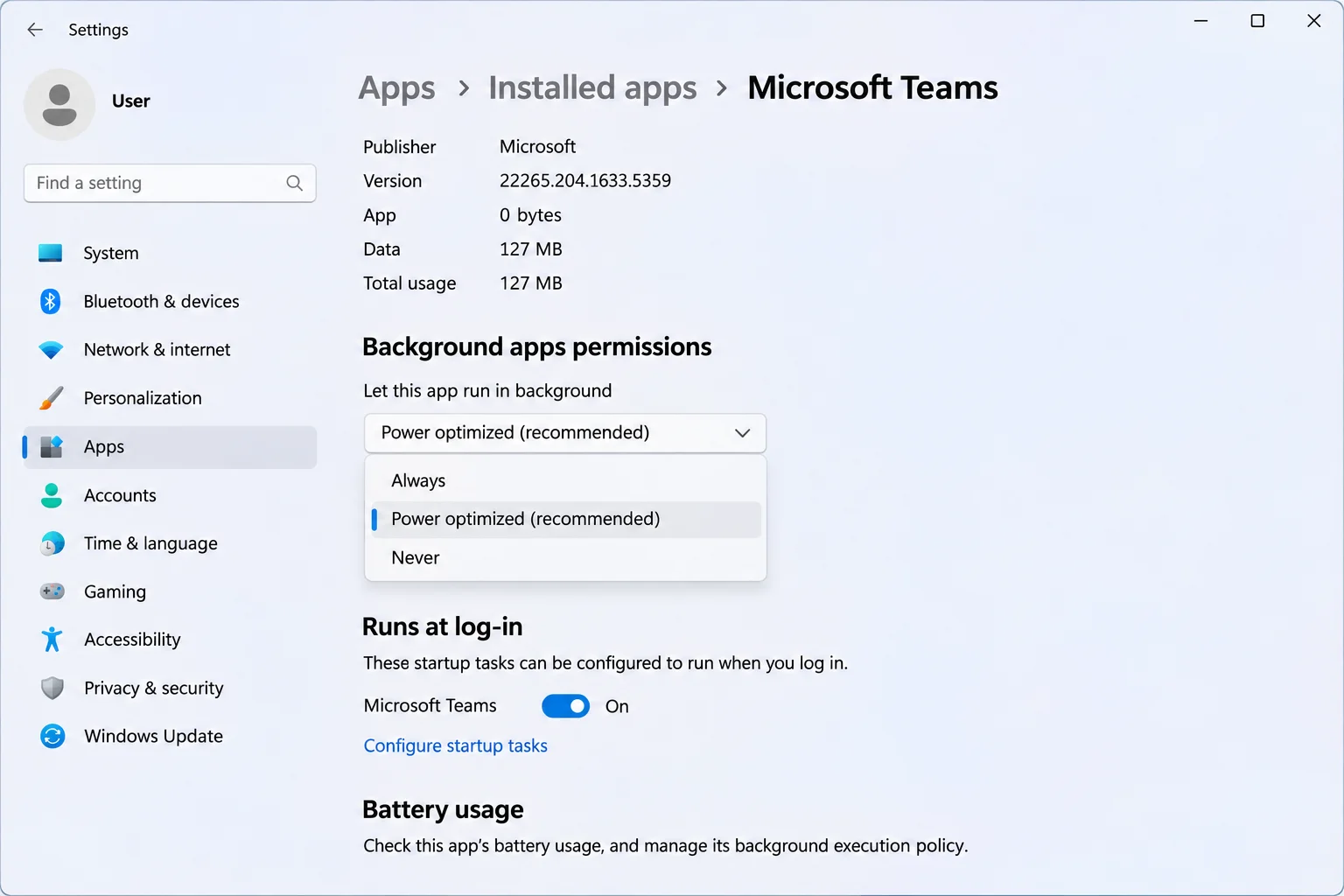
Fix #5: Limit Background Activity in Settings
Windows allows you to restrict background execution for select desktop programs:
- Open Windows Settings and navigate to installed app properties (supported apps feature an Advanced options menu).
- Under Let this app run in background, select Never or Power optimized (recommended).
Expected result: The application ceases processing data when not actively in use.
Fix #6: Turn Off Hardware Acceleration in the App
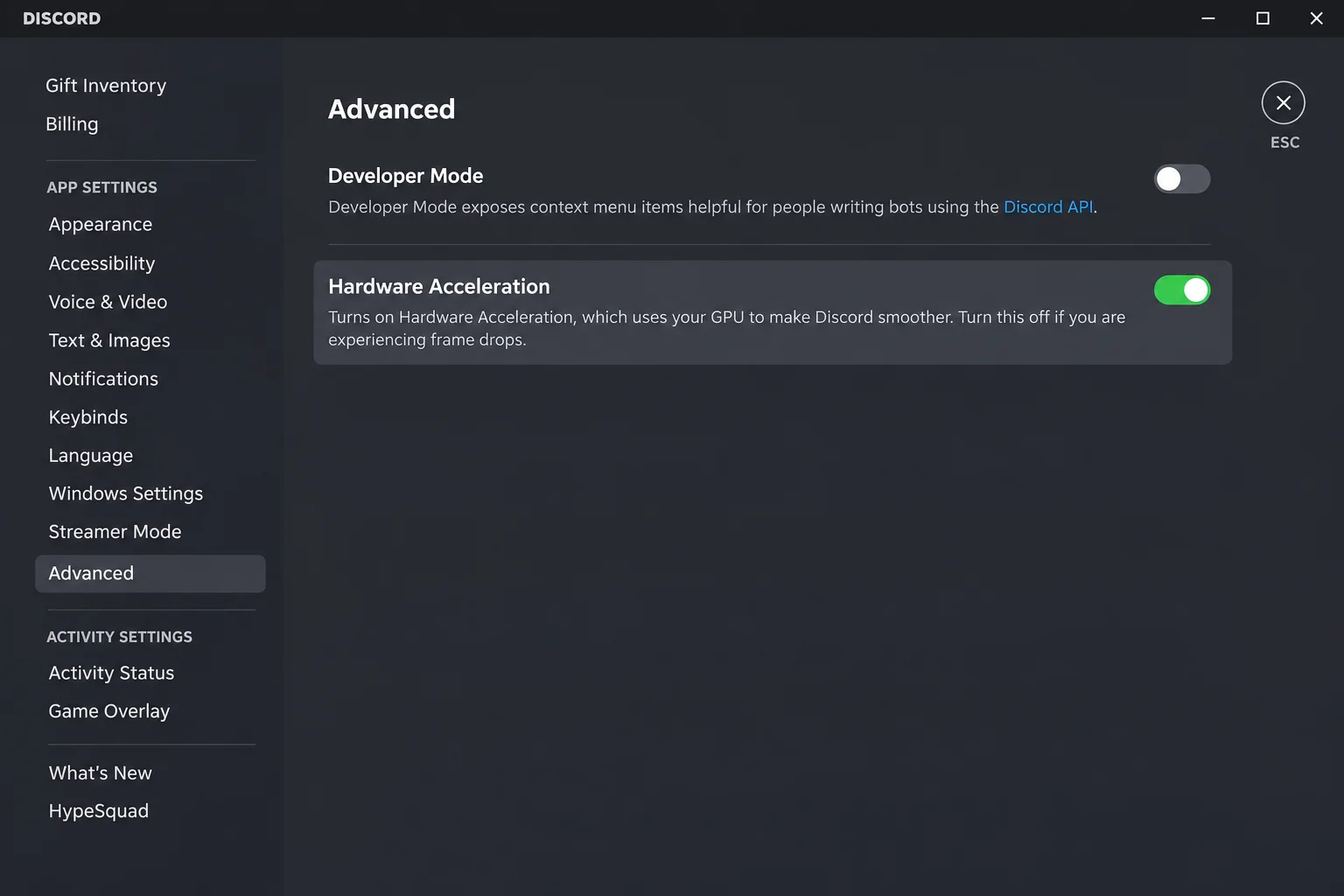
Hardware acceleration delegates rendering tasks to your graphics processor. Disabling it can shrink the dedicated GPU process on certain machines:
- Note the app’s current memory consumption in Task Manager.
- Open the application’s internal settings via its gear icon and locate the advanced graphics section.
- Toggle off hardware acceleration, restart the app, and compare its resource usage over time.
Expected result: GPU process memory demands decrease without impacting overall responsiveness. If scrolling becomes choppy or CPU usage spikes, re-enable the toggle.
Fix #7: Switch to Web Apps or PWAs
For applications you access infrequently, browser-based versions or Progressive Web Apps (PWAs) eliminate the need to run independent Chromium and Node.js instances:
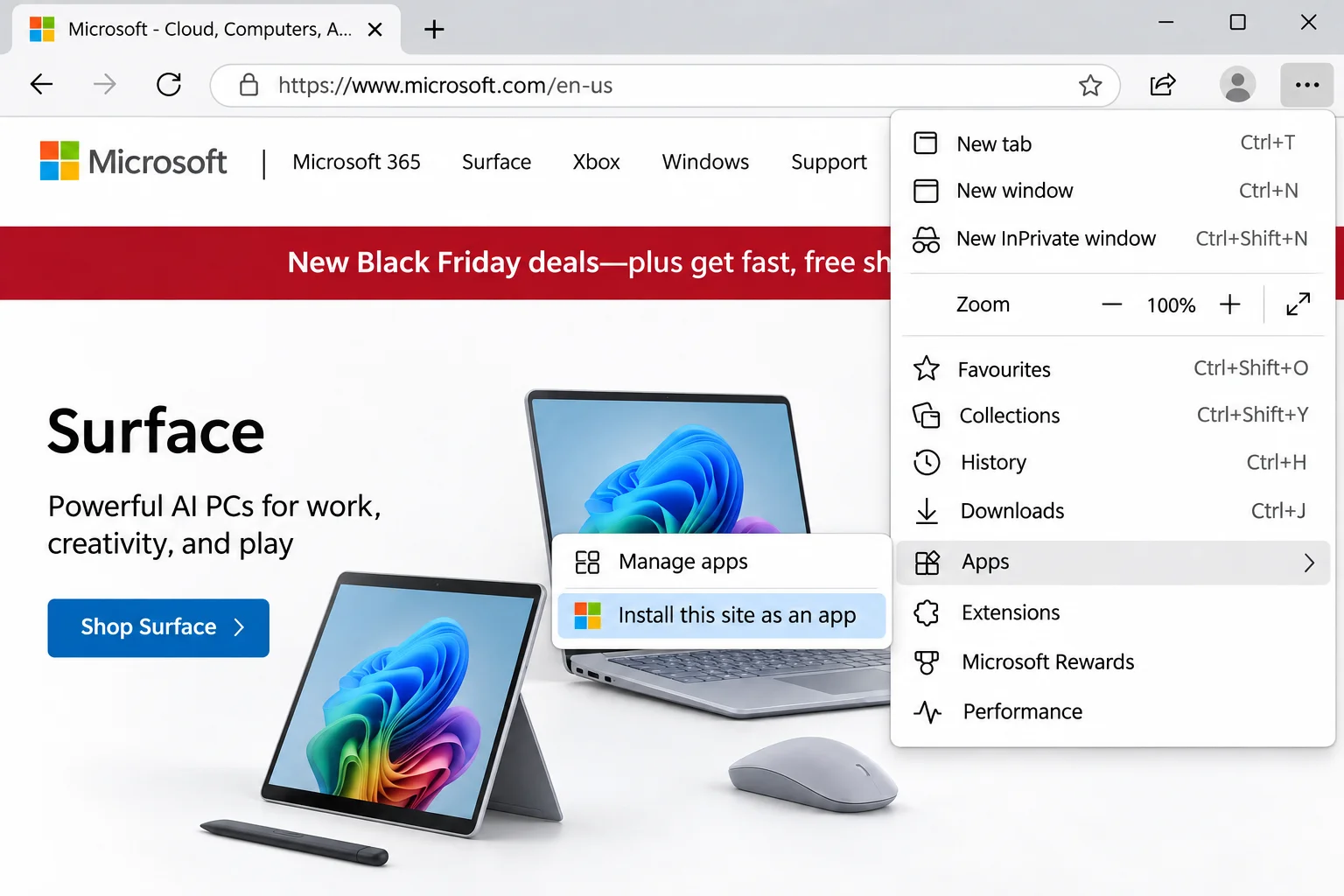
- Open the service’s web address in Microsoft Edge and sign in.
- Select Settings and more (…) > Apps > Install this site as an app and click Install.
- Uninstall the standalone desktop client once you confirm the web variant meets your operational needs.
Expected result: One fewer standalone Electron application running in the background, provided the web client supports all required features.
Troubleshooting Edge Cases and Persistent Issues
If applications continue behaving unexpectedly after applying standard fixes, consider these targeted solutions:
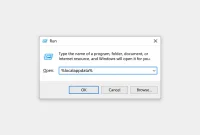
- Stubborn Relaunches: If an app restarts automatically, check internal application preferences for an active “open on login” switch, or inspect manual startup directories by pressing Windows + R, typing
shell:startup(and subsequentlyshell:common startup), and deleting unrecognized shortcuts. - Misleading Startup Impact: Startup impact metrics measure how much an app slows down your initial sign-in process, not its ongoing runtime memory footprint. Always rely on the Memory column to gauge active RAM consumption.
- Build Dependency: Exact availability of background toggles and Efficiency mode depends on your specific Windows 11 build and ongoing updates, such as Microsoft’s rollout of targeted memory optimizations for 8GB PCs.
When Software Tweaks Aren’t Enough
Systematic software optimization, tray management, and startup control provide the heaviest lifting for typical 8GB memory configurations. However, if system memory remains fully saturated with only one or two primary applications open, physical hardware limitations are likely at play. In such cases, installing a RAM upgrade kit (such as Crucial or Kingston laptop memory modules) or transitioning to a modern laptop equipped with 16GB of RAM represents the definitive fix. Additionally, if Task Manager reveals unfamiliar or suspicious resource-heavy processes, run a complete Microsoft Defender scan before attempting further performance troubleshooting.