Understanding the CMOS Battery
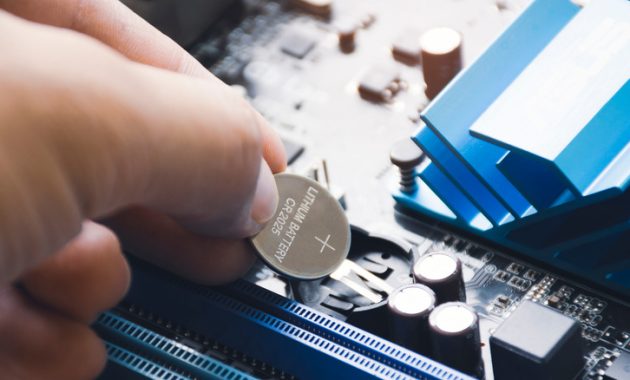
A desktop computer motherboard features a small disc-shaped battery installed at the factory. This coin-sized cell powers the real-time clock and preserves basic hardware settings when the machine is turned off. Like any electrochemical cell, the complementary metal-oxide-semiconductor battery has a limited lifespan and eventually requires replacement. Fortunately, the replacement process is straightforward and inexpensive. The battery typically lasts for many years because it primarily drains only when the PC lacks an active power connection.
You can think of this component as a backup power supply for the motherboard. It enables the system to track the date and time even when unplugged. Motherboards store boot-related BIOS or UEFI settings on a small memory chip that receives continuous power from the CMOS battery.
Identifying a Failing or Dead CMOS Battery
Most desktop computers use a standard CR2032 coin cell, which is the same type that powers Apple AirTags. Some systems use a CR2025 coin cell, though this configuration is less common. Because the battery only powers a real-time clock and a small memory chip, it generally lasts several years or up to a decade.
A clear sign of failure occurs when the computer fails to maintain accurate time and date records between power cycles, particularly after being unplugged from the wall. The system clock may reset to a default value like January 1, 2000, or January 1, 1970, on every boot. An incorrect date and time combination can prevent websites from loading because modern HTTPS connections rely on security certificates with narrow validity periods. This discrepancy also creates confusion with inaccurate last-updated timestamps on local files.
Many modern operating systems fetch the correct date and time from an online server upon booting, meaning users might not notice a failing CMOS battery until it fails completely. When that occurs, the BIOS or UEFI displays a warning on startup and reverts all factory settings. System-level options such as boot order and fan configurations return to default values with every reboot.
Users can ignore this issue temporarily because it does not affect applications or files. To preserve motherboard settings between sessions while using a dead battery, you can use sleep mode instead of shutting down and avoid unplugging the system from the wall. Many laptops rely on their main battery instead of a dedicated CMOS cell to maintain the internal clock, making this a problem encountered primarily on desktop PCs.
How to Replace a CMOS Battery
Replacing the battery requires a new coin cell and a few minutes of time. Most modern computer cases feature toolless designs, eliminating the need for a screwdriver during removal. However, keeping a flathead screwdriver nearby can make prying the existing coin cell out of the motherboard much easier.
To determine the correct replacement battery, power off the PC, remove the side panel of the computer case, and locate the CMOS battery on the motherboard. You are looking for a silver-colored, coin-shaped cell. If a graphics card or other bulky hardware blocks access, you may need to temporarily remove that component.
A metal clip or latch typically holds the CMOS battery in place. You can use a flathead screwdriver or another flat object to gently release the latch and dislodge the cell. After installing the new battery and replacing the side panel, the hardware installation is complete. Users operating a mini PC or a non-standard motherboard should consult their computer’s manual before beginning the procedure.
Once the CMOS battery is replaced, you must enter the BIOS or UEFI settings to adjust configurations back to their previous states. Gamers and power users should re-enable Intel XMP or AMD EXPO to ensure memory performs at its rated speed. Additionally, users can reconfigure built-in CPU overclocking features, keeping in mind that increased performance increases power draw and heat.