
Introduction: Why Windows 11 Needs Third-Party Uninstallers
You click Uninstall in Windows 11 and nothing happens. Or the program disappears but leaves its folders and registry keys behind. For most readers, the best pick is Revo Uninstaller. Its free edition includes a leftover scanner plus Windows app and browser extension removal, and the paid Pro edition adds a forced-removal mode for broken installs.
The right pick still depends on the job. Some of these tools force out a program whose own uninstaller is broken. Others scrub leftovers, clear out bundled software, or run from a single file without installing. We checked each tool’s official product or download page on November 6, 2026 for its current version, listed Windows support, and free-versus-paid terms. Versions, prices, and plan terms change often, so check the vendor site again before you buy.
Try Windows 11’s Built-In Uninstallers First
A third-party uninstaller works alongside the tools Windows already gives you. Start with the built-in options. They run the program’s own uninstaller the way the developer intended.
- Settings > Apps > Installed apps. This is the main uninstall path in Windows 11. Find the program in the list, or type its name in the search box. Click the three-dot menu (…) next to the program and choose Uninstall. Menu wording can shift a bit between different Windows 11 updates. If your screen looks different, look for the same three-dot menu next to the app name.
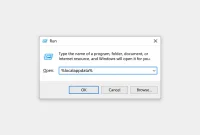
- Control Panel > Programs and Features. The classic uninstaller still ships with Windows 11. Some older desktop programs behave better here. Press Win + R, type appwiz.cpl, and press Enter; this Run command is commonly used to open the classic Programs and Features window. You can also go to Control Panel > Programs > Programs and Features. Then select the program and click Uninstall.
Both built-in paths rely on the program’s own uninstaller, which can sometimes cause problems:
- Broken uninstallers: The uninstaller file may be missing or corrupted, or a past install may have been cut off. Then the Uninstall button does nothing or throws an error, and the entry stays stuck in the list.
- Leftovers: Many uninstallers leave folders in C:Program Files, %AppData%, and %LocalAppData%. They also leave registry keys under HKEY_CURRENT_USERSoftware. Windows doesn’t generally run a post-uninstall scan of arbitrary folders and registry locations that you can review, though some uninstallers and Windows app-management components clean up part of their own data.
- One at a time: Clearing ten bundled trial apps from a new laptop means ten separate uninstall runs.
If a single program refuses to leave, read our guide on how to uninstall apps that won’t uninstall in Windows 10 or 11 first. It covers the Windows-native fixes in detail. If your issue is manufacturer bloatware, our SmartByte removal guide shows the same cleanup approach on a well-known example.
Safety First: Create a Restore Point and Review Leftovers
Every tool below can delete registry keys and files. Take two minutes to protect yourself first.
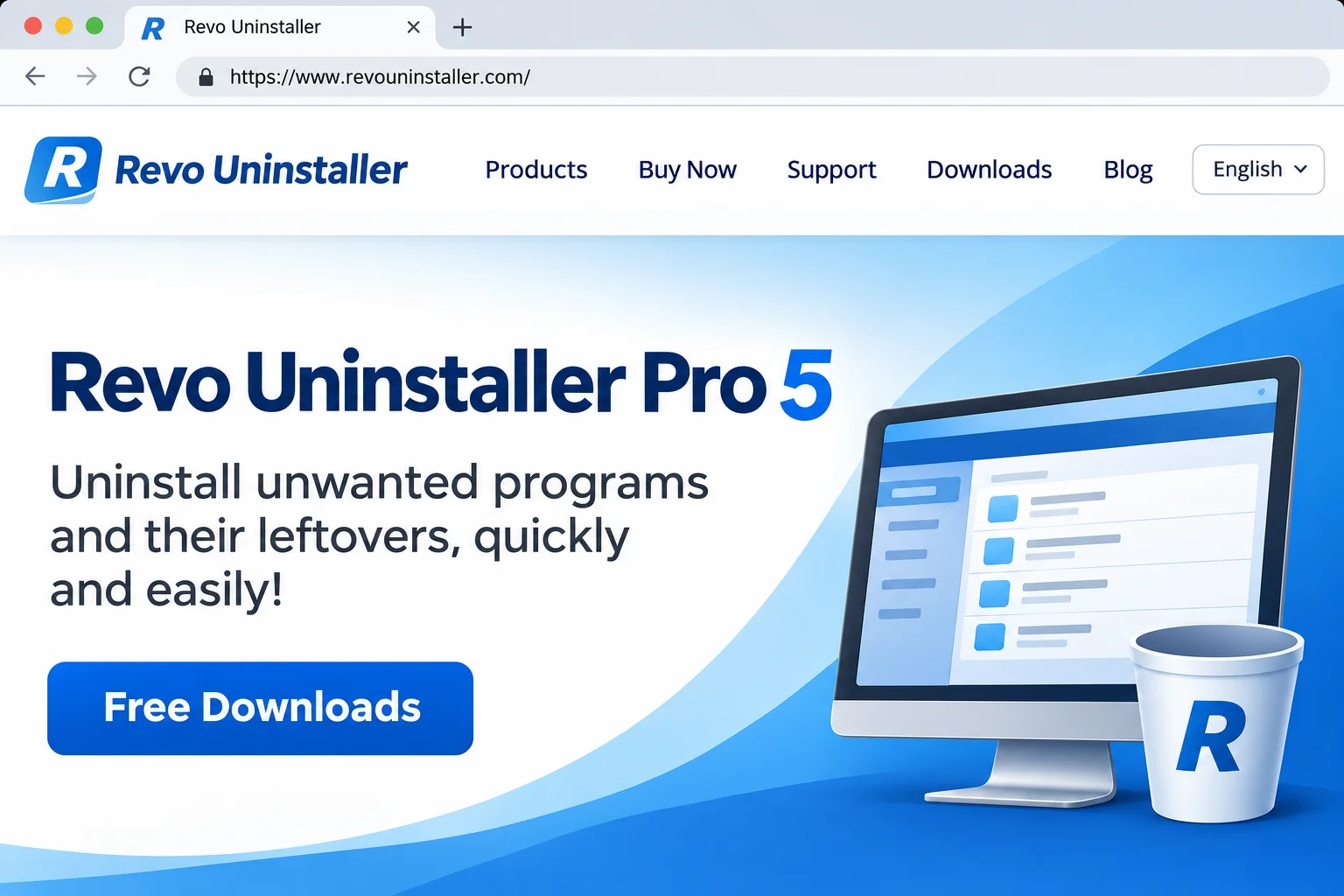
- Press Win, type Create a restore point, and open the result.
- On the System Protection tab, make sure protection is On for your system drive (usually C:). If it isn’t, select the drive, click Configure, and turn on Turn on system protection.
- Click Create, give the restore point a name such as “Before uninstaller cleanup,” and click Create again.
Next, don’t delete everything a leftover scanner finds. Scanners sometimes flag folders or registry keys that other programs share. This happens most with items from the same vendor or shared runtime parts. Only tick items that clearly carry the removed program’s name or its developer’s name. Skip anything you’re unsure about. If you clean up PCs for family or a small office, a full system image on an external SSD is cheap insurance.
The 7 Best Uninstaller Tools for Windows 11
1. Revo Uninstaller
Revo Uninstaller is our first pick when a program won’t uninstall cleanly. It runs the program’s own uninstaller first, then scans for leftover files, folders, and registry entries so you can review them before anything is deleted. That leftover scan is part of the free edition, according to the vendor’s current edition comparison.
Forced Uninstall mode, which removes a program’s traces directly when its own uninstaller is broken or missing, is listed as a Pro feature on the vendor’s comparison page. If your main problem is a program that won’t uninstall at all rather than leftovers, you’ll need Pro, or one of the free tools below that include forced removal.
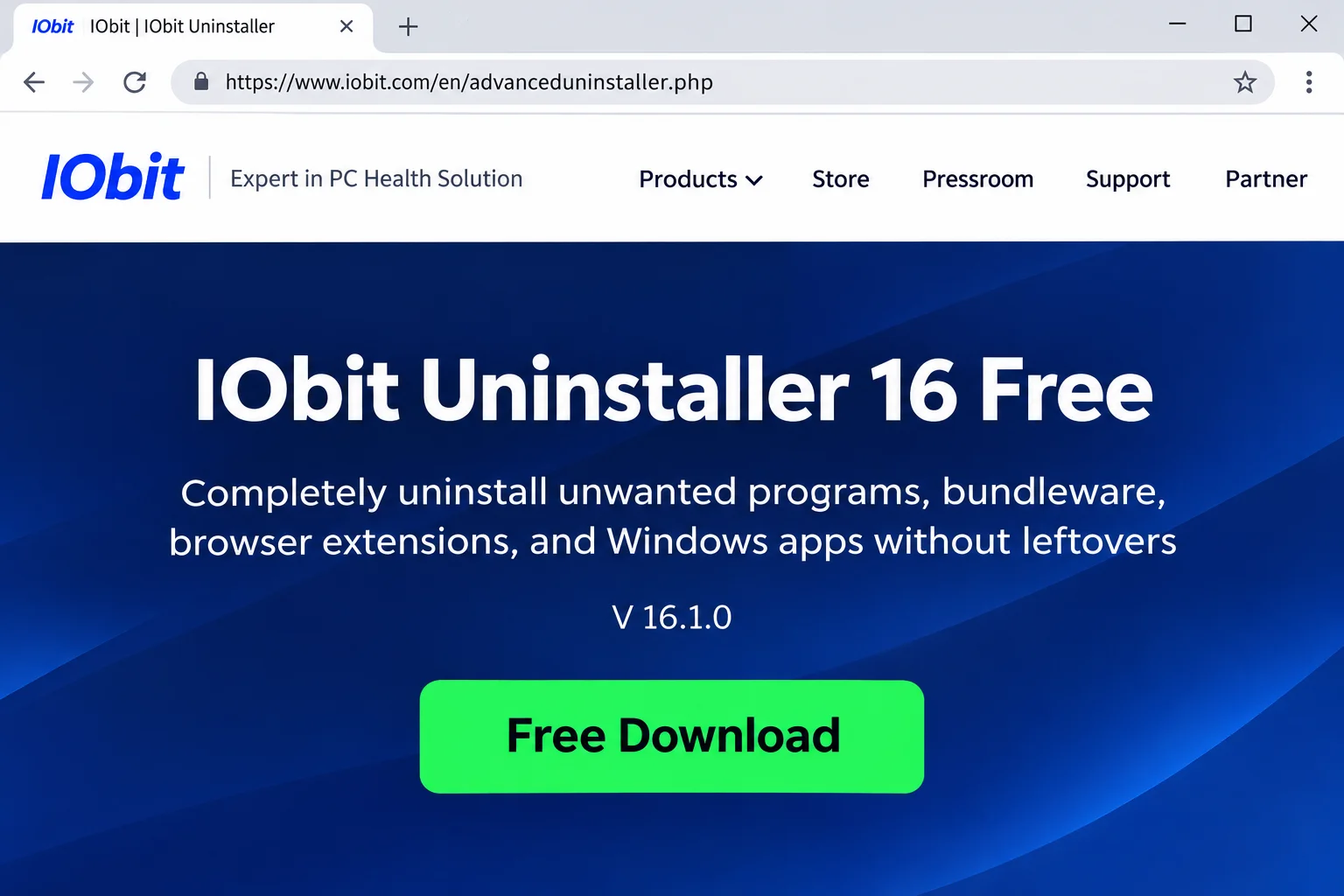
Windows app and browser extension removal isn’t a Pro-only extra: the Revo Uninstaller Free download page lists “Uninstall Windows Apps & Browser Extensions” among the free edition’s features. Pro adds extended leftover scanning and Quick/batch uninstall, which lets you remove several programs in one pass, and a portable Pro edition is available.
According to the Revo Uninstaller Pro product page, Pro creates a System Restore Point and a registry backup during batch and Quick Uninstall runs. That safety net is documented for Revo only. Don’t assume the other tools in this list do the same.
Revo is actively maintained. When we checked, the version history listed Freeware 2.7.2 (released October 6, 2026). The Pro version history listed Pro 5.5.4 (released September 23, 2026). The Revo pages we checked don’t list the supported Windows versions, so confirm Windows 11 support on the download page if you’re on an unusual build. Pro is sold as a per-PC subscription. The purchase page lists Pro as a yearly subscription, with promotional pricing that can change. Check the current price before buying.
- Forced Uninstall (Pro): Removes traces of programs whose uninstaller is missing, corrupted, or stuck.
- Leftover scanning: Free edition scans after uninstall; Pro adds extended scanning.
- Batch uninstall (Pro): Queue multiple programs, with an automatic restore point and registry backup.
- Windows apps and browser extensions (Free and Pro): Listed on the free download page as “Uninstall Windows Apps & Browser Extensions.”
2. IObit Uninstaller
IObit Uninstaller covers the most ground in this list. It handles regular programs, bundled software, Windows (Store) apps, browser extensions, and leftover files in one window. That makes it a good fit for a new or hand-me-down PC full of trialware and toolbars. Select the junk, remove it in one session, and let the tool clean up leftovers.
When we checked, the vendor’s page listed IObit Uninstaller 16 Free at version 16.1.0, with support for Windows 11/10/8.1/8/7/Vista/XP. According to that page, the free edition scans and removes 39+ preinstalled apps and apps downloaded from the Microsoft Store, displays browser extensions and toolbars so you can decide which to keep, detects bundled components inside a program, and clears leftover files.
These are the vendor’s own feature claims; we didn’t benchmark them. The page links to a Pro edition but doesn’t list its price or a Free-versus-Pro comparison, so check the Buy PRO page before paying.
The main trade-off: the free edition may promote other IObit products. Read each installer screen carefully and decline any offers you didn’t ask for.
- Batch uninstall: Remove several programs in one pass.
- Windows Store app removal: Handles preinstalled and Microsoft Store apps.
- Browser extension removal: Clears unwanted extensions alongside programs.
- Automatic leftover cleanup: Scans for leftovers after removal.
3. Geek Uninstaller
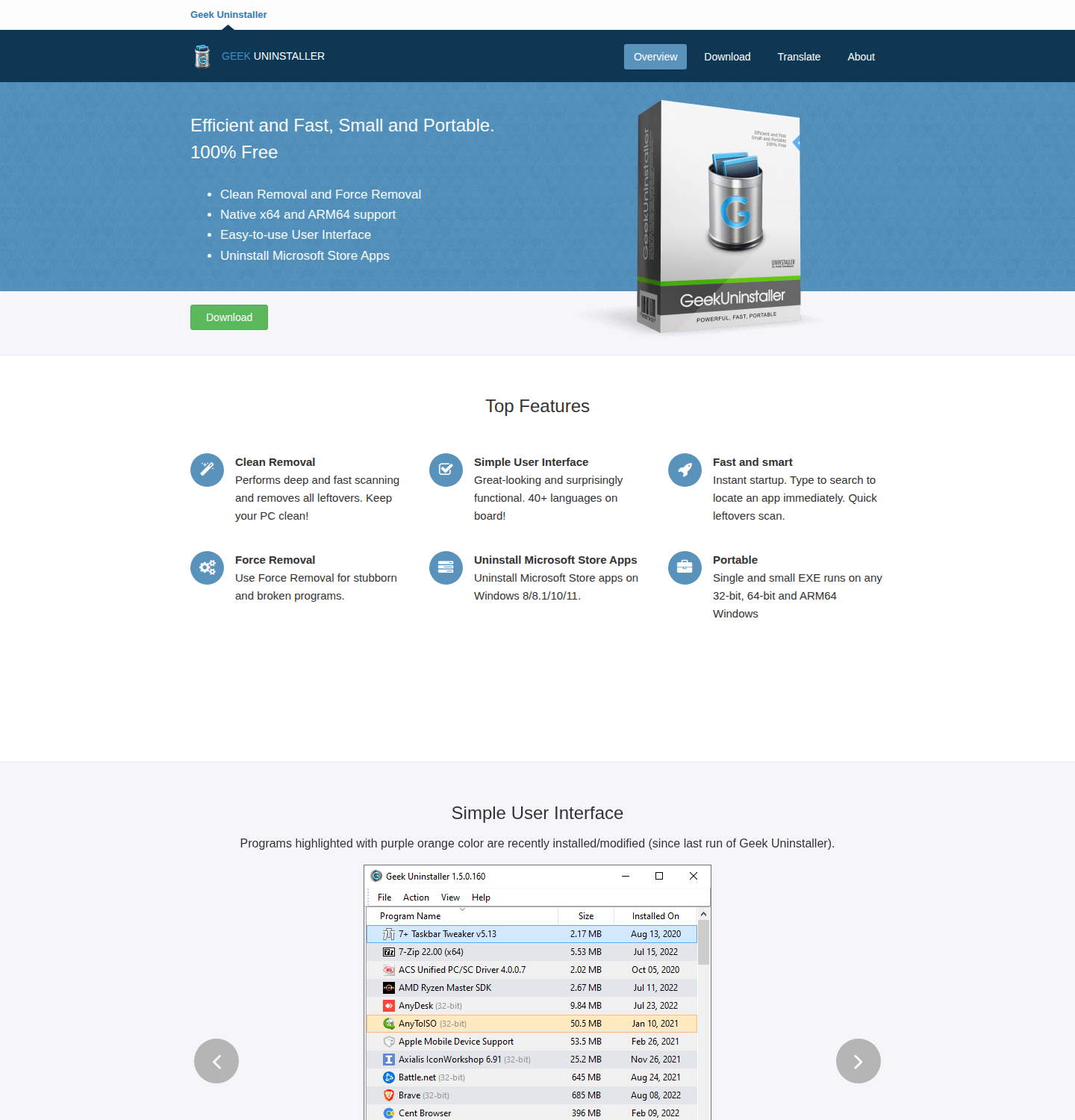
Geek Uninstaller is the pick when you don’t want to install a program just to remove one. The vendor describes it as a single, small EXE that runs on any 32-bit, 64-bit and ARM64 Windows. You download the file and run it. It lists installed programs and, per the vendor, Microsoft Store apps on Windows 8/8.1/10/11 (switch views with the View menu or Ctrl + Tab). It also has a Force Removal option for entries the normal uninstaller can’t handle.
That makes it a natural fit for a tech-support USB flash drive. Plug it into a relative’s PC, clear the stuck program, and leave no new install behind.
The download page listed version 1.6.0.200 (October 14, 2026) when we checked; that release added a native ARM64 version for Windows 11 and Windows 10 on ARM. The site calls Geek Uninstaller “100% Free” and offers a separate Geek Uninstaller Pro, but the main page doesn’t list Pro’s price or license terms, so check them before you buy.
- Portable operation: Runs without installation.
- Forced removal: Clears entries the program’s own uninstaller can’t remove.
- Windows Store app support: Lists and removes Store apps alongside desktop programs.
4. HiBit Uninstaller
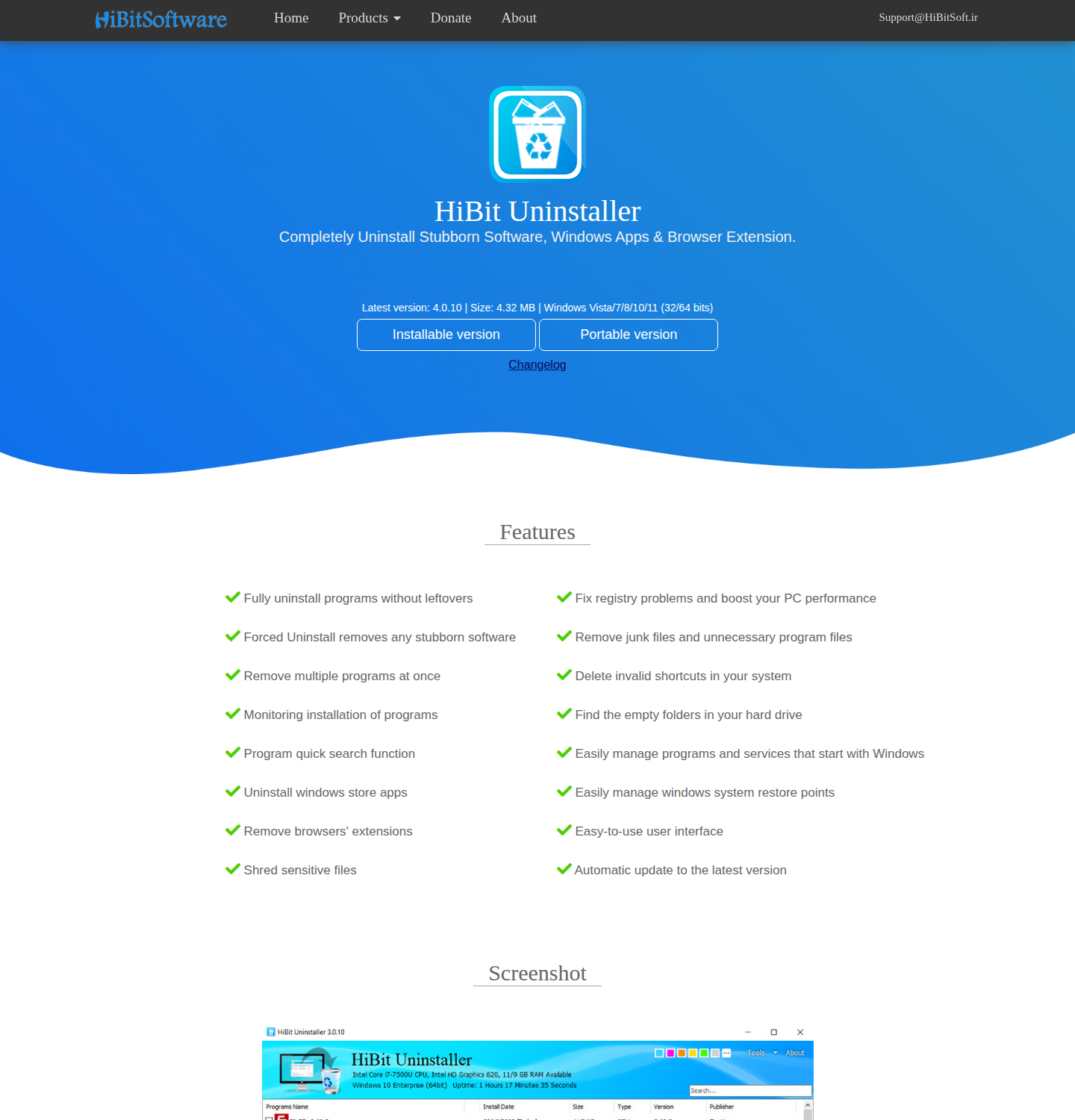
HiBit Uninstaller is offered as a download with no paid edition listed on its official page. It includes forced uninstall and batch removal. It also has a set of startup and system upkeep tools. If you want one free tool that removes stuck programs and trims startup items, HiBit covers both.
Use the extras with care. We don’t recommend registry cleaners or “PC optimizer” tools, because they can do more harm than good. Stick to HiBit’s uninstall, batch removal, and startup features. Skip any one-click cleaners that delete registry entries in bulk.
The official page listed version 4.0.10 when we checked, with support for Windows Vista/7/8/10/11 (32/64 bits) and both an installer and a portable ZIP. Its feature list also includes Windows Store app removal and browser extension removal.
- Forced uninstall: Removes programs with broken or missing uninstallers.
- Batch removal: Select and remove several programs at once.
- Store apps and browser extensions: Listed on the official feature page.
- Portable version: Offered as a separate ZIP download.
- Startup and system tools: Extra utilities beyond uninstalling.
5. Wise Program Uninstaller
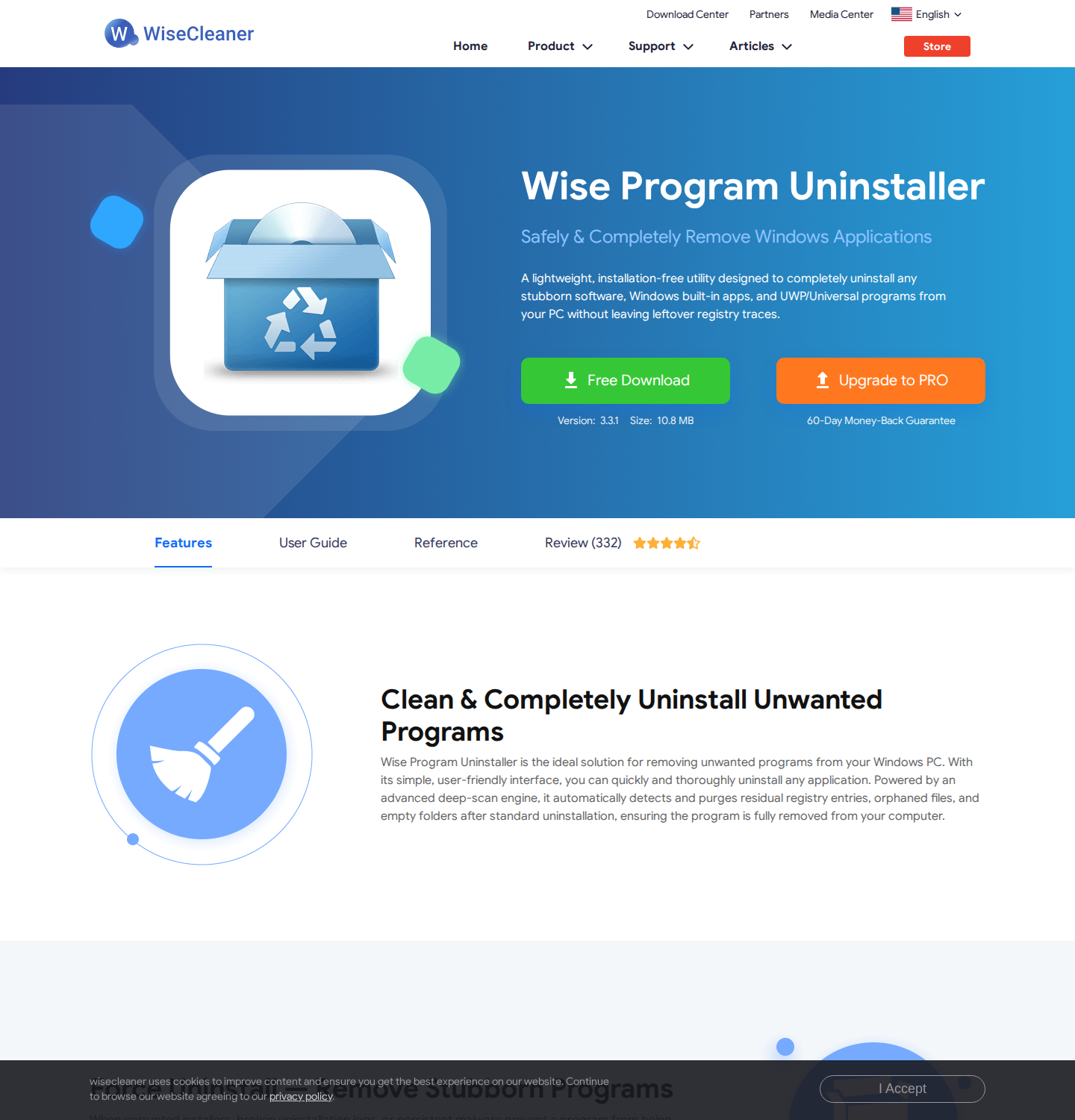
Wise Program Uninstaller keeps things simple. According to the vendor, it offers two modes: Safe Uninstall, which runs the program’s own uninstaller and then checks for leftovers, and Forced Uninstall, for programs whose uninstaller won’t cooperate. The vendor calls it a lightweight, installation-free utility. Its Free plan covers secure, complete uninstalls, and an optional PRO plan is listed at $14.95 per year.
It’s a good tool to set up for a less technical family member. There are fewer buttons to misclick than in the bigger suites. And the two modes match the two problems you’re likely to have: “it won’t uninstall” and “it left stuff behind.”
The vendor’s page listed version 3.3.1 when we checked and says it runs on Windows 11, 10, and older versions back to Vista. Beyond desktop programs, the page lists removal of UWP and built-in Windows apps and batch removal of browser toolbars, plugins, and add-ons in Chrome, Firefox, Edge, and Internet Explorer. It has fewer advanced monitoring features than Revo or IObit.
- Safe Uninstall: Standard removal followed by a leftover check.
- Forced Uninstall: For programs with broken uninstallers.
- Installation-free: Described by the vendor as an installation-free utility.
6. Uninstall Tool
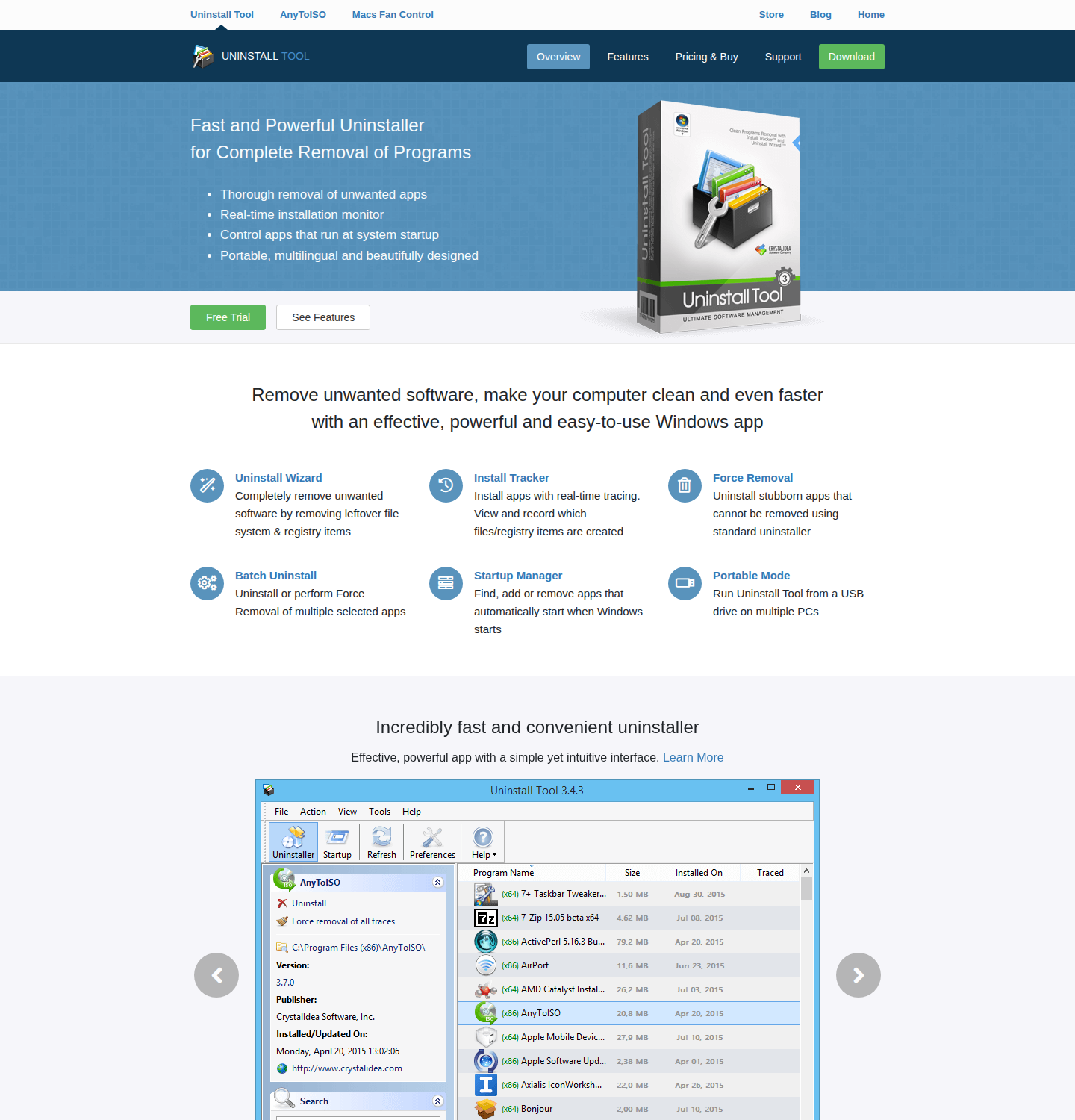
Uninstall Tool from CrystalIDEA focuses on speed and detail. It loads your program list quickly and shows useful details about each entry. It also has a startup manager, so you can see what launches with Windows in the same place. Forced removal covers programs that won’t uninstall normally.
It suits someone who manages a few office PCs and wants a fast, detailed program list. You don’t get a big cleanup suite. Seeing startup entries next to installed programs helps you spot something that keeps relaunching after you thought it was gone.
The download page listed version 3.8.2 (August 19, 2026) when we checked. Uninstall Tool is paid software with a 30-day free trial and no fully featured permanent free edition. It also includes an Install Tracker that records changes during setup, and a Portable Mode for running it from a USB drive. The CrystalIDEA pages we checked don’t explicitly list Windows 11; they mention Microsoft Store app support on Windows 8 and later. The product page doesn’t show prices, so check its Pricing & Buy page for current license options.
- Forced removal: For stubborn or partially removed programs.
- Startup manager: View and control startup entries.
- Fast application database: Quick loading and detailed program information.
- Install Tracker and Portable Mode: Records installs in real time; runs from a USB drive.
7. Uninstalr
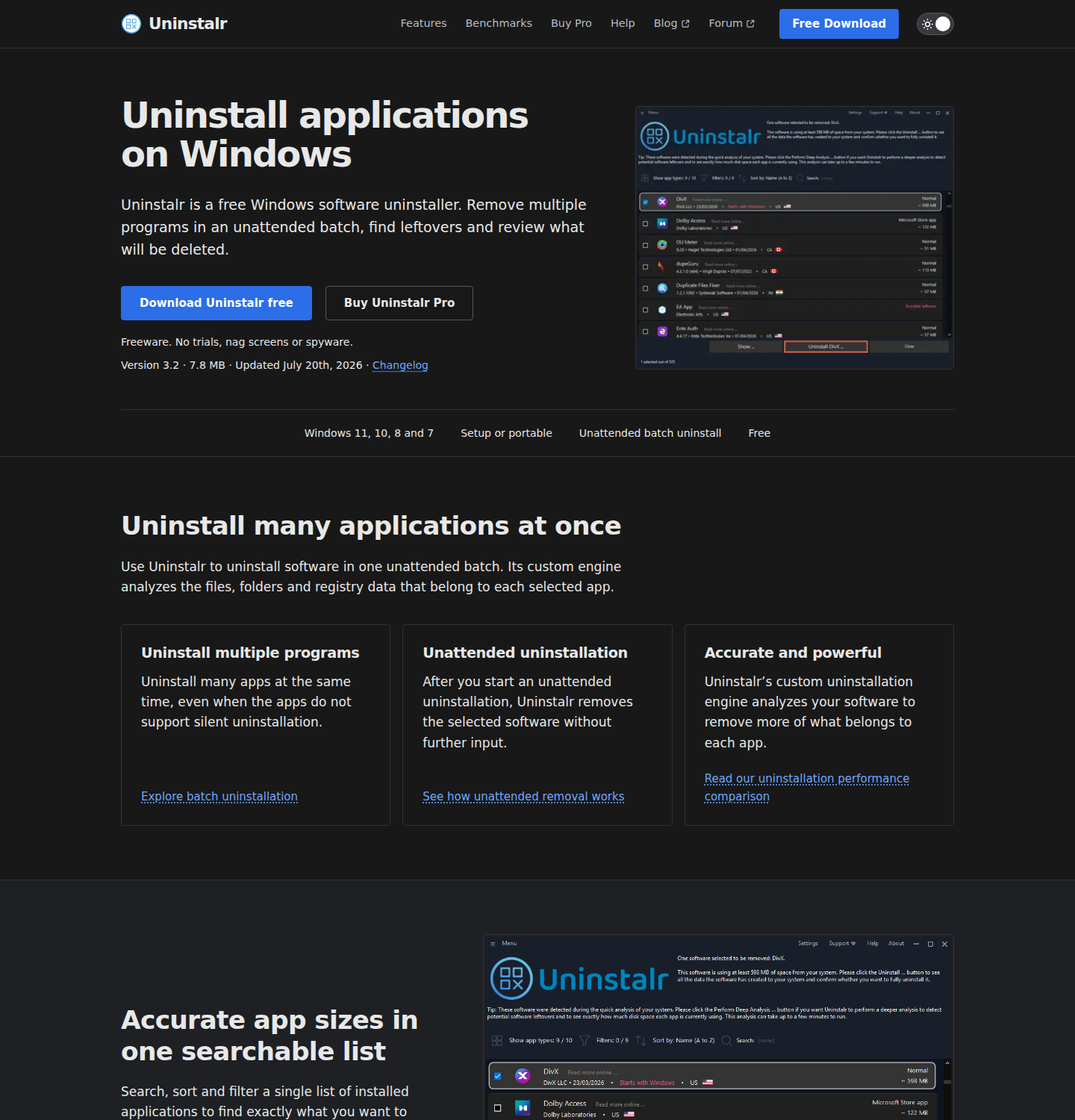
Uninstalr is the least established name here. It’s built around leftover detection. The vendor says its engine analyzes the files, folders, and registry data that belong to each selected app and attempts to detect leftovers, with a preview before removal. It supports batch uninstall and runs portably. You can try it without adding another installed program to your PC.
Its pricing stands out. Uninstalr itself is freeware, which the vendor sums up as “No trials, nag screens or spyware.” Uninstalr Pro is a one-time $39 payment, licensed for five computers, that includes free updates for life, according to the vendor’s pricing page. The vendor also says the free version currently includes the same software removal features. If you dislike subscriptions, that’s a real point in its favor over yearly plans. Check the current price and terms on the official site.
As a newer tool, it has a smaller user community than Revo or IObit. You’ll find fewer third-party walkthroughs and forum answers if something goes wrong. The site listed version 3.2 (updated July 20, 2026) when we checked, with support for Windows 11, 10, 8, and 7. It offers a setup install or a portable version with the same features, and counts Microsoft Store apps among the 16 app types it detects. Leftover detection isn’t guaranteed, so review the preview before you remove anything.
- Leftover scanning: Focused on finding residual files and registry entries.
- Batch uninstall: Remove multiple programs in one pass.
- One-time Pro payment: Lifetime updates for five PCs instead of an ongoing subscription.
How to Choose the Right Uninstaller for Your Needs
Start with your actual problem. The longest feature list won’t fix it.
- The program won’t uninstall at all: You need forced removal. Revo Uninstaller Pro, Geek Uninstaller, HiBit Uninstaller, Wise Program Uninstaller, and Uninstall Tool all offer it. Revo’s Forced Uninstall is a Pro feature, so if that’s your only problem, one of the other tools listed here may get you there faster for free.
- The program is gone but its files aren’t: You need a leftover scanner. Revo is our pick for scan depth, especially Pro’s extended scanning. IObit Uninstaller and Uninstalr are also built around leftover cleanup. No independent benchmark here ranks them head to head. Treat “deepest scan” as reviewer consensus rather than a measured result.
- A new PC is full of bundled junk and browser extensions: Pick a tool with batch removal and extension support. IObit covers programs, Store apps, and extensions in one place. Revo’s free edition lists Windows app and extension removal too, and Pro adds batch removal with an automatic restore point. Wise Program Uninstaller and HiBit also list browser extension removal.
- You don’t want to install anything: Go portable. Geek Uninstaller runs from a single EXE, HiBit and Uninstalr offer portable versions, and Wise Program Uninstaller is described as installation-free. Keep one on a USB flash drive in your tech-support kit.
- Your budget is zero: HiBit Uninstaller lists no paid edition, and Wise Program Uninstaller’s Free plan covers complete uninstalls. Revo, IObit, Geek, and Uninstalr all have usable free editions too.
- You want to pay once: Uninstalr Pro is a one-time $39 payment for five PCs with free updates for life, per its vendor. Revo Pro is a yearly subscription and Wise’s PRO plan is billed yearly. Check Geek Uninstaller Pro and IObit Pro terms on their purchase pages.
Whatever you choose, follow the same safety routine every time: create a restore point before forced removals or batch cleanups, review every leftover the scanner flags, and download only from official vendor pages while declining extra offers.
Cleaned up an older PC and it still feels sluggish? Leftover files probably weren’t the cause. Check whether the drive itself is the bottleneck. On a machine still running a hard drive, an SSD upgrade often makes a bigger difference to everyday responsiveness than a cleanup tool. Revo Uninstaller is the one to grab first for its reliable free leftover scanning, while Geek Uninstaller serves as the best portable backup.