
When you run manage-bde -protectors -add C: -TPMAndPIN to add a BitLocker startup PIN on Windows 11 and encounter error 0x80310060 or a startup-option policy conflict, the root cause is almost always the Group Policy setting Require additional authentication at startup. This setting must be enabled with strictly no more than one startup option set to Required.
BitLocker encrypts your Windows drive to protect your data. On a standard PC equipped with a Trusted Platform Module (TPM) chip, the default configuration is TPM-only. The TPM chip verifies that the boot files have remained unmanipulated, then releases the encryption key automatically. This allows you to land directly at the normal Windows sign-in screen without entering extra credentials.
While convenient, this automatic startup means that anyone who physically holds your laptop gains the same unattended access. Implementing a TPM + PIN combination introduces a secondary verification layer. Windows will not begin loading until an authorized user inputs the correct PIN, complementing the TPM hardware check. Consequently, a stolen laptop remains fully encrypted until the unauthorized holder guesses the correct PIN.
Note that this startup PIN is entirely separate from your Windows Hello PIN and the 48-digit BitLocker recovery key. BitLocker triggers a request for the recovery key when it cannot verify the standard startup path—such as following a forgotten PIN, firmware modifications, boot configuration changes, or TPM updates—even if you did not intentionally alter any system settings.
Prerequisites and Safety Precautions
Before modifying drive encryption protectors or Group Policy settings, you must verify your system environment and secure your data recovery fallbacks.
- Supported Windows Editions: Windows 11 Pro, Enterprise, or Education. You can verify your edition under Settings > System > About > Windows specifications. Windows 11 Home utilizes Device Encryption, meaning the local Group Policy steps outlined in this guide are unavailable.
- Working TPM: Your PC must have an operational TPM chip. If you encounter errors, you should verify your TPM status and clear any existing TPM faults before proceeding.
- Active BitLocker Encryption: BitLocker must already be turned on for drive C:.
- Backed Up Recovery Key: Your 48-digit BitLocker recovery key must be safely stored and verified.
- Managed PC Warning: On work or school PCs managed via Microsoft Intune or domain Group Policy, IT administrators control these settings and may overwrite local configurations. Do not alter local policies or remove protectors on a managed device; instead, request that your IT administrator configure TPM + PIN for you. You can check if your PC is managed by going to Settings > Accounts > Access work or school.
Step 1: Back Up Your Recovery Key and Check Status
If you mistype or forget your new startup PIN during boot, your BitLocker recovery key serves as your sole method to regain access to the drive. Always secure this recovery key before adjusting any protectors.
- Locate and back up your BitLocker recovery key, storing a copy outside of your primary PC (such as your Microsoft account, a secure printout, or an isolated USB flash drive).
- If you store the recovery key in a password manager, ensure that account is secured with a strong password and multi-factor authentication. Never store your startup PIN alongside your recovery key.
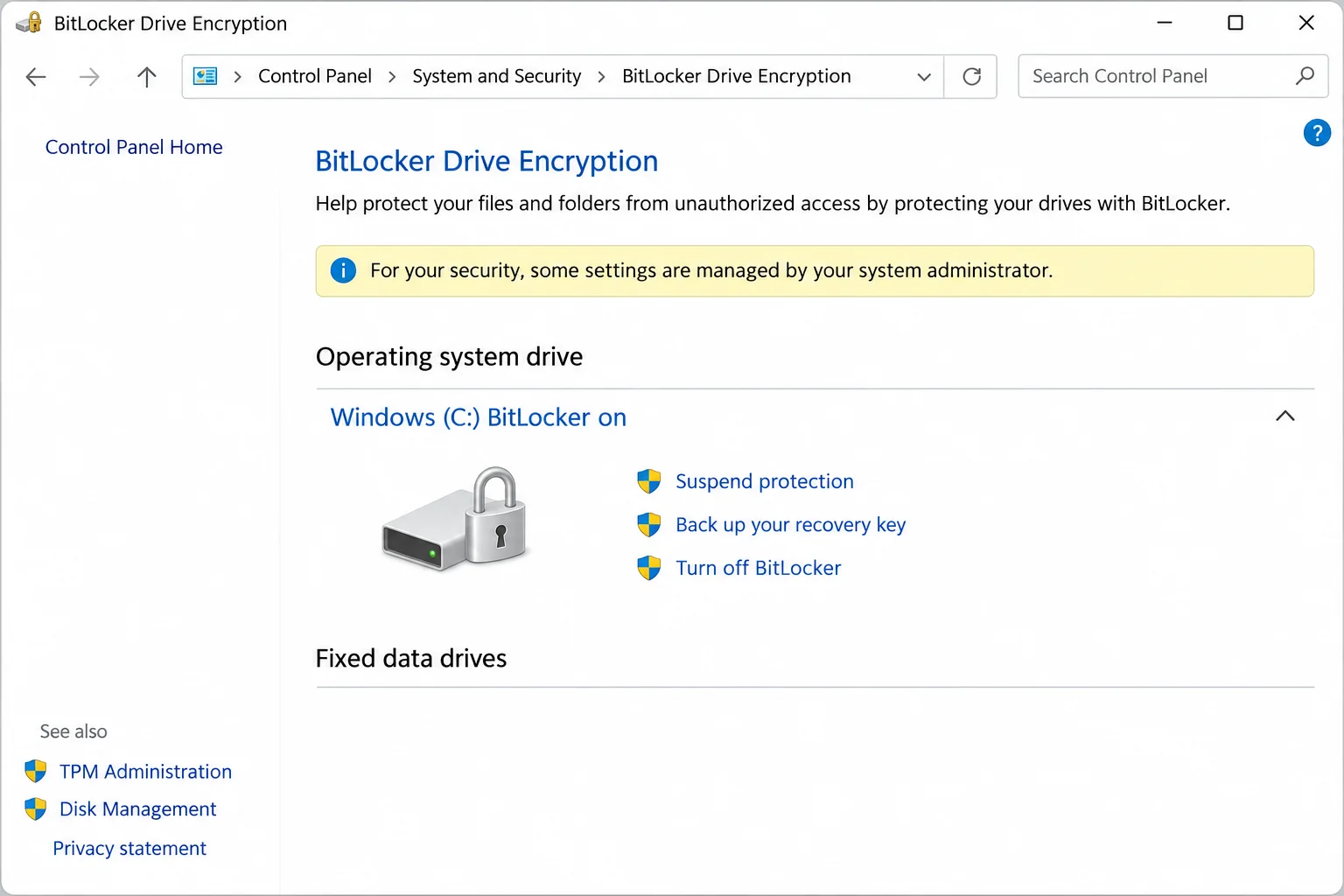
- Open Control Panel, navigate to System and Security, and select BitLocker Drive Encryption.
- Confirm that drive C: under Operating system drive is listed with BitLocker turned on. If encryption is turned off, enable it and allow the process to finish completely before moving forward.
Step 2: Configure Group Policy for Startup PINs
To permit a startup PIN on unmanaged PCs, you must update the local Group Policy settings using the Local Group Policy Editor.
- Press the Windows Key + R, type
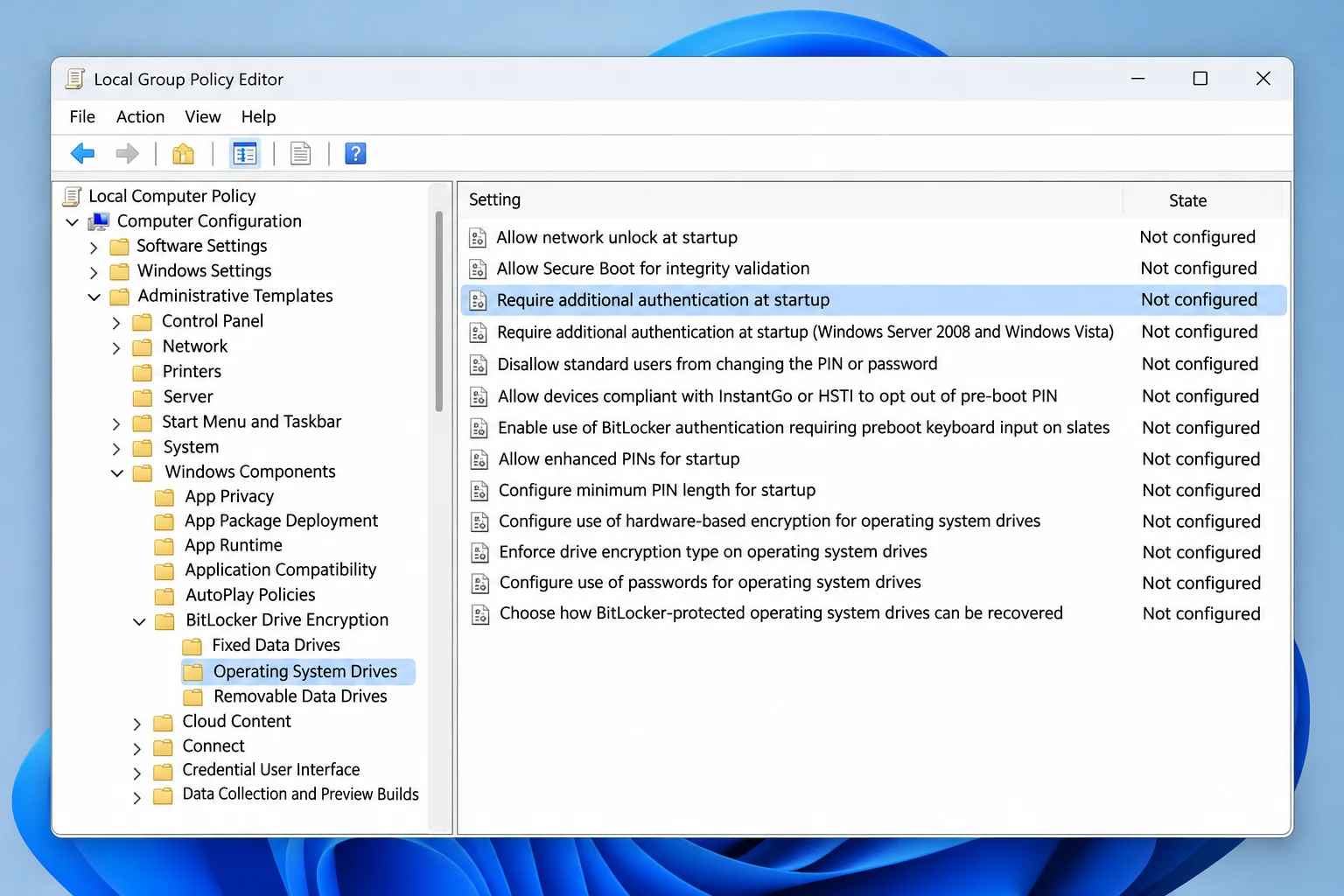
gpedit.msc, and press Enter to open the Local Group Policy Editor. - In the left pane, navigate to Computer Configuration > Administrative Templates > Windows Components > BitLocker Drive Encryption > Operating System Drives.
- Examine the right pane for policies including Require additional authentication at startup, Configure minimum PIN length for startup, and Allow enhanced PINs for startup.
Enabling Authentication Policies and Avoiding Conflicts
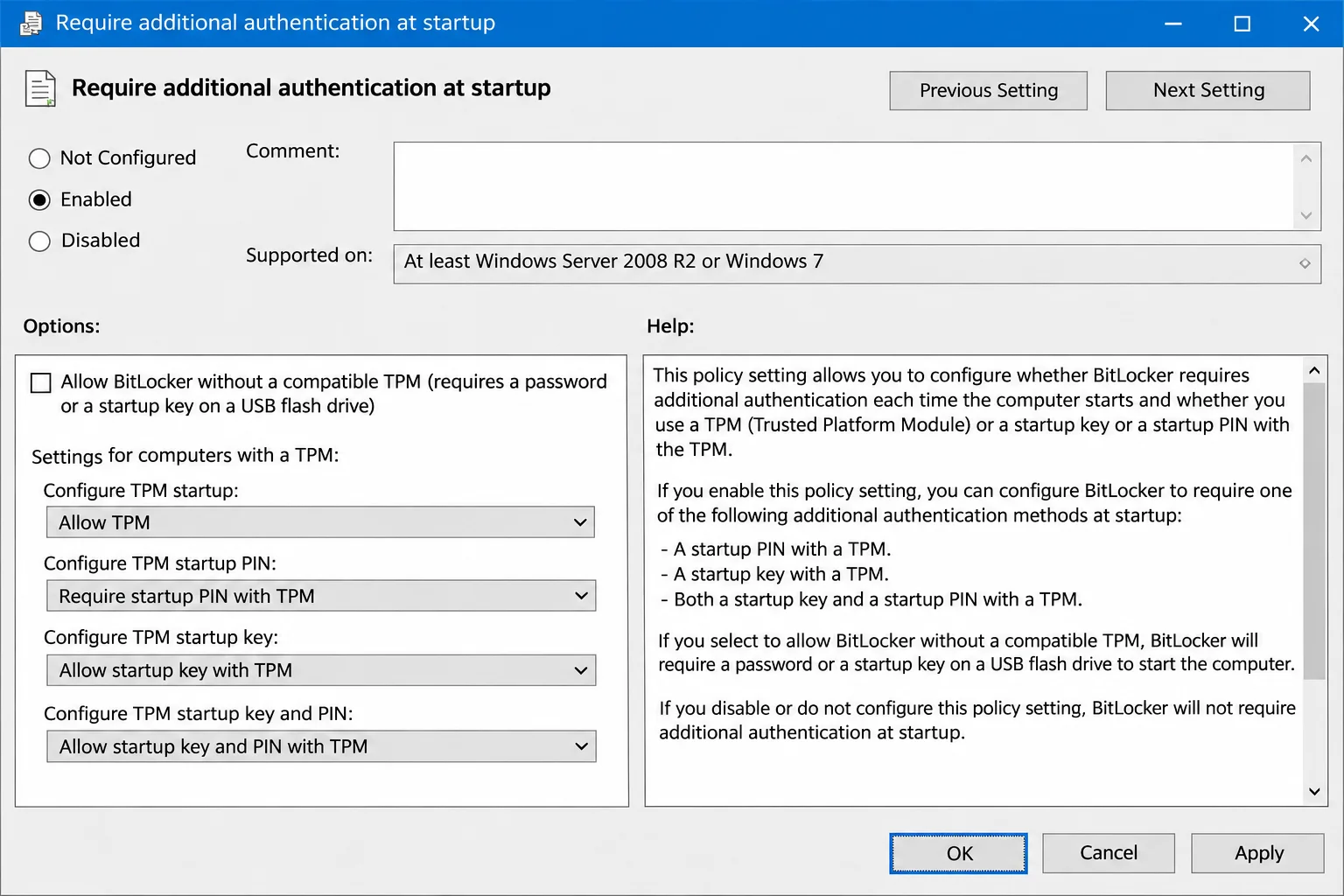
Double-click Require additional authentication at startup and configure the parameters as follows:
- Select Enabled.
- Leave Allow BitLocker without a compatible TPM unchecked if your computer features a valid TPM chip.
- Set Configure TPM startup PIN to Require startup PIN with TPM (or select Allow startup PIN with TPM if you prefer it to be optional).
- Set Configure TPM startup to Allow TPM for now. This maintains your current TPM-only protector while you test the new PIN, allowing normal system startups during the evaluation phase.
- Set Configure TPM startup key and Configure TPM startup key and PIN to either Allow or Do not allow. Neither option should be set to Require.
Crucially, Microsoft’s Group Policy reference dictates that only one additional authentication option can be set to Require at startup. Setting two options to Require will trigger a policy error.
Step 3: Optional PIN Customization
Before creating your PIN, you can adjust length and character rules using additional policies:
- Configure minimum PIN length for startup: Double-click this policy, select Enabled, and specify a length between 4 and 20 digits (a minimum of 6 digits is recommended for laptops). If this policy is left disabled, the default requirement is 6 to 20 digits.
- Allow enhanced PINs for startup: Double-click this policy and select Enabled if you wish to use uppercase letters, lowercase letters, symbols, numbers, and spaces in your PIN. Skip this step if you prefer a digits-only PIN.
Note on Enhanced PINs: Microsoft documents warn that certain computers do not fully support enhanced PIN characters in the pre-boot environment. An enhanced PIN that succeeds inside Windows may fail at the pre-boot screen on specific hardware.
Step 4: Apply Policy and Add the PIN via Terminal
Once policies are configured, apply the updates and register the PIN protector using an elevated command-line interface.
- Right-click the Start button and select Terminal (Admin) or Command Prompt (Admin), accepting any User Account Control (UAC) prompts.
- Force the local policy update by executing the following command:
Verify that the terminal confirms the computer policy update has completed successfully.gpupdate /force - Initiate the addition of the startup PIN by running:
manage-bde -protectors -add C: -TPMAndPIN - When prompted, type your desired PIN twice to confirm. Characters will remain hidden as you type. The command should report that a key protector was successfully added.
Step 5: Enforce the PIN by Removing the Plain TPM Protector
BitLocker treats protectors as alternative unlock methods rather than cumulative requirements. Because a plain TPM protector remains active on the volume, the drive can still unlock automatically via the TPM alone without prompting for a PIN, defeating your security goal.
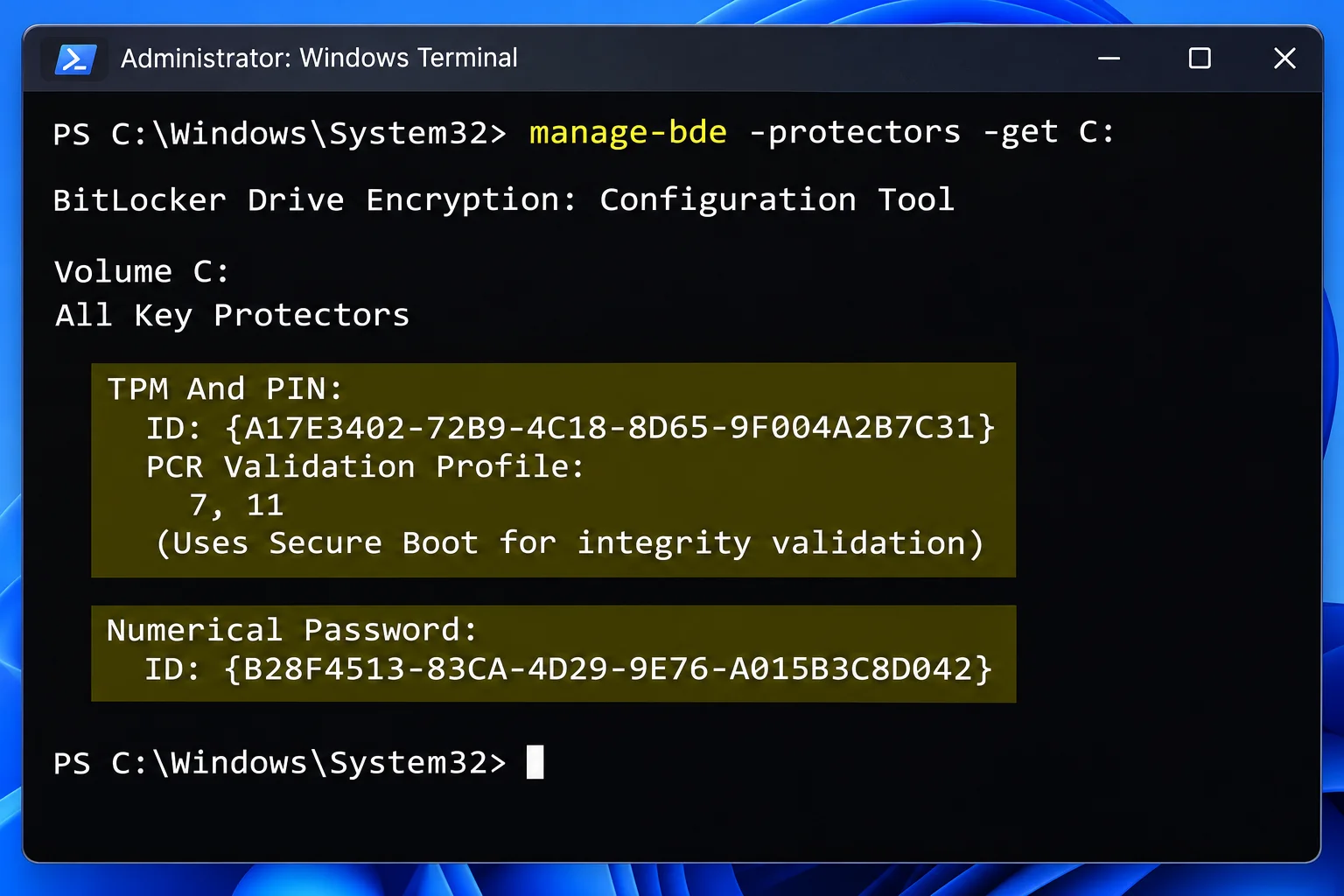
- Before removing any protectors, run the following command to check existing protectors and note the ID of the plain TPM protector:
Confirm that a Numerical Password (recovery) protector is also present and backed up. Checkmanage-bde -protectors -get C:manage-bde -status C:to ensure the drive is not actively encrypting or decrypting. - Restart your computer and confirm that the TPM + PIN prompt successfully appears at boot before deleting any legacy protectors.
- Once verified, remove the plain TPM protector using its specific ID:
Never delete your Numerical Password recovery protector or the last remaining protector capable of unlocking the drive.manage-bde -protectors -delete C: -id {ID} - Rerun
manage-bde -protectors -get C:to confirm that the active protectors now list TPM And PIN alongside your Numerical Password.
Troubleshooting Common BitLocker PIN Errors
If you run into roadblocks during setup, use these targeted troubleshooting steps to resolve policy conflicts and error codes.
Resolving Error 0x80310060 and Policy Conflicts
Error codes starting with 0x8031 originate directly from BitLocker. When error 0x80310060 or a startup-option policy conflict message appears, address it as a general policy or protector configuration issue:
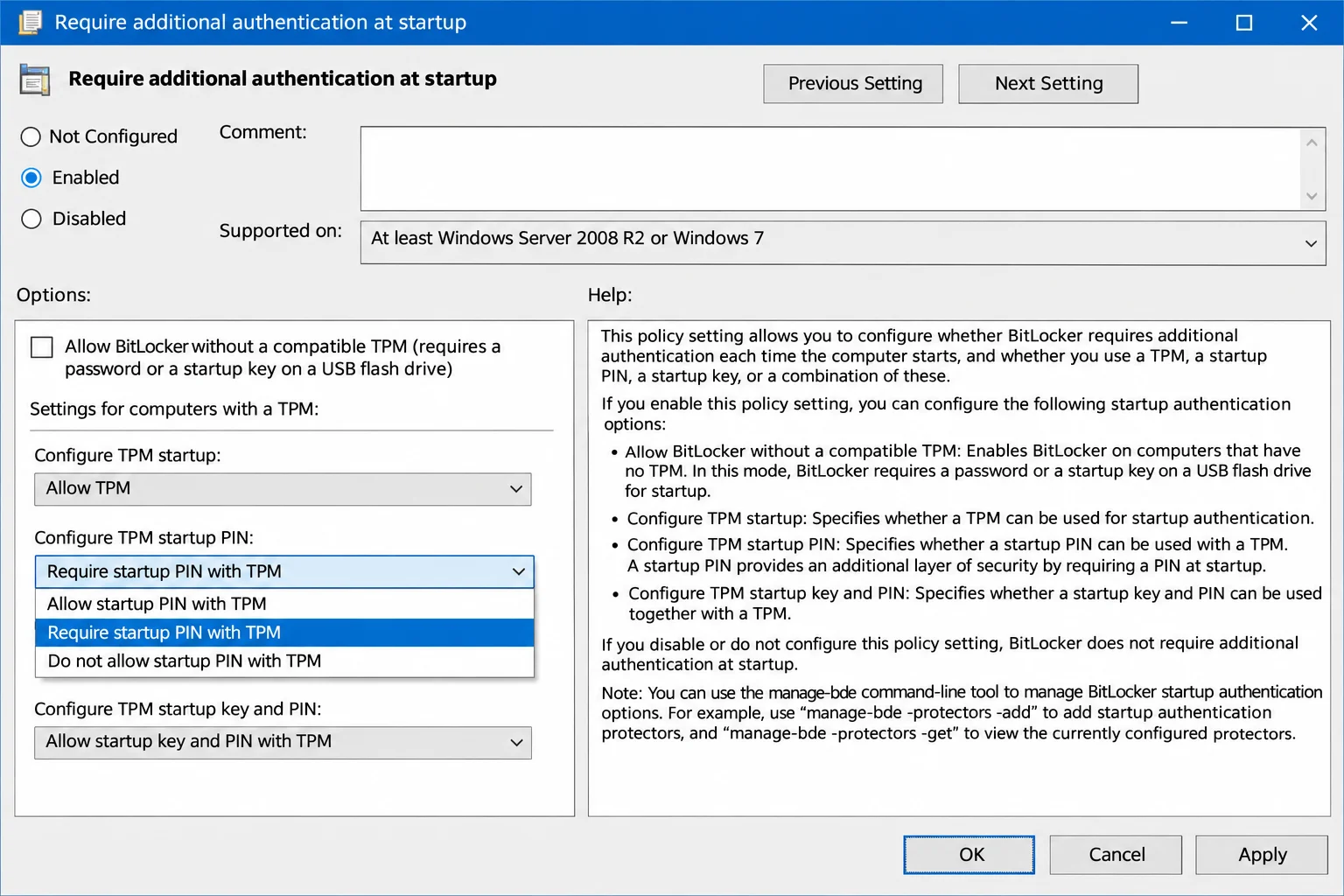
- Verify that Require additional authentication at startup is enabled with a startup PIN allowed or required.
- Ensure that only one option within that policy is set to Require to eliminate policy conflicts.
- Run
gpupdate /forceand retry themanage-bde -protectors -add C: -TPMAndPINcommand from an elevated Terminal window.
Managing PIN Rejection and Enhanced PIN Failures
If your PIN is rejected at the pre-boot screen:
- Look for a recovery or “skip this drive” option on the BitLocker screen, and enter your 48-digit recovery key if prompted.
- Once Windows boots, open
gpedit.mscand set Allow enhanced PINs for startup to Disabled. - Open an elevated Terminal and run
manage-bde -changepin C:to establish a strict, digits-only PIN.
Summary Table: Essential BitLocker Management Commands
| Command Purpose | Syntax Example |
|---|---|
| Add TPM + PIN protector | manage-bde -protectors -add C: -TPMAndPIN |
| View current drive protectors | manage-bde -protectors -get C: |
| Delete a specific protector | manage-bde -protectors -delete C: -id {ID} |
| Change existing startup PIN | manage-bde -changepin C: |
| Force Group Policy update | gpupdate /force |
Frequently Asked Questions
Can I set a BitLocker startup PIN on Windows 11 Home?
No. Windows 11 Home supports Device Encryption rather than full BitLocker and lacks the Local Group Policy Editor (gpedit.msc) required to adjust startup authentication policies. Upgrading to Windows 11 Pro or higher is necessary.
What happens if I forget my BitLocker startup PIN?
If you enter the incorrect PIN multiple times or forget it entirely, you will be prompted to enter your 48-digit BitLocker recovery key to unlock the drive and regain access to Windows.
Why does my PC still boot automatically after adding a PIN?
If the plain TPM protector was not deleted after adding the TPM + PIN protector, BitLocker treats them as alternative unlocking methods and will continue to unlock automatically via the TPM chip alone. You must remove the plain TPM protector to enforce the mandatory PIN prompt.