
Google Drive for desktop not syncing on Windows 11 usually shows up as files stuck uploading, edits that never reach your other devices, or a G: drive that has vanished from File Explorer. The cause is often simple, such as paused sync, a full Google storage quota, or a blocked network, so start with the safe fixes below and save resets for last.
Initial Diagnostics: Sync Modes and Requirements
Google Drive for desktop is Google’s official app that connects a Windows or macOS computer to your Google Drive. On Windows, it shows up as a drive letter, commonly G:. It replaced the retired Backup and Sync app. If you still see Backup and Sync on an old PC, install Drive for desktop from the official download page.
Drive for desktop syncs My Drive in one of two ways. Understanding whether you use streaming or mirroring is vital for troubleshooting missing drive letters or low disk space issues.
| Sync Mode | How It Works | Storage Impact | Best For |
|---|---|---|---|
| Stream files | Low local disk usage. | PCs with limited SSD storage. | |
| Mirror files | A full copy of My Drive is stored locally on your PC and in the cloud. | High local disk usage. | Users needing offline access to everything. |
System requirements call for 64-bit Windows 10 or later (or Windows 11 on ARM) with Microsoft WebView2 available. Before troubleshooting, ensure you have your Google account password and enough free local disk space if you are using Mirror mode.
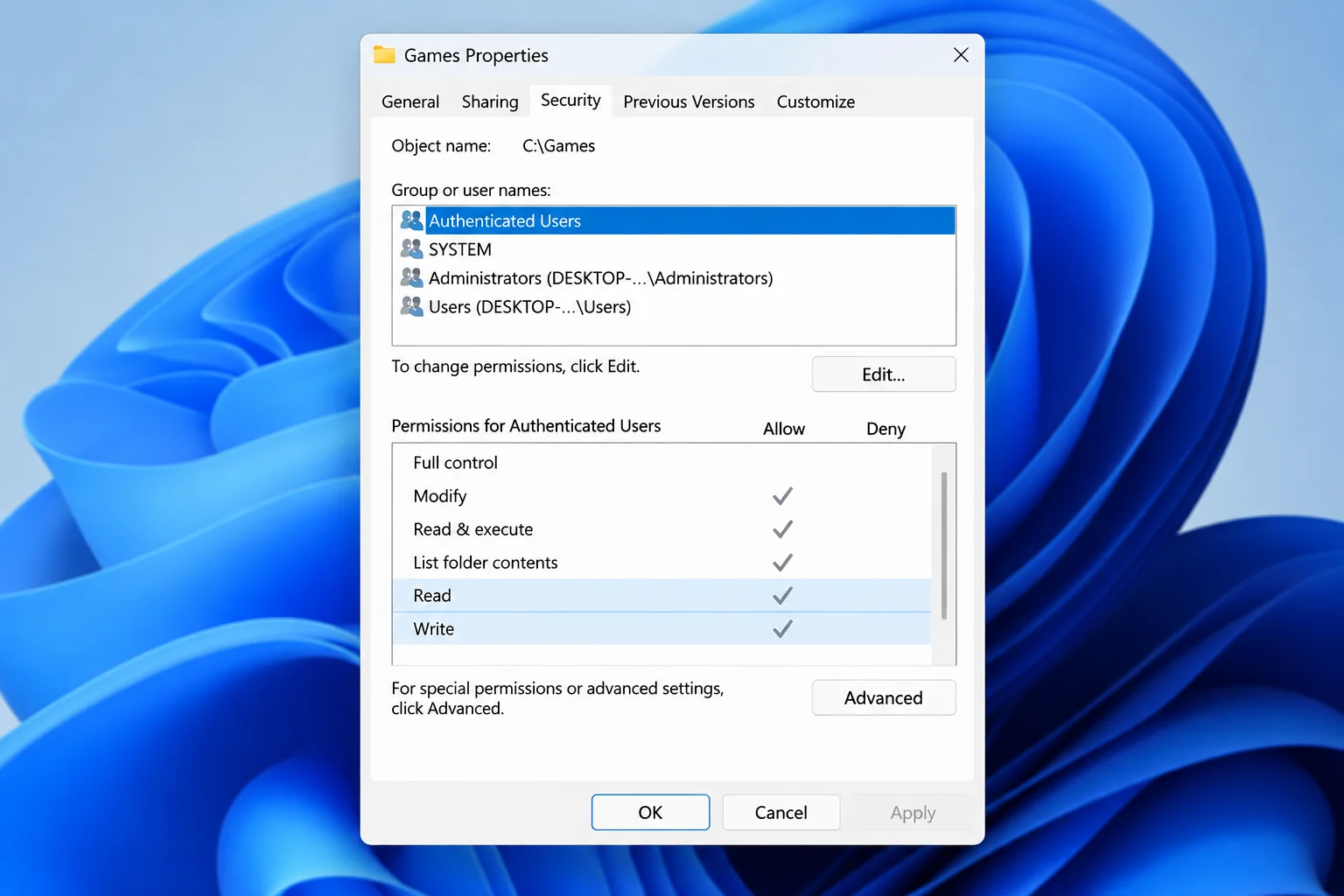
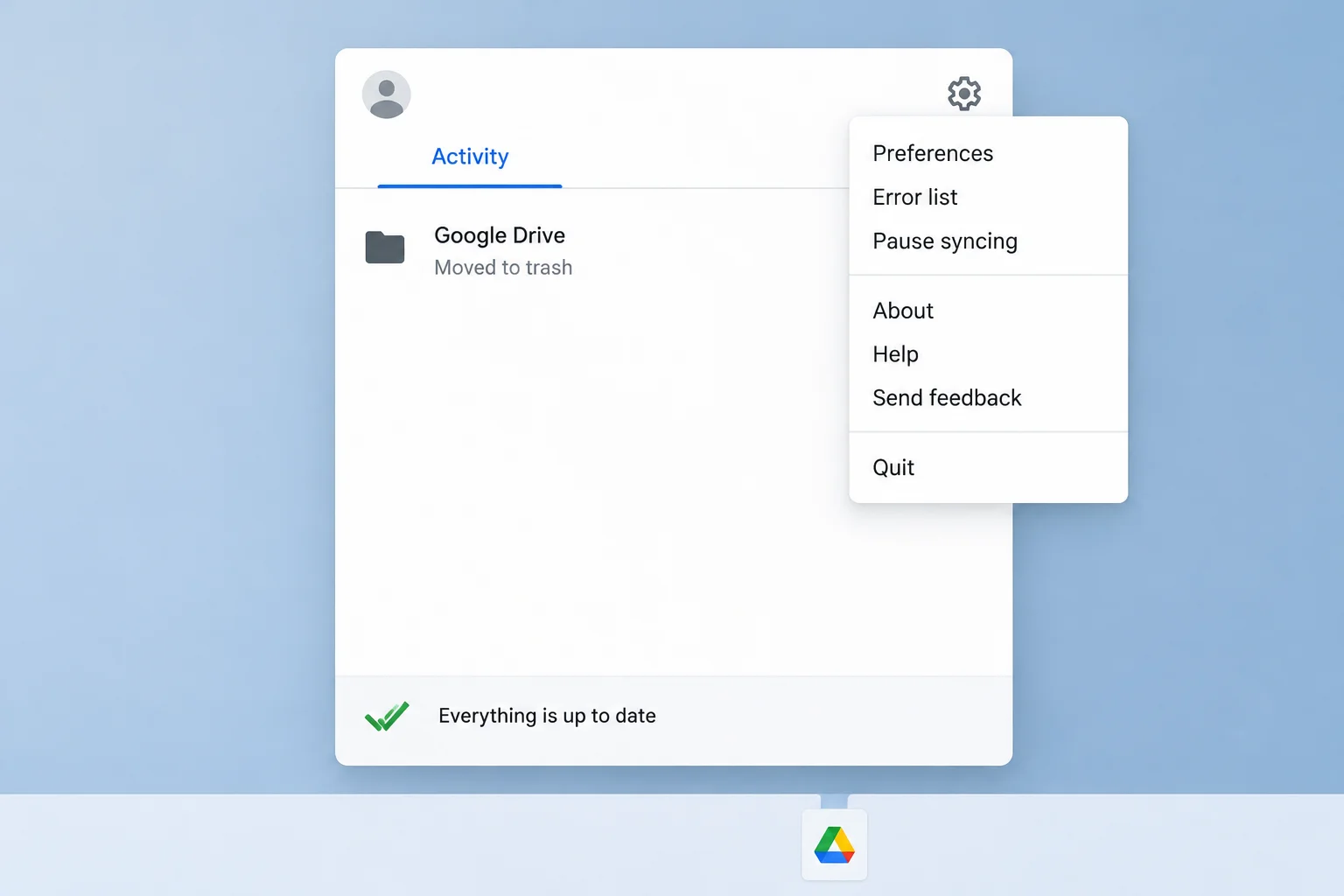
Before you disconnect or reinstall anything, open the Drive for desktop window from the tray icon. Look at the sync status or activity area to see whether files are still uploading. If anything is pending, do not run account disconnects or reinstalls until it clears.
Quick Fixes: Resuming Sync and Managing Storage
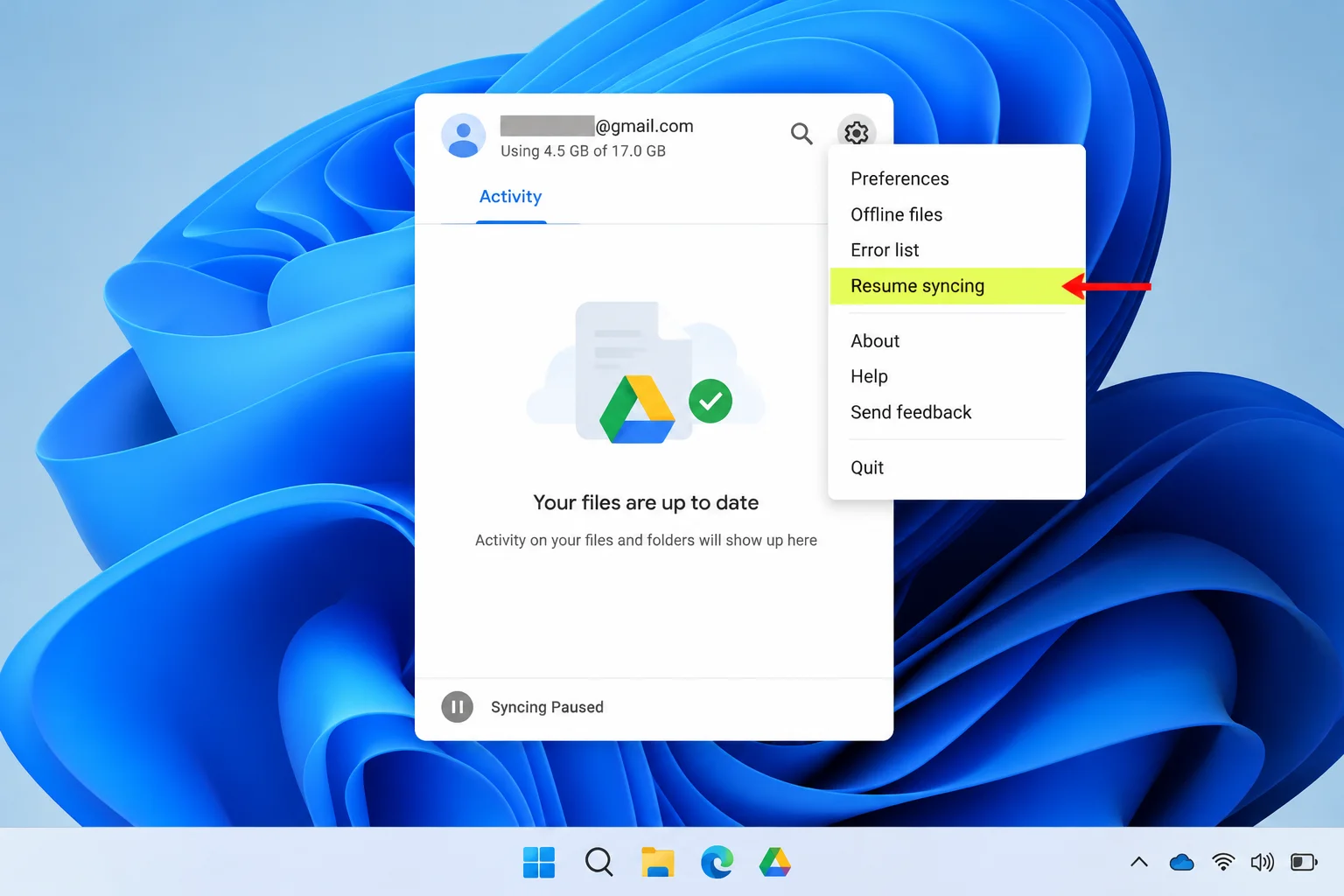
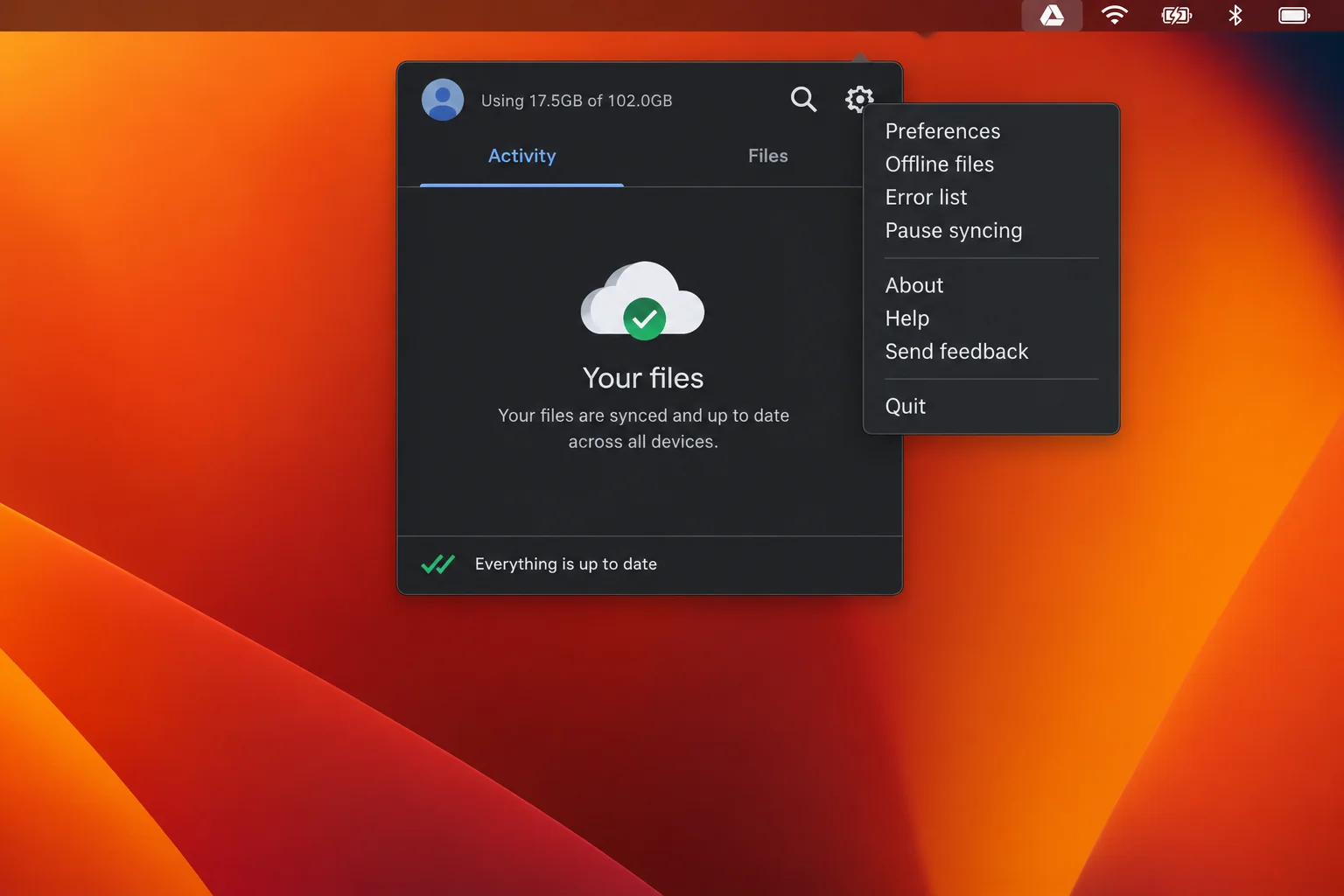
The difference between a paused sync and a broken app is often just one menu label. Click the Google Drive icon in the system tray (bottom-right of the taskbar). Read the menu; if it says Resume syncing, click it. If it says Pause syncing, click it, wait about 10 seconds, then click Resume syncing again. If it still looks stuck, open Settings and click Quit, then launch it from the Start menu.
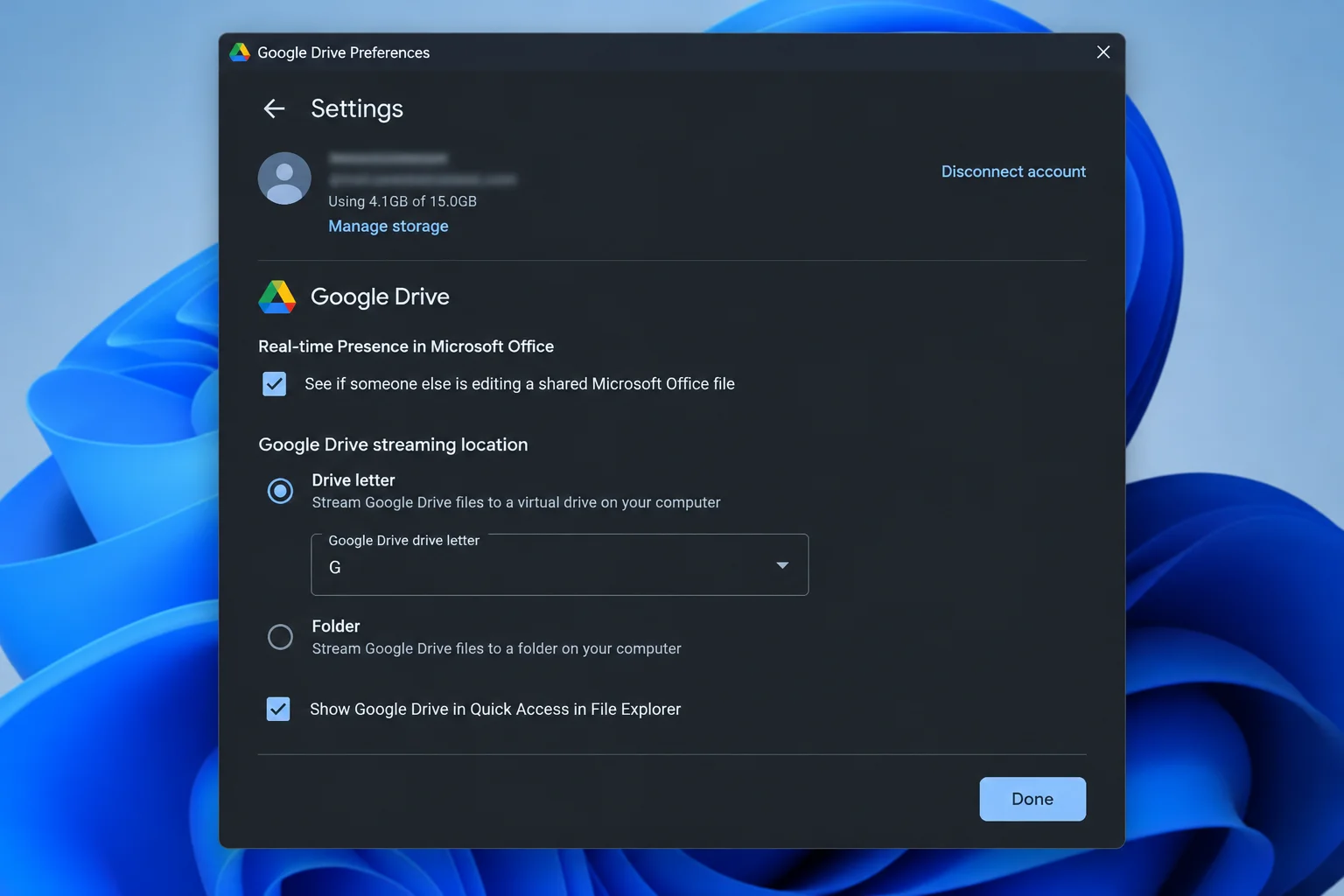
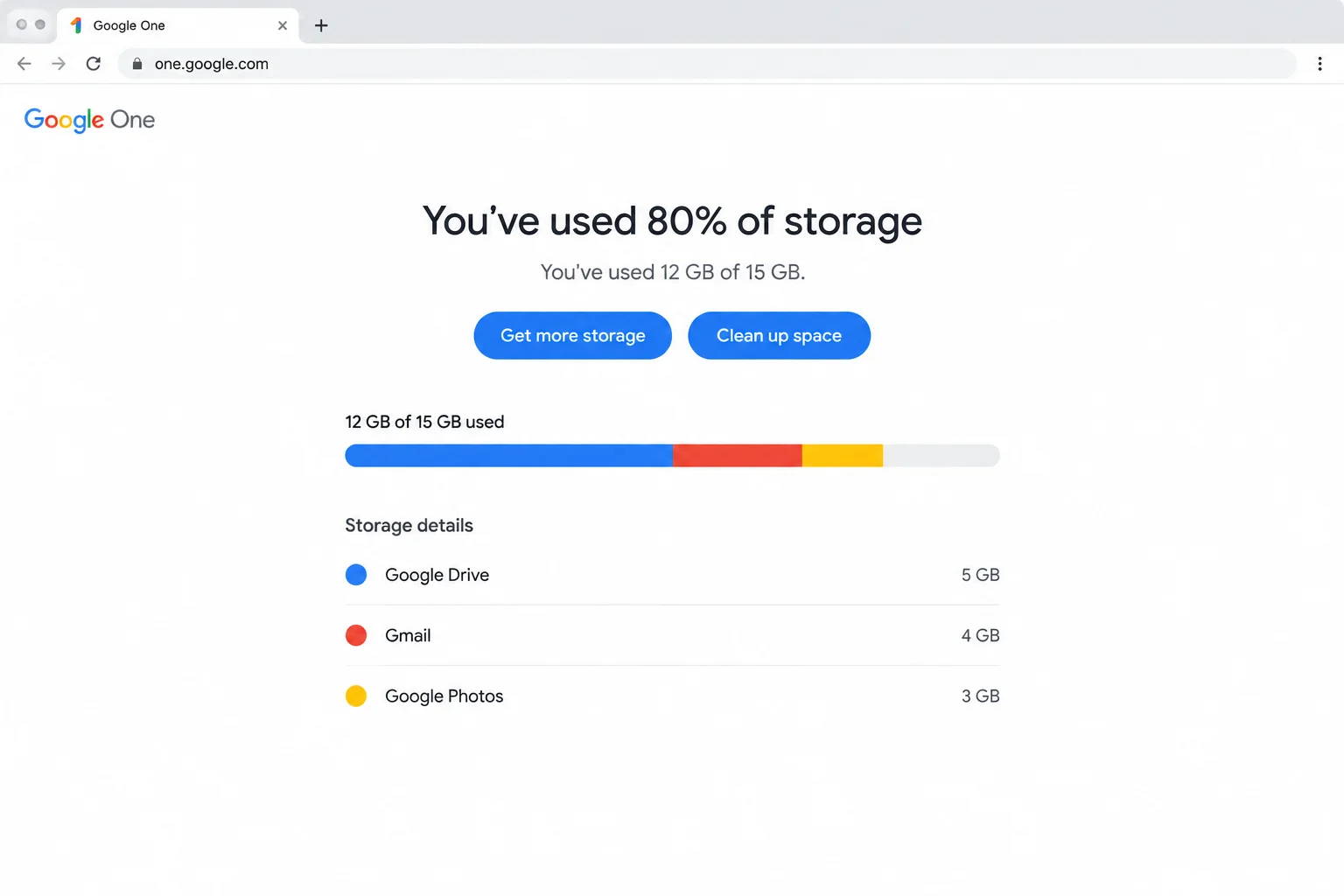
Another hidden cause for uploads that never finish is a full storage quota. Free Google accounts get 15 GB shared across Drive, Gmail, and Google Photos. Check your usage by visiting https://one.google.com/storage and signing in with your account. If you are near the limit, delete large files, empty the trash, or upgrade your storage plan.
Troubleshooting Permissions and Network Connectivity
Local causes for upload failures include lost internet connection, missing Windows permissions, or blocked networks.
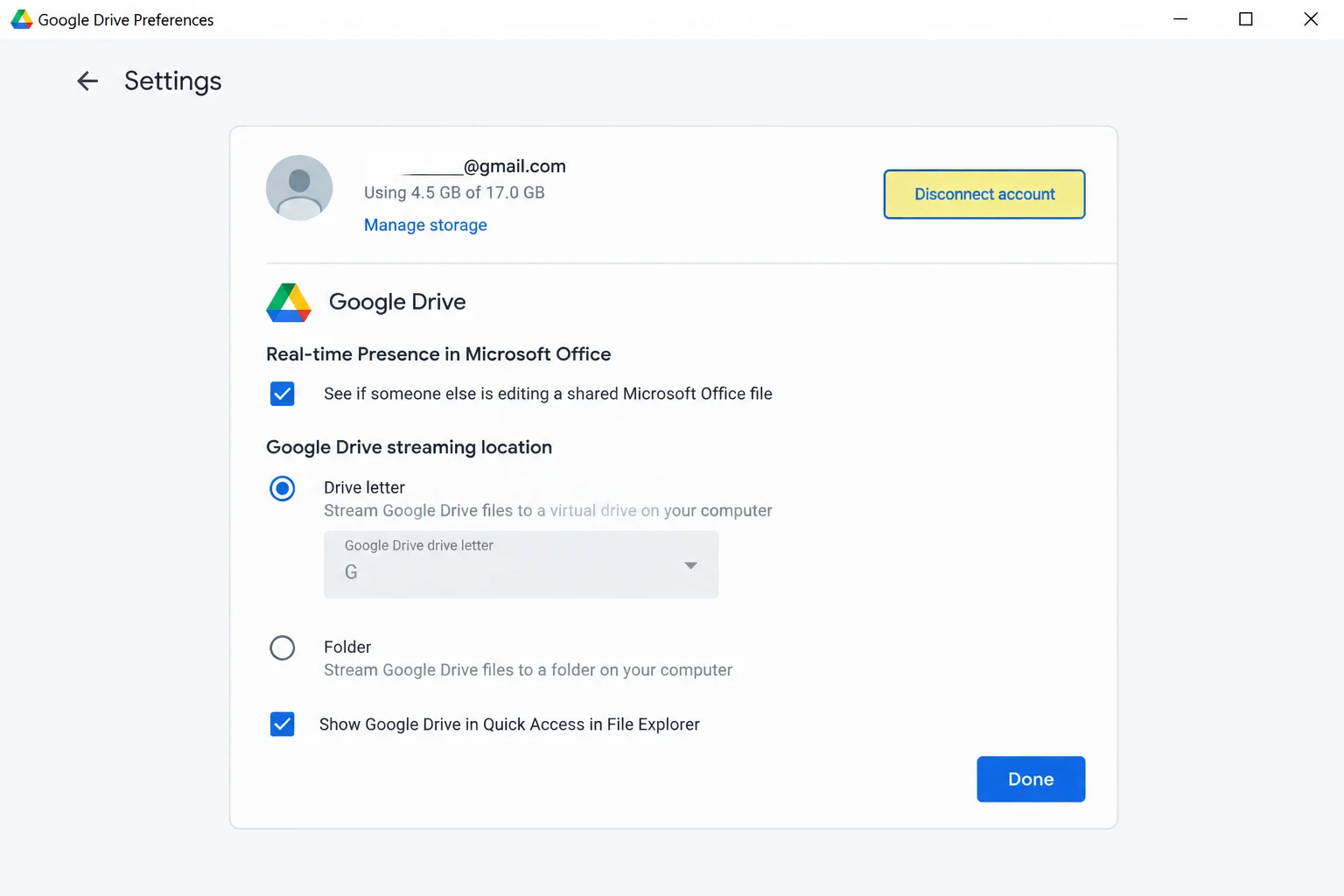
- File Permissions: Right-click the file or folder in File Explorer, choose Properties, select your username under Group or user names, and verify you have Read and Write allowed.
- Network Verification: Open PowerShell and run a connection test to confirm your PC can reach Google Drive over HTTPS:
Test-NetConnection -ComputerName mtalk.google.com -Port 443If the result shows TcpTestSucceeded : True, your network is clear. If it shows false, check your firewall, VPN, proxy, or admin policies. Disconnect from your VPN and test again, or check if your enterprise network locks sync to Microsoft OneDrive.
Restoring the Missing G: Drive and Offline Files
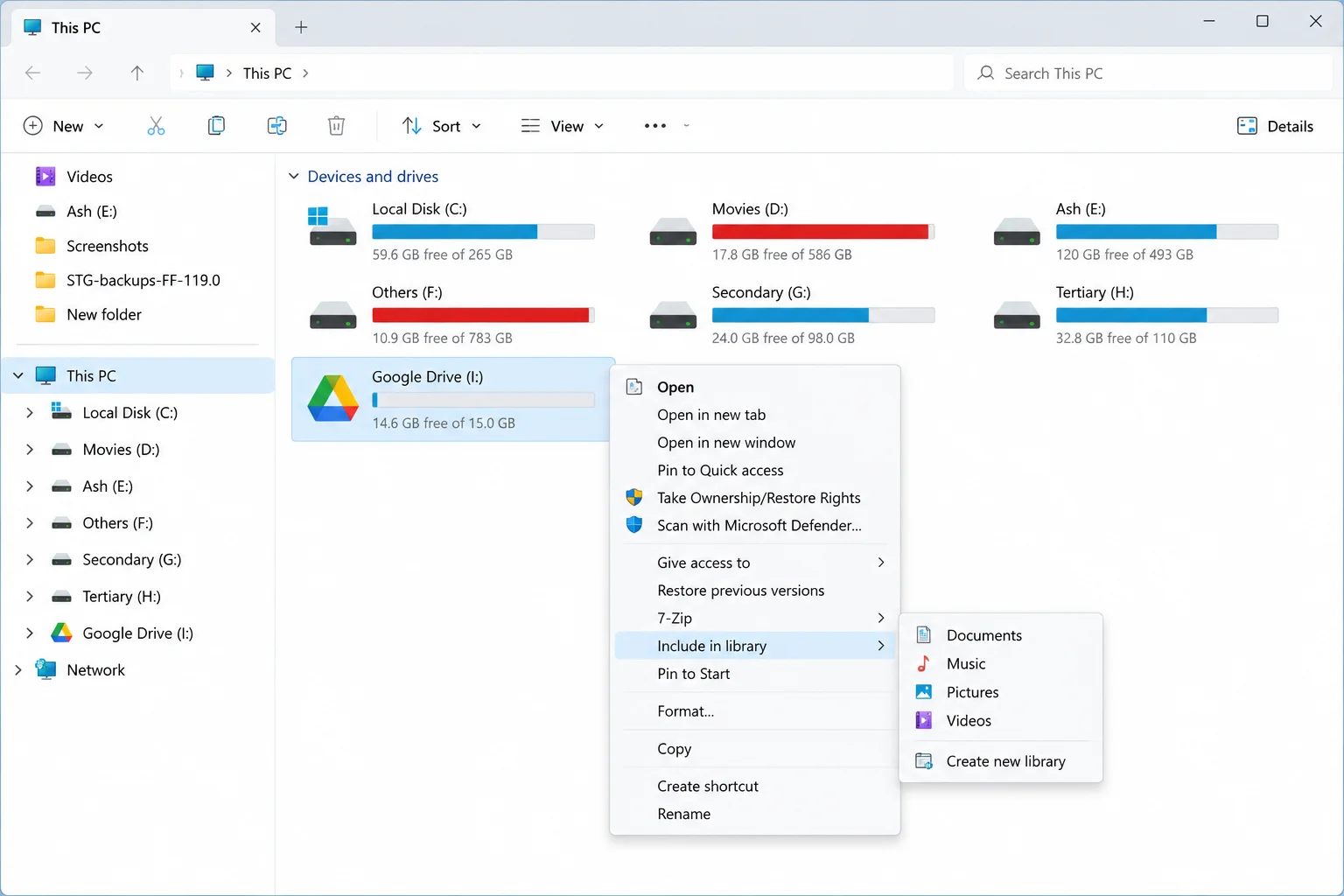
Google Drive normally appears as a virtual drive in File Explorer. If it disappears, the streaming location may have changed or clashed with another drive letter.
- Open File Explorer and check whether Google Drive is listed under another letter.
- Click the Drive for desktop tray icon, go to Settings, Preferences, and open Advanced settings.
- Find the Google Drive streaming location, click Change, and choose a different available location. Save your settings.
- Restart Drive for desktop when prompted.
If you use Stream files mode and files will not work offline, right-click the file or folder in your Google Drive letter and choose the offline option (such as Available offline). Stay online until the file finishes downloading.
Advanced Resets: Disconnecting and Reinstalling
If basic steps fail, you can rebuild the sync relationship or reinstall the app. However, disconnecting an account can permanently delete local data if you do not back it up first.
Safety Warning: Disconnecting deletes local data that may not exist anywhere else. Drive for desktop removes the localLost and Found folder (typically at C:Users<YourName>AppDataLocalGoogleDriveFSlost_and_found) and removes streamed offline files. Always copy your Lost and Found contents and unconfirmed files to a local backup folder before disconnecting your account.
To safely disconnect and reconnect your account:
- Confirm no files are pending upload.
- Back up your Lost and Found directory and any unconfirmed local files to a safe folder outside Google Drive.
- Click the tray icon, go to Settings, Preferences, Advanced settings, and select the problem account to disconnect it.
- Sign back in, select your sync mode, and choose your Drive folder location.
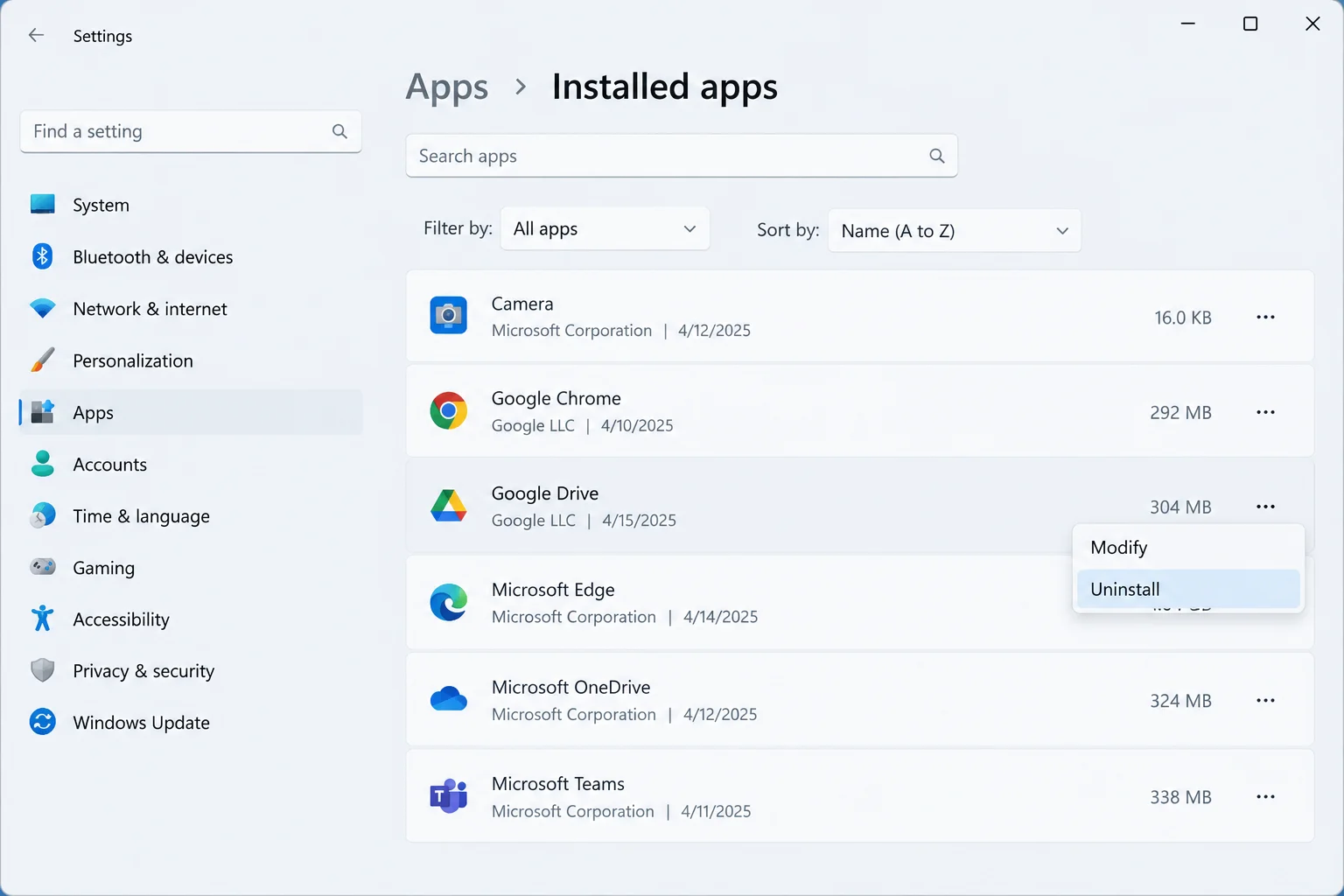
If re-pairing the account fails, uninstall the app via Windows Settings, download the latest installer from the official Google page, and sign in fresh. Avoid using aggressive third-party system cleaners like CCleaner or Advanced SystemCare, as they can corrupt configuration files.
Summary Checklist for Sync Success
When tackling Google Drive issues on Windows 11, follow a systematic, safety-first order:
- Pause and resume sync, or restart the app.
- Verify your Google One storage quota.
- Check file permissions and test network connectivity via PowerShell.
- Reassign missing drive letters or streaming locations.
- Back up local data before disconnecting accounts or performing a clean reinstallation.
Additionally, ensure your laptop is plugged in and connected to a stable network rather than a metered connection when syncing large batches of files.
Frequently Asked Questions
Does this troubleshooting process apply to macOS as well?
Yes, the same order of fixes applies on a Mac. You can pause and resume sync from the menu bar icon and reinstall using the official DMG installer.
Why does my sync appear exceptionally slow?
Sync speeds drop if your laptop is running on battery saver mode or connected to a metered network. Plug in your device and use a stable network.
Can I use system-cleaner utilities to clear Drive cache?
No, you should never use third-party cleaner tools like CCleaner on Google Drive, as they frequently corrupt configuration caches and cause data loss.