How to Fix a USB Device That Keeps Disconnecting
A USB device that does not stay connected consistently is virtually useless. When a device constantly disconnects, it creates major operational problems because nearly all USB peripherals rely on an uninterrupted connection. A failing connection will cause a mouse to stutter, a keyboard to miss inputs, a video camera to cut out, and file transfers to an external drive to fail.
Troubleshooting requires testing the device, cable, port, and computer to find the root cause. The simplest initial fix is restarting the computer to eliminate temporary software bugs before spending time on extended troubleshooting.
Isolate the Problem
Begin troubleshooting by determining whether the fault lies with the peripheral or the host machine. Test the USB device in a different USB port, and then test a different USB device in the original port. If one accessory malfunctions across every port, the device or the computer is likely at fault. If multiple accessories experience issues only when connected to a specific port, the problem is isolated to that port.
Inspect Physical Connections and Ports
Examine the USB connector on the device for looseness, bent pins, or other physical damage. Check the cable for tears in the outer jacket, extreme bends, or similar structural flaws that increase the likelihood of frequent dropouts. Replace any removable cables that show signs of damage.
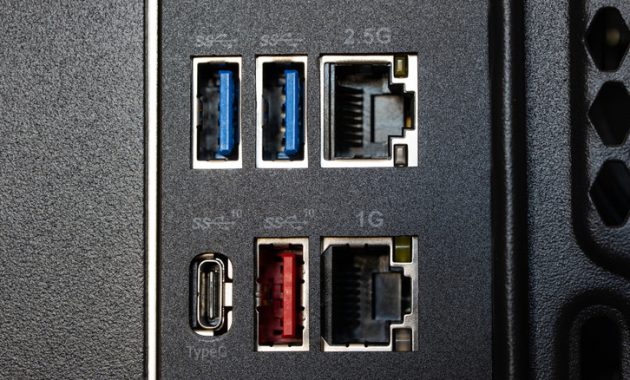
Shine a light into the port to check for debris buildup that prevents a secure connection. Gently clear blockages using a wooden toothpick, avoiding metal tools entirely. Use short bursts of canned air to remove stubborn debris from the USB port. If the internal pins are warped or physically blocking the connector, professional repair is required unless you have experience with hardware maintenance.
Evaluate Hubs and Port Placement
If you are using a USB hub, bypass it and connect the device directly to the computer to test for changes. Hubs introduce additional points of failure, particularly when high-power devices are connected to basic unpowered models. Powered USB hubs that plug directly into a wall outlet deliver the most reliable results.
On desktop computers, connect long-term peripherals to the rear ports whenever possible. Rear ports wire directly to the motherboard and introduce less electrical overhead than front-panel ports that rely on internal extension cables.
Adjust Windows Power Settings
Windows includes power-saving features that cut power to idle USB ports, which can inadvertently shut down active devices. Right-click the Start button or press Win + X to open the shortcut menu, and select Device Manager. Expand the Universal Serial Bus controllers section, double-click each item individually, switch to the Power Management tab, and uncheck ‘Allow the computer to turn off this device to save power’. Save the changes by clicking OK.
Next, type ‘power plan’ into the Start menu and select the ‘Choose a power plan’ entry. Click ‘Change plan settings’ next to the active plan, then select ‘Change advanced power settings’. Expand ‘USB settings’ followed by ‘USB selective suspend setting’, and change the setting to ‘Disabled’. Note that Microsoft strongly recommends keeping selective suspend enabled despite disabling it for troubleshooting purposes.
Manage Drivers
Outdated or corrupted USB port drivers can cause stability issues, though this is rare unless you are using specialized hardware. In the Device Manager menu, visit the Driver tab for each USB device and click ‘Update Driver’ to check for newer versions. If you identified a specific troublesome port, select the ‘Uninstall Device’ option and reboot the computer to trigger an automatic reinstallation.
Identifying which Device Manager entry corresponds to a specific physical port can be challenging. A practical method involves inserting and removing a device while monitoring the screen, or utilizing the free USBDeview utility. Exercise caution to avoid disabling the port currently operating your keyboard or mouse, as this will result in a loss of input control.
Check the Device and Port Capabilities
If an accessory fails across every port and computer, the device itself may have failed due to physical shock, drops, or liquid exposure. Verify that the port and cable actually support the intended task. For instance, not all USB-C ports support video output, and certain ports are designated strictly for charging.
Confirm that you are using the correct cable type for the application. Charging-only cables lack data lines and cannot facilitate file transfers between a phone and a PC. When troubleshooting USB ports on routers, vehicles, or televisions, consult the device manual to verify supported functions. A common limitation is a television USB port failing to output sufficient power to operate a streaming stick, or a vehicle requiring a high-quality cable to maintain a stable CarPlay connection.
If all troubleshooting steps fail and an accessory remains unresponsive across multiple ports and computers, contact the manufacturer for support.