
Microsoft is actively testing new capabilities within Windows 11 Insider Preview builds, giving users a glimpse into potential operating system updates. Evaluated across different testing tracks in late October 2026, these updates range from interface refinements to utility additions. Understanding what Microsoft officially acknowledges versus what relies on independent reporting helps clarify the current state of development.
Overview of Windows 11 Insider Preview Features
As of November 2, 2026, Microsoft is testing four notable features across various Windows 11 Insider Preview channels: a customizable right-click context menu, a built-in internet speed test, a resizable Start menu, and per-app privacy controls tailored for traditional desktop applications. However, the documentation level varies significantly across these items.
Official Microsoft release notes confirm the redesigned context menu and the native Quick Settings speed test. Conversely, the resizable Start menu and the desktop-app privacy toggles rely more heavily on independent reporting, primarily from Windows Central, rather than matching Microsoft documentation. None of these four features are currently available in the public stable release of Windows 11.
Breaking Down the Four New Features
Each of the tested features targets a different area of the Windows 11 user experience, addressing long-standing user requests or introducing system-level conveniences:
- Customizable context menu: Linked to Beta build 26220.9757, this redesigned right-click menu lets users simplify choices and select which commands appear when interacting with files and folders. Microsoft’s release notes confirm the redesigned menu, though exact setting paths differ slightly from independent descriptions.
- Native internet speed test: Found in Experimental-channel build 26340.9767 released on October 23, 2026, a new “Speed test” panel inside Quick Settings displays download, upload, and ping results directly. Users can initiate tests from a dedicated tile, Wi-Fi or Cellular flyouts, or by right-clicking the taskbar network icon without opening a browser.
- Resizable Start menu: Windows Central reports a new setting allowing users to select different Start menu size options. This feature is tied to a test build from the same cycle, though Microsoft has not confirmed build numbers or official details.
- Per-app privacy permissions: Traditional desktop apps installed outside the Microsoft Store would gain individual camera, microphone, and location toggles under Settings > Privacy & security. Currently, support documentation dictates that desktop apps rely on broader, collective switches rather than the granular controls available to Microsoft Store apps. No specific build number was assigned to this potential change.
Understanding Windows Insider Channels and Builds
For users unfamiliar with the Windows Insider Program, navigating these updates requires understanding how Microsoft deploys test software. Insider Preview builds deliver work-in-progress features that regular Windows Update mechanisms do not distribute to standard production machines.
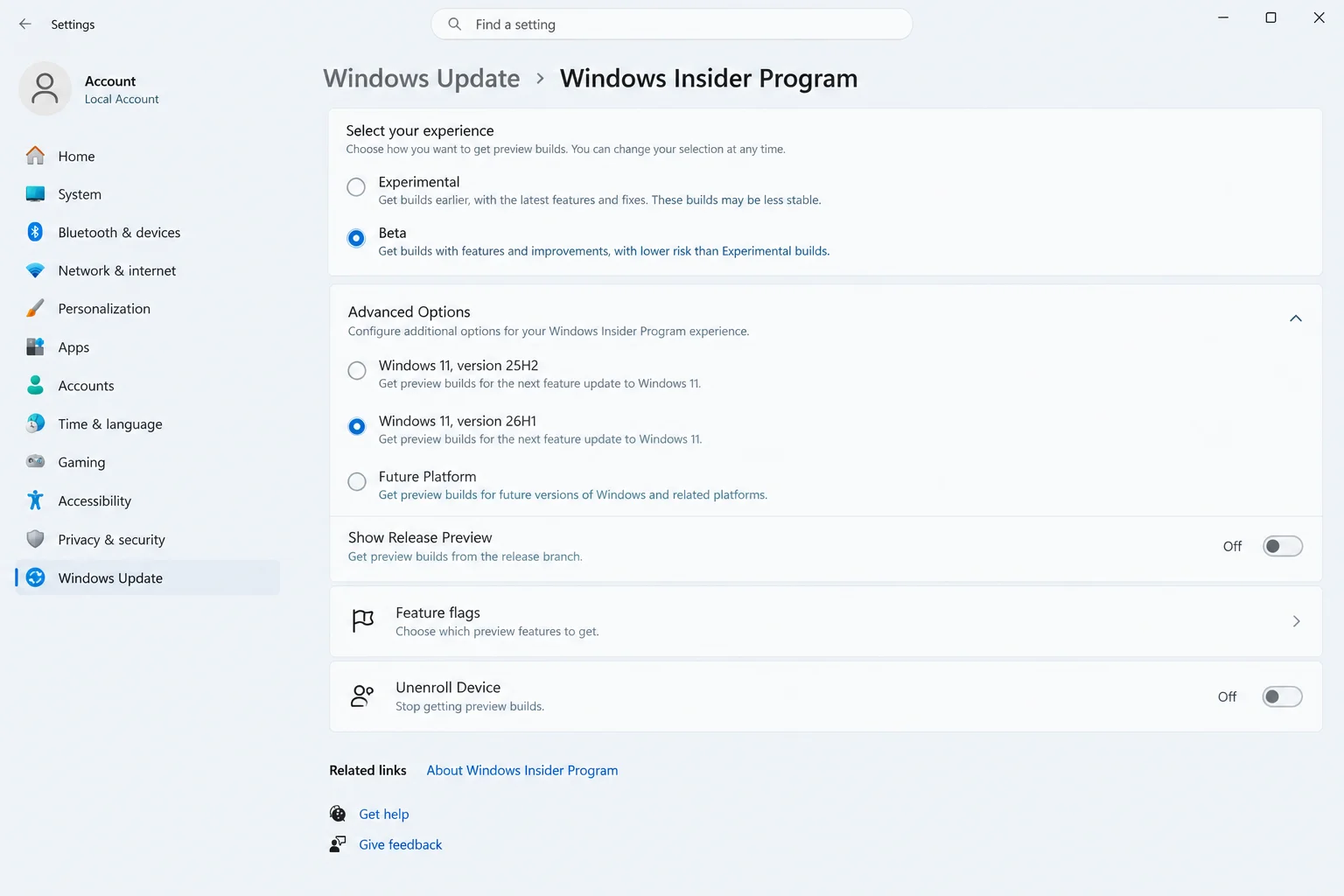
Microsoft organizes testing into distinct channels that receive builds at different stages of readiness. For instance, the speed test is specifically tied to the Experimental channel through a controlled rollout, meaning that installing build 26340.9767 does not guarantee immediate visibility of the feature. Furthermore, build numbers act as version tags identifying exact operating system snapshots, while version labels like 26H1 and 26H2 help map builds to broader release schedules.
What Stable Release Users and IT Support Need to Know
Standard Windows 11 users running public stable builds will experience no changes. None of the preview features are active in standard releases, and regular updates will not enable them unexpectedly. Regular users do not need to patch, pause, or roll back their systems.
For help desk and IT support professionals assisting users who notice unexpected interface elements—such as a modified Start menu or a speed test tile in Quick Settings—the primary step is checking whether the PC is enrolled in the Windows Insider Program. Reviewing Settings > Windows Update will reveal if an active Insider channel is tied to the machine.
Should You Join the Insider Program?
Deciding whether to enroll a PC in preview testing requires careful consideration of the associated risks and realities. Most users should avoid installing Insider builds on primary workstations due to potential instability and Microsoft’s habit of modifying or removing features before general availability.
If you choose to test preview builds, consider the following unenrollment and participation guidelines:
- Understand channel exit paths: While Beta, Dev, and Release Preview channels allow users to toggle off preview updates to return smoothly to retail builds, the Experimental channel requires a clean operating system installation to leave.
- Use recovery windows: Settings > System > Recovery > Go back permits reverting to a previous build, but only within a 10-day window or until the next build installs.
- Protect your data: Always back up files, utilize cloud storage, or test on secondary hardware and virtual machines before enrolling any device.
Ultimately, regular users are best advised to wait for stable releases and rely on existing third-party tools if immediate functionality is required. Among the features currently in preview, the potential arrival of per-app privacy controls for desktop apps represents the most meaningful shift for overall system security and configuration.