
A “Final software update” alert on your Chromebook, or a sudden worry about how long your laptop will last, inevitably leads to one crucial question: when will my Chromebook stop getting updates? Every ChromeOS device has a fixed end date for software support. Fortunately, you can check this schedule in under a minute directly through your device settings.
Understanding Chromebook Auto Update Expiration (AUE)
Your Chromebook gets automatic updates until a specific date determined by Google, known as the Auto Update Expiration (AUE) date. Google calculates this support window from the device’s platform release date rather than the day you purchased it.
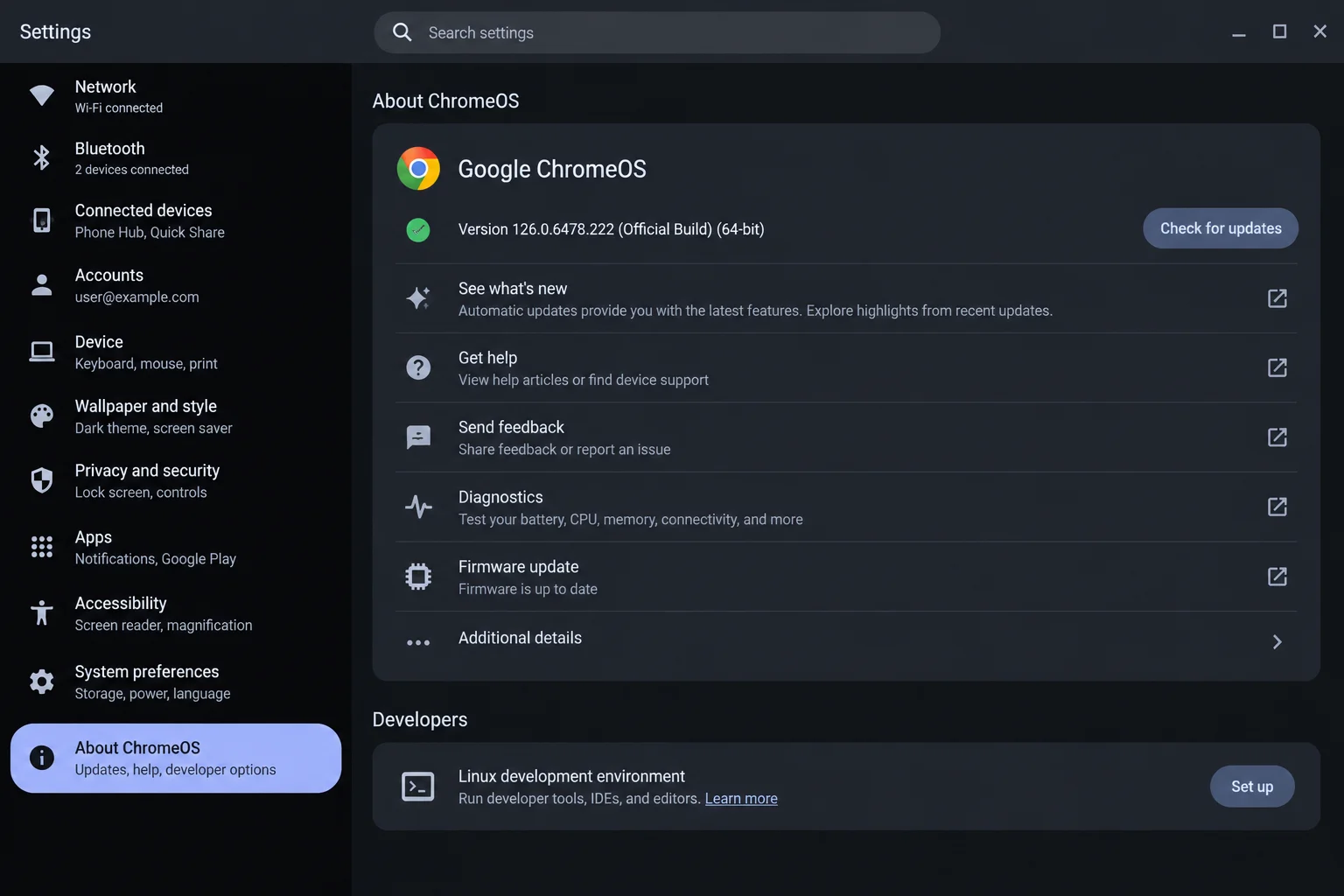
Google’s official policy states that ChromeOS devices receive 10 years of updates. However, because this countdown starts when the platform model is first released, a Chromebook bought on clearance or purchased used may have far fewer than 10 years of support remaining. This is why checking the on-device update schedule is vital before buying secondhand hardware.
It is also important to distinguish support expiration from manufacturing labels. End of Sale is set by the manufacturer to mark when a model stopped being sold as brand new; it has nothing to do with how long the device continues to receive updates. You should always trust the device’s update schedule screen or Google’s official policy page rather than retail clearance labels.
How to Check Your Chromebook’s Update Schedule
You can easily find your exact expiration date by following a few simple steps on your personal ChromeOS device:
- Select the time in the bottom-right corner of your screen to open the Quick Settings panel, which contains your Wi-Fi, Bluetooth, and volume controls.
- Select the Settings gear icon within the Quick Settings panel, then click on About ChromeOS near the bottom of the left sidebar.
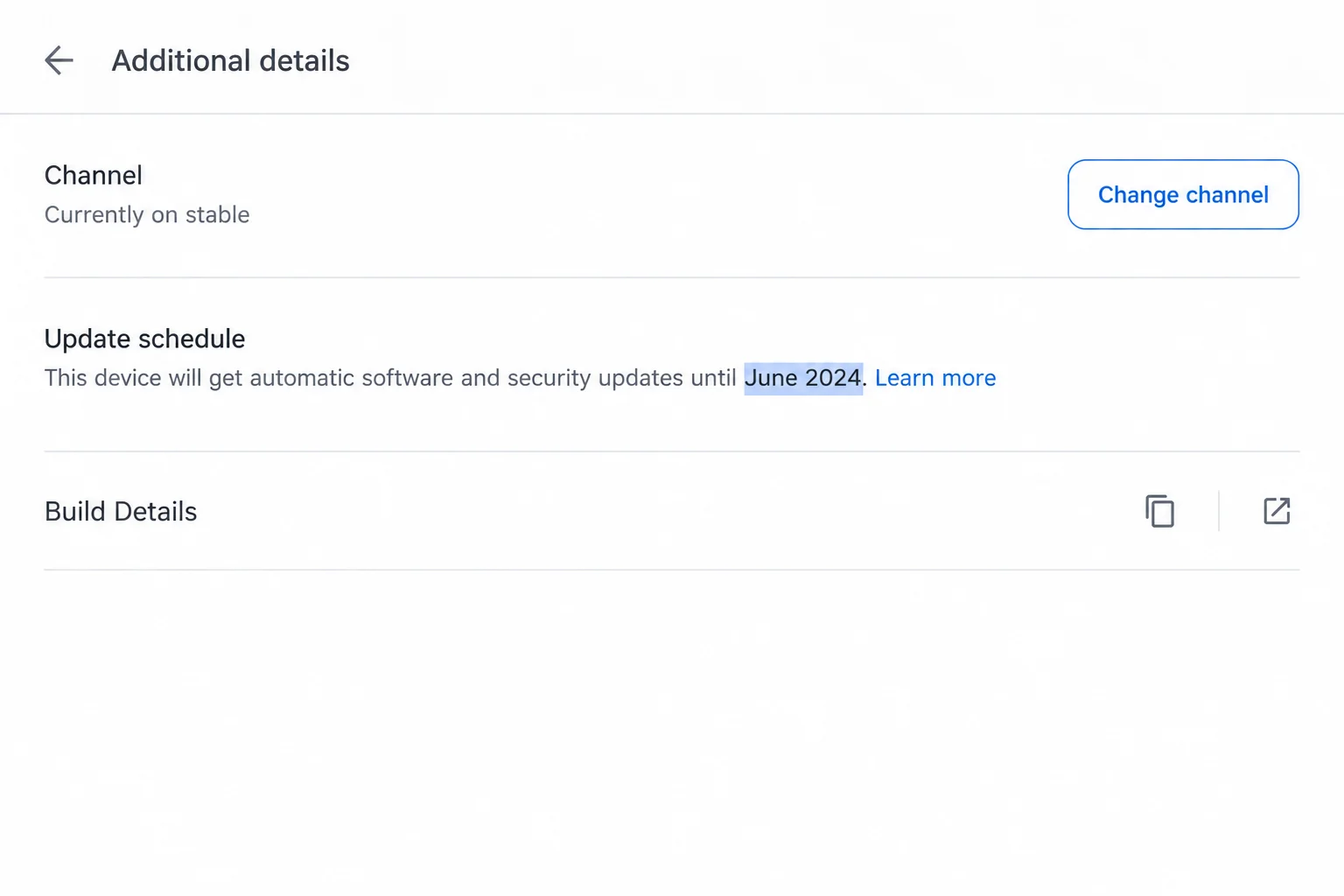
- On the About ChromeOS page, select Additional details to view your update schedule date, which typically reads like “This device will get automatic updates until [month year].”
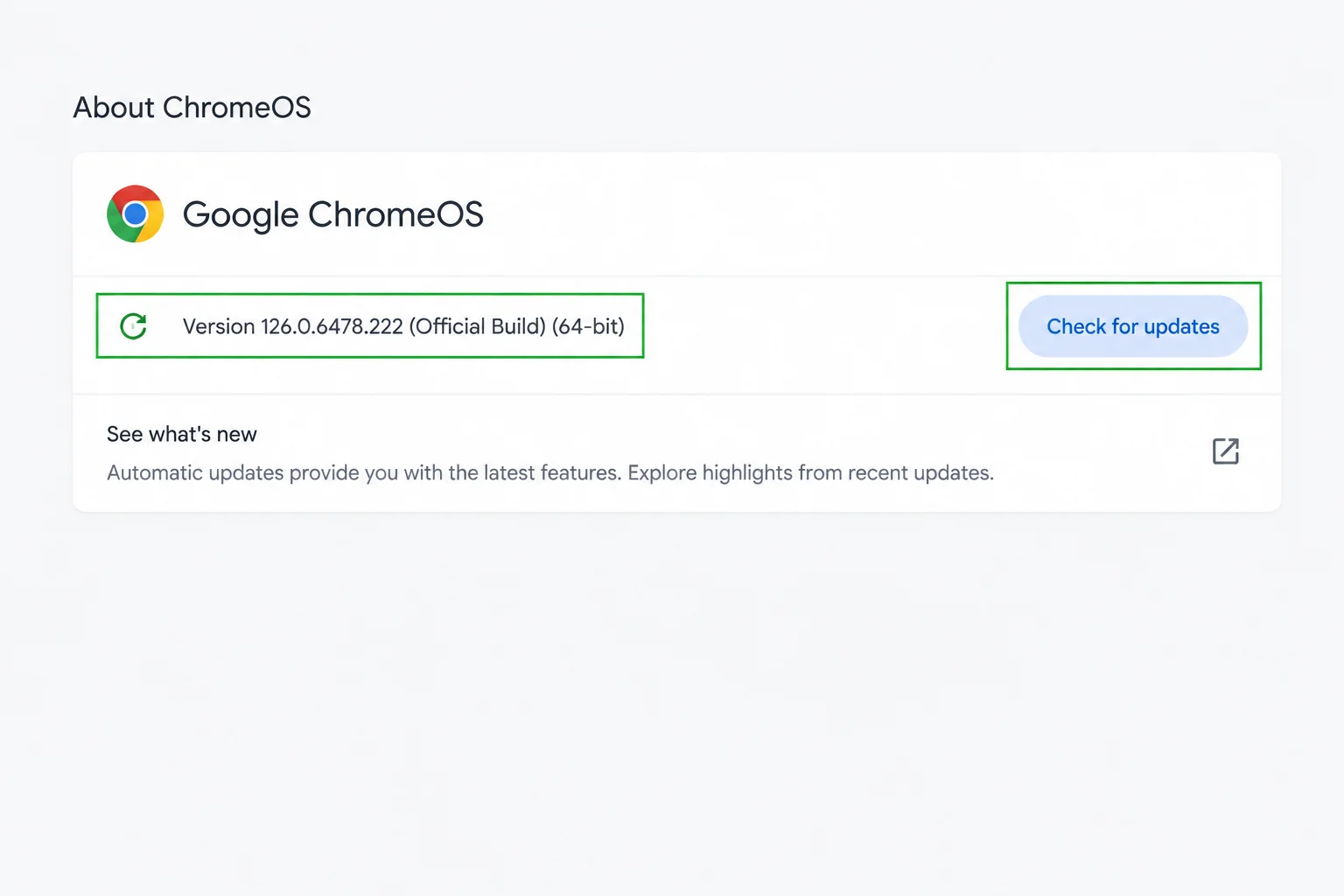
- Confirm you are on the latest version by checking for pending updates or selecting restart if an update has already downloaded in the background.
If you see a message stating “Updates are managed by your administrator” instead of a date, your device is managed by an organization such as a school or workplace, and you will need to contact their IT team for support.
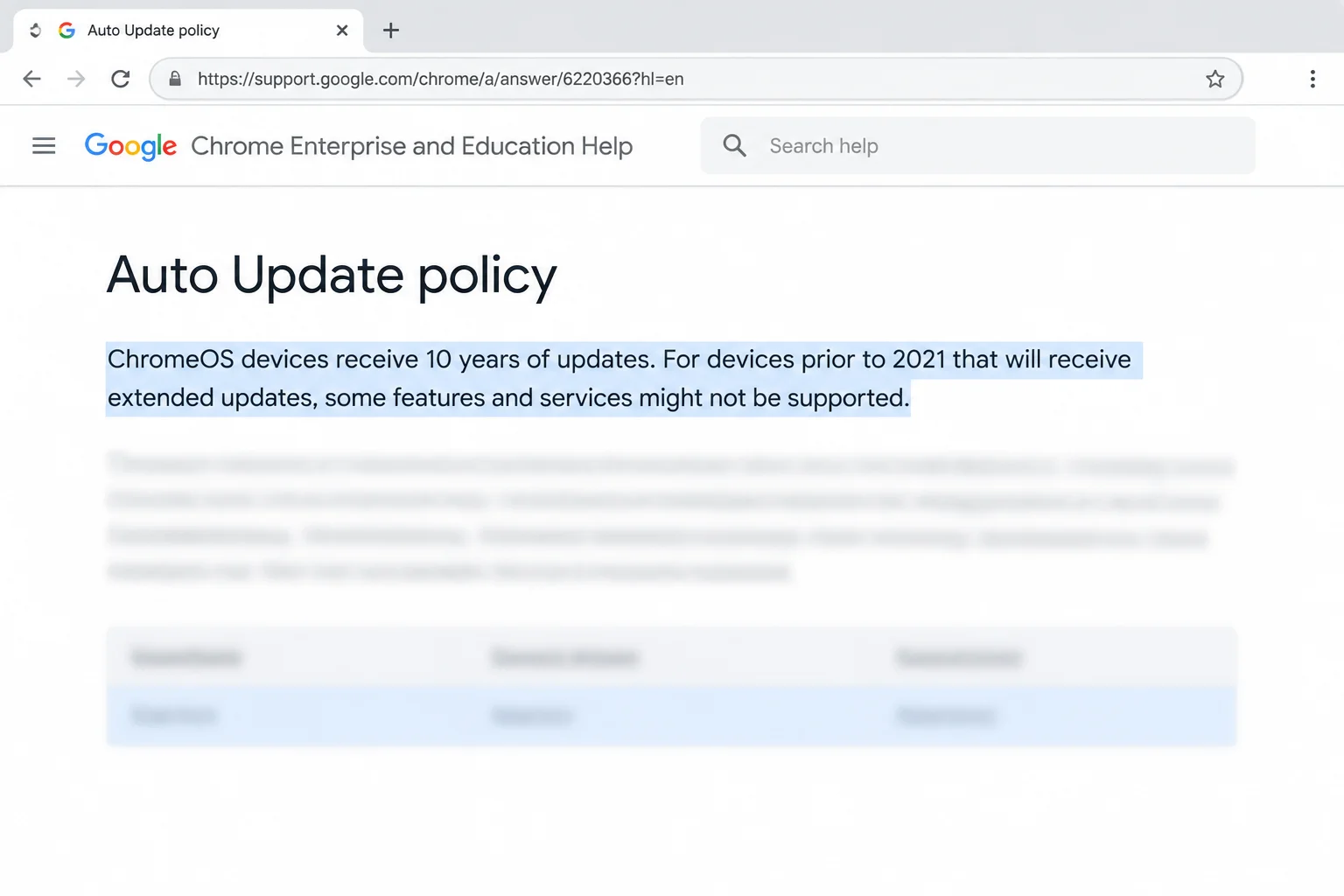
If you are looking to purchase a used or clearance laptop, you can check model schedules online from any web browser without needing to sign in. Simply review Google’s official Auto Update policy page and match the exact model name and number found on the retail listing or device sticker.
What Happens When Your Chromebook Reaches Its AUE Date?
Once your Chromebook passes its AUE date, support changes immediately. There is no setting available to extend your update window. Understanding what changes helps you decide when it is time to upgrade:
- Chrome Browser Updates: Regular browser updates and critical security fixes stop entirely.
- App Compatibility: Compatibility with certain web applications, extensions, and websites that require newer ChromeOS or browser versions may eventually drop.
- General Operation: The Chromebook will still turn on, browse the web, and run previously installed apps, though Google warns that some existing features may stop functioning properly over time.
- Verified Boot: Verified boot continues to run at every startup, checking the system for tampering and repairing it if corrupted. This core protection does not depend on ongoing updates.
What to Do When Your Chromebook Updates Expire
An expired Chromebook is not completely dead, but you must change how you use it to maintain personal security. Because browser security patches stop, you should immediately move sensitive activities like online banking, school portals, and personal logins away from the expired machine.
To transition smoothly, back up your local files by copying anything stored in Files > My files > Downloads to Google Drive, a USB flash drive, or an external hard drive. Once secured, you can downgrade the device’s job by repurposing it as a kitchen recipe screen or a video player. Plan your hardware replacement before the expiration date arrives, and skip unofficial firmware or developer mode hacks, as they do not restore official Google security patches and introduce new risks.
Troubleshooting Common Chromebook Update Issues
If you encounter unexpected roadblocks while managing your device, review these common scenarios and fixes:
- “Updates are managed by your administrator”: This happens because your device is enrolled in a school or corporate account. Contact that organization’s IT team for assistance.
- Update downloaded but version didn’t change: ChromeOS downloads updates automatically in the background, but installation finishes only after a reboot. Select the update notification near the clock and choose Restart.
- “Final software update” notification appeared: Your device is approaching its AUE date. This is an expected advisory notice rather than an error; confirm your exact date in your settings.
- Websites telling you your browser is too old: Your device is likely past its update window, and modern websites require a newer browser version. Replacing the hardware is the ultimate solution.
Long-Term Support and the Mid-2034 Horizon
Google has implemented a support cap ensuring ChromeOS devices continue receiving regular updates and security patches through mid-2034. However, this date serves as an absolute end point rather than an extension for older hardware. A device whose scheduled AUE date falls before mid-2034 will still stop getting updates on its original date.
For qualifying newer devices whose 10-year lifecycle would otherwise extend past 2034, Google is committed to supporting transitions toward Googlebook OS with direct migration paths. Until complete migration guidance is released for specific models, your device’s update schedule screen and the official Auto Update policy page remain the most reliable resources for confirming your exact support status.