
File Explorer isn’t opening a specific folder in Windows 11. You double-click it and get a “Working on it…” message that never finishes, an “Access denied” error, or the whole Explorer window crashes, while every other folder opens normally. If the window is frozen right now, jump to Fix #1 to restart Explorer; otherwise take 30 seconds for the quick check below.
Quick Diagnosis: Is the Problem Isolated to One Folder?
Start by confirming which problem you have. The fixes are different.
- Open three or four other folders, such as Documents, Downloads, and a folder on another drive.
- If those folders open normally, the problem is specific to that one folder. Keep reading.
- If File Explorer won’t open at all, or every folder hangs, you have a whole-app or system problem. Use Microsoft’s Fix File Explorer if it won’t open or start guide instead.
When only one folder fails, the trigger is often something in or about that folder, though a profile, shell-extension, drive or permissions problem can also surface as a single bad folder. Common causes include Windows scanning a large photo or video folder to pick a view type, a corrupted thumbnail cache, a permissions mismatch, a damaged file, a stuck OneDrive sync, or a third-party shell extension. If a large media folder is stuck on “Working on it…”, start with Fix #2.
Fix 1: Restart Windows Explorer
If the folder froze the window, restarting Explorer gets you unstuck without rebooting. It also clears any temporary glitch.
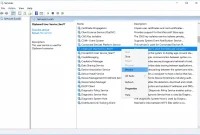
- Press Ctrl + Shift + Esc to open Task Manager.
- Find Windows Explorer in the list and right-click it.
- Select Restart. Some Windows 11 builds label this Restart task.
Your taskbar and desktop will disappear for a second and come back. Try the folder again. If it hangs the same way, move on to Fix #2.
Fix 2: Change Folder Template to ‘General Items’
“Working on it…” means Explorer is still building the folder view. Windows tries to guess whether a folder holds photos, videos, music, or documents. Then it builds thumbnails and columns to match.
On folders with thousands of files, or on slow or network drives, that scan can take a very long time. Setting the folder to General items changes its folder template so Windows stops choosing a media view for it, which can help it open more reliably. It doesn’t stop every thumbnail or add-in from processing the contents, so pair it with Fix #3 if previews are the problem.
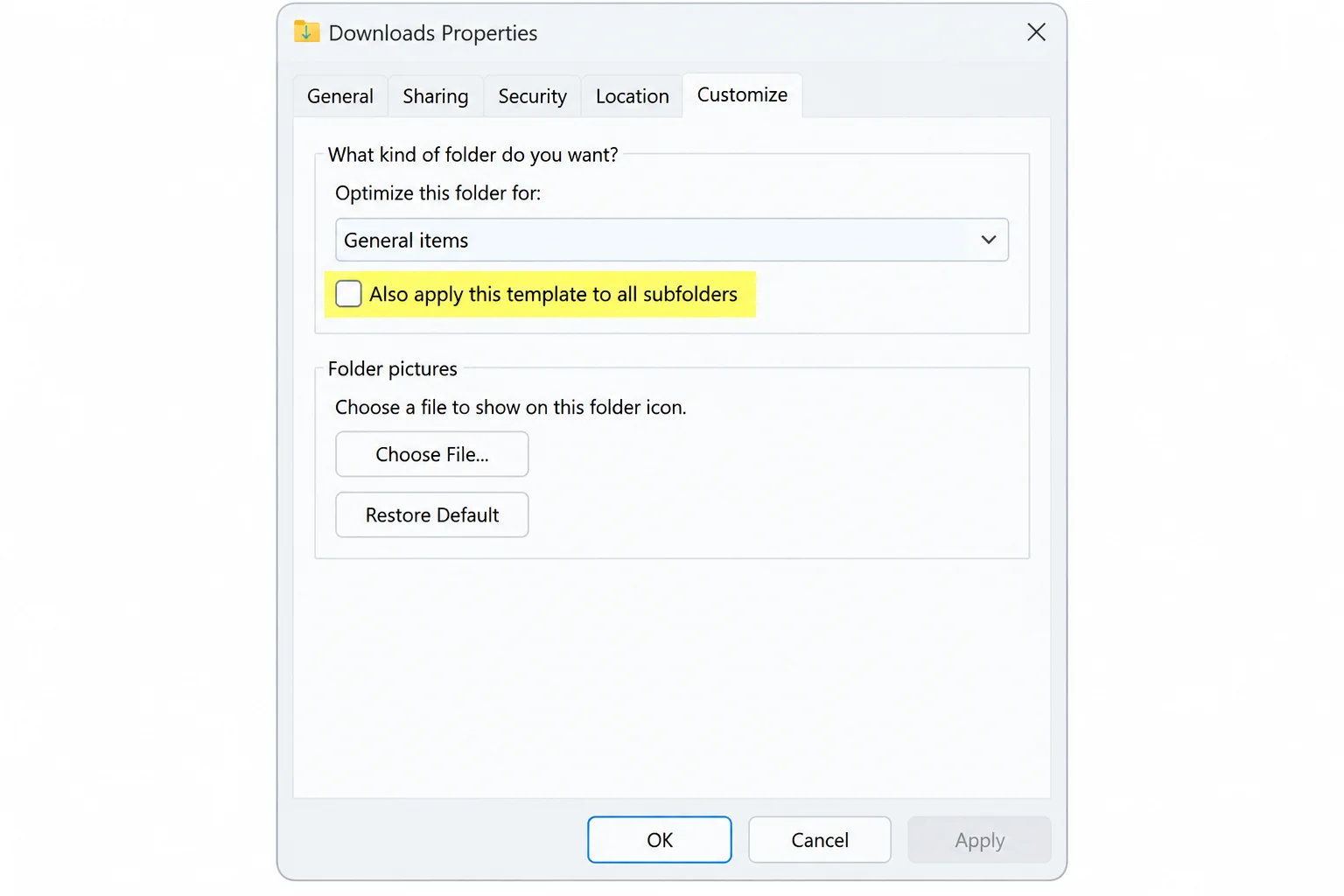
- Navigate to the folder’s parent folder. Don’t open the problem folder itself.
- Right-click the problem folder and select Properties.
- Open the Optimize this folder for dropdown and select General items.
- If the folder has subfolders with lots of media, check Also apply this template to all subfolders.
- Restart Explorer (Fix #1), then open the folder.
Verify: The folder should open in a few seconds and show a file list. Thumbnails may still fill in gradually. This tab and its exact options have shifted across Windows 11 feature updates, and in some configurations it may not appear at all, so look for the closest match if yours differs.
Tip: If the folder opens but looks wrong afterward (odd columns, wrong sort order), that’s a view setting, not a failure. Our guide on how to reset folder view settings in Windows 11 covers that.
Fix 3: Clear the Thumbnail Cache
Windows caches thumbnail images so it doesn’t rebuild them every time. If that cache gets corrupted, a photo or video folder can have trouble displaying previews, which may contribute to freezes or crashes in Explorer. This fix only helps when thumbnails are involved; it won’t change a permissions or sync problem.
Clearing the cache through Disk Cleanup removes the stored thumbnails so Windows regenerates them from scratch.
- Select your Windows drive (usually C:) and click OK.
- In the Files to delete list, check Thumbnails. You can uncheck everything else.
- Restart Explorer (Fix #1) and open the folder.
Verify: The folder should open, and thumbnails will regenerate as you scroll. Expect a slow first load on very large folders.
Fix 4: Pause and Resume Cloud Sync
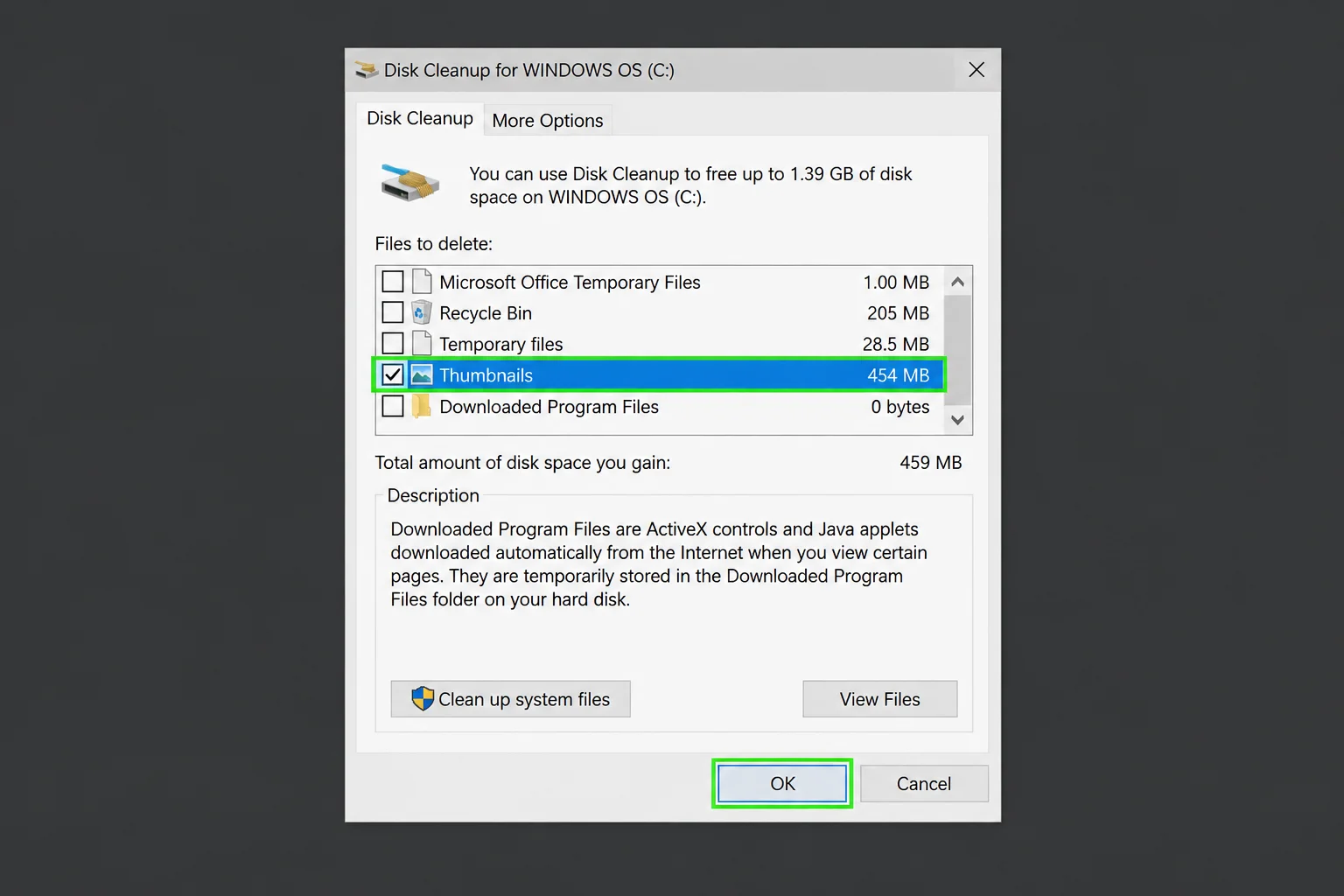
If the folder lives in OneDrive, Explorer may look frozen while it’s actually waiting on the cloud. A stuck sync job, a sync conflict, or an online-only file that won’t download can all cause this. Dropbox and Google Drive behave similarly, so check their own pause options if you use them.
Look at the status icons on the folder and its contents. These icons generally indicate different sync states, such as online-only, available locally, actively syncing, or an error, though the specific icons and their meanings can change with OneDrive updates.
- Click the OneDrive cloud icon in the taskbar notification area.
- Open its settings menu and look for an option to pause syncing, then pick a duration. The exact menu wording can vary between OneDrive versions.
- Wait about a minute, then reopen the same menu and resume syncing.
If one file shows an error, make sure the drive has enough free space for it, then right-click it and choose Always keep on this device so OneDrive retries the download. Downloading the file from onedrive.com gives you a separate copy you can open, but it doesn’t repair the local sync state, so check the OneDrive icon for remaining errors afterward.
Verify: The sync arrows should finish and turn into check marks or cloud icons. Then the folder should open normally.
Fix 5: Check and Fix Folder Permissions
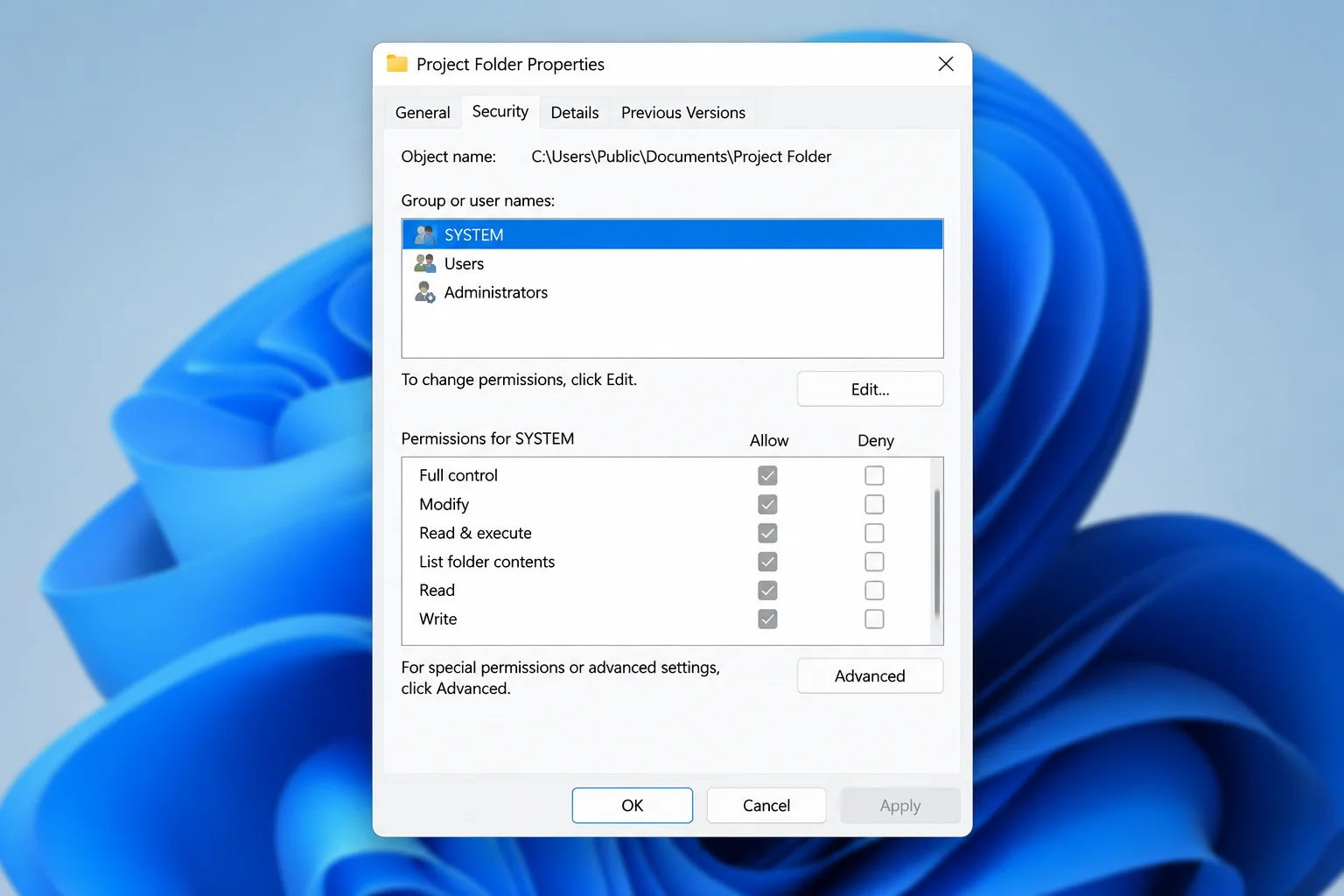
Permissions problems usually show up as “Access denied,” but sometimes the folder just won’t open with no message. This is common after reinstalling Windows, changing accounts, or opening another user’s folder or a network share.
- Right-click the folder and select Properties.
- Under Group or user names, look for your account, or a group you belong to such as Users.
- Select it and check the Allow column. Opening a folder generally requires read-level access, such as Read and List folder contents.
- If your account is missing or lacks access, click Edit, add or select your account, check Read under Allow, and click OK. This needs administrator rights. If access is still denied, look for a Deny entry, check Advanced for ownership and inheritance, and remember that a shared folder also has separate share permissions that the owner controls.
For a network or shared folder, ask whoever owns the share to grant your account access. You can’t fix server-side permissions from your PC.
Verify: The folder opens without the error. If an old account appears as a long string starting with S-1-5- instead of a name, it belongs to a deleted account. That’s a sign the folder came from a previous Windows install.
Fix 6: Test Without Third-Party Shell Extensions
Shell extensions are add-ons that hook into Explorer, such as archive tools, older antivirus programs, and cloud storage add-ins. If one breaks on a certain file type, any folder with those files can crash Explorer. A clean boot is an easy first test for third-party services and startup apps, but it won’t switch off every shell extension, so use the extension check below if it’s inconclusive.
- Press Windows + R, type msconfig, and press Enter.
- On the Services tab, check Hide all Microsoft services, then click Disable all.
- On the Startup tab, click Open Task Manager and disable each startup app.
- Click OK in System Configuration and restart your PC.
If the folder opens after a clean boot, re-enable services in small batches until the crash returns. That points to the culprit, which you can update or uninstall. A clean boot may not disable every shell extension, since some integrate deeply into Explorer and can persist even with other startup items turned off.
If you get no clear answer, a free shell-extension manager such as NirSoft’s ShellExView lets you disable non-Microsoft extensions one at a time. When you’re done, go back to msconfig, choose Normal startup on the General tab, and restart.
Fix 7: Test the Folder From a New Local Account
This profile-isolation test tells you whether the problem lives in your user profile or in Windows itself.
- Go to Settings > Accounts, then look for an option such as Other users to add a new account. The exact menu label can vary slightly by Windows 11 version.
- Select I don’t have this person’s sign-in information, then Add a user without a Microsoft account.
- Enter a username and password, then click Next.
- Sign out, sign in to the new account, and open the same folder path.
Windows may ask for permission to open folders inside your own profile (C:UsersYourName). That’s normal, so click Continue if you’re an administrator.
Results: If the folder opens fine in the new account, the problem is likely specific to your original profile rather than Windows itself. Copying your files to the new account and switching to it is one option, though further troubleshooting can help confirm the cause first. If the folder fails in the new account too, the problem is more likely the folder itself or Windows, so continue to Fix #8.
Fix 8: Run Advanced System Repairs (chkdsk, DISM, and SFC)
A damaged file in the folder, bad disk sectors, or corrupted system files can all break Explorer. These are the steps that require the command line.
- Click Start, type cmd, right-click Command Prompt, and select Run as administrator.
- Run a command such as chkdsk C: /f /r to check the drive for errors, replacing C: with the drive that holds the folder. If you’re checking the Windows drive, you’ll likely be prompted to schedule the scan for your next restart. The scan can take a long time.
- After the restart, open an administrator Command Prompt again and run DISM /Online /Cleanup-Image /RestoreHealth to repair the Windows component store. This needs an internet connection.
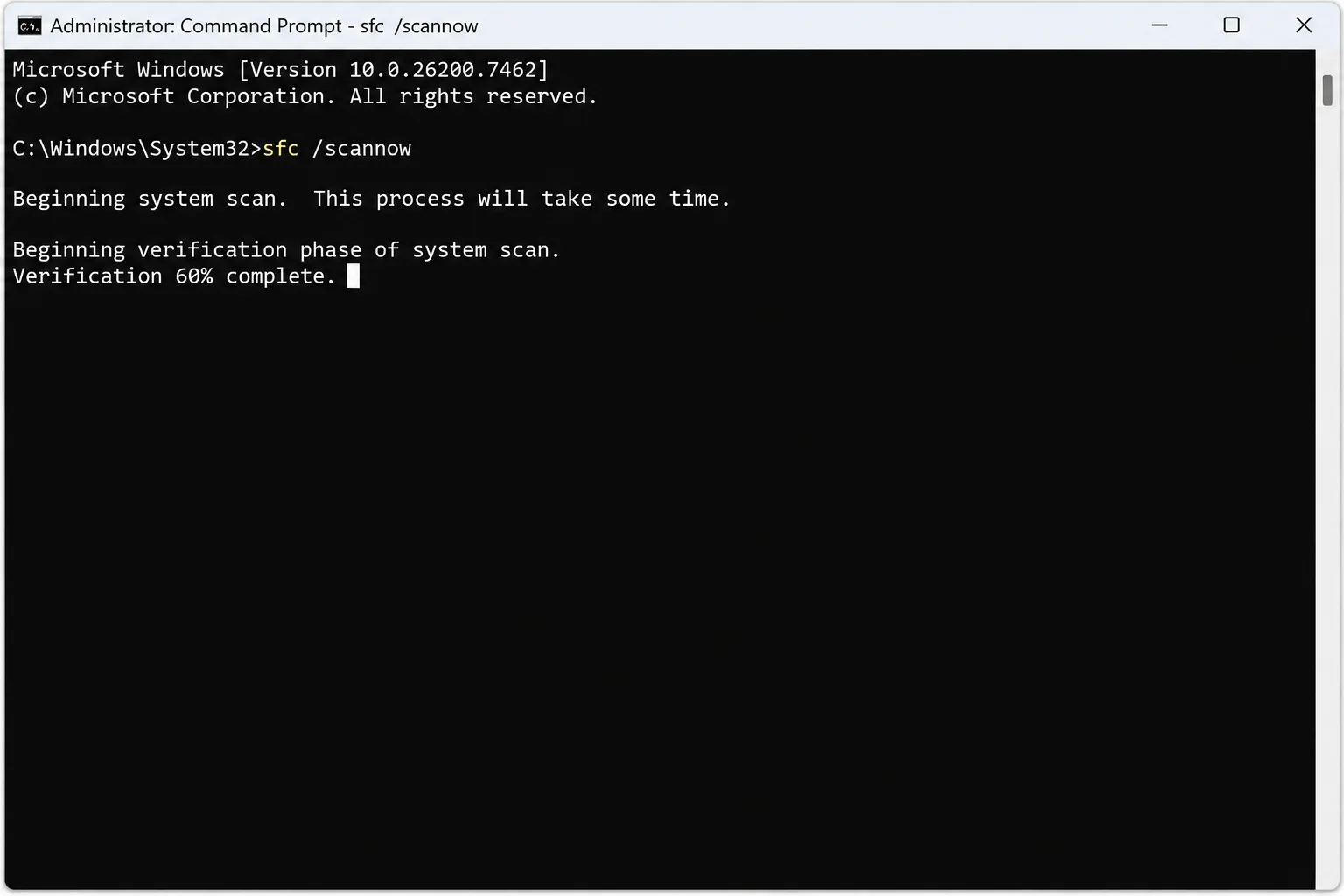
- Run sfc /scannow to check and repair system files.
- If SFC reports it couldn’t fix some files, run sfc /scannow once more, then restart.
Verify: SFC should report that it found no integrity violations, or that it repaired them. chkdsk can fix logical file-system errors, but bad sectors are physical damage. If it reports bad sectors, back up your data to an external drive before running more repairs, since this can be a sign the drive is beginning to fail. Replacing the drive may be worth considering if problems continue.
Fix 9: Reset Windows as a Last Resort
Reset only if one folder still breaks Explorer after every fix above, and the new-account test failed too. Microsoft lists this as the final step in its File Explorer repair guide.
- Back up your important files to an external SSD or a USB flash drive.
- Go to Settings > System, then look for a Recovery option that includes Reset this PC. The exact wording and location can vary slightly between Windows 11 versions.
- Choosing Keep my files is designed to keep your personal files, but it removes installed desktop apps and resets some settings. Verify your backup first, and save your BitLocker recovery key if your drive is encrypted.
Prevention and Advanced Troubleshooting Summary
Keep these quick reference settings and diagnostic logs in mind to keep your system stable:
- Optimize this folder for: Right-click the folder > Properties > Customize. Set it to General items for large mixed or media folders.
- Security permissions: Properties > Security. Your account needs at least Read access.
- OneDrive status: Check the taskbar OneDrive icon for paused syncing or errors.
- Windows updates: Settings > Windows Update > Check for updates. Microsoft sometimes fixes Explorer bugs in cumulative updates.
Before posting on a forum or calling support, gather this information:
- Crash details: Open Event Viewer > Windows Logs > Application and look for Application Error entries for explorer.exe around the time of the crash. The “faulting module” line can sometimes point toward the shell extension or component responsible, though it isn’t always conclusive.
- Crash history: Search Start for Reliability Monitor to see a history of recent Explorer crashes and other system events.
- SFC log: C:WindowsLogsCBSCBS.log generally records details about what SFC checked and repaired.
Where to ask: Microsoft Support and the Microsoft Community forums. Mention which fixes you already tried and the result of the new-account test.
Additional tips to avoid future issues:
- Split huge media folders: Very large photo or video folders are more likely to hang. Breaking them into subfolders, such as by year or month, can help them load more reliably.
- Set media folders to General items early: Do it before a folder grows large, and check the subfolder option.
- Uninstall tools you no longer use: Old archive utilities and antivirus programs leave shell extensions behind.
- Back up regularly: A backup on an external drive protects you when a disk starts to fail, and a UPS helps prevent corruption from sudden power loss.
Frequently Asked Questions
Why does only one folder fail while others work fine?
Something about that folder’s contents or settings trips Explorer up. Common triggers include too many media files to scan, a broken thumbnail, a file type a faulty shell extension handles, restricted permissions, or a stuck cloud sync.
How do I stop Windows from scanning a folder for thumbnails?
Set Optimize this folder for to General items (Fix #2). For a blunter option, go to View > Options > View tab and check Always show icons, never thumbnails. This affects every folder.
When is a Windows Reset necessary?
Only when the folder still fails in a brand-new user account and after SFC and DISM. Before that point, a reset is overkill.
What is the best first step for large media folders?
For large photo and video folders, Fix #2 (switching to General items) is the first thing to try, and clearing the thumbnail cache is the next step. If a folder keeps breaking after a clean SFC scan, take chkdsk results seriously.
Are bad sectors dangerous?
Bad sectors can be a sign the drive is failing, so don’t ignore them. If random folders also start crashing Explorer, run a full malware scan.