
Your old USB printer worked fine until a Windows 11 update arrived. Suddenly, it refuses to print, won’t scan, or churns out pages of text starting with “POST /ipp/print HTTP/1.1.” Fortunately, Microsoft’s official documentation points to specific bugs rather than an outright end of support for legacy printers. The open issue affecting these devices is actually quite narrow: it impacts only USB multifunction printers utilizing IPP over USB. Most other failures can be resolved without spending a dime on replacement hardware.
Did Microsoft End Support for Legacy Printers?
Some media outlets have reported that Microsoft recently “killed” support for older printers. However, Microsoft’s official documentation tells a different story. Currently, Microsoft’s documentation describes only two specific, update-related printer bugs rather than a sweeping hardware deprecation.
The first is the unresolved KB5079473 IPP-over-USB issue. On Windows 11 systems running KB5079473 or later updates, USB multifunction printers that rely on Internet Printing Protocol (IPP over USB) can lose their scanning or faxing capabilities. During device setup, Windows can place these non-printing functions into a disconnected state, causing third-party drivers to fail installation. While Microsoft documents this primarily as a scanner and fax issue, users should test print jobs to confirm functionality. Microsoft is actively investigating this problem and currently lists no confirmed workaround.
The second is the 23H2 garbled-text bug, which has already been resolved. On Windows 11 version 23H2, certain dual-mode USB printers printed random strings of raw text or raw IPP commands instead of actual documents. Microsoft patched this issue in KB5053657 on March 25, 2025, and included it in later cumulative updates. You will only encounter this behavior on a machine that is severely out of date.
Separately, Microsoft has modified how new third-party printer drivers reach Windows 11 and later versions. Beginning January 15, 2026, Windows Update generally stopped publishing newly submitted third-party print drivers, though Microsoft evaluates exceptions case-by-case. Drivers already published prior to that date remain available for existing installations. This policy governs driver distribution channels, not whether your current printer continues to function. It does not strip away drivers you already possess, and manufacturers can still distribute drivers through independent installer packages.
Initial Quick Checks and Triage
Before diving into complex troubleshooting procedures, execute these quick, non-invasive checks to rule out basic connection and power errors:
- Reseat the USB cable: Unplug the cable at both ends, then plug it directly into an alternative USB port on your PC. Avoid using external hubs or docking stations for now.
- Power-cycle the printer: Turn the printer off, wait approximately 30 seconds, and power it back on.
- Restart the PC: A pending update or a stuck background service often resolves itself upon a system reboot.
- Run the printer troubleshooter: Open the Get Help app from the Start menu, search for “printer troubleshooter,” and let the utility run its course.
If your printer operates normally again after these steps, you are finished. If not, you must identify the precise problem affecting your setup.
Identify Your Windows 11 Update History
Determining which update arrived right before your printer malfunctioned helps you understand if you are missing a crucial fix. Navigate to Settings > Windows Update > Update history and inspect the Quality updates section to note the KB numbers and installation dates near the day the printer broke.
If you see KB5079473 or a later update, and your printer is a USB-connected multifunction model supporting IPP over USB whose scanner or fax stopped working, you are experiencing a known update conflict. Print-only and network-connected printers are not affected by that specific glitch. Conversely, if your printer was outputting garbled text, returning to Windows Update and clicking Check for updates will install the necessary patches without requiring rollbacks.
Step-by-Step Fixes: From Least to Most Invasive
Work through these methodical repair steps, stopping as soon as your printer functionality is restored.
Fix #1: Install Current Updates
If your device printed gibberish or network commands, updating your operating system resolves the underlying dual-mode bug.
Fix #2: Manage and Restart the Print Spooler
The Print Spooler is the core Windows service responsible for routing print jobs to your hardware. When it hangs, print jobs accumulate and nothing prints.
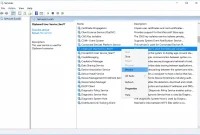
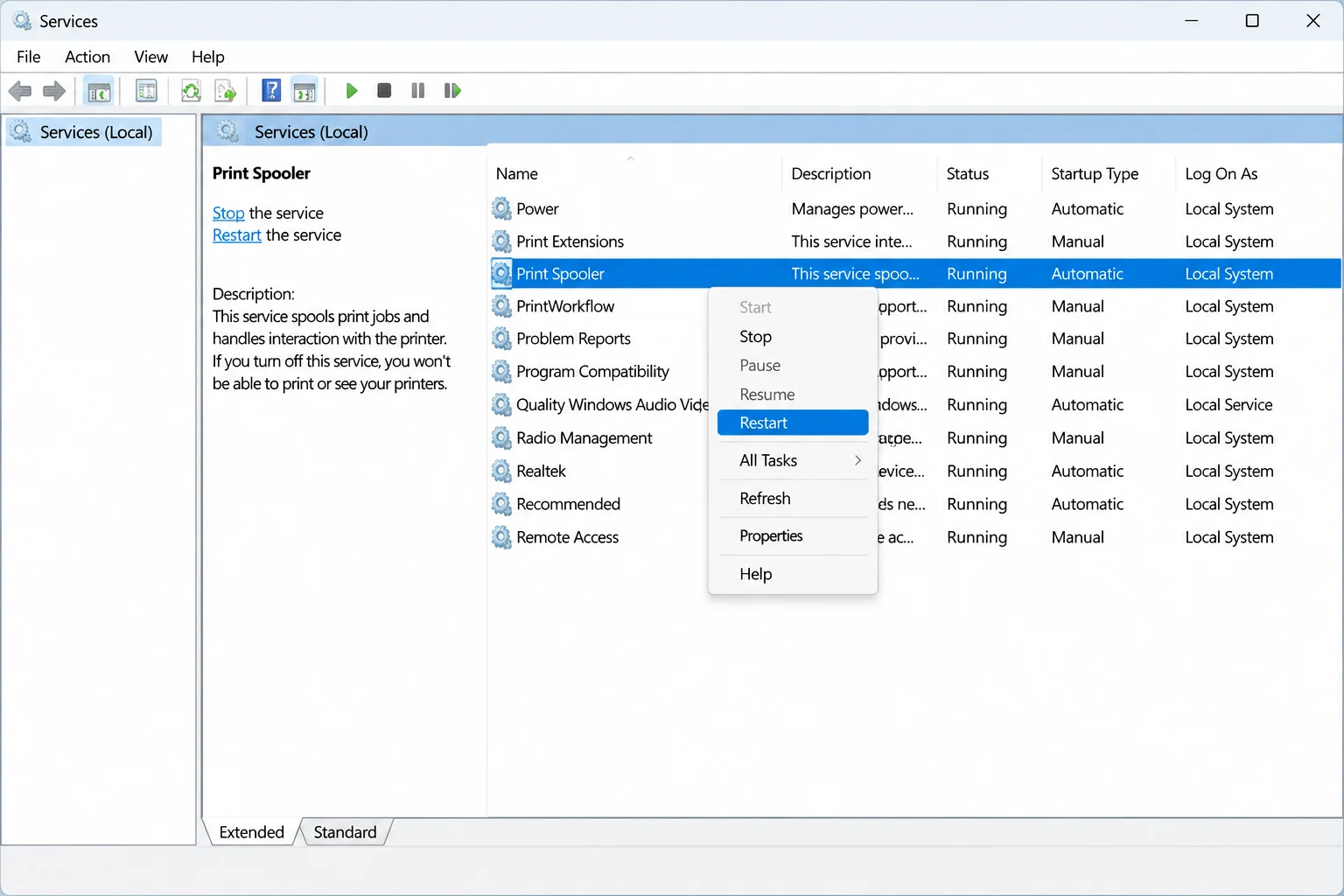
- Press Win + R, type
services.msc, and press Enter. - Locate Print Spooler, right-click it, and select Restart. Alternatively, open Terminal (Admin) and execute
net stop spoolerfollowed bynet start spooler.
Fix #3 and #4: Check Driver Properties and Reinstall Manufacturer Drivers
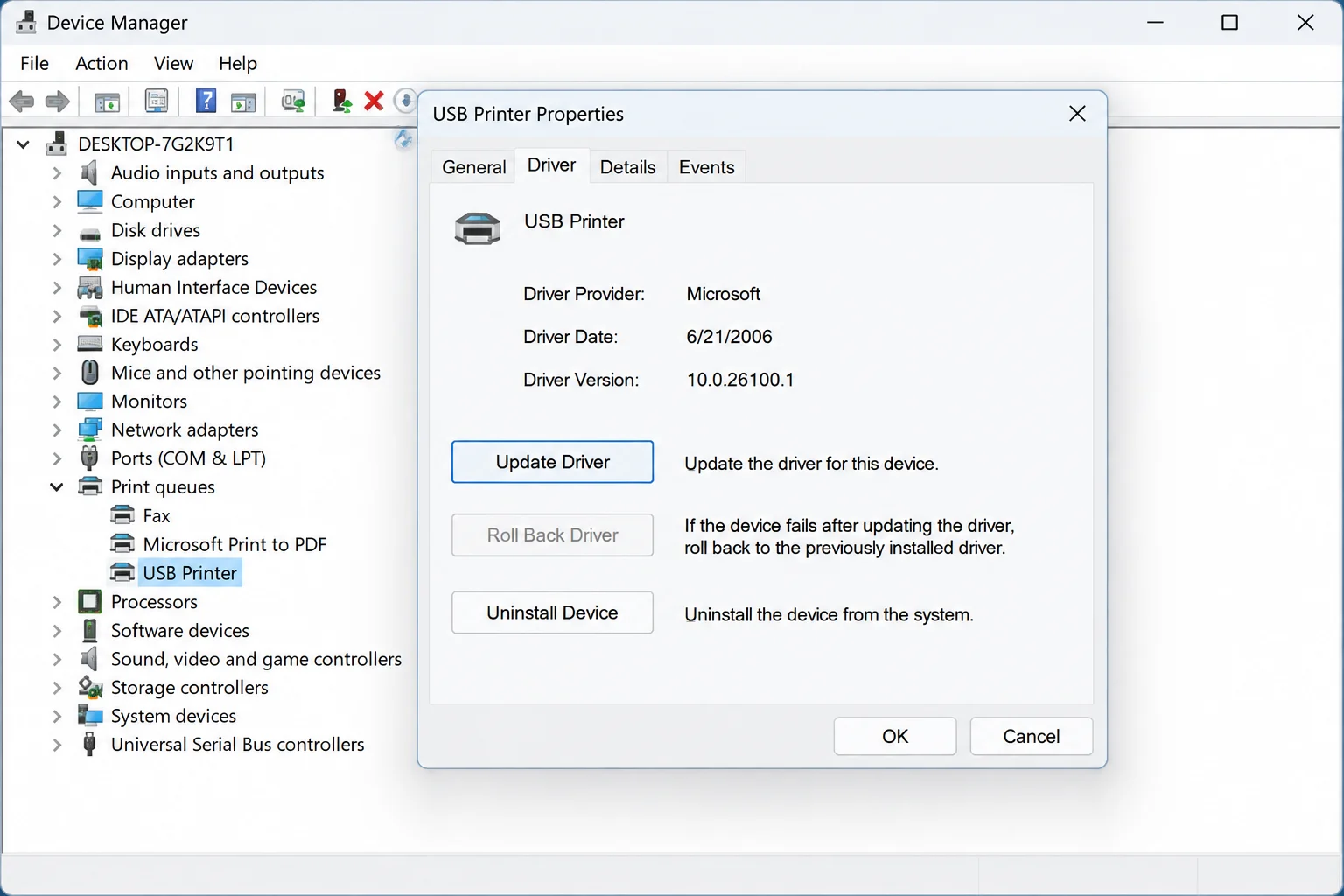
Right-click your printer in system settings and select Properties. If the provider lists Microsoft, Windows is utilizing a built-in generic driver, which handles basic tasks but often omits scanning, faxing, or advanced tray support. If it lists the manufacturer (HP, Canon, Epson, Brother, etc.), note the Driver Version and Driver Date.
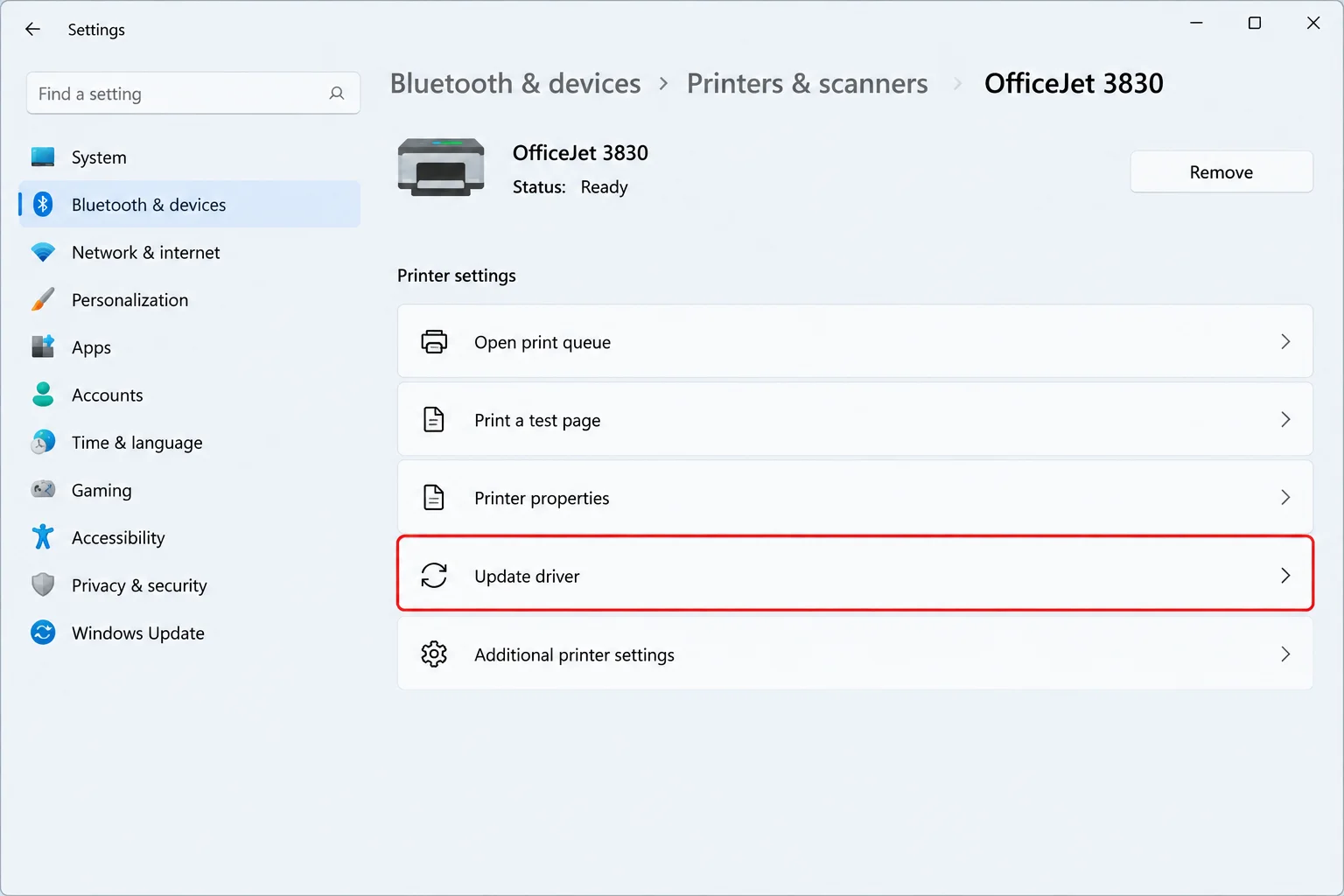
To update or reinstall, navigate to Settings > Bluetooth & devices > Printers & scanners. Select your printer, click Manage, and look for an update option. If Windows finds nothing, visit your manufacturer’s support website, download the Windows 11 driver matching your system type (32-bit or 64-bit under Settings > System > About), and run the installer package.
Fix #5: Remove and Re-Add the Printer Device
Removing the printer clears out legacy configurations, enabling Windows to install a clean driver upon reconnection.
- Go to Settings > Bluetooth & devices > Printers & scanners, select your printer, and choose Remove.
- Unplug the printer’s USB cable.
- Plug the USB cable back in and wait a minute for Windows to detect it.
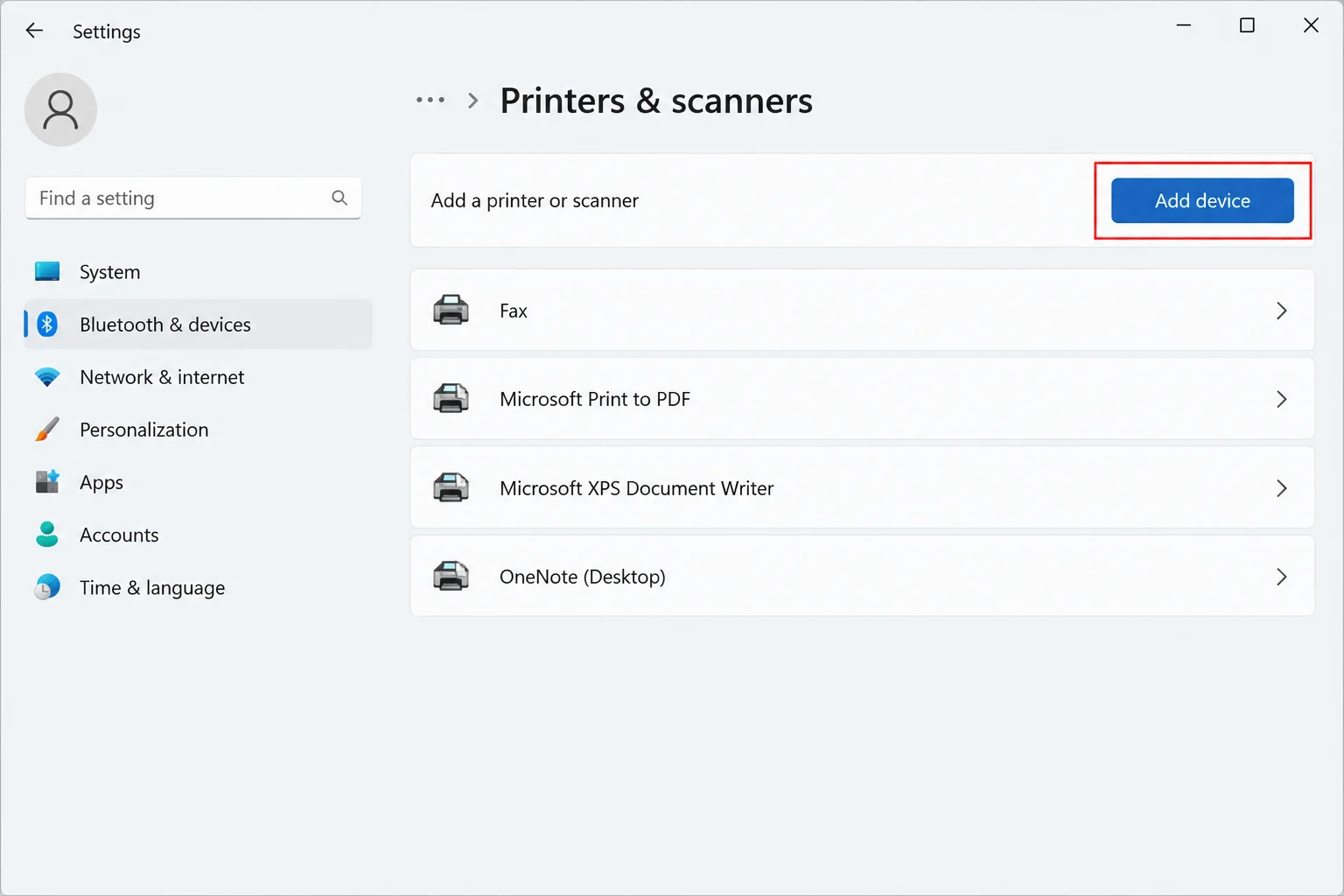
- If it fails to appear automatically, return to Printers & scanners and click Add device next to “Add a printer or scanner.”
- Select your printer when listed and complete the installation.
Fix #6 and #7: Roll Back Drivers or Uninstall Updates
If a driver change broke your setup, open Device Manager, go to your printer’s Properties > Driver tab, and click Roll Back Driver if available. As a last resort, you can uninstall a problematic update via Update history. Keep in mind that uninstalling updates also strips away security patches, and Microsoft does not list uninstalling KB5079473 as a confirmed workaround for scanner loss, making it a temporary measure at best.
Diagnosing Specific Printer Problems
Match your exact symptoms to these targeted scenarios:
- Problem 1: Printing works, but scanning or faxing stopped working. Caused by the KB5079473+ IPP-over-USB issue dropping multifunction device components. Fix this by removing the printer, unplugging the USB cable, and reconnecting it (Fix #5). The fix may be temporary until Microsoft issues a permanent patch.
- Problem 2: The printer outputs gibberish or network commands. Caused by the 23H2 dual-mode USB bug fixed in March 2025. Fix this by installing all current system updates.
- Problem 3: Windows doesn’t detect the printer at all. Typically caused by a faulty cable, bad port, stuck spooler, or broken driver. Resolve this by swapping USB cables, changing ports, and running Fixes #2, #4, and #5 in sequence.
Common Gotchas and When to Replace Your Printer
Watch out for subtle configuration pitfalls that can block troubleshooting progress:
- Architecture mismatches: Ensure downloaded drivers match your exact 32-bit or 64-bit Windows system type.
- Duplicate printer entries: Multiple copies of the same printer can route jobs to dead queues. Remove duplicates and keep only the functional entry.
- Disabled Print Spooler: Verify in services.msc that the Print Spooler service status is Running with its startup type set to Automatic.
Replacement is the honest answer if the manufacturer offers no Windows 11 driver, generic drivers fail entirely, or the printer remains completely undetected across multiple ports, cables, and PCs—indicating a fundamental hardware failure. Hold off on replacing multifunction units that still print perfectly well despite losing scanning functionality after KB5079473, as that remains an active investigation by Microsoft.
What to Gather Before Seeking Support
Before posting on community forums or contacting manufacturer support, gather these essential diagnostic details:
- The exact Driver Provider and Driver Version from your printer properties
- The specific KB update numbers present in your Update history around the failure date
- Whether printing, scanning, or both functions stopped working
Frequently Asked Questions
Did Microsoft stop supporting old USB printers in Windows 11?
No. Official Microsoft documentation does not announce an end of support for existing legacy printers. Documented problems are specific software bugs, and the shift in third-party driver distribution starting January 15, 2026, only impacts how new drivers reach Windows Update, not printers that are already operating successfully.
What is KB5079473, and does it affect my printer?
It is a Windows 11 update that can cause USB-connected multifunction printers utilizing IPP over USB to lose their scanner and fax functions. This issue only applies if your device is a multifunction printer connected via USB using IPP protocols; print-only or network-connected printers are unaffected.