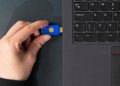

Introduction: What Makes a Great Windows Backup SSD
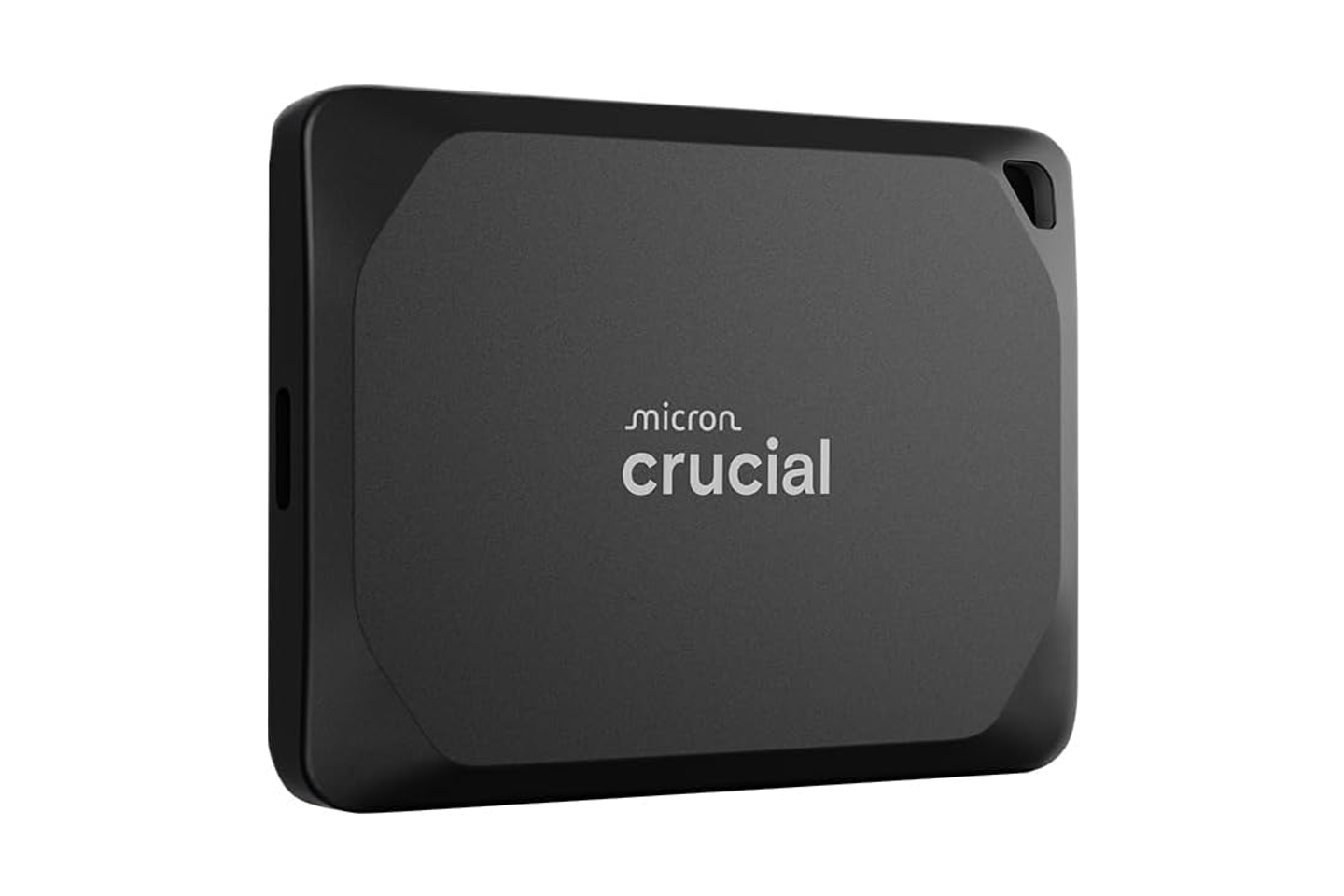
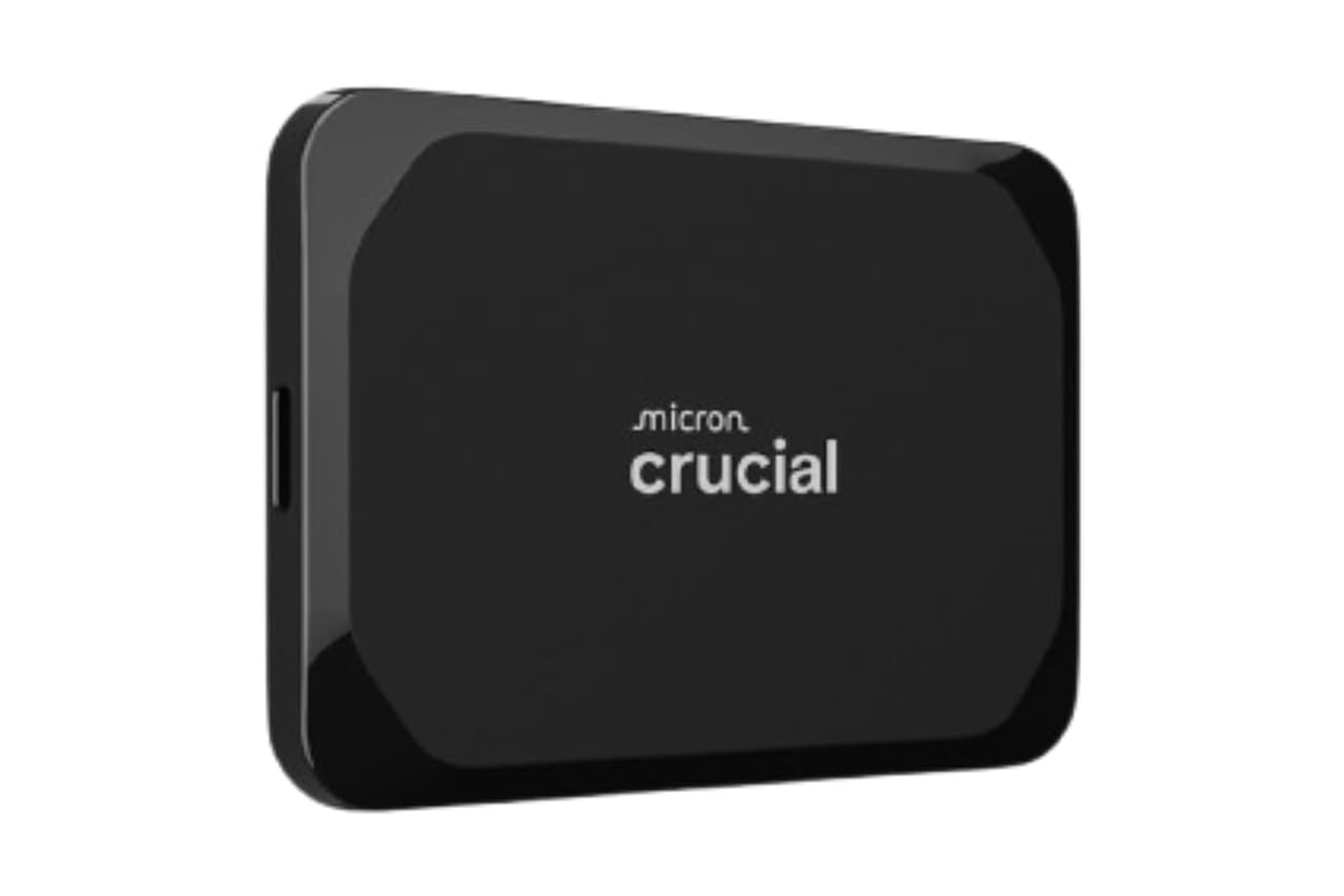
The best external SSD for a Windows PC backup runs at full speed on your USB port, securely holds your files, and comes from a retail listing you can trust. For most buyers, the best portable external SSDs for Windows PC backup include models like the Crucial X9 2TB, which serves as the safest practical pick. Its listing matches its published specifications, it operates at full speed on a standard USB 3.2 Gen 2 port, and its 2TB capacity leaves ample room for File History to maintain older versions of your files.
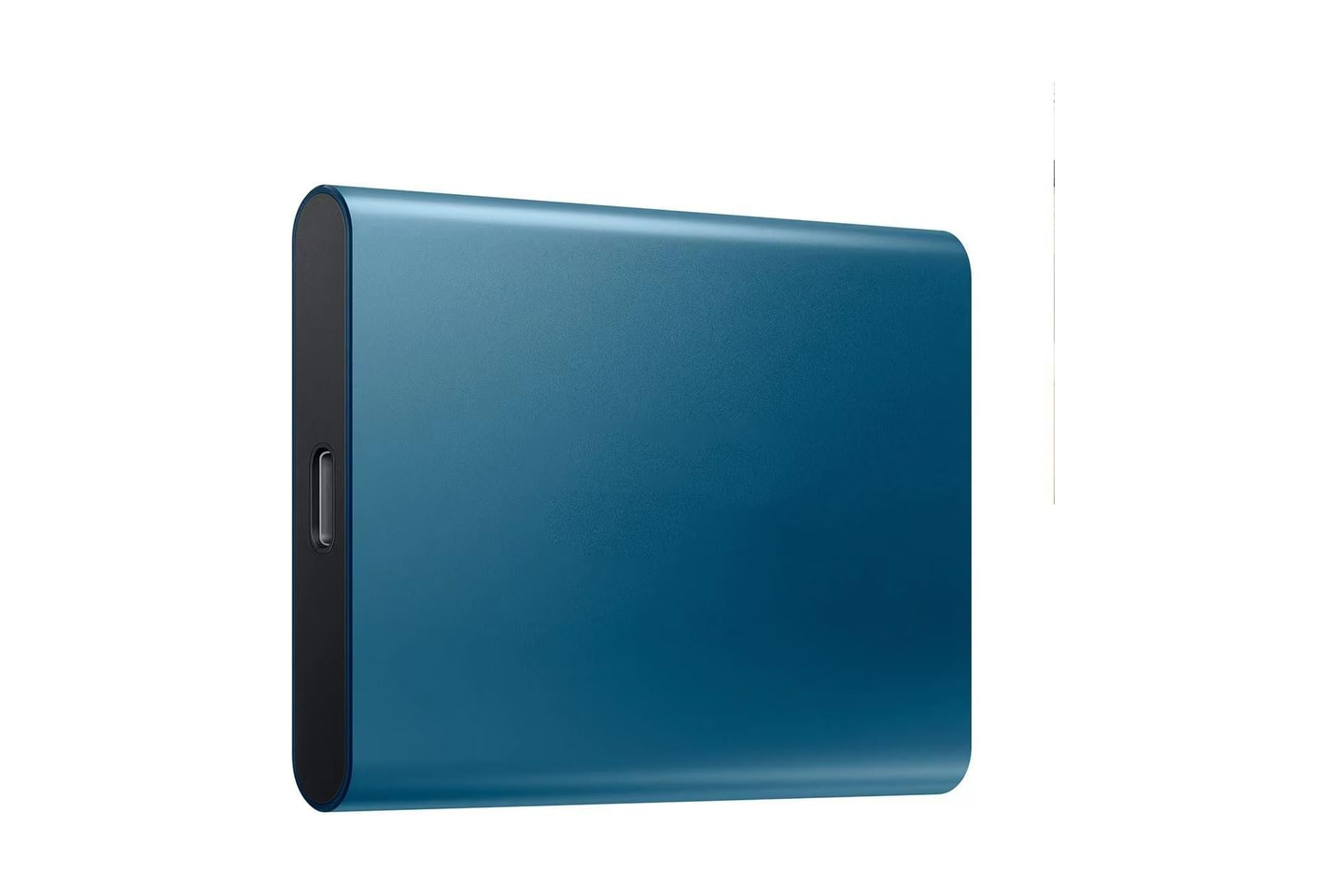
When reviewing external storage options based on Amazon’s best-seller order—which does not reflect an editorial ranking—several listings present challenges. Numerous listings feature titles or brand fields that do not match the actual product name, a discrepancy flagged during reviews in late October 2026. Because prices and listings change frequently, checking live pages before purchasing is essential.
Before You Buy: Checking Your PC’s USB Port Speed
A portable solid-state drive’s advertised speed represents its absolute ceiling. Every drive evaluated is rated for either USB 3.2 Gen 2 (10Gbps, typically advertising up to 1,050MB/s) or USB 3.2 Gen 2×2 (20Gbps, advertising up to 2,000MB/s). Real-world throughput depends heavily on your drive’s controller, operating temperatures, file sizes, and your computer‘s specific port capabilities.
- USB 3.2 Gen 2: Provides up to 10Gbps (~1,050MB/s) and matches the most common fast USB-C ports on modern Windows PCs.
- USB 3.2 Gen 2×2: Provides up to 20Gbps (~2,000MB/s) but requires specialized, less common motherboard ports to reach maximum speed.
- Cable Quality: Always use the cable included with the drive. Inexpensive charging cables may restrict performance to USB 2.0 speeds.
- Direct Connection: Plug the SSD directly into your PC. Unpowered hubs and certain docks can cap data speeds or drop connections during large transfers.
To confirm your port specifications, look up your computer or motherboard model on the manufacturer’s official support site. Examine the I/O or ports section of the specification sheet. While Windows 11 settings and Device Manager offer connected device details, official manufacturer spec sheets remain the most reliable method for determining maximum physical port speeds.
Top Portable SSDs for Windows Backups: Evaluated
Our evaluation covers seven popular drives based on manufacturer specifications and retail listings. Several listings require careful verification due to mismatched brand fields or generic titles.
SanDisk 1TB Portable SSD New Model
Topping Amazon’s best-seller curation for this category, this drive offers an affordable 1TB entry point with advertised read speeds up to 1,000MB/s and drop protection. However, the listing presents major red flags: the brand field at the time of review read “FdPxoeW” instead of SanDisk, and the generic title grouped both 1TB and 4TB capacities together. Buyers must confirm the brand and capacity on the live page and verify data integrity upon arrival.
Samsung T7 1TB
Curated with up to 1,050MB/s read speeds over USB 3.2 Gen 2, this drive matches common USB-C ports on Windows systems. Unfortunately, the primary listing shares the same suspicious “FdPxoeW” brand field and generic title as the SanDisk entry. Because the listing details cannot be verified as genuine Samsung, buyers seeking a reliable Samsung T7 should look for listings that explicitly carry authorized brand and model numbers.
Crucial X9 1TB
Advertised as a USB 3.2 Gen 2 drive compatible with multiple operating systems, the Crucial X9 class fits File History workflows well. However, the specific ASIN title during our review pointed to a different model—the faster Crucial X10 Pro 1TB. Furthermore, its pricing closely tracked the 2TB model, making price comparisons essential before purchase.
Crucial X9 2TB
The Crucial X9 2TB stands out as the cleanest and most practical listing evaluated. The title, brand, model number (CT2000X9SSD902), and features all align seamlessly. Its USB 3.2 Gen 2 speed matches standard Windows laptop ports without requiring specialized Gen 2×2 hardware, and 2TB provides the ideal sweet spot for managing long-term File History versioning.
Samsung T7 500GB
As a compact starter drive, the 500GB Samsung T7 uses a USB 3.2 Gen 2 interface that connects directly to most Windows PCs. Buyers should verify capacity specifications, as listing titles occasionally conflict with curated feature descriptions. While a 500GB drive suits moderate document libraries, it fills quickly when storing extensive media or long-term backup versions.
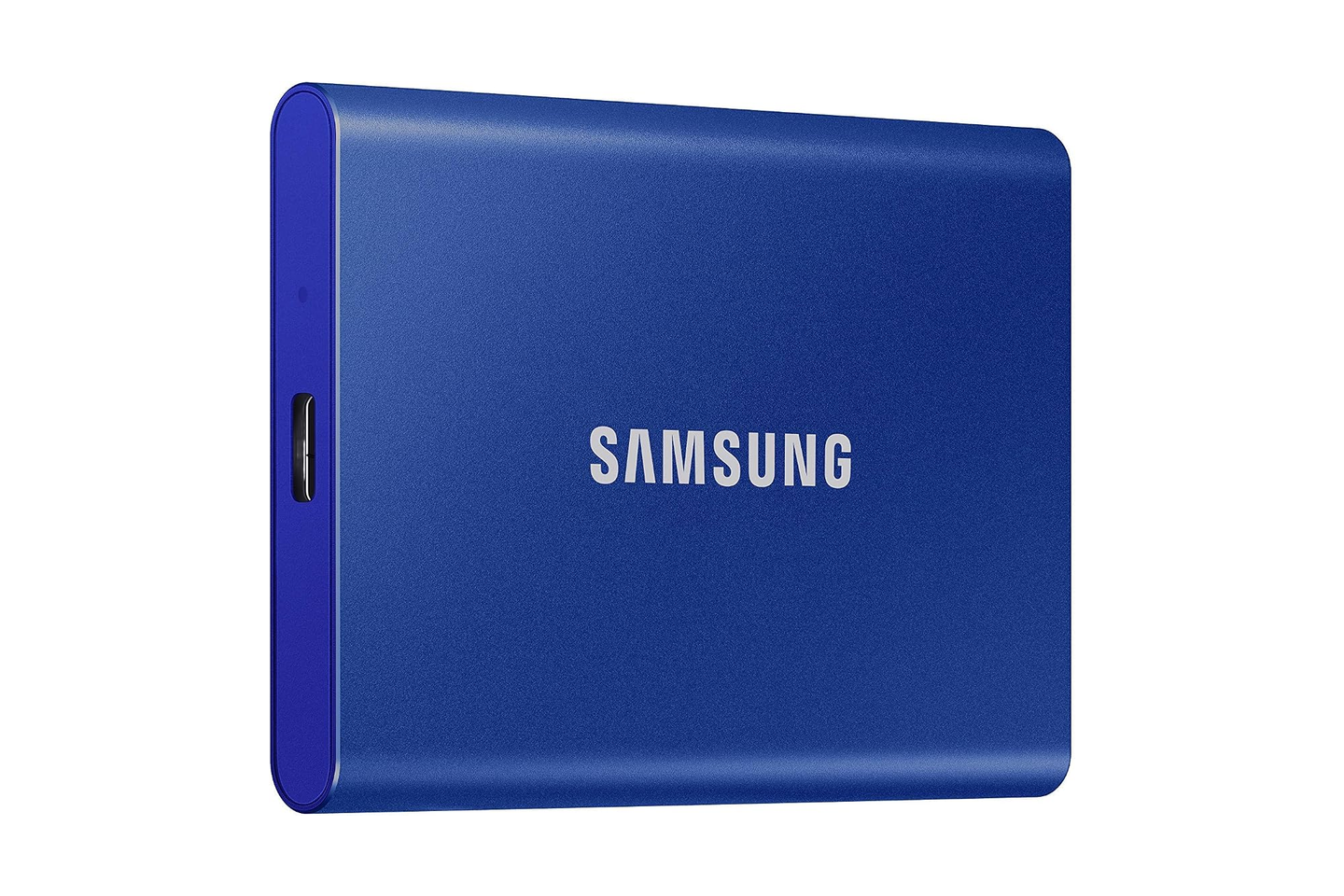
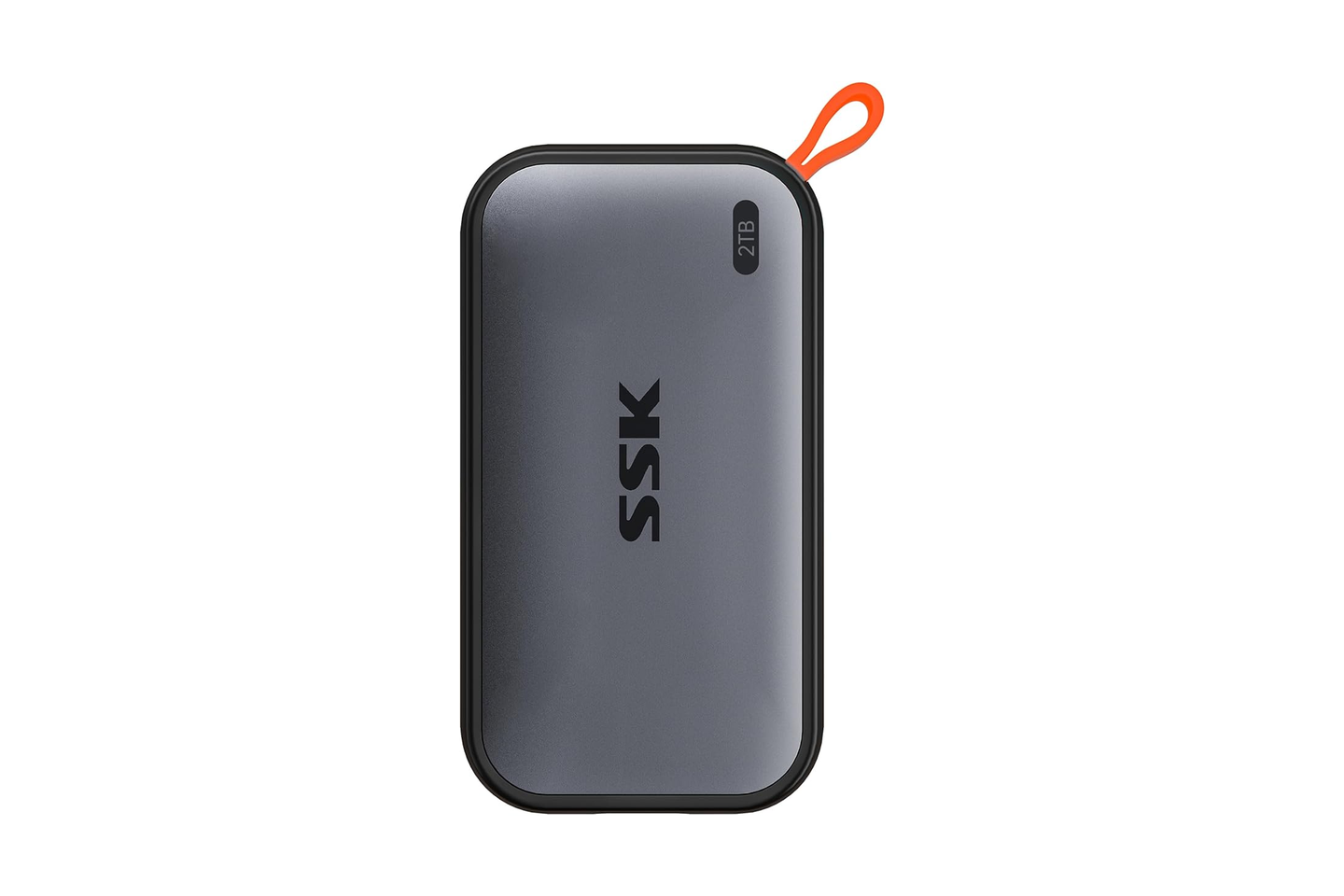
SanDisk Extreme Portable SSD 2TB
Curated as a rugged, water- and dust-resistant travel drive with hardware encryption, this listing failed to align with official SanDisk specifications. The ASIN’s brand field and title identified it as an SSK Portable SSD 2TB operating at standard Gen 2 speeds. Because SSK and SanDisk are entirely different manufacturers, buyers needing rugged travel protection must inspect live listings carefully.
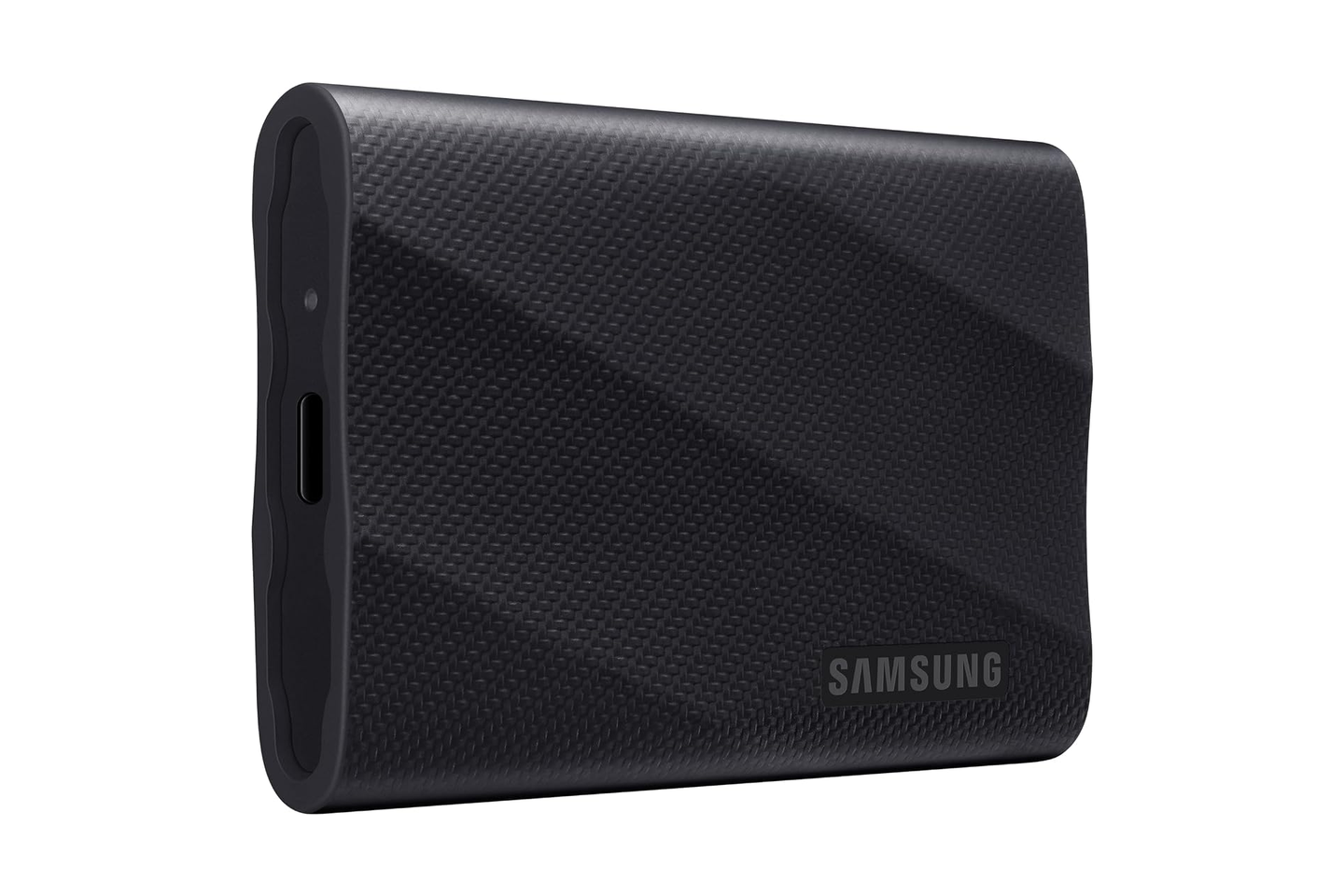
Samsung T9 1TB
The Samsung T9 1TB is the only drive on the list built for USB 3.2 Gen 2×2, delivering up to 2,000MB/s read speeds, AES-256 hardware encryption, and a 3-meter drop rating. These top-tier speeds require a compatible Gen 2×2 port; otherwise, the drive operates at standard Gen 2 limits. Additionally, buyers should verify whether listings offer new units rather than refurbished (renewed) stock.
How to Choose the Right Capacity and Features
Selecting the appropriate drive depends on storage capacity needs, physical environment, and data security requirements.
- 500GB Capacity: Adequate for storing Documents, Desktop folders, and modest photo libraries.
- 1TB Capacity: Ideal for standard home and office PCs backing up personal files and moderate archives.
- 2TB Capacity: Recommended for large photo/video libraries, extended version history, and maintaining room for system images.
- Durability: Desk-bound drives do not require water or drop ratings, but travel drives benefit from certified IP and drop specifications (such as the Samsung T9’s 3-meter rating).
- Security: Business or financial backups require hardware AES-256 encryption to protect sensitive data against physical loss.
How to Set Up and Verify Windows File History
Windows File History is built into Windows 10 and Windows 11, automatically safeguarding libraries (Documents, Pictures, Videos, Music) and your Desktop. Follow these steps to configure your external SSD:
- Plug your portable SSD directly into a reliable USB port on your PC, avoiding unpowered hubs.
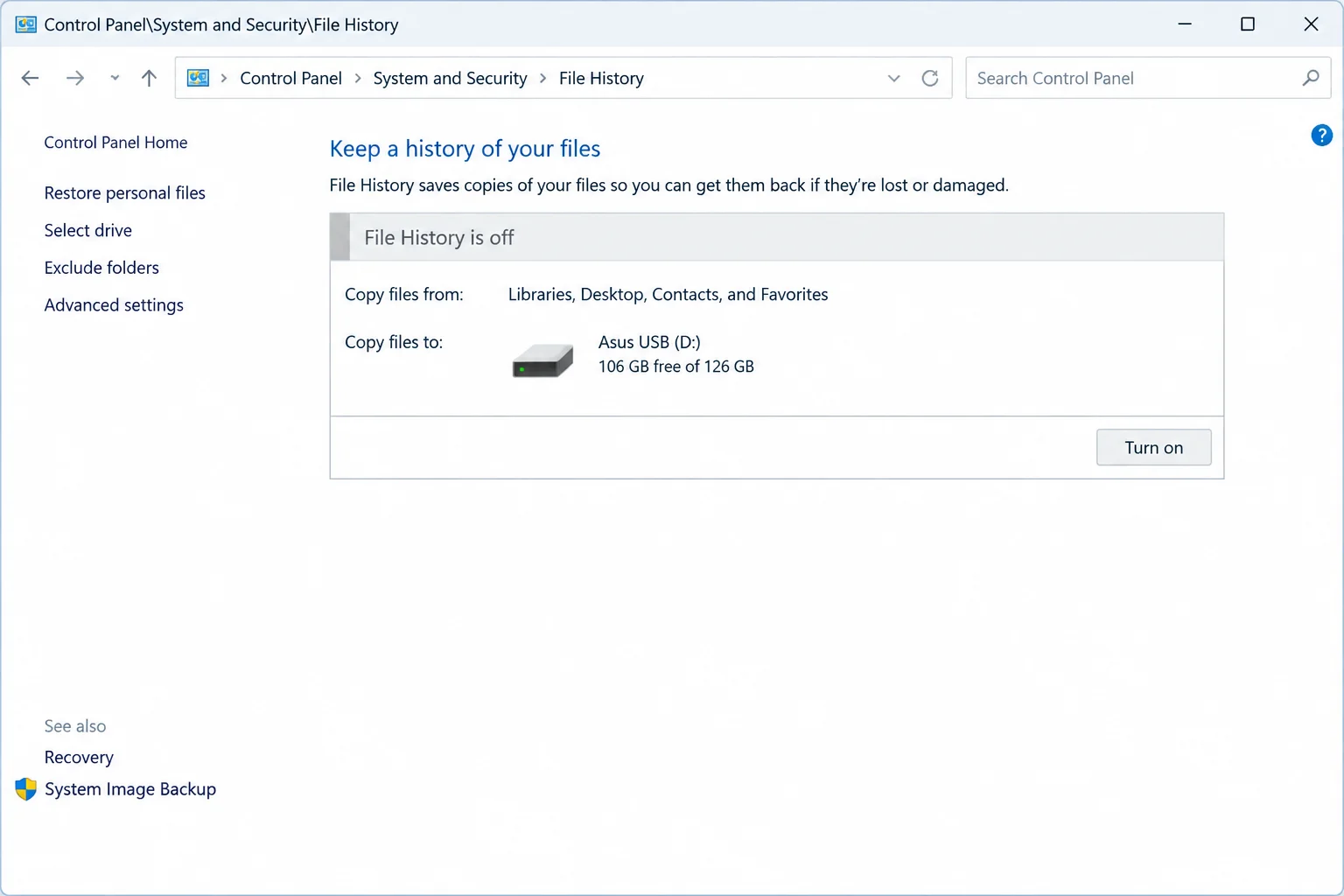
- Open Control Panel > System and Security > Save backup copies of your files with File History (or search for “File History” in the Windows Start menu).
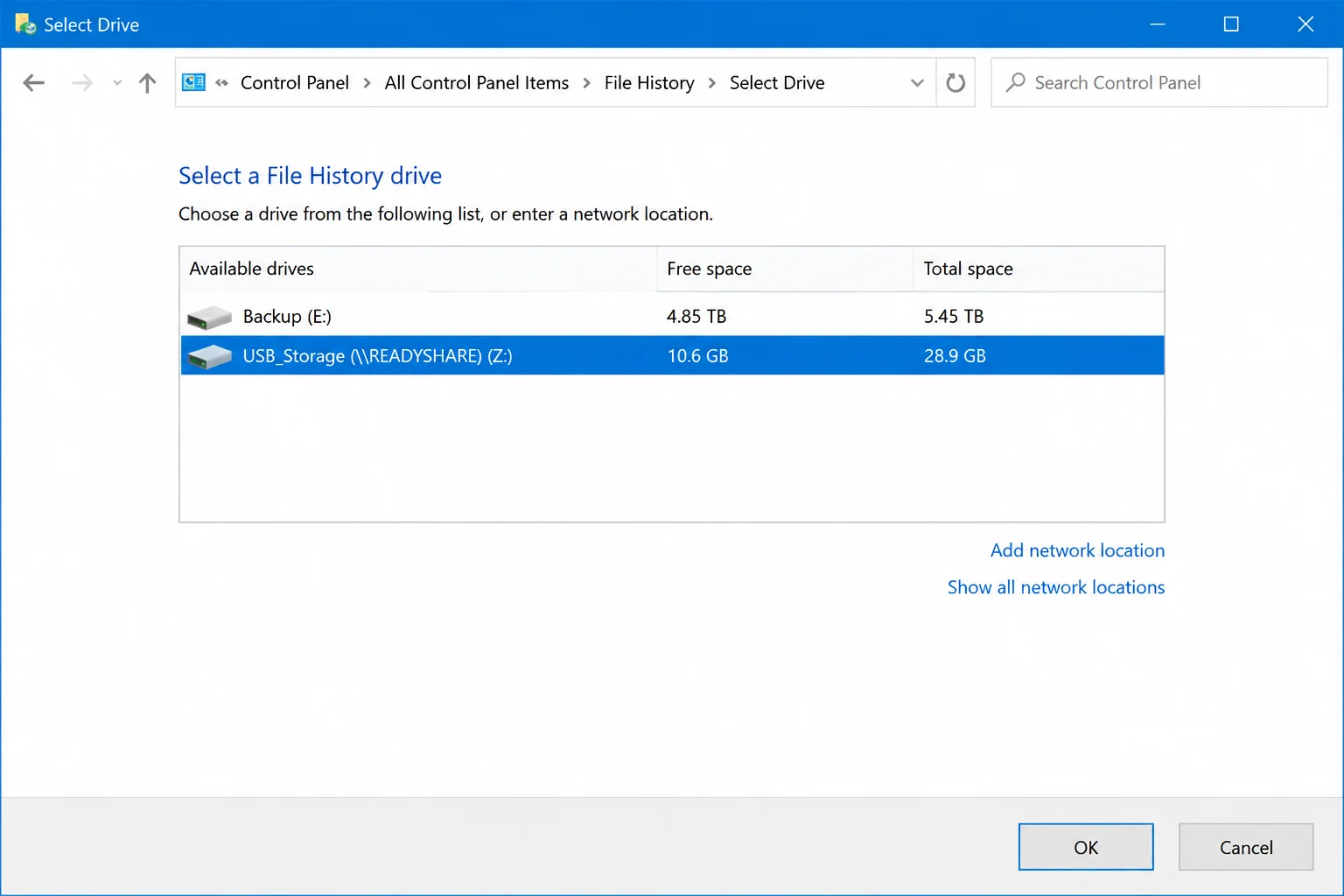
- If your external SSD is not displayed, select Select drive in the left pane.
- Choose your external SSD from the list and select OK.
- Select Turn on to initiate automatic backups of your libraries and Desktop.
- Select Run now to execute the first backup immediately.
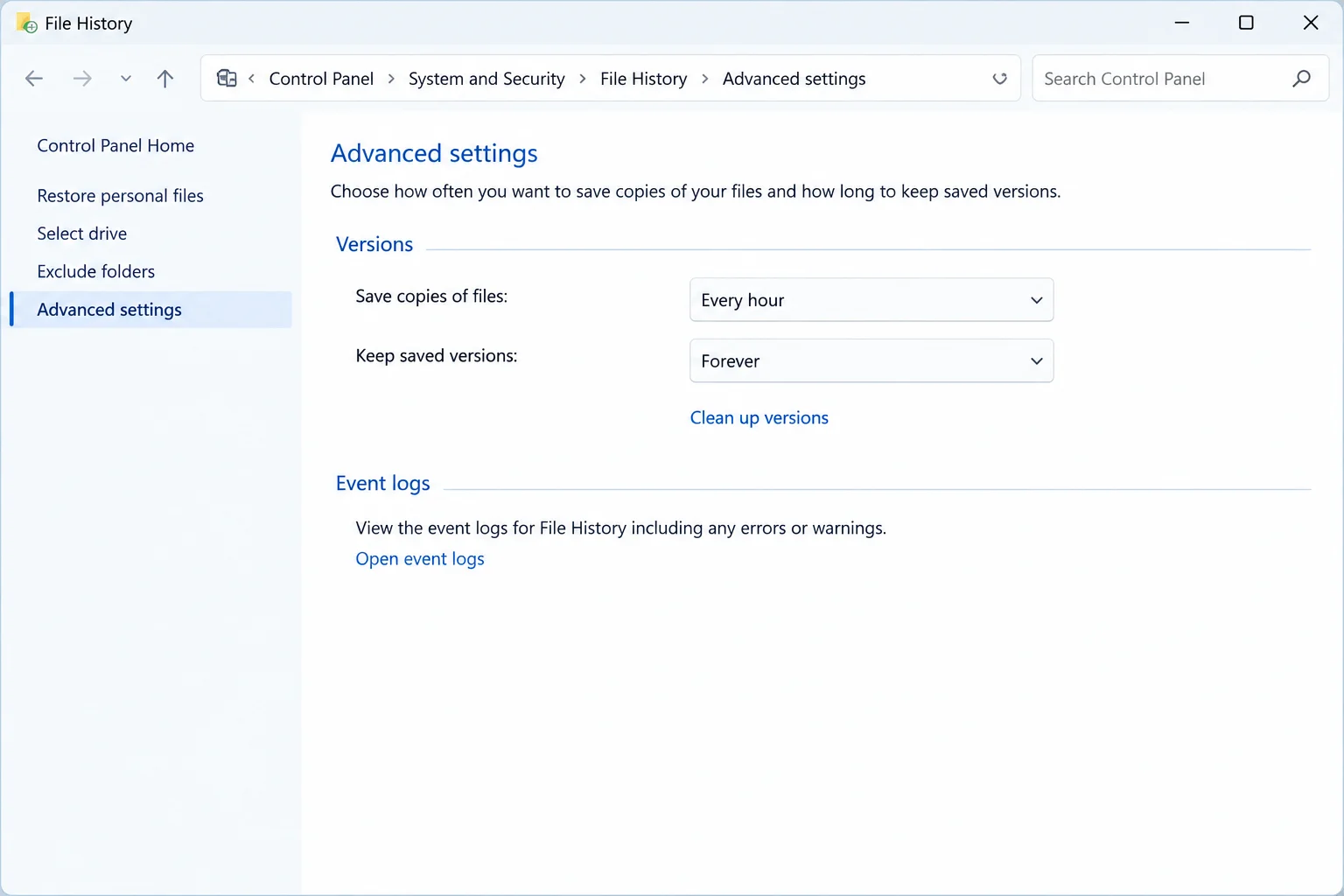
- Optionally, open Advanced settings to adjust backup frequency and retention periods for saved versions.
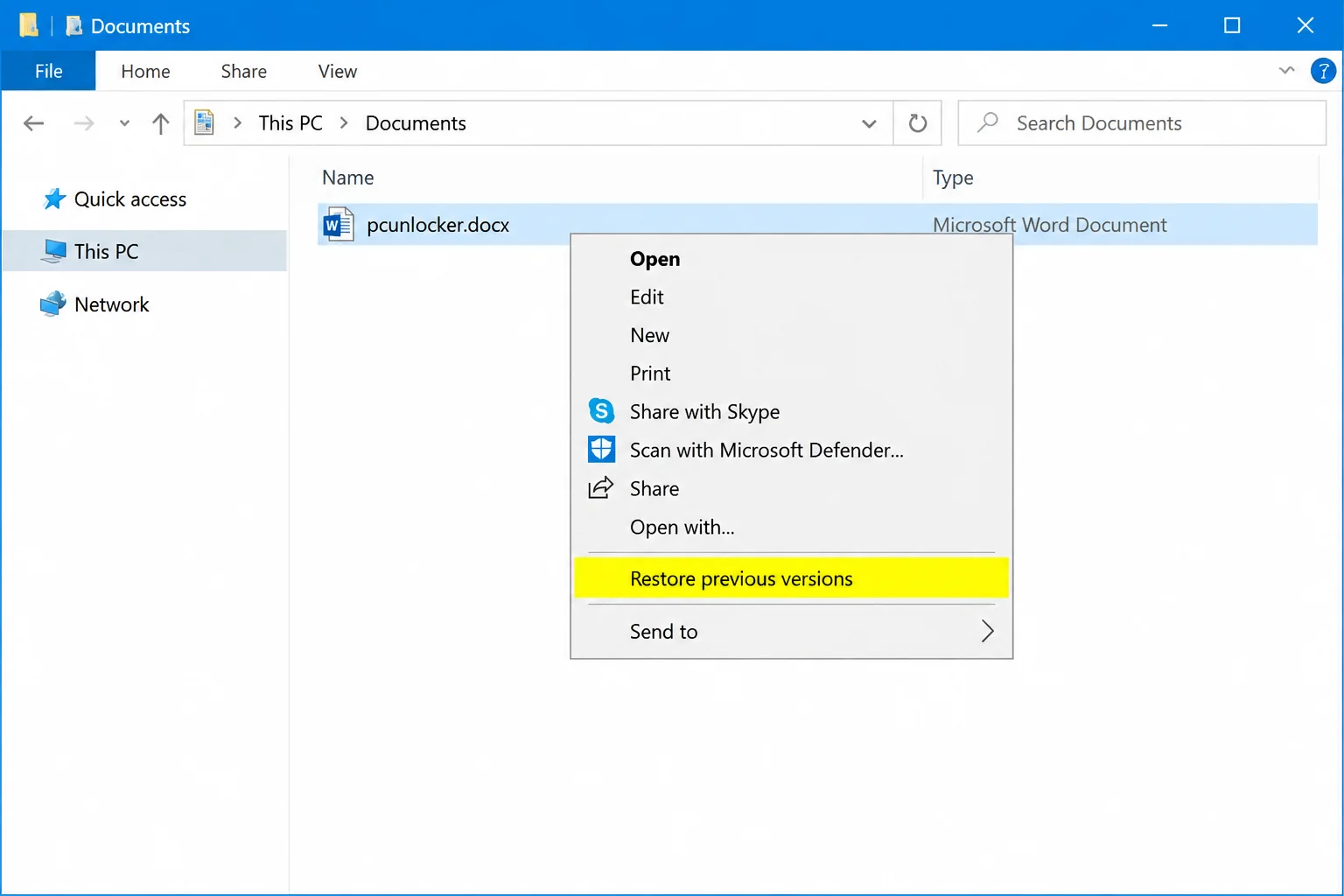
To confirm your backup functions properly, navigate to a protected folder in File Explorer, right-click a file, and verify that recent File History versions appear. Alternatively, use the Restore personal files option within the File History Control Panel.
Troubleshooting Common Backup Failures
File History can occasionally appear active while failing to execute background backups. In September 2026, Microsoft identified a temporary bug in a Windows 11 update that paused File History for some users, a problem subsequently resolved via cumulative system updates.
- Check for Updates: Go to Settings > Windows Update and install all pending system and optional updates to ensure bug fixes are applied.
- Verify Backup Drive Status: Open Control Panel’s File History menu to confirm your SSD remains selected as the active target.
- Resolve Connection Drops: Connect the drive directly to the computer using its original cable, and adjust power settings to prevent the PC from sleeping during transfers.
- Drive Detection Issues: If Windows fails to recognize the drive, test an alternative port and inspect Disk Management without formatting existing backup partitions.
For most Windows users, the Crucial X9 2TB provides the most reliable balance of speed, capacity, and trustworthy retail packaging. Always run test restores after initial setup and following major operating system updates to ensure your data remains fully recoverable.