• About
  • Contact
  • Disclaimer
  • Sitemap
  • Privacy Policy
  • Terms Of Service
Information Technology for You
  • Home
  • Guides
  • ChromeOS
  • MacOS
  • Windows
  • Utilities
  • Reviews
  • Tech Basics
    • Hardware
    • Software
    • Operating System
    • Networking
No Result
View All Result
  • Home
  • Guides
  • ChromeOS
  • MacOS
  • Windows
  • Utilities
  • Reviews
  • Tech Basics
    • Hardware
    • Software
    • Operating System
    • Networking
No Result
View All Result
Intechfy
No Result
View All Result

How to Use RetroBar on Windows 11

by
October 26, 2026
Home Windows
Share on FacebookShare on Twitter

If you miss the traditional desktop layout, you can use RetroBar to restore a classic taskbar on Windows 11. Because recent Windows updates have affected the application’s ability to hide the default interface automatically, you may occasionally see two taskbars overlapping after startup. To begin, download the current release from the official RetroBar GitHub page, run the executable, and apply specific workarounds if the standard taskbar remains visible. You can exit the utility at any time to restore the default Windows 11 environment completely.

Table of Contents

Toggle
  • Requirements and Preparation
  • Downloading and Running RetroBar
  • Managing Settings and Multiple Displays
  • Fixing Overlapping Taskbars and Startup Issues

Requirements and Preparation

To run the application successfully, you need a Windows 11 PC with permissions to install software and the Microsoft .NET Desktop Runtime if prompted. RetroBar 1.22 utilizes .NET 10 on Windows 10 and newer operating systems. Before proceeding, verify your Windows version, build, and update status through Settings and install any pending updates. Restart your computer before testing the software to establish a clean baseline.

Downloading and Running RetroBar

Locate the current official release and check the release notes for build-specific fixes. If you downloaded a portable package, keep the extracted folder intact because deleting it will remove the application. Launch the software, verify that the classic Start menu opens correctly, and test whether you can switch between active windows seamlessly. Review how the application appears across different screen edges, and check your external monitors or docks since the taskbar position can shift when hardware connections change.

Managing Settings and Multiple Displays

RetroBar labels and themes depend entirely on the specific version you installed. Open the configuration menu to adjust themes or screen edges, inspecting the desktop layout after each modification. If you use multiple displays, reconnect your external monitor to verify taskbars on both screens. Should a USB-C adapter or docking station alter your display order, review your configuration in Settings under System and Display.

Fixing Overlapping Taskbars and Startup Issues

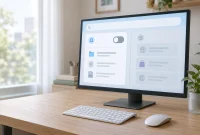
If the standard taskbar stays visible on your specific build, apply the workaround recommended in the RetroBar release notes. Open Settings, navigate to Personalization, Taskbar, Taskbar behaviors, and enable the option to automatically hide the taskbar before launching RetroBar. You can disable this setting again whenever you prefer the normal, always-visible Windows bar, though this behavior is not guaranteed on every system build. If startup entries persist unexpectedly, check RetroBar’s internal options, the startup apps section in Windows Settings, and the Startup tab inside Task Manager.

What you see Try this
RetroBar runs, but the standard taskbar is still visible Fix #1 (auto-hide workaround, then restart RetroBar)
RetroBar doesn’t open at all Install the .NET runtime it prompts for (Step 4), confirm the file came from dremin/RetroBar, then re-download the current release
The taskbar freezes or stops responding Fix #2 (restart Windows Explorer)
You want the standard taskbar back for good Fixes #3 and #4
Step Action Applies To
1–3 Check your build and download the current official release Every setup
4–6 Run RetroBar and check its appearance and taskbar behavior Every setup
Fixes 1–2 Restart RetroBar or Explorer Overlap or frozen taskbar
Fixes 3–4 Exit, disable startup, and remove the app Returning to the standard taskbar

Removing the application depends on how you initially set up the package. Exiting the software should terminate its taskbar interface immediately. If the native Windows bar remains hidden, disable the auto-hide setting and restart Windows Explorer. It is best to wait before enabling startup integration until you verify that your system handles taskbar overlaps correctly. If issues persist, conclude by reviewing your recent Windows updates and restarting Explorer.

Views: 29

Share this:

Related posts:

  • Windows 11 Expands Search Controls to Disable Bing-Powered Web Results

  • Microsoft Teams Notifications Not Working in Windows 11? 9 Fixes to Try

  • How to Turn on Developer Options on Firestick: Complete Guide

Next Post
Review Caveat AI Standard Plan: Evaluate Chatbot Answers Before Use

Review Caveat AI Standard Plan: Evaluate Chatbot Answers Before Use

Leave a Reply Cancel reply

Your email address will not be published. Required fields are marked *

Recommended.

Best CPU Temperature Monitor Tools for Gaming and Real-Time Tracking

7 Best CPU Temperature Monitor Tools for Gaming and Real-Time Tracking

May 31, 2026
Surface Laptop Ultra Firmware Update Fixes Screen Flickering and Reboots

Surface Laptop Ultra Firmware Update Fixes Screen Flickering and Reboots

October 28, 2026

Trending.

Microsoft PC Manager Review: Surprisingly Useful, But Not the PC Booster You Expect

Microsoft PC Manager Review: Surprisingly Useful, But Not the PC Booster You Expect

June 16, 2026
Is CCleaner Worth It in 2026? Honest Review After Testing It on Modern Windows PCs

Is CCleaner Worth It in 2026? Honest Review After Testing It on Modern Windows PCs

June 17, 2026
What to Expect at Apple’s October 28 Pro and Tell Event

What to Expect at Apple’s October 28 Pro and Tell Event

October 25, 2026
How to Update Your BIOS (UEFI)

How to Update Your BIOS (UEFI): When You Should, When You Shouldn’t, and How to Do It Safely

October 25, 2026
iPad mini (A20 Pro): Release Date, OLED, Price, and Specifications

iPad mini (A20 Pro): Release Date, OLED, Price, and Specifications

October 29, 2026
12 Best PC Boosters for Gaming, Low-End PCs, and Everyday Performance

12 Best PC Boosters for Gaming, Low-End PCs, and Everyday Performance

June 17, 2026
7 Best Free Antivirus for Windows 11 Ranked by Performance and Security

7 Best Free Antivirus for Windows 11 Ranked by Performance and Security

June 19, 2026
What Is Programming Software? Types, Functions, and Best Tools for Beginners

What Is Programming Software? Types, Functions, and Best Tools for Beginners

June 14, 2026
Windows 11 version 26H2 Now Broadly Available for Eligible Devices

Windows 11 version 26H2 Now Broadly Available for Eligible Devices

October 26, 2026
20 Operating System Examples Categorized by Device and Purpose

20 Operating System Examples Categorized by Device and Purpose

June 27, 2026
iPhone Duo Guide: Price, Specifications, Availability, and Reviews

iPhone Duo Guide: Price, Specifications, Availability, and Reviews

October 26, 2026
How to Resize the Windows 11 Start Menu With New Built-In Controls

How to Resize the Windows 11 Start Menu With New Built-In Controls

October 26, 2026
How to Fix a USB Device That Keeps Disconnecting

How to Fix a USB Device That Keeps Disconnecting

October 26, 2026
Best Free Screen Recorders for Windows We Tested No Watermarks, No Time Limits

9 Best Free Screen Recorders for Windows We Tested in 2026 (No Watermarks, No Time Limits)

June 23, 2026
PowerToys 0.102 Adds Mouse Utilities, Quick Commands, and Dictation

PowerToys 0.102 Adds Mouse Utilities, Quick Commands, and Dictation

October 27, 2026
What Is a Distributed Operating System? Architecture, How It Works, Functions, Benefits, and Examples

What Is a Distributed Operating System? Architecture, How It Works, Functions, Benefits, and Examples

June 27, 2026
8 Best Driver Updater Software for Windows: Free and Paid Options Compared

8 Best Driver Updater Software for Windows: Free and Paid Options Compared

July 2, 2026
macOS 27 Golden Gate: What’s New, Compatible Macs, and Features

macOS 27 Golden Gate: What’s New, Compatible Macs, and Features

October 29, 2026
Microsoft Tests Cleaner, Faster File Explorer Context Menu for Windows 11

Microsoft Tests Cleaner, Faster File Explorer Context Menu for Windows 11

October 26, 2026
Microsoft Project Zenith: A Developer-Ready Windows 11 Experience

Microsoft Project Zenith: A Developer-Ready Windows 11 Experience

October 26, 2026
Microsoft Tests Controller-Friendly Gaming Task View for Windows 11

Microsoft Tests Controller-Friendly Gaming Task View for Windows 11

October 26, 2026
Internal Hardware of a Computer: Definition, Components, and How Internal Computer Hardware Works

Internal Hardware of a Computer: Definition, Components, and How Internal Computer Hardware Works

March 9, 2026
iOS 27 Features, Compatibility, and Siri AI Overview

iOS 27 Features, Compatibility, and Siri AI Overview

October 29, 2026
Why Wrong Wi-Fi Bands Slow Your Devices and How to Fix It

Why Wrong Wi-Fi Bands Slow Your Devices and How to Fix It

October 26, 2026
Touchscreen MacBook Pro Rumors: OLED, Design and Release Date

Touchscreen MacBook Pro Rumors: OLED, Design and Release Date

October 29, 2026
Can You Run Regular Ethernet Cables Outside?

Can You Run Regular Ethernet Cables Outside?

October 26, 2026
Global PC Shipments Plunge Over 20 Percent Amid Rising Component Costs

Global PC Shipments Plunge Over 20 Percent Amid Rising Component Costs

October 25, 2026
Apple Unveils Thinner, Lighter iPad mini (A20 Pro) with OLED Screen and Major Power Boosts

Apple Unveils Thinner, Lighter iPad mini (A20 Pro) with OLED Screen and Major Power Boosts

October 29, 2026
How to Use RetroBar Windows 11 Classic Taskbar to Restore a Vintage Look

How to Use RetroBar Windows 11 Classic Taskbar to Restore a Vintage Look

October 26, 2026
How to Troubleshoot and Fix Word Mail Merge Errors

How to Troubleshoot and Fix Word Mail Merge Errors

October 28, 2026
Intechfy

Intechfy.com is a technology-focused information platform created to make everyday tech concepts easier to understand, more practical, and more accessible.

  • About
  • Contact
  • Disclaimer
  • Sitemap
  • Privacy Policy
  • Terms Of Service

© 2026 Intechfy.com - Information Technology for You

No Result
View All Result
  • Home
  • Guides
  • Utilities
  • Reviews
  • Tech Basics
    • Computer
    • Hardware
    • Software
    • Operating System
    • Networking

© 2026 Intechfy.com - Information Technology for You