
For years, users transitioning from older operating systems have wondered how to customize their workspace on the latest platform. A frequent point of discussion revolves around whether you can move windows 11 taskbar to different edges of the screen just like you could in Windows 10. Remarks reported by Windows Central on October 31, 2026, from Microsoft’s design chief clarify this exact capability, detailing how Microsoft handles taskbar customization through official settings rather than traditional mouse gestures.
Can You Move the Taskbar in Windows 11? Setting vs. Dragging
Yes, once the new setting reaches your PC, you can move the Windows 11 taskbar, but you cannot drag it. That is the crucial distinction that many headlines tend to blur. Unlike Windows 10, which allowed users to unlock the taskbar and drag it across the screen with a mouse, Windows 11 handles placement through a dedicated controls menu.
Microsoft first shipped this setting to Windows 11 versions 24H2 and 25H2 in its August 27, 2026 optional preview update, KB5120998. Because this feature arrives via a gradual rollout, updates reach devices over time. Microsoft’s main support pages have taken time to catch up, leading to some initial confusion among users checking for official support.
Why Microsoft Decided Against Drag-to-Move
Microsoft’s Vice President of Design, Diego Baca, explained that the missing drag-to-move behavior is a deliberate design decision rather than a missing capability. According to Windows Central, Microsoft’s official reasoning centers on two primary points:
- Accidental movement: Microsoft’s internal research found that allowing users to drag the taskbar frequently leads to accidental shifts and misplaced elements during normal desktop use.
- Infrequent use: Changing the taskbar position is not something most people do frequently. Therefore, Microsoft chose a dedicated settings option over an always-available, gesture-based control.
While Windows 10 solved accidental movement through a lock toggle enabled by default, Microsoft chose a single, static path for Windows 11 through its settings interface.
What the New Taskbar Position Setting Offers
Per Microsoft’s Insider Blog post, the built-in Windows setting brings several structural improvements to how the taskbar operates across different edges of the display:
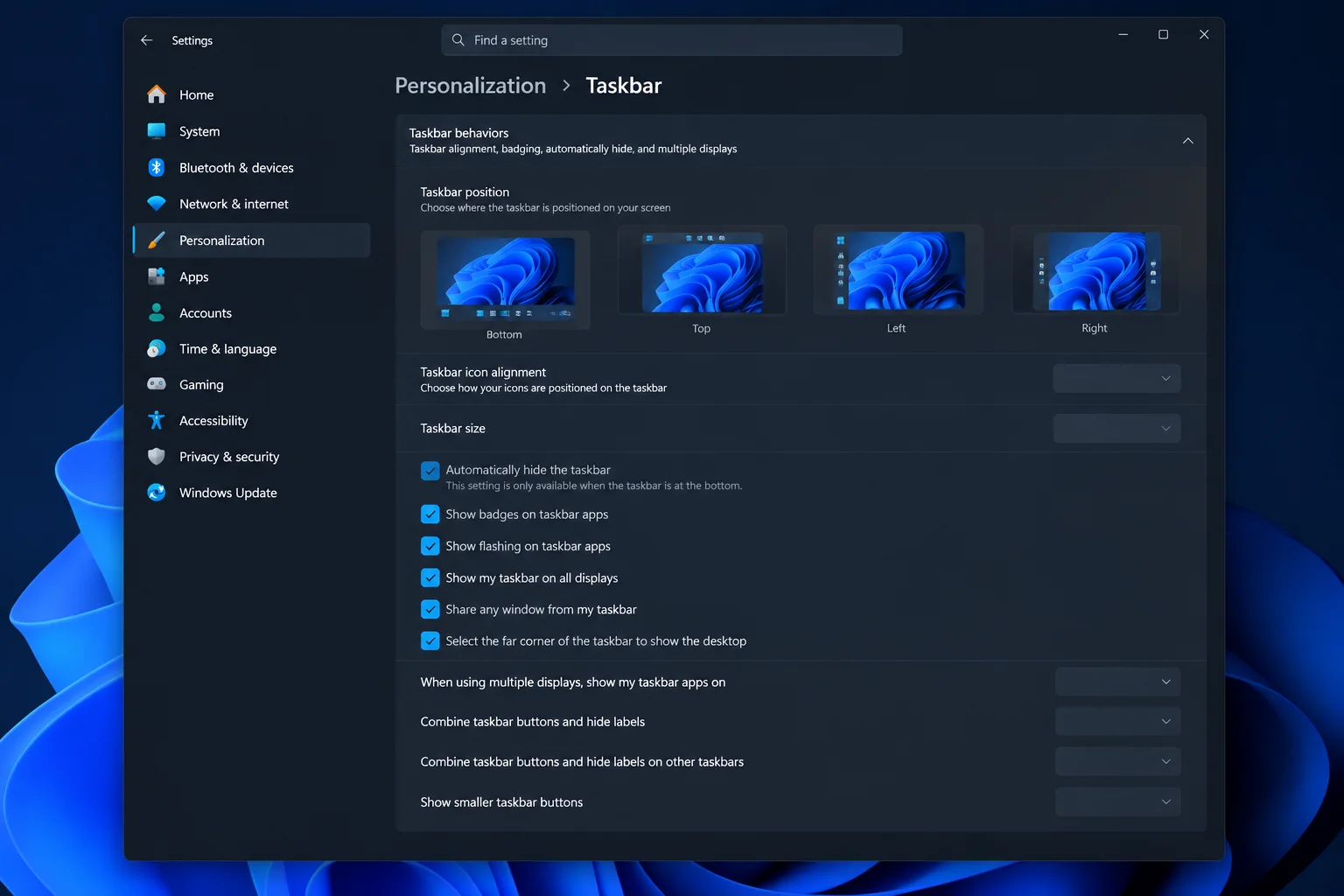
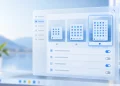
- Four positions: The entire taskbar can sit on the top, bottom, left, or right edge of the screen.
- Alignment per position: Left and right placements offer top-aligned or centered icons, while top and bottom placements offer left-aligned or centered icons.
- Menus follow the taskbar: Start, Search, and other flyouts open relative to wherever the taskbar sits. Putting the taskbar at the top means the Start menu opens from the top.
- More vertical room: A side-mounted taskbar can reclaim valuable screen estate for people using ultrawide monitors or valuing vertical space.
There is one current limitation noted in KB5120998: the search box and the smaller taskbar option are currently supported only in the top and bottom positions.
How to Change Your Taskbar Position on Windows 11
Because this is a built-in operating system setting rather than a separate third-party application, it appears automatically once the staged rollout reaches your device. Follow these steps to adjust your configuration:
- Open Settings by navigating to Windows Update to install any pending updates, then go to Settings > Personalization > Taskbar.
- Alternatively, right-click an empty spot directly on the taskbar and select Taskbar settings.
- Expand the taskbar behaviors menu and locate the taskbar position option.
- Pick your preferred screen edge from the available choices.
If you do not see a position option right away, the staged update has likely not reached your specific device yet, and waiting safely is recommended over utilizing third-party workarounds.
Taskbar Position vs. Taskbar Alignment
It is important not to confuse taskbar positioning with taskbar alignment, which has been a part of Windows 11 for a long time. Understanding the exact terminology prevents confusion:
- Taskbar position: Refers to which edge of the screen the taskbar sits on (top, bottom, left, or right). This is the newly added capability.
- Taskbar alignment: Refers to where the icons sit *inside* the taskbar itself (Center or Left).
Changing your icon alignment will never move the taskbar to a different edge of the screen. If you adjusted alignment and expected the bar to jump to the top, nothing happened because those are entirely separate functions.
Third-Party Workarounds and Safety Risks
Windows Central has previously covered free third-party utilities, such as Taskbar Location Options, which add drag-and-drop and right-click controls for moving the Windows 11 taskbar. However, these external tools are difficult to recommend universally.
The safety of third-party code, how well it survives major Windows feature updates, and whether it will remain actively maintained are often unverified. Unofficial taskbar tools may break during standard operating system updates, leaving you troubleshooting third-party code on a primary machine. Sticking to Microsoft’s built-in setting avoids these stability risks entirely while successfully placing your taskbar wherever you prefer.