• About
  • Contact
  • Disclaimer
  • Sitemap
  • Privacy Policy
  • Terms Of Service
Information Technology for You
  • Home
  • Guides
  • ChromeOS
  • MacOS
  • Windows
  • Utilities
  • Reviews
  • Tech Basics
    • Hardware
    • Software
    • Operating System
    • Networking
No Result
View All Result
  • Home
  • Guides
  • ChromeOS
  • MacOS
  • Windows
  • Utilities
  • Reviews
  • Tech Basics
    • Hardware
    • Software
    • Operating System
    • Networking
No Result
View All Result
Intechfy
No Result
View All Result

BitLocker “Waiting for Activation” in Windows 11: What It Means and How to Fix It

Ethan Carter by Ethan Carter
November 3, 2026
Home Windows
Share on FacebookShare on Twitter

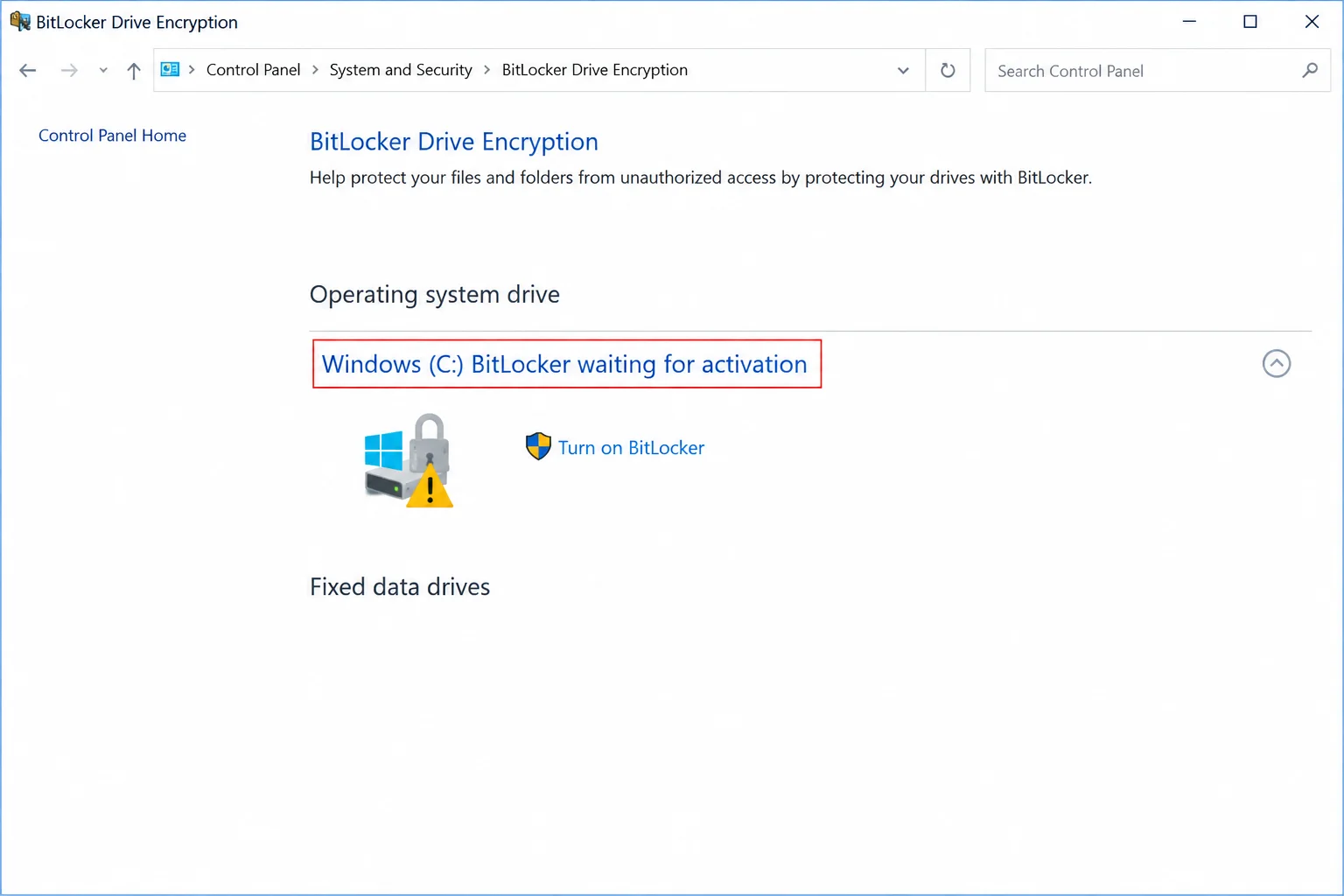
If your Windows 11 drive shows a warning icon and the status “Waiting for Activation” under BitLocker, your system is running in a suspended state. To clear this status safely, you must first back up your recovery key, and then finish the activation process depending on whether you are running Windows 11 Home or Windows 11 Pro, Enterprise, or Education.
BitLocker “Waiting for Activation” in Windows 11: What It Means and How to Fix It

This status does not mean your files are lost. However, a drive that stays in this state indefinitely points to an account, policy, Trusted Platform Module (TPM), or firmware issue. The drive is encrypted, but it currently relies solely on a temporary clear key, meaning full BitLocker protection remains inactive until Windows establishes a secure protector.
BitLocker “Waiting for Activation” in Windows 11: What It Means and How to Fix It

Table of Contents

Toggle
  • Understanding BitLocker “Waiting for Activation”
  • Step 1: Back Up and Verify Your Recovery Key First
  • Step 2: Finish Activation Based on Your Windows Edition
    • Finishing Activation on Windows 11 Home
    • Finishing Activation on Windows 11 Pro, Enterprise, or Education
  • Step 3: Troubleshooting Missing Options and Hardware Issues
  • Alternative: How to Turn Off Encryption Safely
  • Common Pitfalls and Best Practices

Understanding BitLocker “Waiting for Activation”

On many new PCs and clean Windows 11 installations, the operating system initiates device encryption automatically during setup. Microsoft classifies this as using a clear key: your data is scrambled, but the key is stored unprotected on the disk, effectively placing BitLocker in a suspended mode. Real protection only begins once Windows replaces that clear key with a secure hardware or account-bound protector.
BitLocker “Waiting for Activation” in Windows 11: What It Means and How to Fix It

On personal computers meeting device encryption requirements, Windows completes this activation when an administrator signs in with a Microsoft account (or a work/school account on organizational devices). Windows then removes the clear key, uploads a recovery key to that account, and creates a TPM protector. For work or school PCs, organizational policy determines where the key is archived, typically within Microsoft Entra ID or Active Directory.
BitLocker “Waiting for Activation” in Windows 11: What It Means and How to Fix It

Is your data at risk? Your files remain safe and readable while you use your PC. However, until activation finishes, protection is disabled, leaving your data exposed if someone physically removes the drive. This security exposure is why Windows flags the drive with a warning icon.
BitLocker “Waiting for Activation” in Windows 11: What It Means and How to Fix It

Step 1: Back Up and Verify Your Recovery Key First

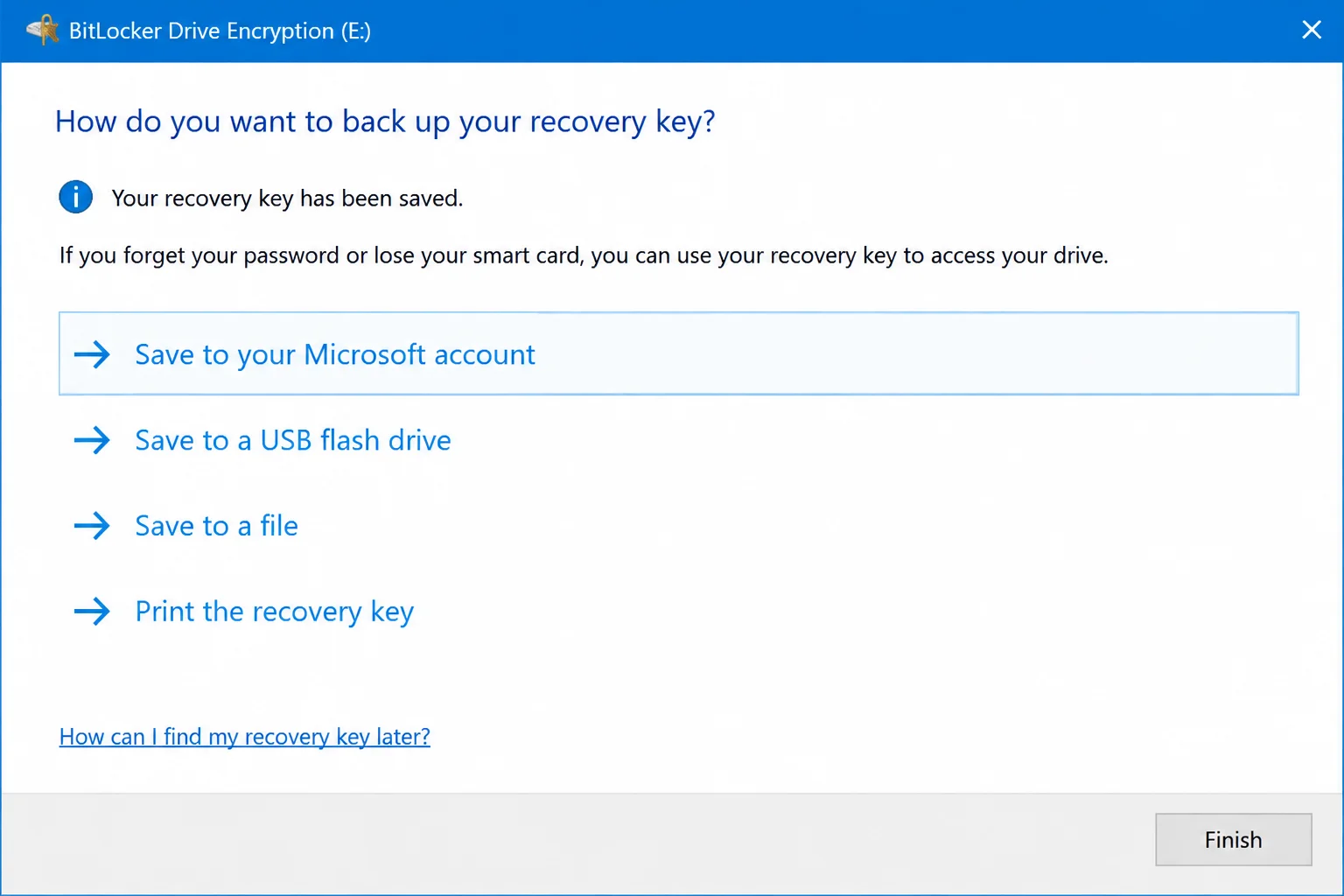
Always perform this step before modifying any BitLocker settings. A missing recovery key is the primary cause of permanent device lockouts. Even though device encryption usually uploads a key to your Microsoft account automatically, you must verify access before making changes.
BitLocker “Waiting for Activation” in Windows 11: What It Means and How to Fix It
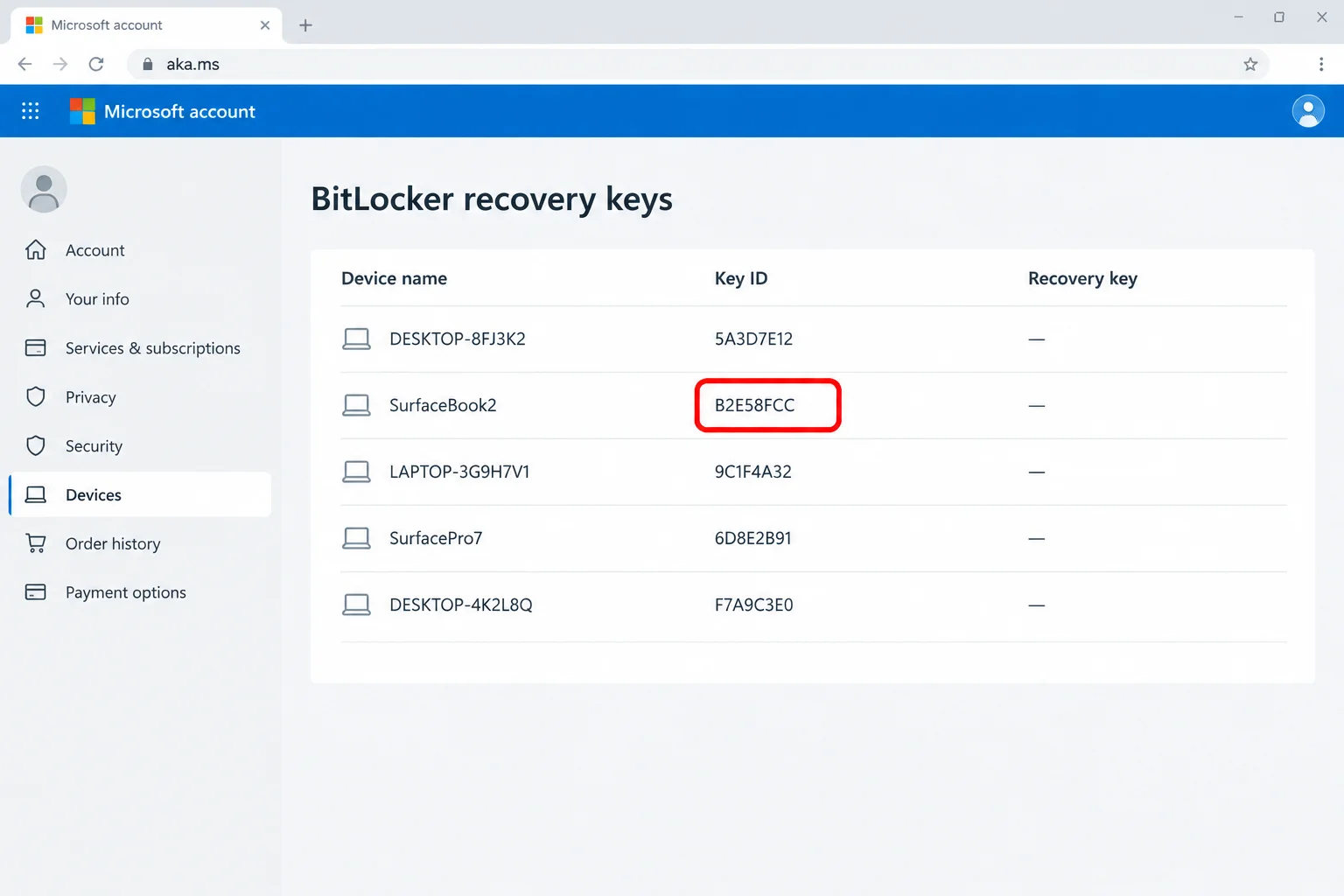
  • Go to https://aka.ms/myrecoverykey on another device or via a browser on your current PC.
  • Sign in using the personal Microsoft account linked to your computer.
  • Locate the entry matching your PC name and compare the Key ID on the screen with the ID displayed for your drive. The first eight characters must match.
  • For work or school devices, check https://aka.ms/aadrecoverykey.
  • If Windows prompts you to back up your recovery key in Control Panel or Settings, choose an alternative offline destination such as a USB flash drive, a printed copy, or a secure password manager like Bitwarden or 1Password.

Step 2: Finish Activation Based on Your Windows Edition

The resolution path varies depending on your operating system edition. Check your system specifications to see whether you are running Windows 11 Home or a professional edition.
BitLocker “Waiting for Activation” in Windows 11: What It Means and How to Fix It

Finishing Activation on Windows 11 Home

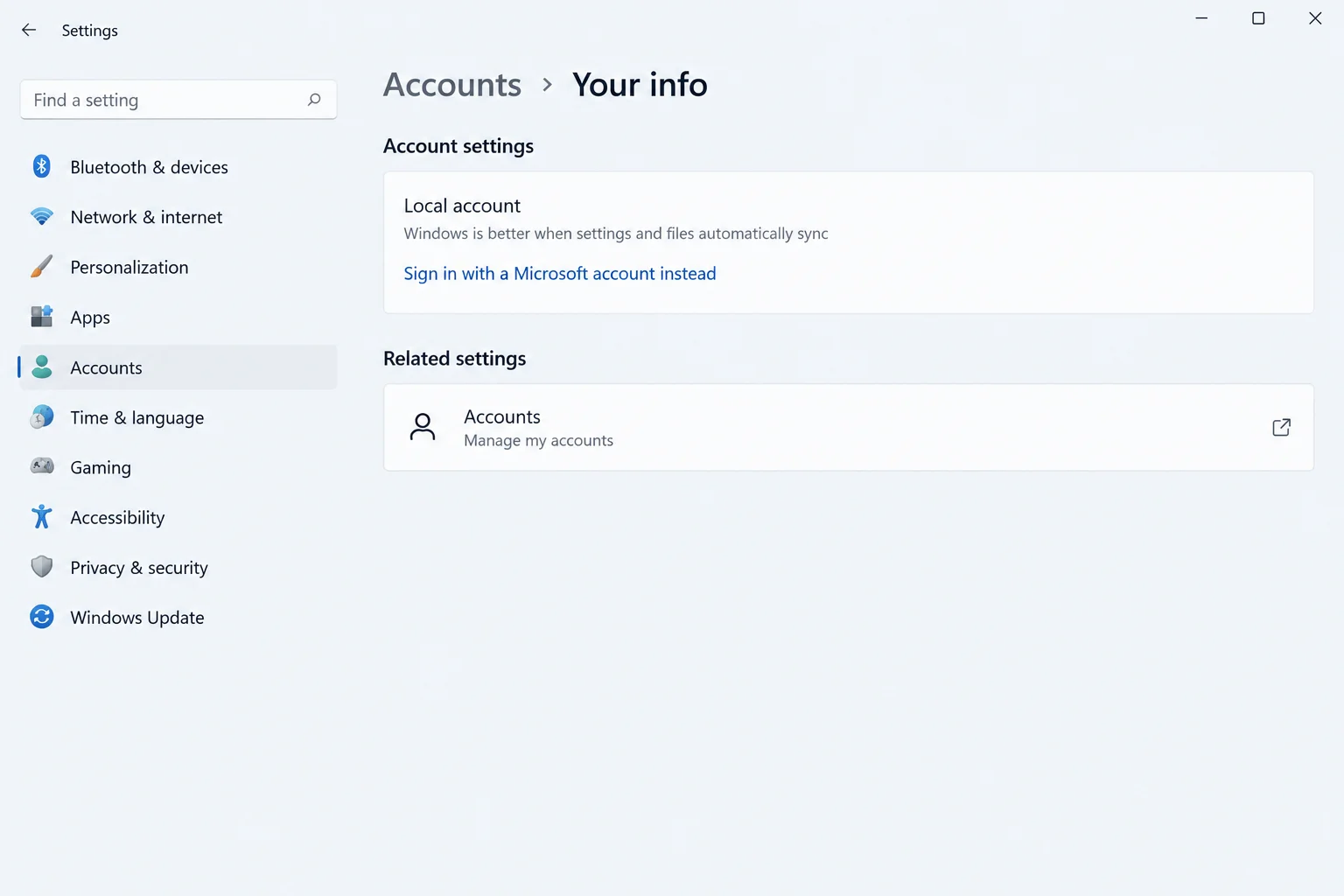
Windows 11 Home handles encryption through the Settings app and relies on personal Microsoft accounts rather than local accounts.

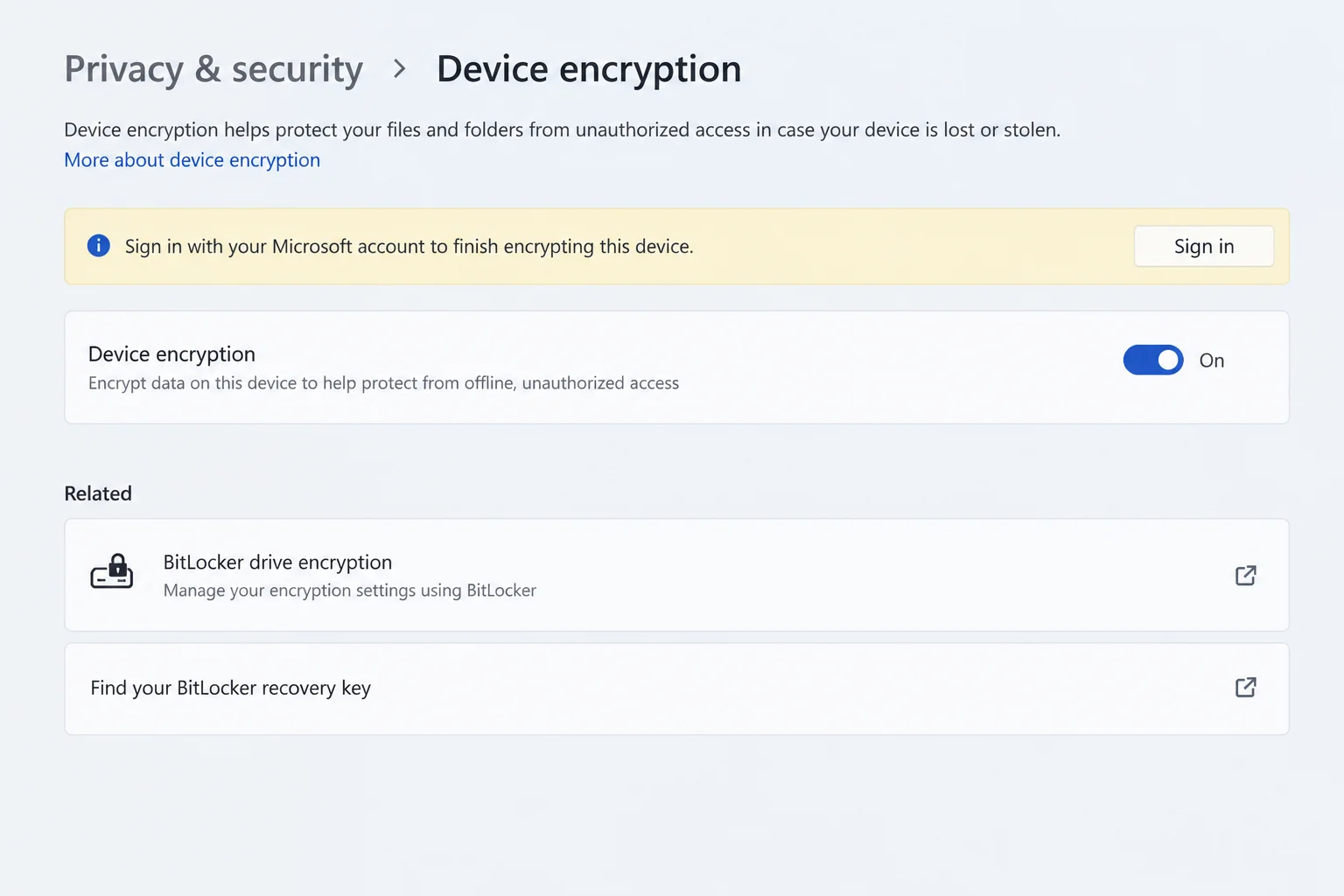
  1. Open Settings > Privacy & security > Device encryption.
  2. Check your account status. If the computer uses only a local account, the setup cannot finalize automatically because local accounts do not trigger cloud key uploads.
  3. If you see an option to Sign in with a Microsoft account instead, select it, complete the prompt using an administrator account, and restart your PC.
  4. Confirm your recovery key appears correctly at the online recovery portal.
  5. Return to the Device encryption page in Settings and turn the toggle on if it is currently disabled. Windows will remove the clear key and apply a secure protector.

Finishing Activation on Windows 11 Pro, Enterprise, or Education

Professional editions provide advanced tools via Control Panel and command-line interfaces for manual intervention.

  1. Select Start, type BitLocker, and open Manage BitLocker.
  2. Expand the C: drive and look for options to resume, turn on, or finish BitLocker protection.
  3. If no intuitive wizard option is available, right-click Start and choose Terminal (Admin).
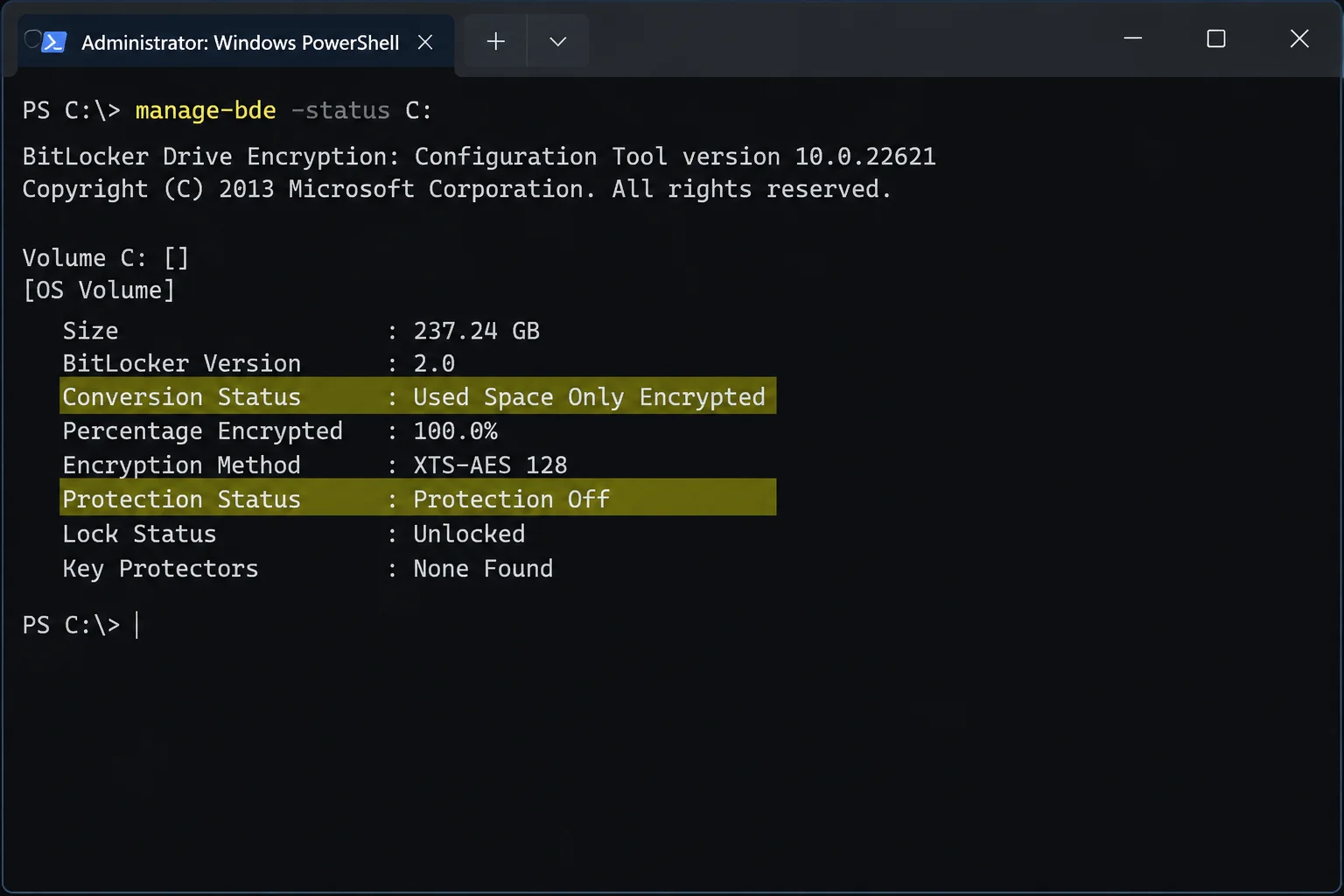
  4. Run manage-bde -protectors -get C: to review existing protectors. If a numerical password protector exists, verify its 48-digit key matches your backup. If no numerical password is listed, generate one by running manage-bde -protectors -add -recoverypassword C: and save the resulting key offline.
  5. If the TPM protector is missing, add it by running manage-bde -protectors -add C: -tpm. Do not add a duplicate TPM protector if one is already present.
  6. Verify the fix by running manage-bde -status to confirm protection is active.

Step 3: Troubleshooting Missing Options and Hardware Issues

If the device encryption menu is missing or grayed out, underlying hardware or permission configurations are typically responsible.

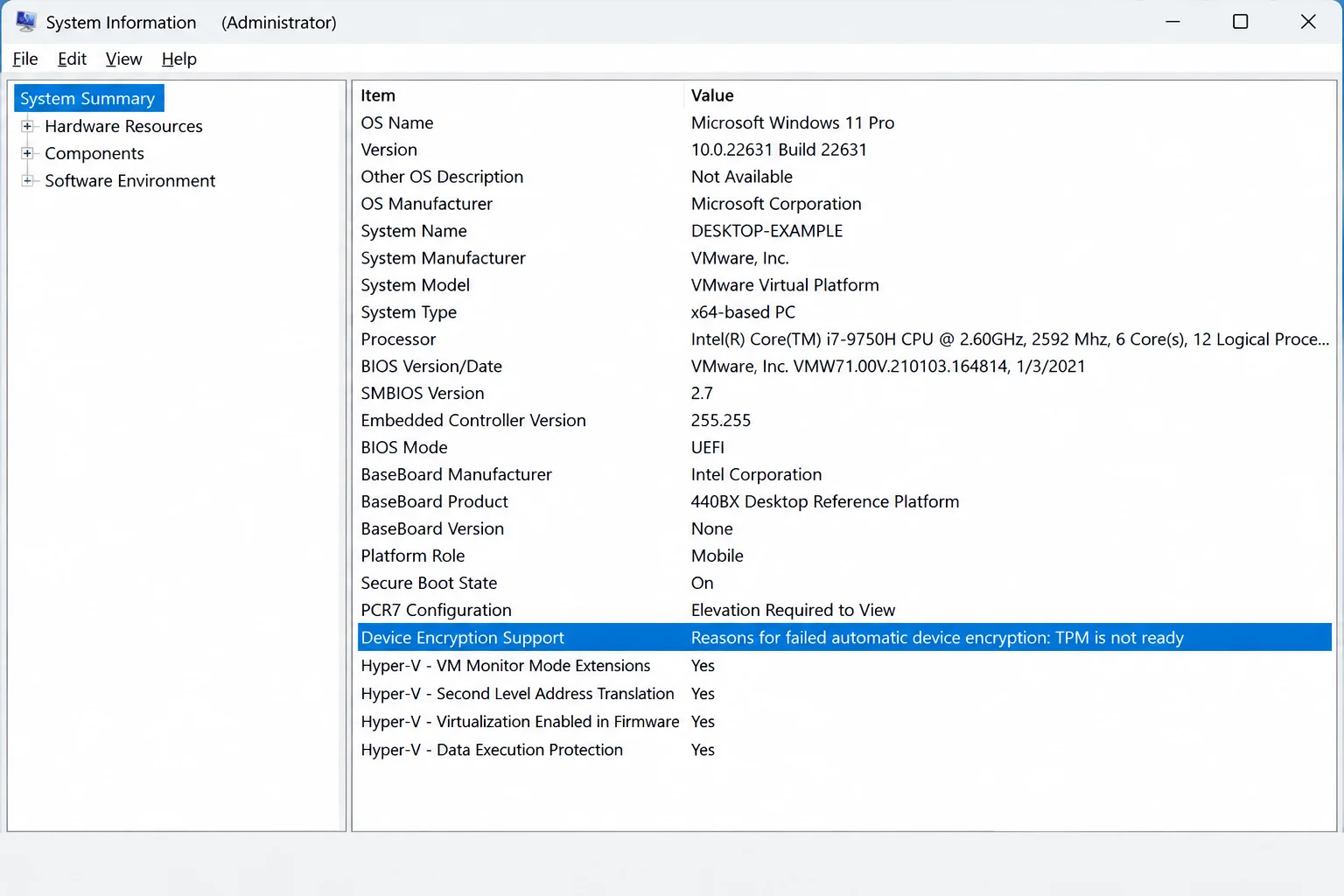
  1. Open the Start menu, type System Information, right-click the app, and select Run as administrator.
  2. Scroll down in the System Summary to find Device Encryption Support.
  3. If the status does not read “Meets prerequisites,” note the specific reason given, such as an unusable TPM, unconfigured Windows Recovery Environment (WinRE), or unsupported Secure Boot/PCR7 binding.
  4. Check your firmware if a TPM or Secure Boot error is reported. Open Settings > Privacy & security > Windows Security > Device security > Security processor details to verify the TPM is ready. Enable TPM and Secure Boot in your motherboard’s BIOS/UEFI settings if disabled.
  5. Disconnect unnecessary docks, USB hubs, and external peripherals at startup, as connected hardware can occasionally disrupt PCR7 configuration checks. Restart your system and recheck device encryption support.

Alternative: How to Turn Off Encryption Safely

If you prefer not to use device encryption—such as on a stationary desktop computer that never leaves your home—you can turn the feature off entirely.

Before proceeding, verify that your recovery key is safely documented just in case. On Windows 11 Home, navigate to Settings > Privacy & security > Device encryption and switch the toggle to Off. On Windows 11 Pro, Enterprise, or Education, open Manage BitLocker from Control Panel and select Turn off BitLocker next to the target drive.

Allow decryption to finish completely. Large drives take time to decrypt; keep laptops plugged into power and avoid unexpected shutdowns or holding down the power button, which can disrupt the decryption process. Confirm complete decryption using the command line tool manage-bde -status.

Common Pitfalls and Best Practices

Keep these essential guidelines in mind to maintain system security and prevent access issues:

  • Avoid local account traps on Home: Running Windows 11 Home with purely local accounts leaves drives unprotected in a clear-key state. Sign in with an admin Microsoft account to finalize setup.
  • Never store your sole recovery key on the encrypted drive: If you lose access to your operating system, you will be unable to read a key saved inside that same drive. Always keep offline printouts, USB backups, or cloud copies.
  • Understand drive scope: Device encryption covers internal fixed system drives, not removable USB flash drives or external drives. Use BitLocker To Go on Pro editions to secure external storage.
  • Keep security hardware enabled: Leave Secure Boot and your TPM turned on in firmware. Disabling them breaks encryption eligibility.
  • Maintain dual backups: Keep one recovery key copy linked to your Microsoft account and another offline on a USB drive or printout. Recheck your key records following major system changes, resets, or account swaps.
Views: 18

Share this:

Related posts:

  • How to See Signed-In Devices on Your Google Account (and Sign Them Out)

  • Windows 11 Time Wrong or Auto-Sync Failing? How to Fix It

  • How to Fix Smart App Control Grayed Out in Windows 11

Ethan Carter

Ethan Carter

Ethan Carter is a tech writer focused on Windows optimization, lightweight software, and practical PC troubleshooting. He enjoys testing utilities, improving low-end PC performance, and sharing simple tech solutions that help everyday users get more from their devices.

Next Post
Apple iPad Refresh 2027: What to Expect for Air, Pro, and Baseline Models

Apple iPad Refresh 2027: What to Expect for Air, Pro, and Baseline Models

Leave a Reply Cancel reply

Your email address will not be published. Required fields are marked *

Recommended.

How Chromebooks Sparked the Browser Gaming Comeback

How Chromebooks Sparked the Browser Gaming Comeback

November 1, 2026
MacBook Privacy Settings to Secure Your Personal Data

MacBook Privacy Settings to Secure Your Personal Data

October 26, 2026

Trending.

Microsoft PC Manager Review: Surprisingly Useful, But Not the PC Booster You Expect

Microsoft PC Manager Review: Surprisingly Useful, But Not the PC Booster You Expect

June 16, 2026
Is CCleaner Worth It in 2026? Honest Review After Testing It on Modern Windows PCs

Is CCleaner Worth It in 2026? Honest Review After Testing It on Modern Windows PCs

June 17, 2026
7 Best Free Antivirus for Windows 11 Ranked by Performance and Security

7 Best Free Antivirus for Windows 11 Ranked by Performance and Security

June 19, 2026
20 Operating System Examples Categorized by Device and Purpose

20 Operating System Examples Categorized by Device and Purpose

June 27, 2026
How to Update Your BIOS (UEFI)

How to Update Your BIOS (UEFI): When You Should, When You Shouldn’t, and How to Do It Safely

October 25, 2026
12 Best PC Boosters for Gaming, Low-End PCs, and Everyday Performance

12 Best PC Boosters for Gaming, Low-End PCs, and Everyday Performance

June 17, 2026
What to Expect at Apple’s October 28 Pro and Tell Event

What to Expect at Apple’s October 28 Pro and Tell Event

October 25, 2026
Best Free Screen Recorders for Windows We Tested No Watermarks, No Time Limits

9 Best Free Screen Recorders for Windows We Tested in 2026 (No Watermarks, No Time Limits)

June 23, 2026
iPad mini (A20 Pro): Release Date, OLED, Price, and Specifications

iPad mini (A20 Pro): Release Date, OLED, Price, and Specifications

October 29, 2026
What Is Utility Software? Functions, 5 Types, Benefits, and Real-World Examples

What Is Utility Software? Functions, 5 Types, Benefits, and Real-World Examples

June 16, 2026
What Is Programming Software? Types, Functions, and Best Tools for Beginners

What Is Programming Software? Types, Functions, and Best Tools for Beginners

June 14, 2026
Windows 11 version 26H2 Now Broadly Available for Eligible Devices

Windows 11 version 26H2 Now Broadly Available for Eligible Devices

October 26, 2026
Internal Hardware of a Computer: Definition, Components, and How Internal Computer Hardware Works

Internal Hardware of a Computer: Definition, Components, and How Internal Computer Hardware Works

March 9, 2026
Best PC Cleaner for Windows 11: 7 Safe Tools to Clean Junk Files and Free Up Storage

Best PC Cleaner for Windows 11: 7 Safe Tools to Clean Junk Files and Free Up Storage

June 17, 2026
macOS 27 Golden Gate: What’s New, Compatible Macs, and Features

macOS 27 Golden Gate: What’s New, Compatible Macs, and Features

October 29, 2026
New Apple Products Coming in 2026 and 2027: What’s Next for Mac, iPhone, and iPad

New Apple Products Coming in 2026 and 2027: What’s Next for Mac, iPhone, and iPad

October 29, 2026
How Good Is Microsoft Defender Antivirus? Is It Really Enough for Windows 11?

How Good Is Microsoft Defender Antivirus? Is It Really Enough for Windows 11?

May 14, 2026
iPhone Duo Guide: Price, Specifications, Availability, and Reviews

iPhone Duo Guide: Price, Specifications, Availability, and Reviews

October 26, 2026
How to Resize the Windows 11 Start Menu With New Built-In Controls

How to Resize the Windows 11 Start Menu With New Built-In Controls

October 26, 2026
PowerToys 0.102 Adds Mouse Utilities, Quick Commands, and Dictation

PowerToys 0.102 Adds Mouse Utilities, Quick Commands, and Dictation

October 27, 2026
iOS 27 Features, Compatibility, and Siri AI Overview

iOS 27 Features, Compatibility, and Siri AI Overview

October 29, 2026
What Is a Device Driver in a Computer? Functions, Types, How It Works, and Examples

What Is a Device Driver in a Computer? Functions, Types, How It Works, and Examples

July 2, 2026
Best CPU Temperature Monitor Tools for Gaming and Real-Time Tracking

7 Best CPU Temperature Monitor Tools for Gaming and Real-Time Tracking

May 31, 2026
What Are the Communication Devices? Definition, Key Characteristics, Types, and Real-World Examples

What Are the Communication Devices? Definition, Key Characteristics, Types, and Real-World Examples

June 19, 2026
How to Fix a USB Device That Keeps Disconnecting

How to Fix a USB Device That Keeps Disconnecting

October 26, 2026
Microsoft Tests Controller-Friendly Gaming Task View for Windows 11

Microsoft Tests Controller-Friendly Gaming Task View for Windows 11

October 26, 2026
Apple’s November 2026 Lineup: Hardware Shipping, OS 27.3, and New TV+ Shows

Apple’s November 2026 Lineup: Hardware Shipping, OS 27.3, and New TV+ Shows

November 3, 2026
Apple Unveils Thinner, Lighter iPad mini (A20 Pro) with OLED Screen and Major Power Boosts

Apple Unveils Thinner, Lighter iPad mini (A20 Pro) with OLED Screen and Major Power Boosts

October 29, 2026
What Is a Distributed Operating System? Architecture, How It Works, Functions, Benefits, and Examples

What Is a Distributed Operating System? Architecture, How It Works, Functions, Benefits, and Examples

June 27, 2026
Why Wrong Wi-Fi Bands Slow Your Devices and How to Fix It

Why Wrong Wi-Fi Bands Slow Your Devices and How to Fix It

October 26, 2026
Intechfy

Intechfy.com is a technology-focused information platform created to make everyday tech concepts easier to understand, more practical, and more accessible.

  • About
  • Contact
  • Disclaimer
  • Sitemap
  • Privacy Policy
  • Terms Of Service

© 2026 Intechfy.com - Information Technology for You

No Result
View All Result
  • Home
  • Guides
  • Utilities
  • Reviews
  • Tech Basics
    • Computer
    • Hardware
    • Software
    • Operating System
    • Networking

© 2026 Intechfy.com - Information Technology for You