
If you recently attempted to set up a new computer and found that the option to move files directly from another machine has vanished, you are not alone. Microsoft has officially confirmed that the Windows 11 PC-to-PC Migration removed feature was an intentional change, steering users toward cloud-based alternatives instead of local transfers.
The Disappearance of Windows 11 PC-to-PC Migration
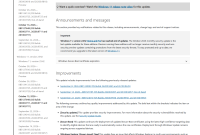
The removal of the built-in PC-to-PC Migration tool was first spotted in an optional preview update in September 2026, identified as KB5124010. According to reporting from Windows Latest, the change reached the broader public with the October 13, 2026, Patch Tuesday update, KB5127648. Microsoft has since updated its support documentation to reflect this, stating plainly that the tool is no longer available and recommending the use of Windows Backup and Restore instead.
The removed tool was designed to allow users to move files and settings directly between two computers over a local Wi-Fi or Ethernet connection. This method was particularly valued because it kept data within the local network, avoiding the need to upload large volumes of personal files to the cloud. While Microsoft’s official release notes did not highlight this as a primary change, the company’s support pages now redirect all migration queries to its new cloud-centric workflow.
How the New ‘Windows Backup’ Works
With the local migration tool gone, Microsoft now pushes users toward the Windows Backup app. This tool operates differently than its predecessor in several key ways:
- Account Requirement: Unlike the reported local-only nature of the old tool, Windows Backup requires a personal Microsoft account to function.
- OneDrive Integration: The tool uploads supported folders—specifically Desktop, Documents, Pictures, Videos, and Music—directly to OneDrive. When you sign in to a new PC with the same credentials, these files are downloaded automatically.
- Limited Restoration: Microsoft specifies that only “some” settings and apps may be restored. This is a narrower scope than a comprehensive migration; while Microsoft Store apps generally reappear, users should expect to manually reinstall third-party software using original installers.
It is important to note that Windows Backup is not a full clone of your old system. It is a synchronization service designed to make a new setup feel familiar, rather than a bit-for-bit transfer of your entire environment.
The 5GB Catch: Why Cloud Migration Might Fail You
The most significant hurdle for many users is the storage limit. Free OneDrive accounts typically include only 5GB of storage. This allowance is shared across all Microsoft services tied to that account. For a modern user, a single year of high-resolution phone photos or a few work archives can easily exceed this 5GB ceiling.
If your data exceeds the free limit, the migration process essentially stalls unless you choose one of three paths: paying for a OneDrive storage subscription, deleting files to fit the limit, or abandoning the automated tool in favor of a manual transfer. Because Microsoft has not publicly explained the reasoning behind removing the local tool, many tech analysts view this as a move to increase adoption of OneDrive paid tiers.
Old vs. New: Comparing Migration Methods
The following table illustrates the differences between the retired migration tool and the current options available to Windows 11 users:
| Feature | PC-to-PC Migration (Removed) | Windows Backup (Current) | Manual Transfer (External Drive) |
|---|---|---|---|
| Data Path | Local (Wi-Fi/LAN) | Cloud (OneDrive) | Physical (USB/SSD) |
| MS Account | Not required (Reported) | Mandatory | Not required |
| Storage Limit | Limited by PC Disk Space | 5GB Free (Shared) | Limited by Drive Size |
| Ease of Use | Guided Wizard | Guided Wizard | Manual Copy/Paste |
Manual Alternatives: Moving Files Without OneDrive
For users with large libraries or those who prefer to keep their data off the cloud, manual methods remain the most reliable workaround. Before starting, you should right-click your Desktop, Documents, Pictures, Videos, and Music folders in File Explorer and select Properties to check their total size. This will help you determine which method is best.
Using External Storage (The ‘Sneakernet’ Method)
If you have more than 5GB of data, using an external SSD or a large USB flash drive is the most efficient path. Simply copy your user folders to the external drive, then plug it into the new PC and move the files into the corresponding directories. A one-time purchase of a 1TB or 2TB portable SSD is often more cost-effective over time than a recurring cloud storage subscription.
Setting Up a Local Network Share
If both computers are on the same home network, you can set up a network share to transfer files directly. For the fastest speeds, connecting both machines to your router via Cat6 Ethernet cables is recommended, as this avoids the potential instability and slower speeds of Wi-Fi when moving hundreds of gigabytes.
Verdict: Should You Roll Back the Update?
While it may be tempting to uninstall updates KB5124010 or KB5127648 to regain the migration tool, this is not a recommended course of action. These updates are cumulative and include essential security patches. Trading system security for a temporary transfer wizard is a poor compromise, especially since Microsoft does not provide a documented or supported path to restore the feature once it has been removed.
The best approach is to keep your system updated and adapt to the change. If your data is minimal and you already use a Microsoft account, Windows Backup is a convenient way to carry over Wi-Fi passwords and personalization settings. However, for anything beyond basic documents, manual migration remains the gold standard. While the Windows 11 PC-to-PC Migration removed update adds a layer of complexity to new PC setups, understanding your data size and having an external drive ready will ensure a smooth transition without relying on the cloud.