• About
  • Contact
  • Disclaimer
  • Sitemap
  • Privacy Policy
  • Terms Of Service
Information Technology for You
  • Home
  • Guides
  • ChromeOS
  • MacOS
  • Windows
  • Utilities
  • Reviews
  • Tech Basics
    • Hardware
    • Software
    • Operating System
    • Networking
No Result
View All Result
  • Home
  • Guides
  • ChromeOS
  • MacOS
  • Windows
  • Utilities
  • Reviews
  • Tech Basics
    • Hardware
    • Software
    • Operating System
    • Networking
No Result
View All Result
Intechfy
No Result
View All Result

Windows 11 Settings Redesign: What Moved and Where to Find It

Ethan Carter by Ethan Carter
November 2, 2026
Home Windows
Share on FacebookShare on Twitter

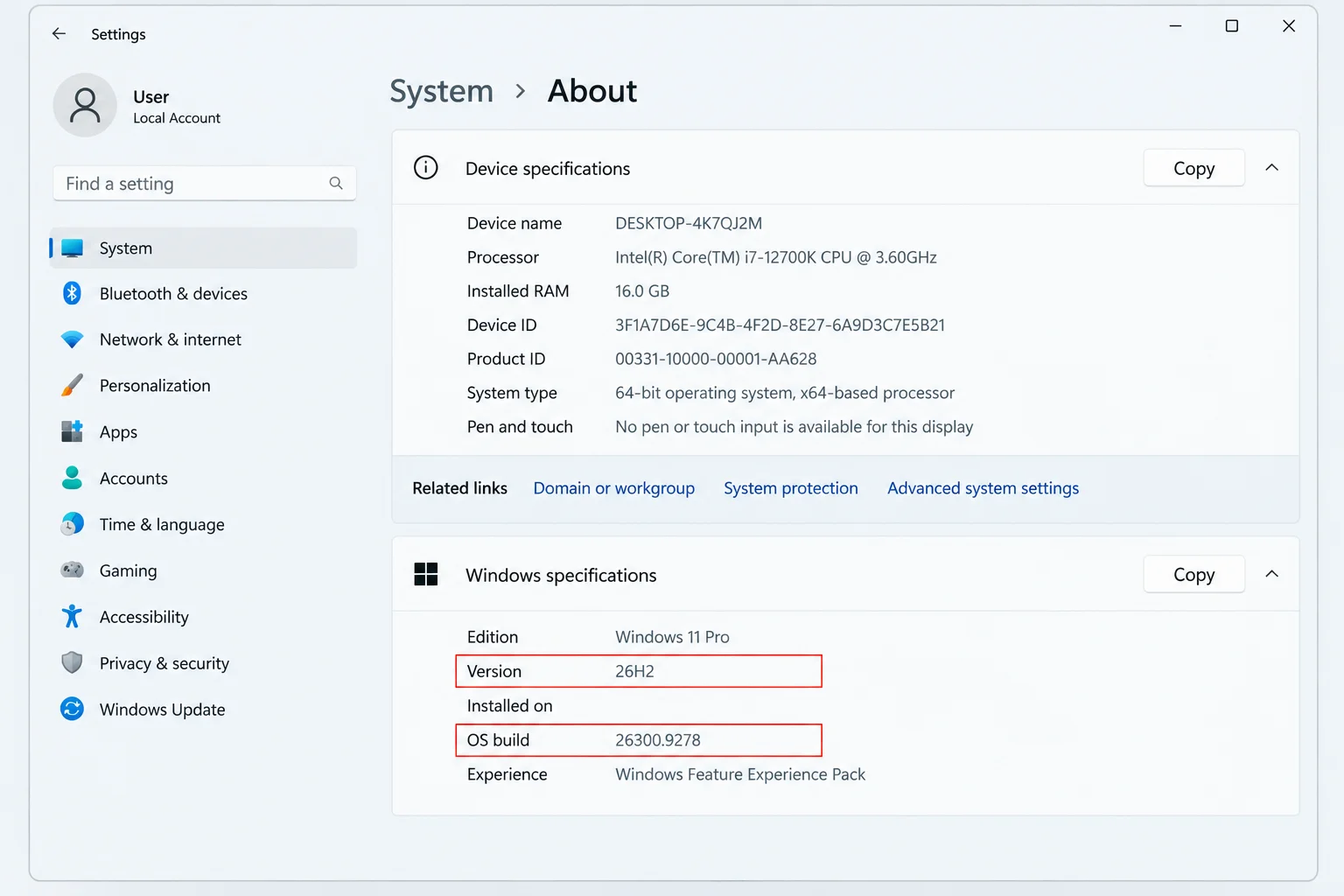
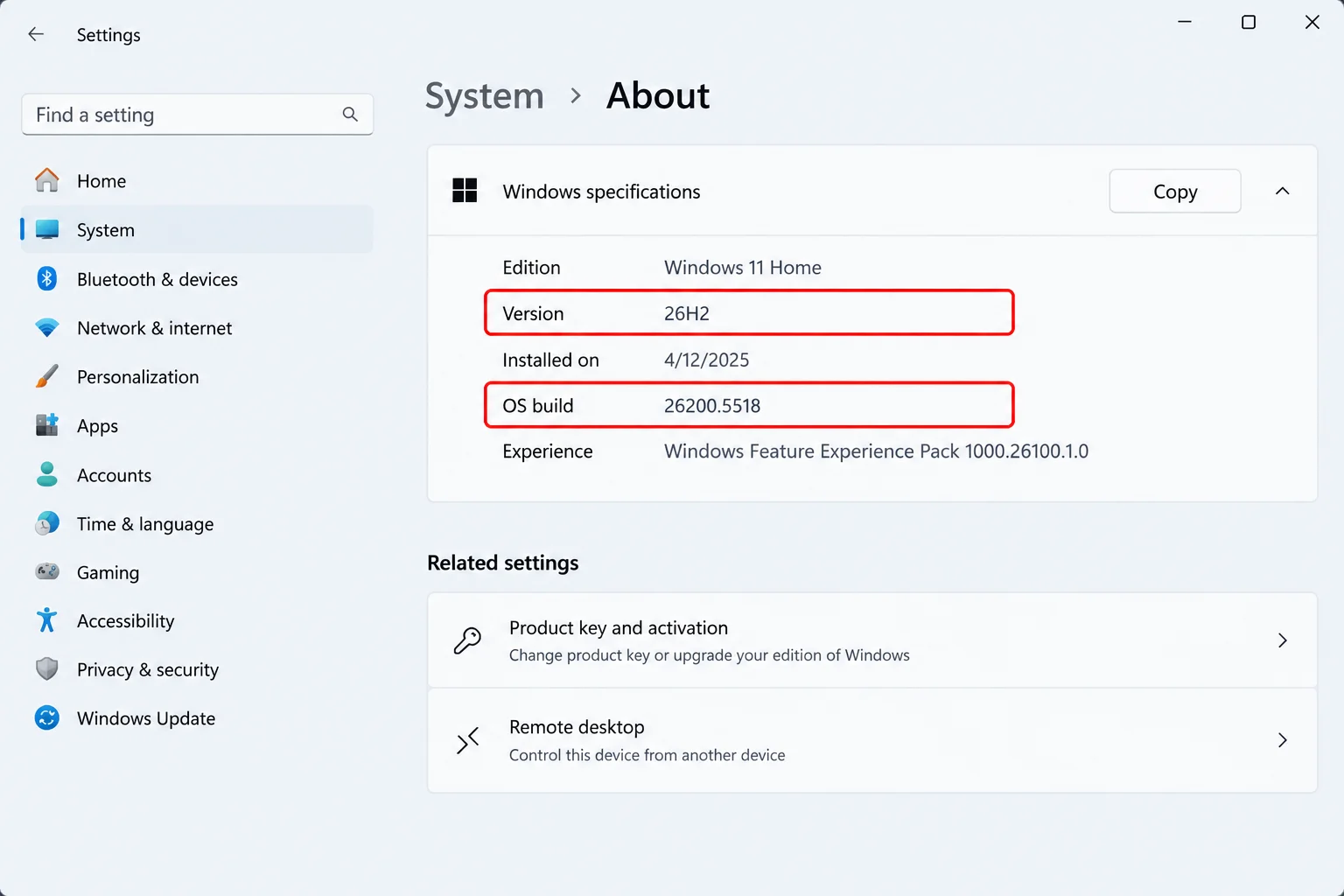
A familiar control seems to disappear in Windows 11 Settings, and that can be exceptionally frustrating when you are trying to configure your system or assist someone remotely. Because Microsoft frequently updates the operating system, settings do not always stay in the exact same place. To find what you need, it helps to start at Settings > System > About to check your specific version and build, and then use a structured map to locate the correct menu page.
Windows 11 Settings Redesign: What Moved and Where to Find It

Table of Contents

Toggle
  • Understanding the Windows 11 Settings Redesign
  • What Moved: Key Changes in System, Start, and Taskbar
    • System and Device Information
    • Start Menu and Taskbar Customization
  • Finding Everyday Controls and Navigating Missing Features
  • Alternative Navigation Routes When Settings Falls Short

Understanding the Windows 11 Settings Redesign

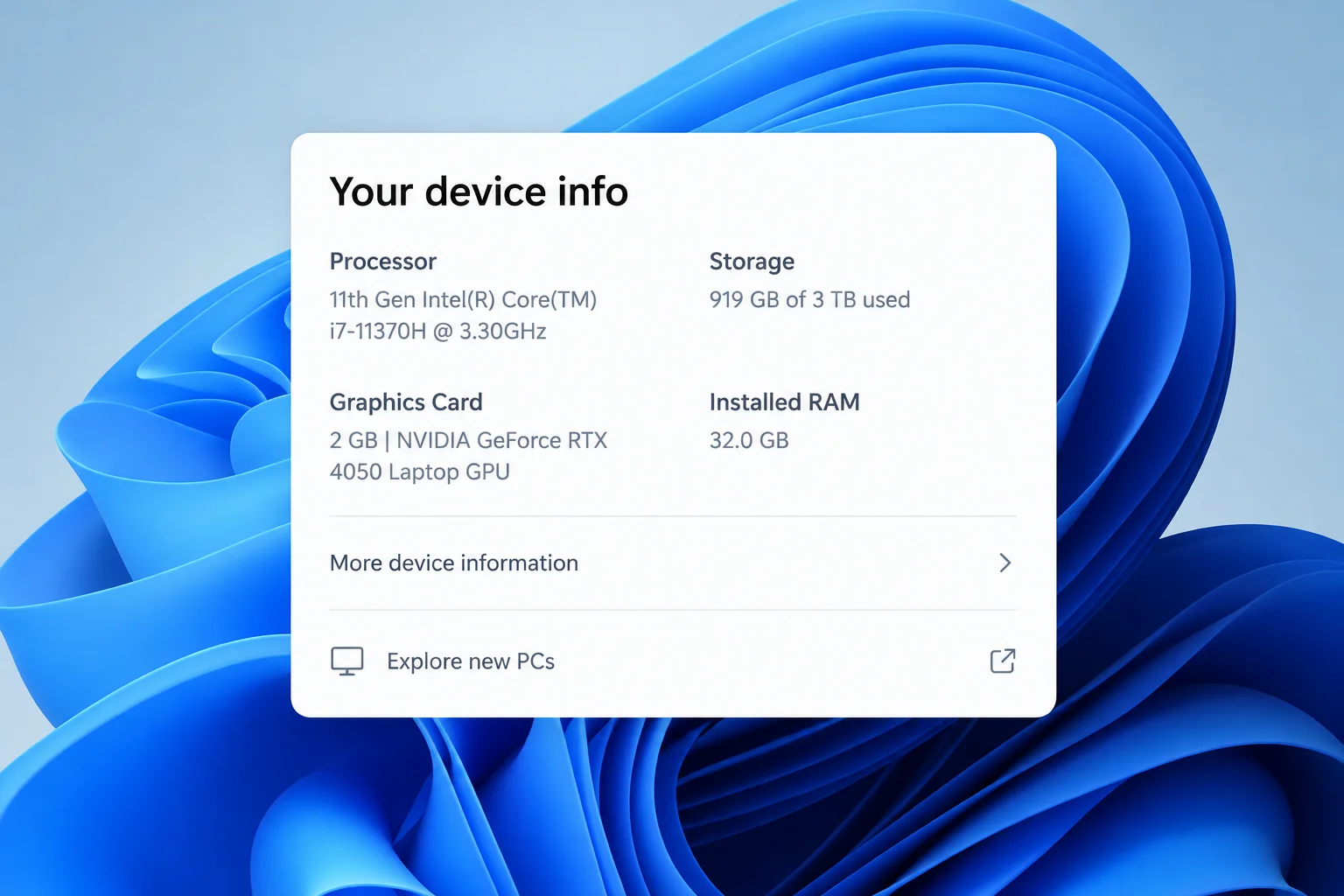
The term “redesign” covers several distinct adjustments across the operating system rather than a single uniform layout introduced on every PC at once. Microsoft has confirmed specific changes to device details under System > About, alongside a refined Device info card on Settings Home that initially rolled out to U.S. Windows Insiders rather than appearing immediately on every Windows 11 PC.
Windows 11 Settings Redesign: What Moved and Where to Find It

Windows 11 version 26H2 serves as the annual feature update, which Microsoft delivers as a small enablement package for PCs already running versions 24H2 and 25H2. Official documentation for version 26H2 lists features added since 25H2, including:
Windows 11 Settings Redesign: What Moved and Where to Find It
  • Start menu size and section controls
  • Expanded taskbar positions
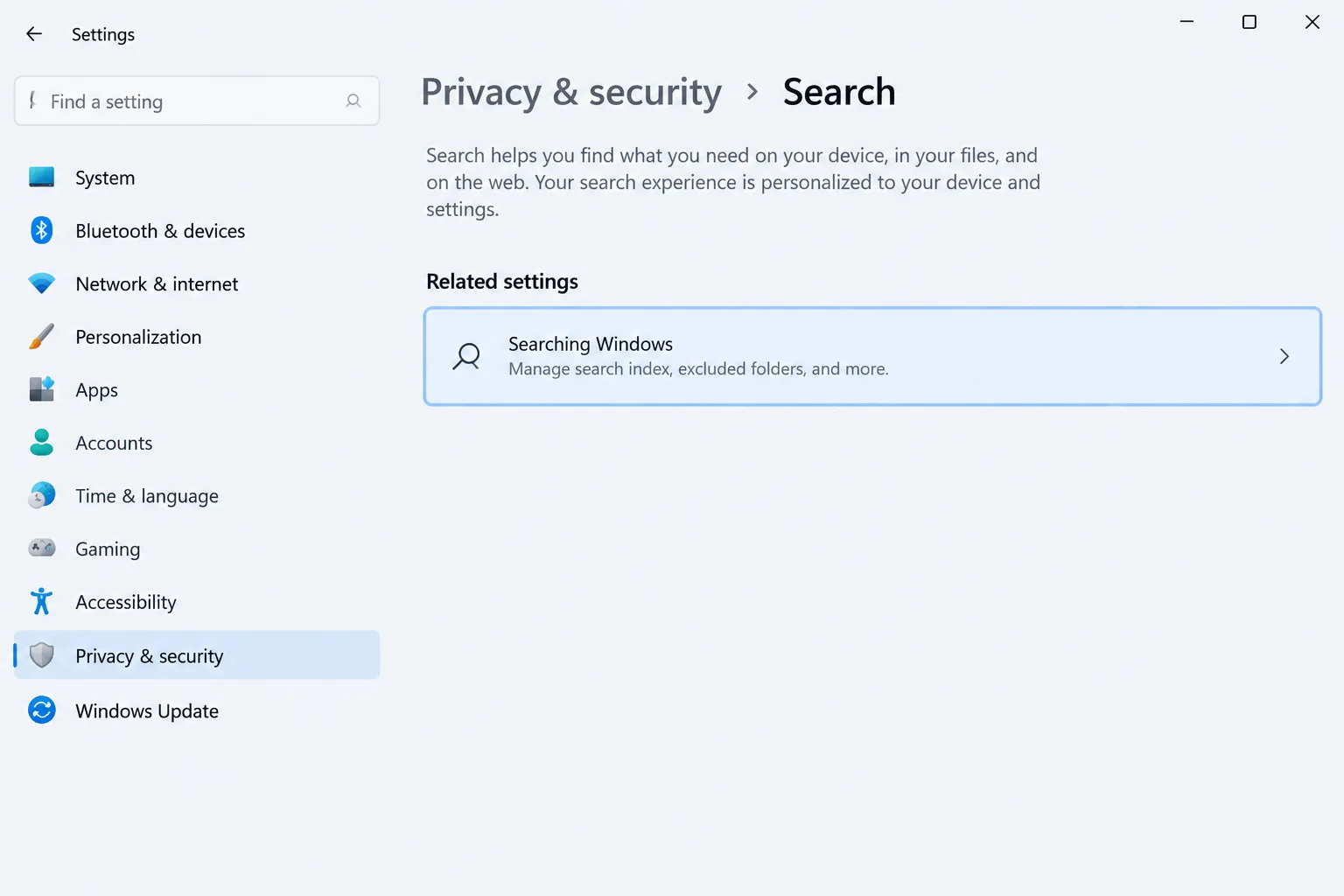
  • Clearer search result labels

Many of these capabilities arrive through monthly updates and can show up on your machine before it officially transitions to 26H2. Furthermore, because Microsoft often rolls out features gradually, two different Windows 11 PCs sitting side by side may display entirely different menu options depending on their exact release channel and installation history.
Windows 11 Settings Redesign: What Moved and Where to Find It

What Moved: Key Changes in System, Start, and Taskbar

Recent updates have restructured several core areas of the operating system. Understanding where these components relocated will save you time when navigating the interface.
Windows 11 Settings Redesign: What Moved and Where to Find It

System and Device Information

On PCs equipped with the newer Device info card, Settings Home displays a brief hardware summary accompanied by a direct link to the About page. If your system does not show this card, you can bypass it by opening Settings > System > About.
Windows 11 Settings Redesign: What Moved and Where to Find It

Whether you need to check your processor name before an SSD upgrade or look up your Windows build to troubleshoot a hardware conflict, the revised About page places key hardware details near the top. It groups graphics and storage information more logically under device specifications, ensuring you have the exact version numbers required when troubleshooting instructions do not quite match your screen.
Windows 11 Settings Redesign: What Moved and Where to Find It

Start Menu and Taskbar Customization

If you are looking to modify your layout, recent builds offer deeper personalization choices:
Windows 11 Settings Redesign: What Moved and Where to Find It
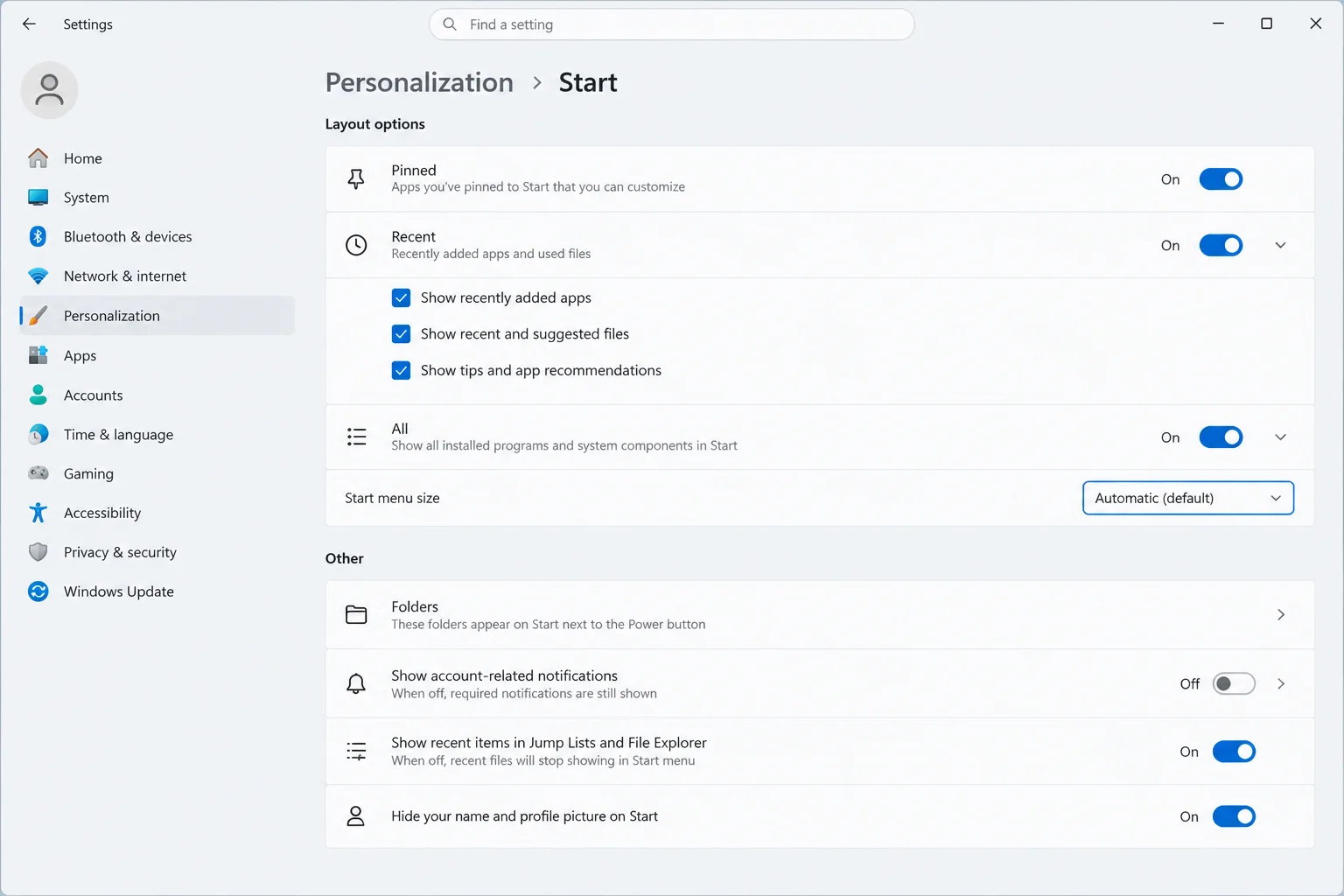
  • Start Menu Layout: Found under Settings > Personalization > Start, these controls let you choose a preferred Start menu size and independently show or hide the Pinned, Recent, and All sections. (Note that some builds refer to the Recent section as Recommended due to ongoing naming updates).
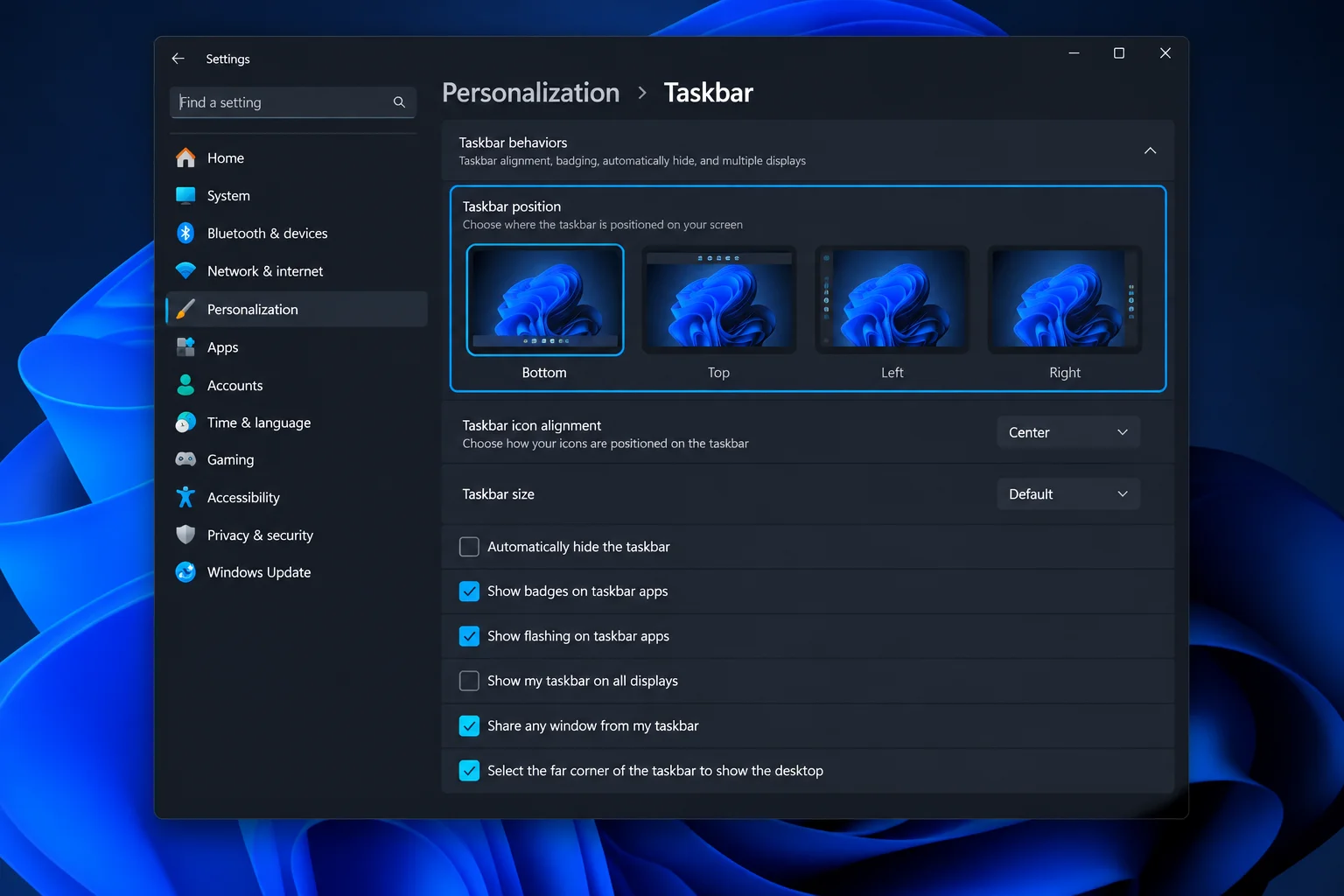
  • Taskbar Positioning: Taskbar placement options are located under Settings > Personalization > Taskbar > Taskbar behaviors alongside taskbar alignment and the option to show smaller buttons. When Microsoft introduced alternative top, left, and right positions, it noted that these layouts display the search box as an icon and that auto-hide, tablet optimization, and touch gestures for those positions are developed incrementally.

Finding Everyday Controls and Navigating Missing Features

Beyond major layout overhauls, everyday tasks still have dependable starting points within the application. Knowing where to look prevents unnecessary searching:
Windows 11 Settings Redesign: What Moved and Where to Find It
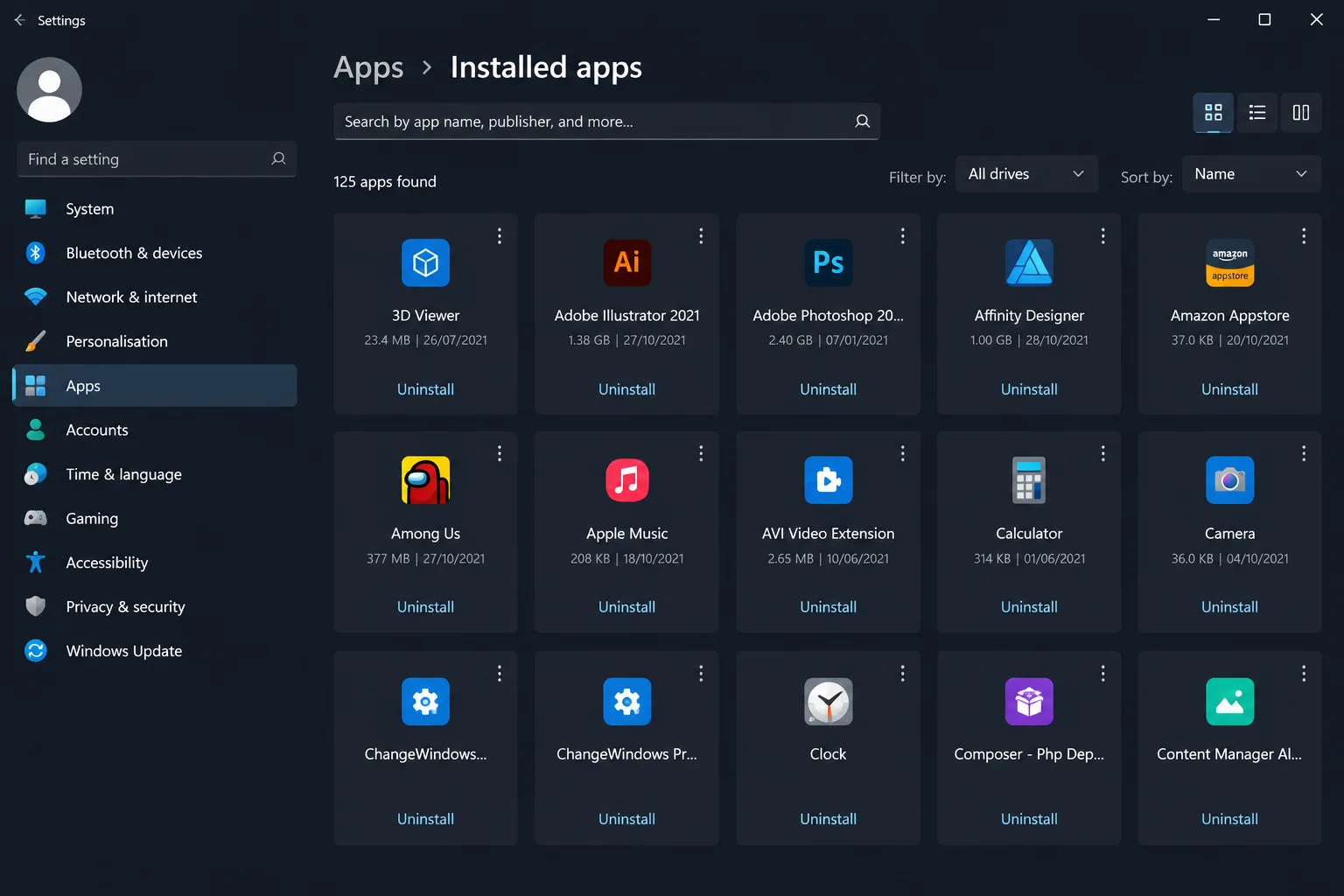
  • Installed Apps: Manage or remove programs via Settings > Apps > Installed apps.
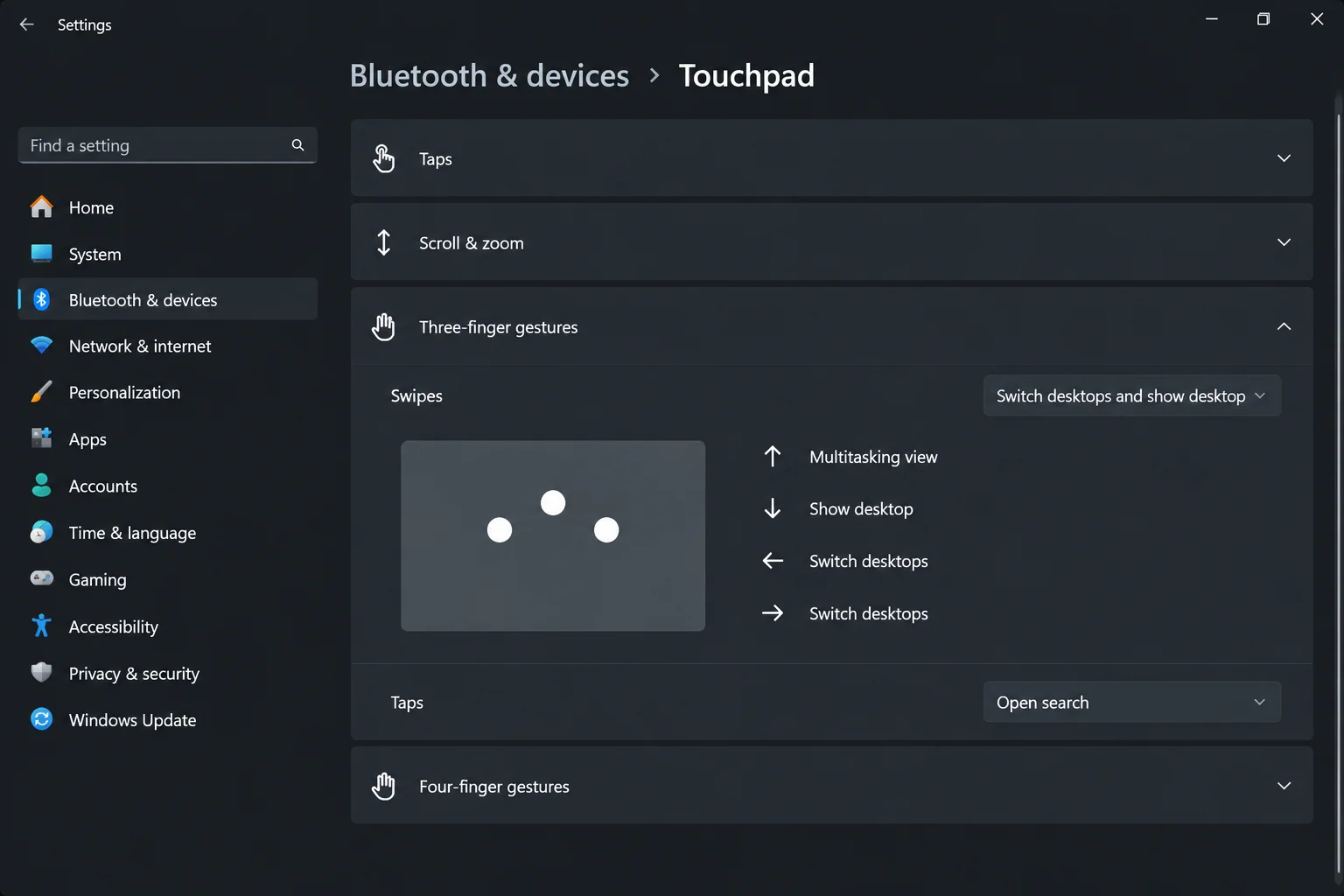
  • Touchpad Gestures: View available trackpad options under the Touchpad settings menu.
  • Peripherals: Check or add hardware via Settings > Bluetooth & devices > Printers & scanners.
  • Display Adjustments: Locate options such as Night light directly within display settings.
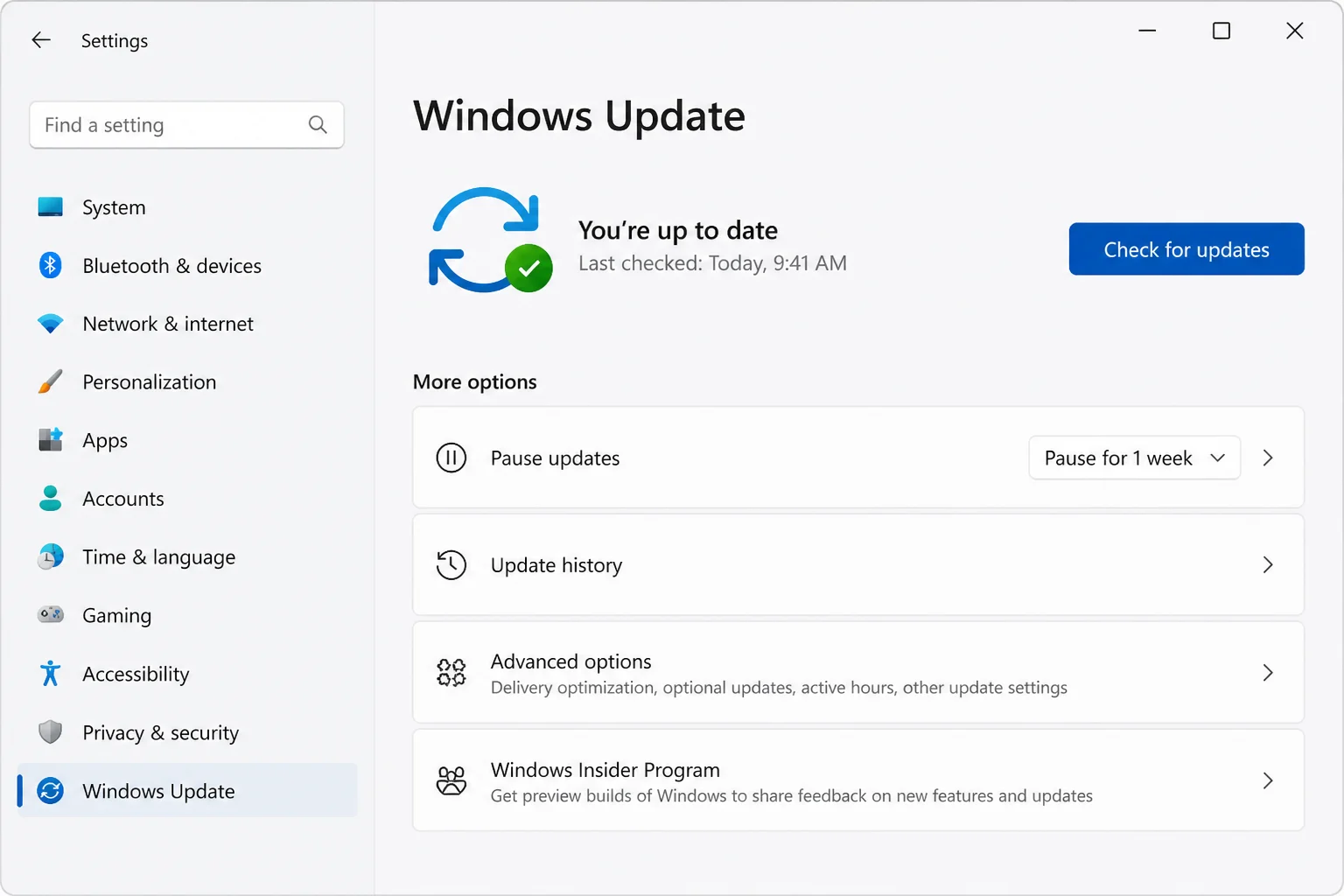
  • System Updates: Manage active hours and update schedules under Windows Update.

If an expected control seems absent, remember that your PC may not have received the specific update delivering it yet. Checking for updates via Windows Update is sensible, but installing updates does not automatically guarantee every staged control will appear immediately, as rollout schedules depend heavily on your specific build and release channel.

Alternative Navigation Routes When Settings Falls Short

When standard menu navigation does not reveal the control you are looking for, several reliable backup routes can bridge the gap:

  • Settings Search: Using the built-in search bar inside the Settings app is often the quickest route when a page name or category has shifted.
  • Control Panel: Certain settings choices still open older legacy Windows dialogs (such as Mouse Properties). If Settings redirects you to a traditional window, continue your configuration there.
  • Device Manager & System Tools: Use Device Manager when you need to deeply inspect hardware components, though System > About remains the superior first stop for checking your Windows build summary.

Ultimately, navigating the Windows 11 settings redesign is much easier once you verify your core system specifications. Always start by checking your version and build in System > About, and remember that feature rollouts happen at different paces across different machines.
Views: 34

Share this:

Related posts:

  • How to Restart the Clipboard User Service (cbdhsvc) Without Rebooting Windows

  • Microsoft Removes Windows 11 PC-to-PC Migration: What to Do Now

  • How to See Signed-In Devices on Your Google Account (and Sign Them Out)

Ethan Carter

Ethan Carter

Ethan Carter is a tech writer focused on Windows optimization, lightweight software, and practical PC troubleshooting. He enjoys testing utilities, improving low-end PC performance, and sharing simple tech solutions that help everyday users get more from their devices.

Next Post
Best Mac 2026: Every Apple Mac and MacBook Compared

Best Mac 2026: Every Apple Mac and MacBook Compared

Leave a Reply Cancel reply

Your email address will not be published. Required fields are marked *

Recommended.

Apple’s M6 iMac is here: What’s new and which model to buy

Apple’s M6 iMac is here: What’s new and which model to buy

October 29, 2026
Should You Buy a MacBook Pro Now? M6, Touchscreen and Older Models Compared

Should You Buy a MacBook Pro Now? M6, Touchscreen and Older Models Compared

November 2, 2026

Trending.

Microsoft PC Manager Review: Surprisingly Useful, But Not the PC Booster You Expect

Microsoft PC Manager Review: Surprisingly Useful, But Not the PC Booster You Expect

June 16, 2026
Is CCleaner Worth It in 2026? Honest Review After Testing It on Modern Windows PCs

Is CCleaner Worth It in 2026? Honest Review After Testing It on Modern Windows PCs

June 17, 2026
7 Best Free Antivirus for Windows 11 Ranked by Performance and Security

7 Best Free Antivirus for Windows 11 Ranked by Performance and Security

June 19, 2026
20 Operating System Examples Categorized by Device and Purpose

20 Operating System Examples Categorized by Device and Purpose

June 27, 2026
How to Update Your BIOS (UEFI)

How to Update Your BIOS (UEFI): When You Should, When You Shouldn’t, and How to Do It Safely

October 25, 2026
12 Best PC Boosters for Gaming, Low-End PCs, and Everyday Performance

12 Best PC Boosters for Gaming, Low-End PCs, and Everyday Performance

June 17, 2026
iPad mini (A20 Pro): Release Date, OLED, Price, and Specifications

iPad mini (A20 Pro): Release Date, OLED, Price, and Specifications

October 29, 2026
Best Free Screen Recorders for Windows We Tested No Watermarks, No Time Limits

9 Best Free Screen Recorders for Windows We Tested in 2026 (No Watermarks, No Time Limits)

June 23, 2026
What to Expect at Apple’s October 28 Pro and Tell Event

What to Expect at Apple’s October 28 Pro and Tell Event

October 25, 2026
Best PC Cleaner for Windows 11: 7 Safe Tools to Clean Junk Files and Free Up Storage

Best PC Cleaner for Windows 11: 7 Safe Tools to Clean Junk Files and Free Up Storage

June 17, 2026
What Is Utility Software? Functions, 5 Types, Benefits, and Real-World Examples

What Is Utility Software? Functions, 5 Types, Benefits, and Real-World Examples

June 16, 2026
Internal Hardware of a Computer: Definition, Components, and How Internal Computer Hardware Works

Internal Hardware of a Computer: Definition, Components, and How Internal Computer Hardware Works

March 9, 2026
What Is Programming Software? Types, Functions, and Best Tools for Beginners

What Is Programming Software? Types, Functions, and Best Tools for Beginners

June 14, 2026
Windows 11 version 26H2 Now Broadly Available for Eligible Devices

Windows 11 version 26H2 Now Broadly Available for Eligible Devices

October 26, 2026
Apple’s November 2026 Lineup: Hardware Shipping, OS 27.3, and New TV+ Shows

Apple’s November 2026 Lineup: Hardware Shipping, OS 27.3, and New TV+ Shows

November 3, 2026
macOS 27 Golden Gate: What’s New, Compatible Macs, and Features

macOS 27 Golden Gate: What’s New, Compatible Macs, and Features

October 29, 2026
New Apple Products Coming in 2026 and 2027: What’s Next for Mac, iPhone, and iPad

New Apple Products Coming in 2026 and 2027: What’s Next for Mac, iPhone, and iPad

October 29, 2026
How Good Is Microsoft Defender Antivirus? Is It Really Enough for Windows 11?

How Good Is Microsoft Defender Antivirus? Is It Really Enough for Windows 11?

May 14, 2026
What Is a Device Driver in a Computer? Functions, Types, How It Works, and Examples

What Is a Device Driver in a Computer? Functions, Types, How It Works, and Examples

July 2, 2026
PowerToys 0.102 Adds Mouse Utilities, Quick Commands, and Dictation

PowerToys 0.102 Adds Mouse Utilities, Quick Commands, and Dictation

October 27, 2026
iPhone Duo Guide: Price, Specifications, Availability, and Reviews

iPhone Duo Guide: Price, Specifications, Availability, and Reviews

October 26, 2026
How to Resize the Windows 11 Start Menu With New Built-In Controls

How to Resize the Windows 11 Start Menu With New Built-In Controls

October 26, 2026
iOS 27 Features, Compatibility, and Siri AI Overview

iOS 27 Features, Compatibility, and Siri AI Overview

October 29, 2026
Apple Unveils Thinner, Lighter iPad mini (A20 Pro) with OLED Screen and Major Power Boosts

Apple Unveils Thinner, Lighter iPad mini (A20 Pro) with OLED Screen and Major Power Boosts

October 29, 2026
Best CPU Temperature Monitor Tools for Gaming and Real-Time Tracking

7 Best CPU Temperature Monitor Tools for Gaming and Real-Time Tracking

May 31, 2026
How to Fix a USB Device That Keeps Disconnecting

How to Fix a USB Device That Keeps Disconnecting

October 26, 2026
Microsoft Tests Controller-Friendly Gaming Task View for Windows 11

Microsoft Tests Controller-Friendly Gaming Task View for Windows 11

October 26, 2026
What Are the Communication Devices? Definition, Key Characteristics, Types, and Real-World Examples

What Are the Communication Devices? Definition, Key Characteristics, Types, and Real-World Examples

June 19, 2026
What Is a Distributed Operating System? Architecture, How It Works, Functions, Benefits, and Examples

What Is a Distributed Operating System? Architecture, How It Works, Functions, Benefits, and Examples

June 27, 2026
Windows 11 Start Menu Search Not Working? 9 Ways to Fix It

Windows 11 Start Menu Search Not Working? 9 Ways to Fix It

October 26, 2026
Intechfy

Intechfy.com is a technology-focused information platform created to make everyday tech concepts easier to understand, more practical, and more accessible.

  • About
  • Contact
  • Disclaimer
  • Sitemap
  • Privacy Policy
  • Terms Of Service

© 2026 Intechfy.com - Information Technology for You

No Result
View All Result
  • Home
  • Guides
  • Utilities
  • Reviews
  • Tech Basics
    • Computer
    • Hardware
    • Software
    • Operating System
    • Networking

© 2026 Intechfy.com - Information Technology for You