
The Record button is missing from your Microsoft Teams meeting, or it is greyed out with a lock icon and a tooltip like “Unavailable for this meeting due to organization policy” or “Only people in this org can start recording.” This troubleshooting guide walks through seven common reasons Teams blocks recording, several of which you can check yourself before opening a ticket with IT. Licensing, meeting type, and other tenant settings can also play a part, so treat this list as a troubleshooting path rather than an exhaustive one.
Every fix detailed below uses the new Microsoft Teams desktop client on Windows 11. Before escalating to your IT department, you can follow these systematic checks to diagnose whether the issue stems from your UI navigation, meeting type, user role, local client cache, or organization-level policies.
Quick Diagnosis: Check the Tooltip First
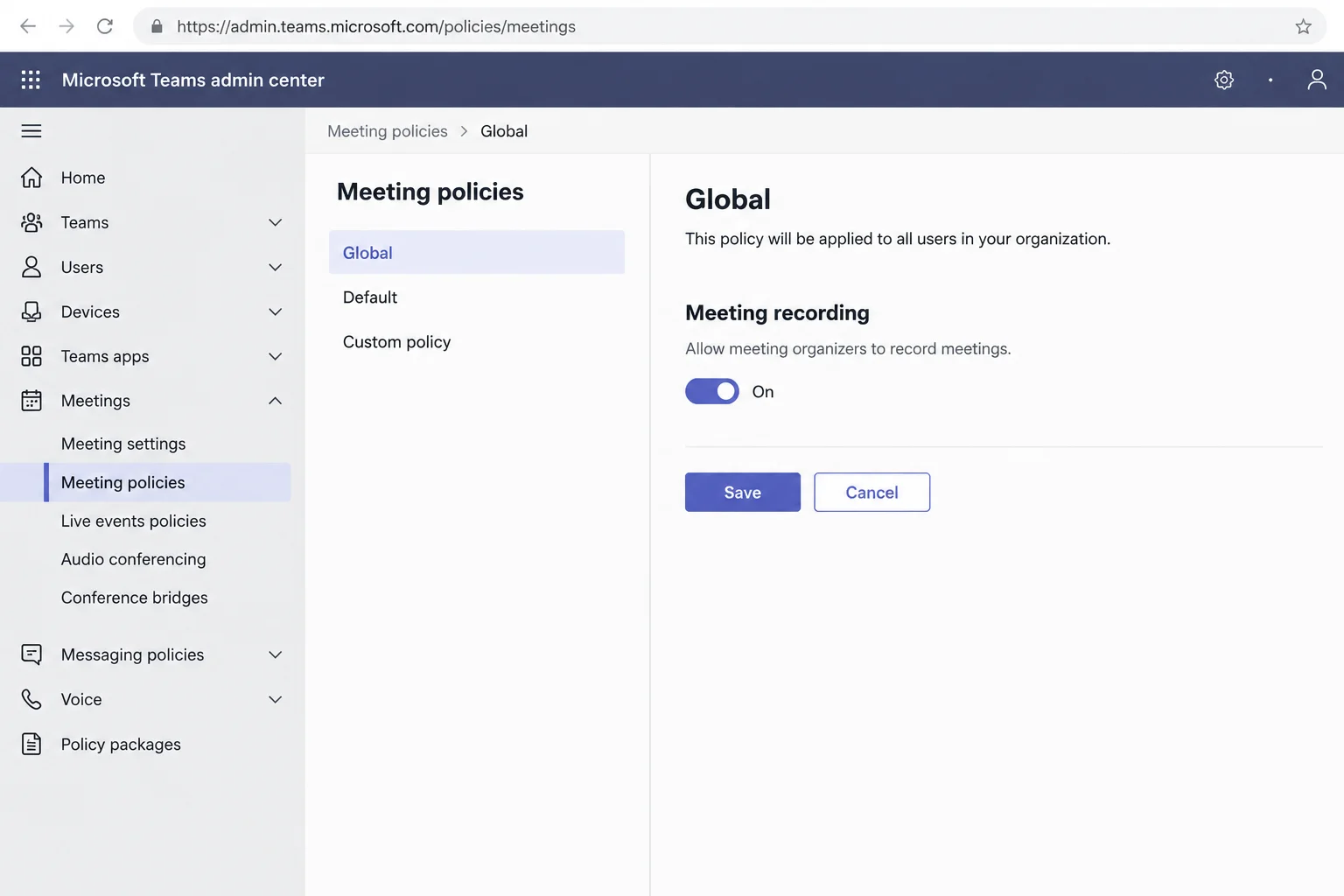
Before changing settings or clearing data, you can diagnose the problem directly inside the application window by inspecting the interface. Join your meeting in the new Teams desktop app on Windows 11, click More actions (…) in the meeting toolbar, and look for Record and transcribe. If you see it, hover over it to reveal Start recording.
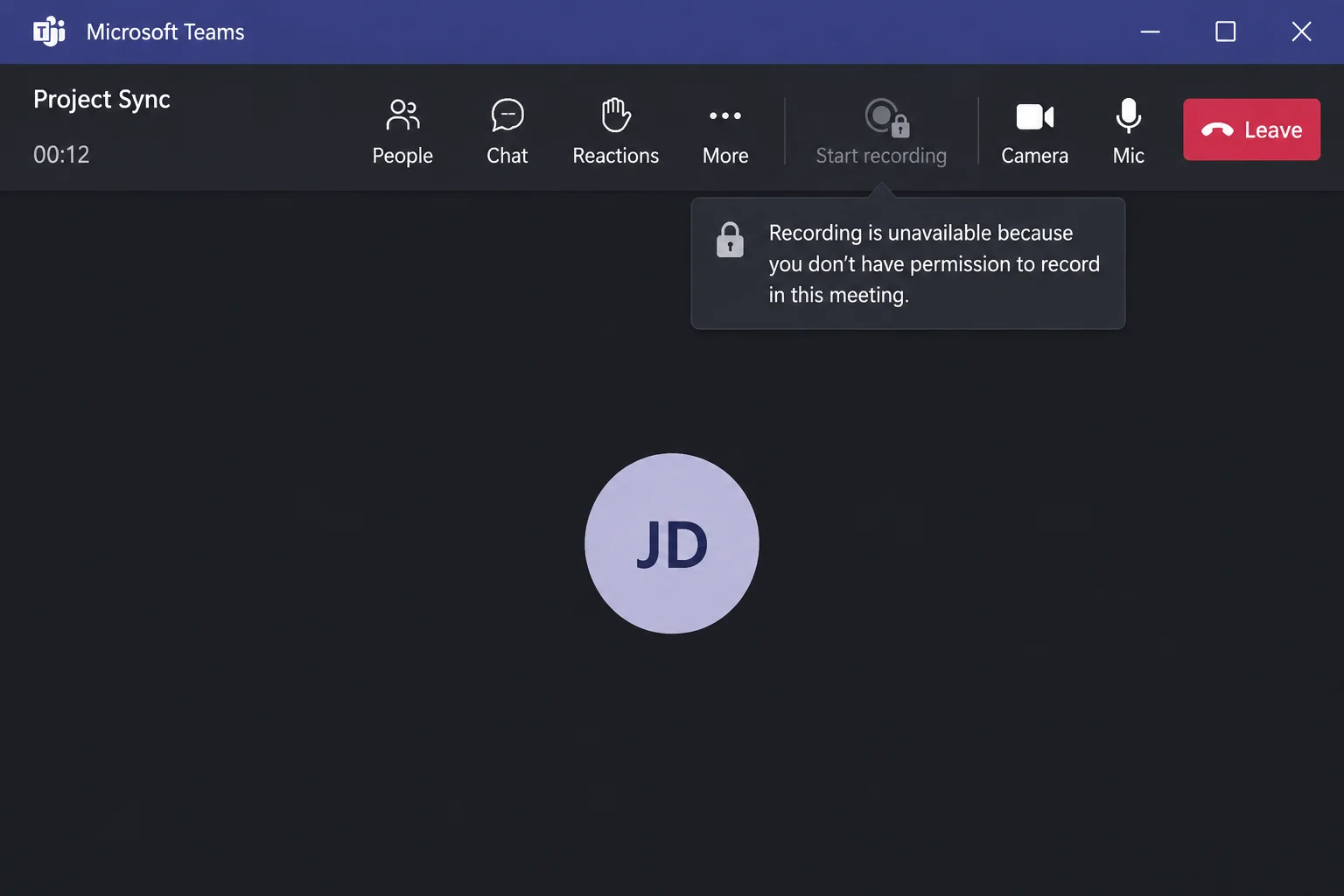
If the option has a lock icon, hover your cursor over the lock and read the tooltip text carefully. The tooltip text tells you the root cause according to Microsoft’s official support documentation. You can match your specific tooltip against the reference table below to see whether you can fix the problem yourself or if you need an administrator.
| Tooltip Text or Symptom | Primary Cause | Resolution Path |
|---|---|---|
| No button visible on toolbar | UI navigation change in new Teams | Look under More actions (…) (Fix #1) |
| Works in meetings, fails in direct calls | Calling policy vs. meeting policy | Check call type or schedule a meeting (Fix #2) |
| “Only people in this org can start recording” | Guest or external user status | Sign in with an organizational account (Fix #3) |
| Greyed out for select attendees | Per-meeting options or role restrictions | Change Meeting options or get promoted (Fix #4) |
| No explanation, or broken client behavior | Stale local cache or outdated app build | Update Teams and clear local cache (Fix #5) |
| “Unavailable for this meeting due to organization policy” | Meeting recording policy is disabled or unassigned | Contact IT admin for policy assignment (Fix #6) |
| Blocked for everyone, even the organizer | API scheduling tool set AllowRecording to false | Recreate meeting directly in Teams or Outlook (Fix #7) |
If the tooltip never appears, first confirm whether it is a meeting or a direct call, check which account you are signed in with, and verify your role. Then rule out client corruption and organization policies. A missing tooltip alone does not prove a client problem.
Reason 1: The Button Moved in the New Teams UI
If you cannot find a Record button on the meeting toolbar at all, you may simply be looking in the wrong location. In the new Teams client, recording features have been relocated away from the primary toolbar.
According to Microsoft’s start, stop, and find meeting recordings documentation, recording is handled inside the More actions (…) menu. To access it during an active session:
- Open your meeting window in the new Teams desktop app on Windows 11.
- Click More actions (…) in the meeting toolbar.
- Navigate to Record and transcribe and select Start recording.
When recording successfully begins, a recording banner appears at the top of the meeting window, and all participants receive an audio or visual notice.
Reason 2: You Are in a 1:1 Call, Not a Meeting
If recording works normally in your scheduled calendar meetings but fails when you call a colleague directly, you are likely encountering a policy boundary. Recording in direct 1:1 calls is controlled by a specific calling policy setting called AllowCloudRecordingForCalls. The standard meeting-recording policy does not apply to direct calls.
You can check your window title to confirm your status. A direct call window shows only the other person’s name with no scheduled meeting subject. If you urgently need a recording, you can work around this restriction by scheduling a quick meeting via Calendar > New meeting, or by using Meet now from your calendar. Keep in mind that the new meeting still follows standard rules: your meeting policy must allow recording, and your role and license must qualify.
If 1:1 call recording must be enabled permanently, ask your IT administrator to check the AllowCloudRecordingForCalls parameter in your assigned calling policy. Separately, administrators can turn on explicit recording consent in a meeting policy via the ExplicitRecordingConsent setting, which requires participants to agree before being recorded.
Reason 3: Organizational and Guest Restrictions
If your tooltip reads “Only people in this org can start recording,” your current account status is blocking you. Guests, external users, and anonymous attendees are strictly prohibited from starting a recording in another organization’s meeting tenant.
To resolve this restriction:
- Click your profile picture in the top-right corner of the Teams application window.
- Check which account and organization tenant you are actively signed in with.
- If you joined the session as an external guest by mistake, leave the meeting.
- Switch to your proper corporate work account belonging to the organizer’s tenant, then rejoin.
- If you legitimately belong to a different company, ask an internal attendee to handle the recording and share the resulting file later.
Once you sign in with the correct tenant credentials, the lock icon will disappear from the Record and transcribe menu.
Reason 4: Meeting Options and Role Permissions
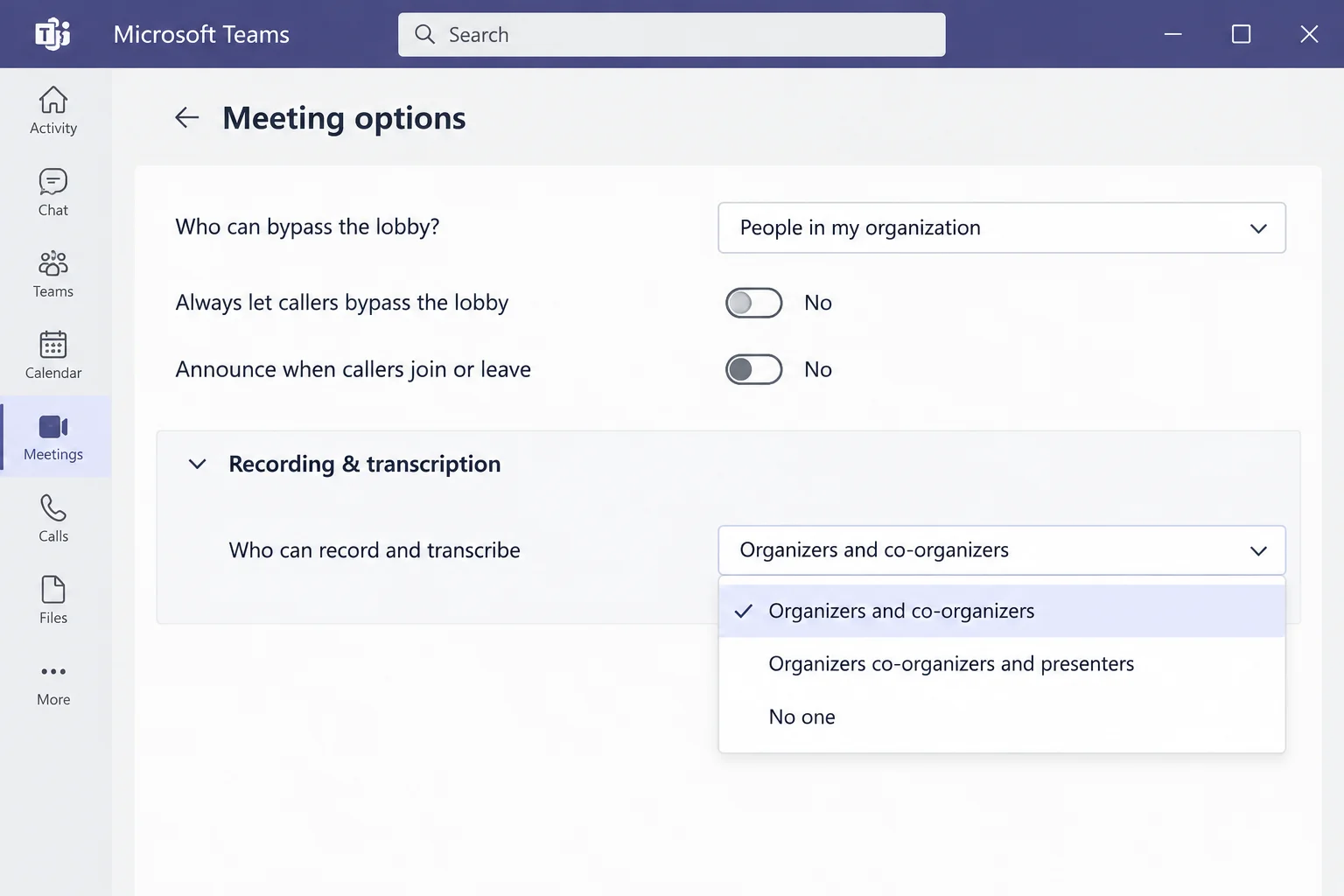
If some attendees can record while others in the same meeting cannot, the barrier is tied to per-meeting options selected by the organizer rather than a permanent role rule. This setting sits under Recording & transcription > Who can record and transcribe. The available choices are typically Organizers and co-organizers, Organizers, co-organizers, and presenters, or No one.
Organizers with a Teams Premium license can utilize their meeting options to control who can record and transcribe granularly, meaning the option may not appear for every organizer. Furthermore, an administrator can enforce a specific choice through a meeting template or sensitivity label, or turn recording off entirely in the organizer’s policy.
If you are an attendee facing this restriction, ask the organizer to open Meeting options from the Calendar or via More actions (…) > Settings > Meeting options during a live meeting, and widen the Who can record and transcribe setting. Alternatively, the organizer can open the People pane, hover over your name, and select Make a presenter.
Reason 5: Local Client Glitches and Cache Issues
If recording worked previously, the lock icon shows no explanation, or the option stays locked even after IT confirms your policies are correct, your local application client may be experiencing data corruption. Classic Teams stopped working on July 1, 2025, and troubleshooting steps apply fully to the new Teams desktop architecture.
How to Clear the New Teams Cache
You can quickly clear corrupted local data by following these precise steps for the new Teams desktop app on Windows 11:
- Click Settings and more (…) next to your profile picture in Teams.
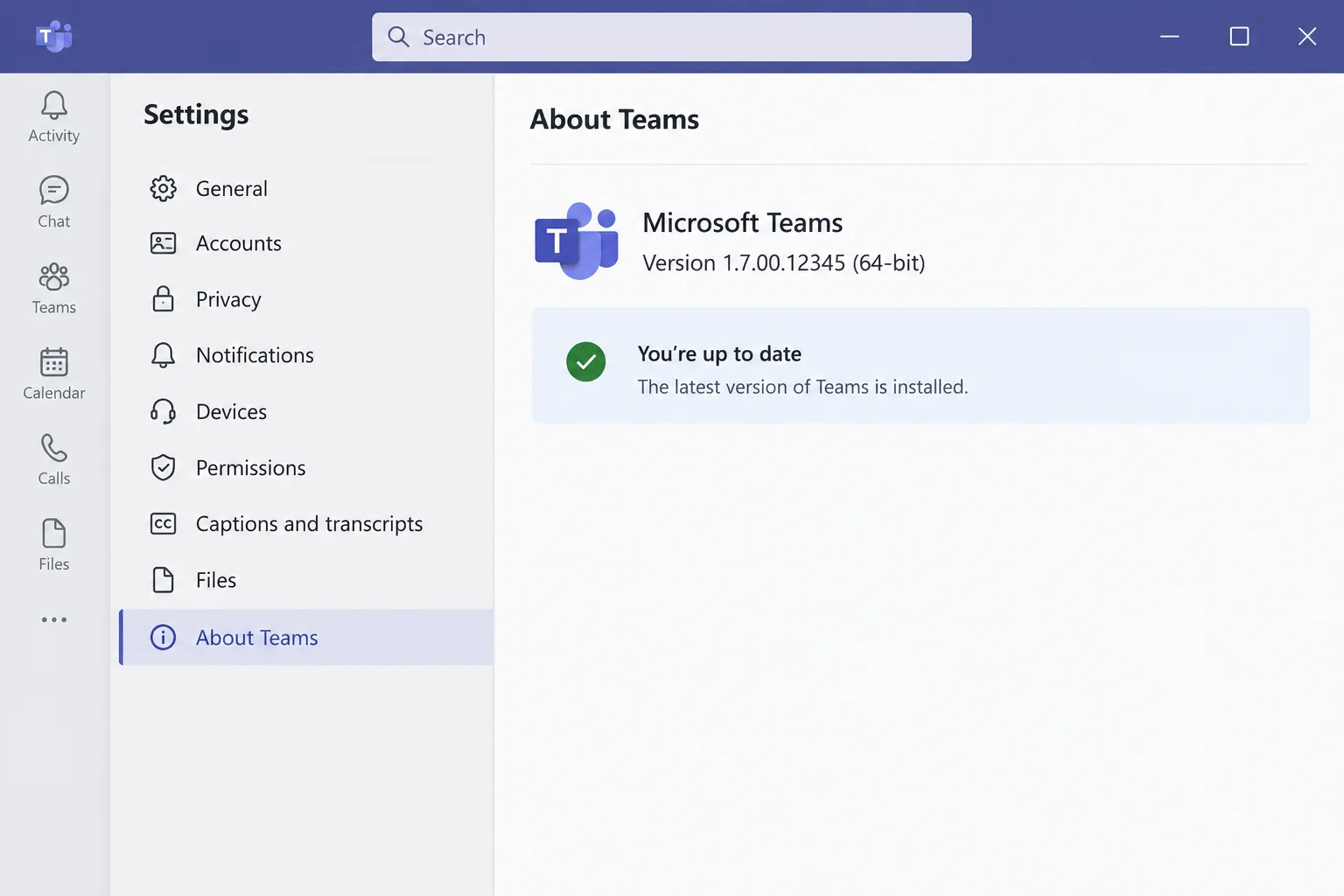
- Select Settings > About Teams and let the client check for updates. Install any pending updates.
- Right-click the Teams icon in your system tray and select Quit to ensure the application is completely closed.
- Press the Win + R keys on your keyboard to open the Run dialog box.
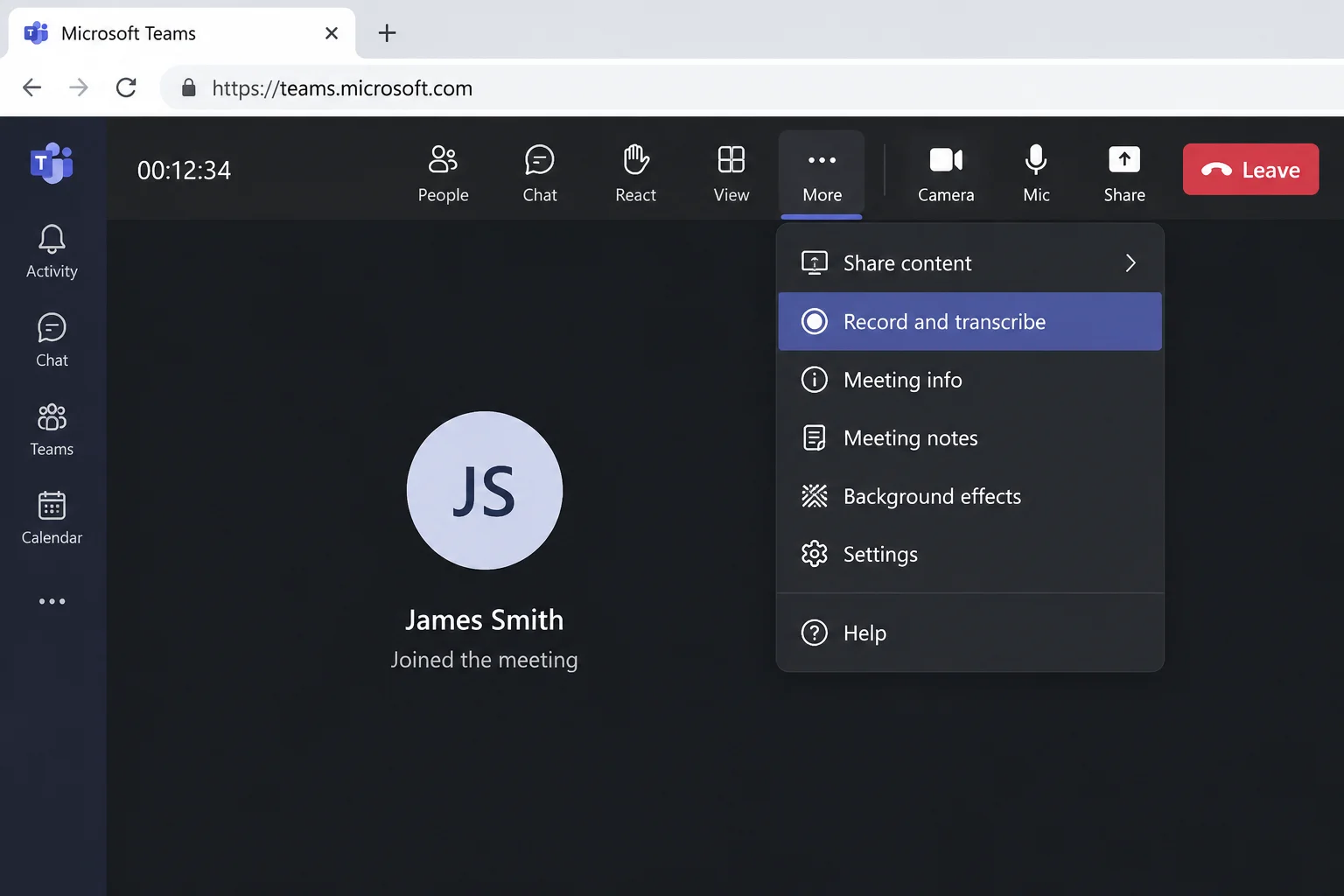
- Paste the following directory path:
%userprofile%AppDataLocalPackagesMSTeams_8wekyb3d8bbweLocalCacheMicrosoftMSTeamsand press Enter. - Select everything inside this specific cache folder and delete it. Do not delete the parent package folder, as it holds personal application settings.
- Relaunch Teams, rejoin your meeting, and test the recording function again.
You can also test your account by opening teams.microsoft.com in Microsoft Edge or Google Chrome. If recording works on the web client but fails on the desktop app, a client-side glitch is the confirmed culprit.
Reason 6: IT Admin Policies and Licensing
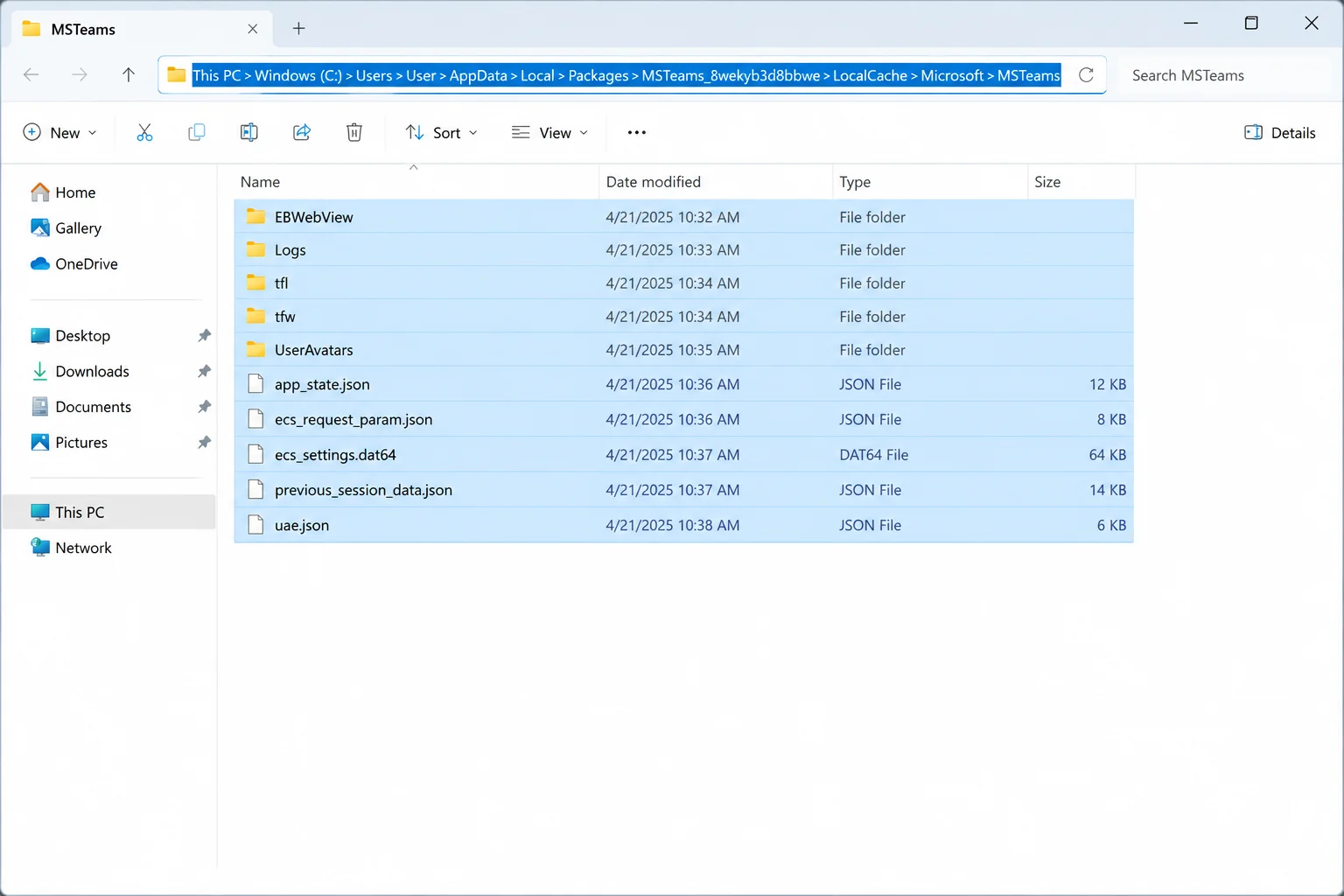
If you see a tooltip stating “Unavailable for this meeting due to organization policy,” or if an entire team loses recording privileges simultaneously, the underlying meeting recording setting in your user meeting policy is likely disabled, unassigned, or still propagating across servers.
Before contacting IT, note your exact tooltip text. Administrators can run the Meeting Recording Support Diagnostic directly from the Microsoft 365 admin center to check whether your account is properly configured. Both the meeting organizer and the person attempting to initiate the recording must hold active recording permissions.
Additionally, check your licensing status. Organizers with Teams Premium licenses manage advanced recording parameters, and toggling off Microsoft Copilot in a meeting disables recording and transcription features simultaneously. Policy changes take time to apply, so wait a while before testing in a new meeting session.
Reason 7: API and Integration Blocks
If nobody in a meeting can record—not even the organizer—the meeting instance itself may have been generated through an automated integration. Microsoft documents a specific scenario where meetings created through Microsoft Graph with the AllowRecording property set to false block recording for everyone, regardless of role or license.
If your meeting was created through an integrated scheduling, booking, or customer management system, that software may have automatically set AllowRecording to false during creation. To fix this, ask the organizer whether the meeting originated via Microsoft Graph integration, and have your administrator adjust the property or recreate the meeting directly inside Teams or Outlook.
Frequently Asked Questions
- Where are finished Microsoft Teams recordings stored?
By default, regular meeting recordings save automatically to the meeting organizer’s OneDrive, while channel meeting recordings save to the associated SharePoint site. Check your meeting chat for the direct playback link. - Why do I see a lock icon with no explanation text?
Microsoft does not document a single cause for a blank tooltip. Update your application and clear your local client cache, or test the meeting in a browser web client to see if descriptive text appears. - How long do admin policy changes take to apply?
Policy adjustments and license assignments do not apply instantaneously across tenant servers. Wait a reasonable amount of time, then test your recording permissions inside a newly created meeting session.