
Windows 11 includes numerous built-in utilities designed to manage computer processes, optimize system performance, and diagnose errors. Locating these tools often requires navigating complex settings or memorizing obscure keyboard shortcuts. Fortunately, administrators and everyday users can streamline this process by utilizing a specialized administrative interface known as the Quick Link Menu or Windows-X Menu.
Accessing and Navigating the Windows-X Menu
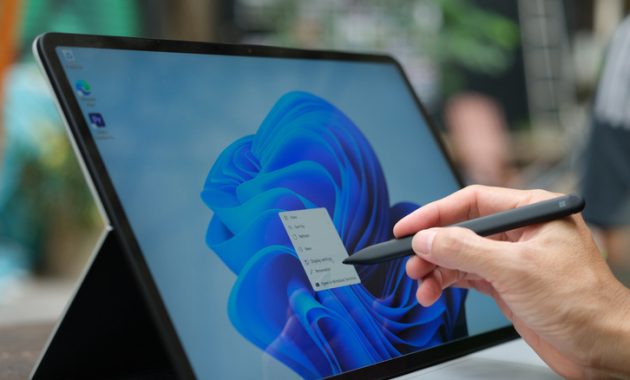
The Windows-X Menu provides centralized access to a curated selection of diagnostic utilities and system controls. To open this interface, press the Win+X keys simultaneously on your keyboard. The menu appears on the left side of the screen, positioned directly above the Windows logo on the taskbar. This location aggregates standard features typically found in the Start menu alongside advanced settings usually buried deep within the operating system.

Key Utilities Available Through the Quick Link Menu
While standard applications like Settings, File Explorer, Search, and power options appear on the menu, the most valuable inclusions are administrative utilities that normally require specific hotkeys or deep navigation. The interface grants immediate access to the Mobility Center, Event Viewer, Disk Management, Computer Management, and Task Manager. Bypassing traditional navigation speeds up routine maintenance tasks and simplifies error resolution.
Leveraging Advanced Administrative Tools
Task Manager serves as an essential utility for monitoring background operations, terminating unresponsive programs, and managing startup applications that consume system resources. Similarly, Event Viewer aids in diagnosing elusive hardware problems, file corruption, and random system crashes. Users can investigate system logs within Event Viewer, filter current logs, and select MemoryDiagnostics-Results to review output from the Windows Memory Diagnostic Tool. Additional tools like Disk Management allow users to inspect active disk partitions, while the Mobility Center helps laptop users configure display, wireless, and keyboard settings.
Customizing the Windows-X Layout
Advanced users can modify the layout of the Quick Link Menu to suit specific workflows by accessing a dedicated directory in the file system. Entering %LOCALAPPDATA%MicrosoftWindowsWinX into the File Explorer address bar reveals three folders that store the shortcuts for the interface. Rearranging files within these directories alters the order of the menu items. Users can also rename shortcuts to change how applications appear or drag new shortcuts into these folders to expand the functionality of the Windows-X Menu.