

A lot of software claims to be the best free screen recorders for Windows, but that label doesn’t always hold up after installation. Some tools place a watermark on every video. Others restrict recording length, lock audio capture behind a premium plan, or limit export options once you’ve spent time creating content.
That became obvious during our testing. Several recorders looked promising on paper yet fell short when used for real tasks such as recording tutorials, capturing online classes, documenting software issues, or saving gameplay clips. In many cases, the biggest limitations only appeared after the recording was finished.
To separate useful tools from disappointing ones, we tested each option using the same criteria. Recording quality, audio support, system impact, ease of use, and feature restrictions all played a role in the final evaluation. We also looked at whether a tool remained practical without requiring a paid upgrade after a few uses.
Quick Comparison: Best Free Screen Recorders for Windows at a Glance
Every recommendation in this list was tested on modern systems, including setups running screen recorder Windows 10 and screen recorder Windows 11 environments.
| Tool | Best For | Watermark | Time Limit | Audio Recording | Ease of Use |
|---|---|---|---|---|---|
| OBS Studio | Overall | No | No | Yes | Medium |
| ShareX | Developers | No | No | Yes | Medium |
| ScreenRec | Low-End PCs | No | No | Yes | Easy |
| FlashBack Express | Tutorials | No | No | Yes | Easy |
| Free Cam | Beginners | No | No | Yes | Very Easy |
| Xbox Game Bar | Built-In Recording | No | No | Yes | Very Easy |
| Snipping Tool | Quick Clips | No | Short Clips | Yes | Very Easy |
| Cap | Remote Teams | No | No | Yes | Easy |
| ActivePresenter Free | Education | No | No | Yes | Medium |
OBS Studio is designed for users who want complete control, while Free Cam prioritizes simplicity. ScreenRec focuses on lightweight performance, whereas ActivePresenter includes features that appeal to teachers and course creators. This variety allows users to choose software based on their workflow rather than chasing the longest feature list.
How We Tested These Free Screen Recorders For Windows?
A free recorder can look impressive on a feature list and still be frustrating to use. Some applications perform well during short recordings but struggle during longer sessions. Others advertise useful features that turn out to be locked behind a paid upgrade.
Evaluation Criteria
Many review sites compare screen recorders by copying feature lists from official websites. We took a different approach and focused on how these applications perform during everyday use.
The first thing we examined was how “free” each product actually is. Some recorders advertise unlimited access but reserve important capabilities for paying customers. Others remove restrictions only after an upgrade. Those limitations influenced our rankings because they directly affect long-term usability.
Video quality was another major consideration. A recorder should produce clear footage without introducing unnecessary compression artifacts or noticeable frame drops. Audio support mattered just as much, especially for users creating tutorials, walkthroughs, presentations, or online lessons.
We also evaluated webcam integration, CPU usage, setup complexity, and general ease of navigation. The best screen recording software should help users start recording quickly rather than forcing them to spend hours learning the interface.
Testing Environment
Each free screen recorder for Windows was tested on both Windows 10 and Windows 11 systems. To better reflect real-world conditions, recordings were performed on a mid-range desktop and a lower-spec laptop.
The goal wasn’t simply to see which tool offered the most features. We wanted to identify software that remained stable, responsive, and practical across different hardware configurations. Tasks included recording presentations, software demonstrations, training videos, browser activity, and standard screen recording sessions.
This process made it easier to identify tools that work well on everyday PCs instead of only performing well on powerful machines.
Why Screen Recording Software Matters More Than Ever
Recording a screen is no longer limited to gamers and YouTube creators. Businesses use recorded walkthroughs to train employees. Teachers build lessons that students can revisit at any time. Support teams capture bugs and explain solutions without lengthy email chains. Even casual users rely on video clips to share information faster.
According to a recent report from Fortune Business Insights, the global screen recording software market is expected to grow from $2.95 billion in 2026 to $11.45 billion by 2034. The rapid growth reflects increasing demand for video-based communication, online learning, software tutorials, and remote collaboration across industries.
The numbers reflect a broader shift in how people communicate online. A short video often explains a process more clearly than several paragraphs of written instructions. That efficiency has made screen recording a practical tool for workplaces, classrooms, and content creators alike.
As adoption continues to grow, users are becoming more selective about the tools they install. Reliability, recording quality, and unrestricted access now matter just as much as price, especially when searching for a free solution that can handle everyday recording needs.
The 9 Best Free Screen Recorders for Windows
The selections below earned their place for different reasons. Some are better suited for advanced users, while others work well for beginners, educators, remote teams, or older PCs. Instead of ranking software solely by feature count, we focused on overall usability, real-world performance, and long-term value.
1. OBS Studio — Best Overall Free Screen Recorder for Windows

Among all the tools we tested, OBS Studio delivered the most complete recording experience without charging users for essential features. It has been a popular choice for years, and after spending time with it, the reason becomes obvious. The software offers extensive control over video quality, audio sources, recording formats, and scene management.
Key Features
- Multi-source recording
- Advanced audio controls
- Hardware encoding support
- High-quality video output
Pros
- Completely free and open source
- No watermark
- No recording limits
Cons
- Steeper learning curve than most alternatives
- No built-in video editor
Best For: Content creators, gamers, streamers, and advanced users.
OBS gives users professional-level recording controls. The flexibility offered by this open broadcaster software makes it suitable for everything from tutorial videos to gameplay capture and live production workflows.
2. ShareX — Best Open-Source Tool for Developers

ShareX approaches screen recording differently from most tools in this guide. While recording is one of its capabilities, the software is best known as a productivity-focused screen capture software packed with automation features. During testing, it proved particularly useful for documenting software issues, creating GIFs, and sharing screenshots quickly.
Key Features
- Screen recording and GIF capture
- Automated workflows
- Screenshot tools
- Multiple export options
Pros
- Free and open source
- Lightweight installation
- Extensive customization options
Cons
- Interface can feel overwhelming initially
- Not ideal for users who only need basic recording
Best For: Developers, IT professionals, QA testers, and technical writers.
Most recorders focus solely on video capture. ShareX combines recording, screenshots, automation, file sharing, and productivity tools in a single package, making it especially useful for technical workflows.
3. ScreenRec — Best Lightweight Screen Recorder

Some screen recorders perform well on powerful computers but struggle on older hardware. ScreenRec stood out because it remained responsive even during testing on lower-spec systems. For users looking for a screen recorder for low end PC setups, this tool offers a practical balance between performance and simplicity.
Key Features
- Instant sharing links
- Audio recording support
- Webcam recording
- Minimal resource usage
Pros
- Easy to learn
- No watermark
- No time restrictions
Cons
- Limited editing features
- Fewer advanced controls than OBS
Best For: Remote workers, support teams, students, and users with older hardware.
Performance is where ScreenRec shines. While some applications consume noticeable system resources during recording, this lightweight screen recorder keeps resource usage relatively low. That makes it a strong option for users who need reliable recording without putting additional strain on their computer.
4. FlashBack Express — Best for Tutorials

FlashBack Express strikes a balance that many screen recorders struggle to achieve. It is easier to learn than advanced tools like OBS Studio, yet it still provides enough functionality for creating professional-looking tutorials, demonstrations, and training videos. During testing, the software handled longer recording sessions smoothly and produced consistently clear output.
Key Features
- Full-screen and region recording
- Webcam capture support
- Microphone and system audio recording
- Multiple export options
Pros
- Beginner-friendly interface
- No watermark on recordings
- Stable performance during longer sessions
Cons
- Some advanced features require the paid version
- Fewer customization options than OBS
Best For: Teachers, trainers, tutorial creators, and business users.
FlashBack Express sits comfortably in the middle, offering a straightforward experience without feeling overly limited. Users can start recording quickly while still having access to features that matter for educational and instructional content.
5. Free Cam — Best for Beginners

Not everyone needs advanced recording controls. Sometimes the goal is simply to record a screen, save the video, and move on. Free Cam excels in that situation. The interface remains clean and easy to understand, making it one of the least intimidating options we tested.
Key Features
- Screen recording with audio
- Simple editing tools
- Noise reduction features
- Direct video export
Pros
- Very easy to use
- Quick setup process
- Suitable for first-time users
Cons
- Limited advanced recording controls
- Not ideal for complex production workflows
Best For: Beginners, students, educators, and casual users.
Free Cam focuses on accessibility. Instead of overwhelming users with menus and settings, it prioritizes a smoother learning experience. That approach makes it a practical starting point for anyone new to screen recording.
6. Xbox Game Bar — Best Built-In Windows Recorder

Many people already have a recording tool installed on their computer and do not realize it. Xbox Game Bar comes built into modern versions of Windows and provides a convenient way to capture applications, gameplay, and quick demonstrations without installing additional software.
Key Features
- Built directly into Windows
- Game capture support
- Audio recording
- Performance monitoring tools
Pros
- No download required
- Easy keyboard shortcuts
- Fast access during recording sessions
Cons
- Limited recording controls
- Not suitable for every desktop recording scenario
Best For: Casual users, gamers, and anyone who needs quick recordings.
The biggest advantage is convenience. As a built in screen recorder Windows users can access immediately, Xbox Game Bar removes the need to search for third-party software. For quick tasks and occasional recordings, that simplicity is often enough.
7. Snipping Tool — Best for Quick Screen Clips
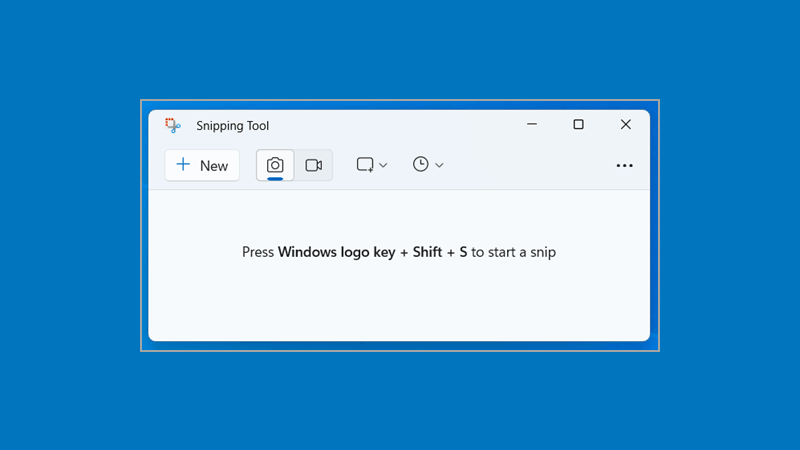
Snipping Tool has evolved beyond screenshots and now includes basic video recording capabilities in Windows 11. While it lacks the advanced features found in dedicated recording applications, it offers a fast way to capture short clips without installing additional software.
Key Features
- Built into Windows 11
- Screen area selection
- Quick video recording
- Simple sharing workflow
Pros
- No installation required
- Extremely easy to use
- Ideal for short recordings
Cons
- Limited recording controls
- Not designed for longer projects
Best For: Office workers, students, and users who need quick visual explanations.
Convenience is the main selling point. As a modern windows screen recorder included with the operating system, it allows users to record screen Windows activities within seconds. For short demonstrations or bug reports, that speed can be more valuable than advanced features.
8. Cap — Best Modern Loom Alternative

Cap takes a different approach from traditional recording software. Instead of focusing purely on video capture, it emphasizes sharing and asynchronous communication. During testing, the workflow felt closer to modern collaboration tools than a conventional recorder.
Key Features
- Screen and webcam recording
- Fast sharing options
- Modern user interface
- Collaboration-friendly workflow
Pros
- Easy to learn
- Clean design
- Well suited for remote communication
Cons
- Smaller ecosystem than established competitors
- Fewer advanced recording controls
Best For: Remote teams, freelancers, consultants, and startup environments.
Most recorders stop once the video is created. Cap places equal attention on what happens afterward. The streamlined sharing experience makes it particularly useful for users who frequently send walkthroughs, feedback videos, or project updates.
9. ActivePresenter Free — Best for Educational Content

ActivePresenter Free offers more than simple screen recording. It combines recording features with editing and presentation tools, creating a solution that appeals strongly to educators and training professionals. During testing, it provided capabilities that would normally require multiple applications.
Key Features
- Screen recording and editing
- Annotation tools
- Interactive learning support
- Presentation-focused features
Pros
- Powerful free feature set
- Built-in editing tools
- Strong educational capabilities
Cons
- More complex interface than beginner-focused tools
- Requires additional time to master
Best For: Teachers, trainers, course creators, and instructional designers.
ActivePresenter extends the workflow by helping users refine and enhance content afterward. For educational projects, training materials, and structured lessons, that extra functionality can eliminate the need for separate editing software.
Which Free Screen Recorder Is Best for Your Needs?
After testing each tool, one thing became clear: there isn’t a single free screen recorder for Windows that works best for everyone. A teacher creating lessons has different requirements than a developer documenting bugs. Likewise, someone recording a quick clip once a month doesn’t need the same level of control as a content creator producing videos every day.
Choosing the right free screen recorder for Windows becomes much easier when you start with your use case rather than a feature checklist.
| User Type | Recommended Tool |
|---|---|
| Most Users | OBS Studio |
| Beginners | Free Cam |
| Teachers | ActivePresenter |
| Developers | ShareX |
| Low-End PCs | ScreenRec |
| Quick Recording | Snipping Tool |
| Built-In Option | Xbox Game Bar |
| Remote Teams | Cap |
| Tutorial Creators | FlashBack Express |
OBS Studio remains the strongest all-around option because it combines recording quality, flexibility, and unlimited usage. Beginners will likely feel more comfortable with Free Cam, while educators can benefit from ActivePresenter’s built-in editing and training tools.
Developers and technical teams may prefer ShareX because of its workflow automation and capture capabilities. Users with older hardware often get better results from ScreenRec, which consistently performed well during testing on less powerful systems.
If your goal is simply recording a quick demonstration or capturing a short issue report, Snipping Tool or Xbox Game Bar may be all you need. The best free screen recorder for Windows often depends less on features and more on how you plan to use it.
Windows 10 vs Windows 11 Screen Recording Options
Modern versions of Windows include more recording options than many users realize. Both operating systems support built-in tools, but the experience is not identical. Depending on your version of Windows, you may have access to different features without installing third-party software.
Screen Recording on Windows 10
For most users, Xbox Game Bar remains the easiest built-in recording solution available on Windows 10. It can capture applications, gameplay sessions, presentations, and many everyday tasks without requiring additional software.
A screen recorder Windows 10 user can access immediately is often enough for occasional recording needs. Launching Game Bar takes only a keyboard shortcut, making it convenient for quick projects.
However, limitations become noticeable when users need advanced controls, custom recording sources, multiple audio tracks, or extensive configuration settings. That is where dedicated applications such as OBS Studio, ShareX, and ScreenRec begin to offer clear advantages.
Many users searching for a reliable screen recorder Windows 10 solution eventually move toward third-party software once their recording needs become more demanding.
Screen Recording on Windows 11
Windows 11 expands built-in recording options beyond Xbox Game Bar. In addition to Game Bar, Microsoft has integrated recording capabilities into Snipping Tool, making it easier to capture short clips.
For users wondering how to record screen on Windows 11, Snipping Tool offers one of the simplest methods available. Open the application, select the recording option, choose the desired area, and start capturing.
A screen recorder Windows 11 setup can often be handled entirely with built-in utilities for basic tasks. However, users creating tutorials, training videos, software demonstrations, or content for public distribution will usually benefit from more specialized recording applications.
The flexibility provided by a dedicated free screen recorder for Windows remains difficult for built-in tools to match.
Do You Really Need Third-Party Screen Recording Software?
Not always.
Many people install a free screen recorder for Windows without first exploring what is already included in the operating system. For simple recordings, Xbox Game Bar and Snipping Tool can handle basic tasks surprisingly well.
If you occasionally capture a presentation, save a short demonstration, or record a quick software issue, built-in tools may provide everything you need. The setup process is almost nonexistent, and recordings can be created within seconds.
The situation changes once recording becomes a regular part of your workflow.
OBS Studio is a stronger choice when video quality, scene management, multiple audio sources, or advanced configuration options matter. Content creators, streamers, and educators often reach those requirements quickly.
ScreenRec offers a different advantage. Users who prioritize speed, simplicity, and lower resource usage may find it more practical than feature-heavy alternatives.
For occasional tasks, built-in recorders remain perfectly usable. For frequent recording, content production, training materials, or professional communication, a dedicated free screen recorder for Windows usually delivers a better experience.
Why More Users Are Choosing Recorded Communication
Recorded communication has become a normal part of how teams share information. Instead of scheduling meetings for every discussion, many organizations now rely on short videos to explain processes, provide feedback, and answer questions.
Based on research from Mordor Intelligence, demand for screen recording software continues to rise as hybrid work and asynchronous communication become standard workflows. The report also highlights growing adoption among teams that rely on recorded walkthroughs, training videos, and software demonstrations instead of live meetings.
The appeal is easy to see. A five-minute recording can often replace a lengthy email thread or a meeting that requires multiple schedules to align.
Support teams use recordings to demonstrate solutions. Educators create lessons students can revisit later. Businesses build internal training libraries, while creators use tools that record screen with audio to explain products and workflows.
The growing popularity of the screen recorder with webcam format also reflects this shift. Viewers often find video explanations easier to follow when they can see both the presenter and the content being discussed.
Final Verdict
Finding the best free screen recorder for Windows becomes much easier once you identify what matters most in your workflow.
For most users, OBS Studio remains the overall winner. It combines professional-level recording quality with unlimited usage and a feature set that can handle everything from tutorials to gameplay capture.
ScreenRec is an excellent alternative for users who want a lighter solution that performs well on older hardware. Free Cam continues to stand out as one of the easiest tools for beginners, while Xbox Game Bar remains the most convenient built-in option available on modern Windows systems.
Educators and trainers should pay close attention to ActivePresenter. Its combination of recording and content development features offers capabilities that many competing tools do not provide.
There is no universal answer for every user. The best free screen recorder for Windows depends on whether you prioritize simplicity, performance, educational features, collaboration, or advanced recording controls. Start with the tool that matches your needs today, then move to more advanced options as those requirements grow.
FAQs About Best Free Screen Recorders for Windows
What is the best free screen recorder for Windows?
OBS Studio is the best free screen recorder for Windows for most users. It offers high-quality recording, advanced controls, no watermark, and no recording limits.
Does Windows have a built-in screen recorder?
Yes. Windows includes Xbox Game Bar, while Windows 11 also offers recording features through Snipping Tool.
Which free screen recorder has no watermark?
OBS Studio, ShareX, ScreenRec, FlashBack Express, and several other tools in this guide can record videos without adding a watermark.
Can I record my screen and audio at the same time?
Yes. Most modern recording tools support microphone capture and system audio recording simultaneously.
What is the best free screen recorder for low-end PCs?
ScreenRec is one of the strongest options for older hardware because it uses relatively few system resources while maintaining reliable recording performance.


