
Encountering the Excel “File in Use” dialog box can grind your workday to a halt. When Excel tells you your workbook is locked for editing by another user—sometimes even when you know you are the only person using it—the interruption is frustrating. This error typically stems from one of three primary scenarios: your own open session or a crashed background process on another device, a colleague who genuinely has the workbook open, or a co-authoring configuration that has unexpectedly defaulted back to single-user locking.
Resolving the issue requires identifying the root cause and applying the appropriate remediation step. The following guide walks you through seven targeted fixes to restore editing access safely without risking your data.
Understanding the Excel ‘File Locked’ Error
Before jumping into troubleshooting, a quick diagnostic triage helps narrow down the culprit. When the “File in Use” warning appears, check three key details:
- Read the name in the dialog: If the notification displays your own user name or account, the lock is likely your own stale session or ghost process. Note that a stale cloud or network session can also sometimes display your name.
- Check the file’s storage location: Determine whether the workbook resides in a local folder, a network share, or a cloud repository like OneDrive or SharePoint. Storage location dictates which troubleshooting steps will work.
- Verify with collaborators: Ask any team members who share access to the workbook whether they currently have the file open.
7 Ways to Fix an Excel File Locked for Editing
Fix #1: Close Your Own Stale Sessions
Often, the “other user” holding the lock is you. If you opened the workbook on a laptop, tablet, phone, or via a web browser tab earlier in the day and forgot to close it, Excel maintains the lock. Additionally, if a previous session terminated abnormally due to a system crash, forced shutdown, or dropped network connection, the server may still think the file is active.
- Close the workbook across every computer, laptop, and desktop you use.
- Shut down the Excel mobile application on your smartphone or tablet.
- Check all open browser tabs and close any instances where the file is active in Excel for the web.
- Wait a few minutes after closing your sessions. Microsoft notes that servers can take a brief window of time to recognize that an active connection has ended.
Verify success by reopening the workbook; it should launch normally without triggering the File in Use dialog, and the title bar should not display Read-Only.
Fix #2: End Hung Excel Processes in Task Manager
If Excel freezes, refuses to close normally, or if you already closed the application but the file remains locked, a background process is likely still running.
- Save any other active documents if Excel is still responsive.
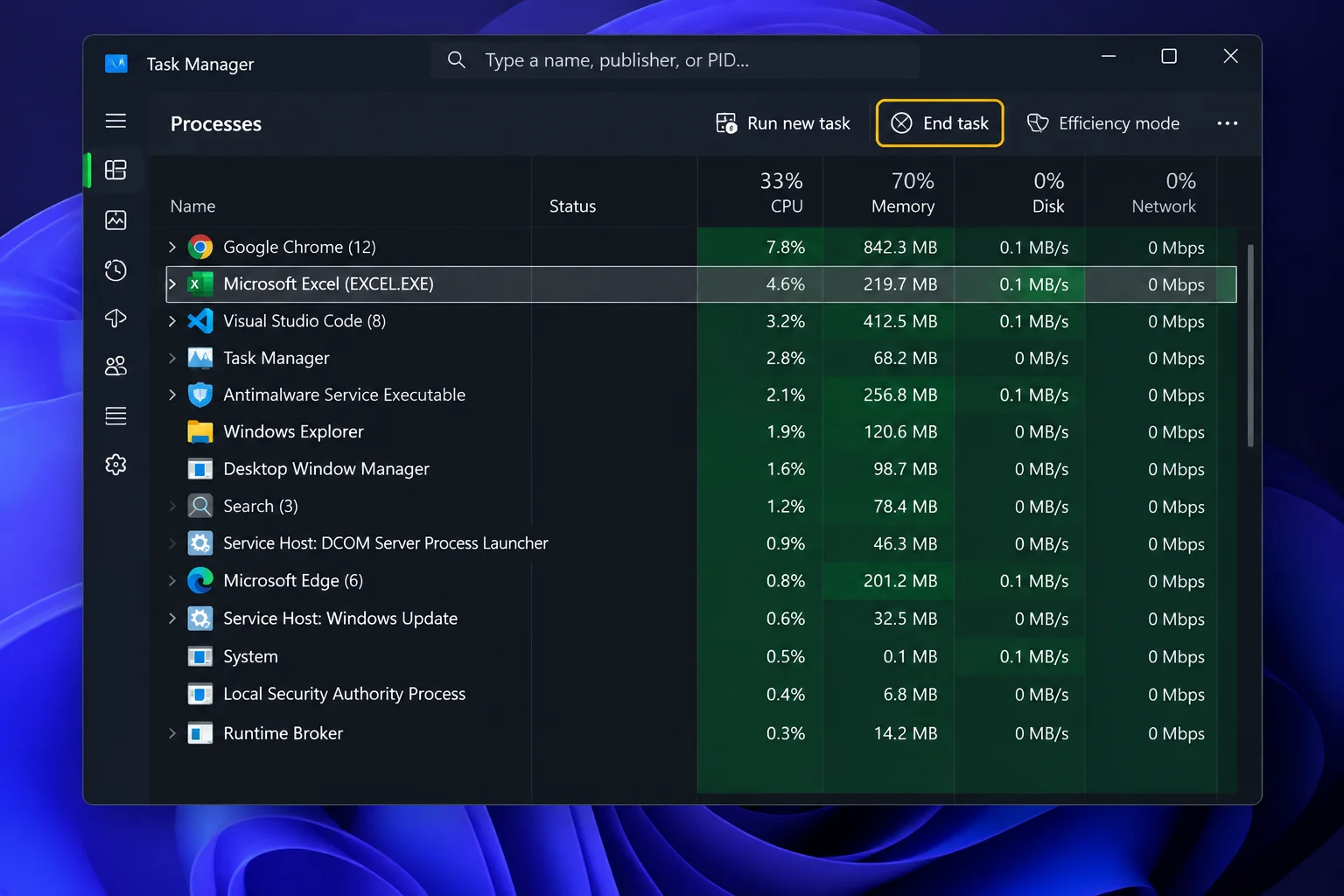
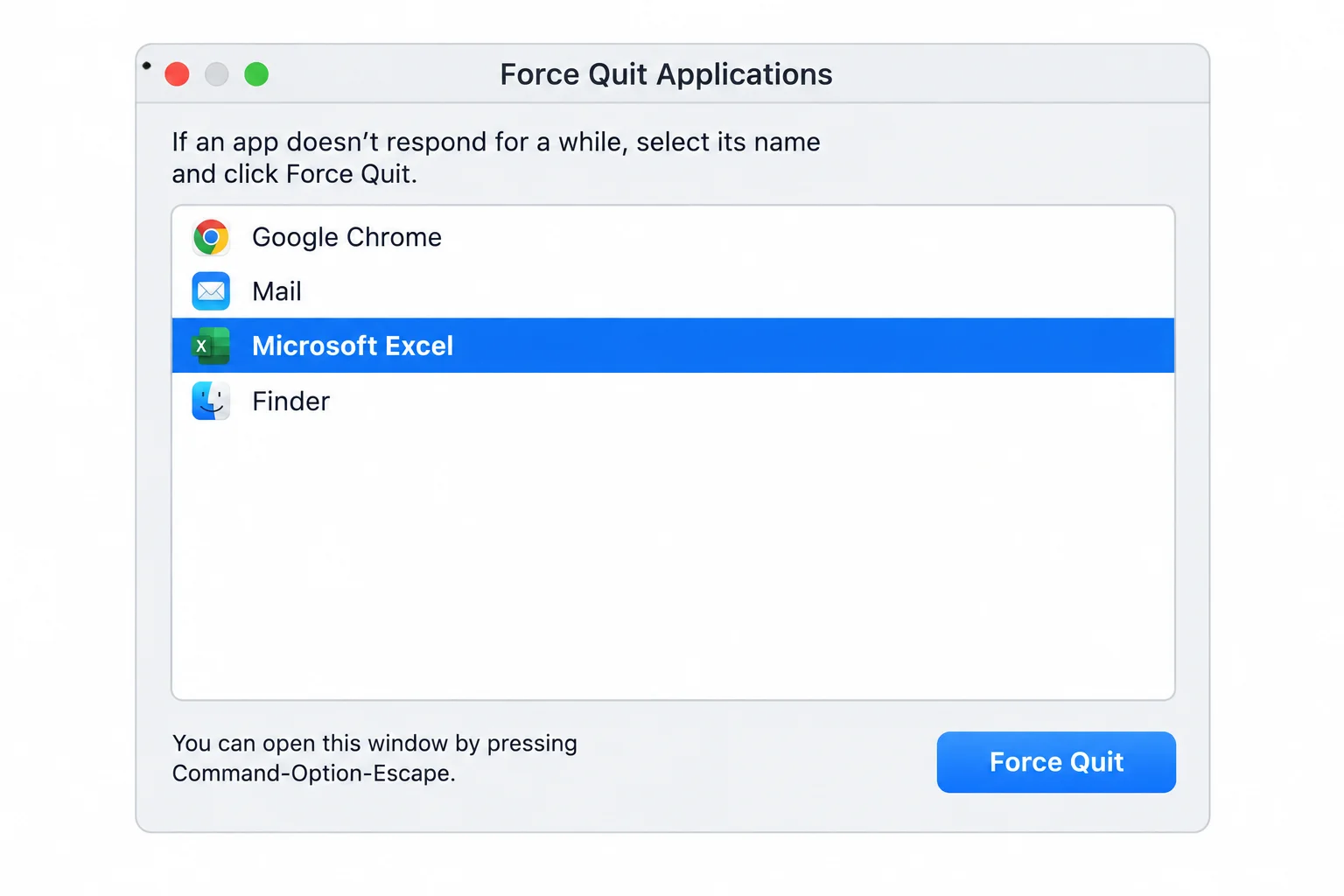
- Press Ctrl + Shift + Esc on Windows to open the Task Manager. On macOS, press Option + Command + Esc and select Microsoft Excel to force quit.
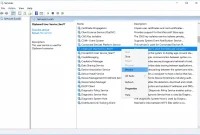
- On the Processes tab in Windows, locate Microsoft Excel, or navigate to the Details tab and select EXCEL.EXE to end the hung task.
- Wait a minute or two before reopening your workbook. If a document recovery pane appears when you reopen the file, review the recovered versions carefully before discarding them.
Fix #3: Handle a Real Coworker Who Has the File Open
When a colleague genuinely has the shared file open, the locking mechanism functions as intended to prevent conflicting overwrites.
- Open the file in Read-Only mode and politely ask your coworker to save and close their session when they finish.
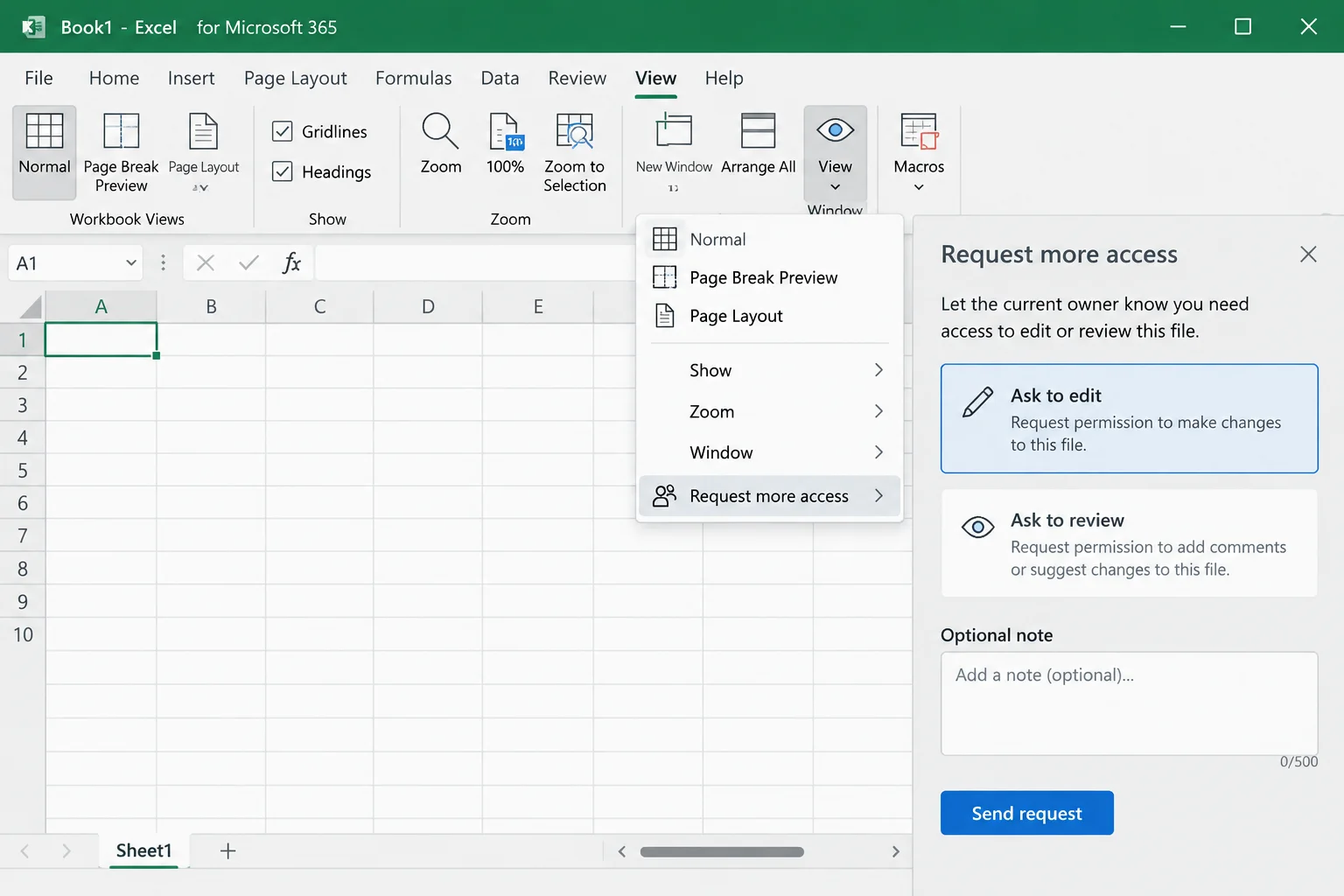
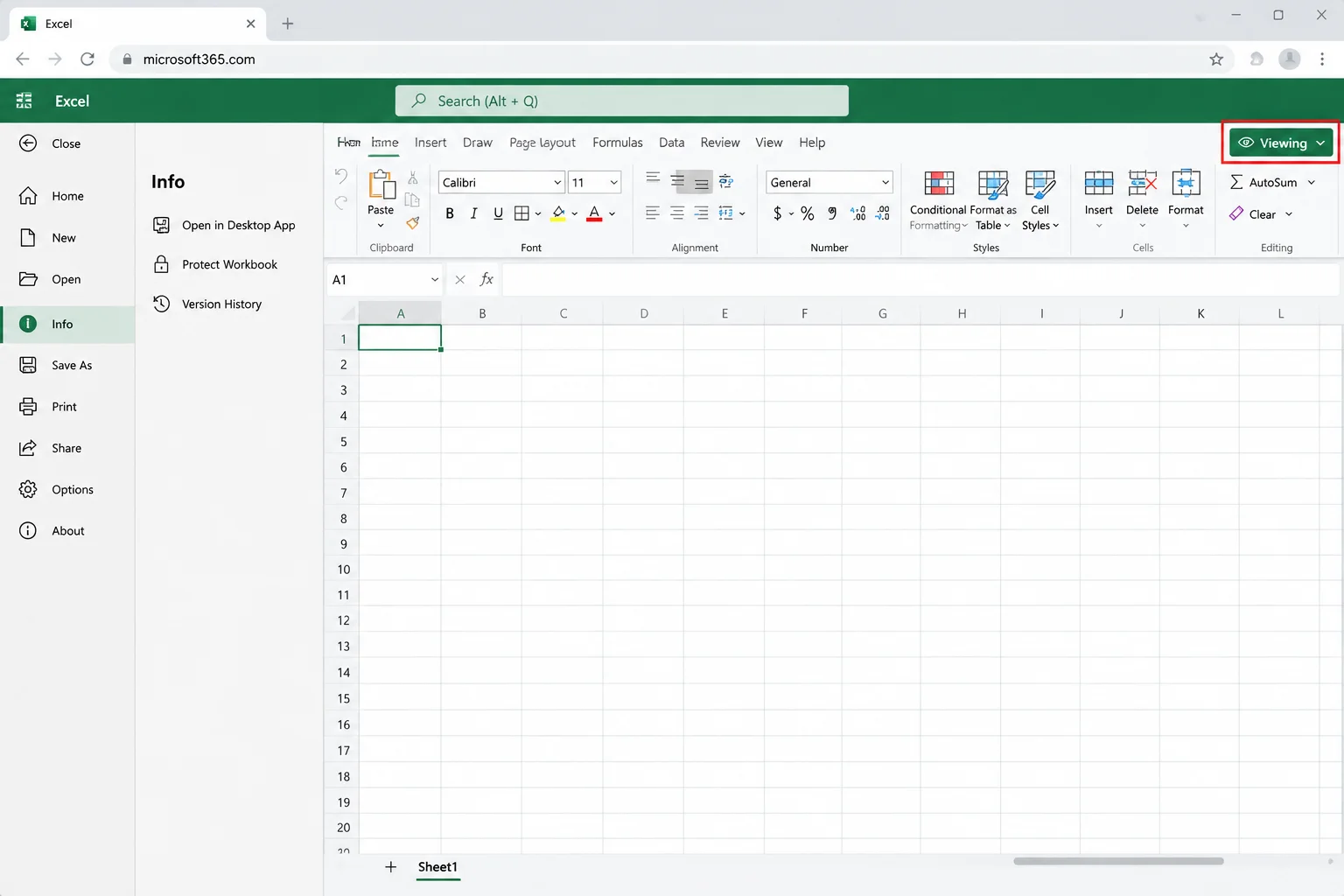
- For files stored in OneDrive or SharePoint where you currently possess view-only permissions, click Viewing in the upper-right corner of Excel to request editing access. Add an optional note and submit the request, which emails the file owner.
- If you cannot wait and must make urgent edits, save a personal copy of the file to your desktop, make your updates there, and manually merge your changes back into the original master file once your coworker releases it.
Fix #4: Unpause OneDrive and Update Sync Clients
Cloud-stored workbooks can exhibit persistent locks if local syncing has been temporarily suspended or if your sync application is outdated.
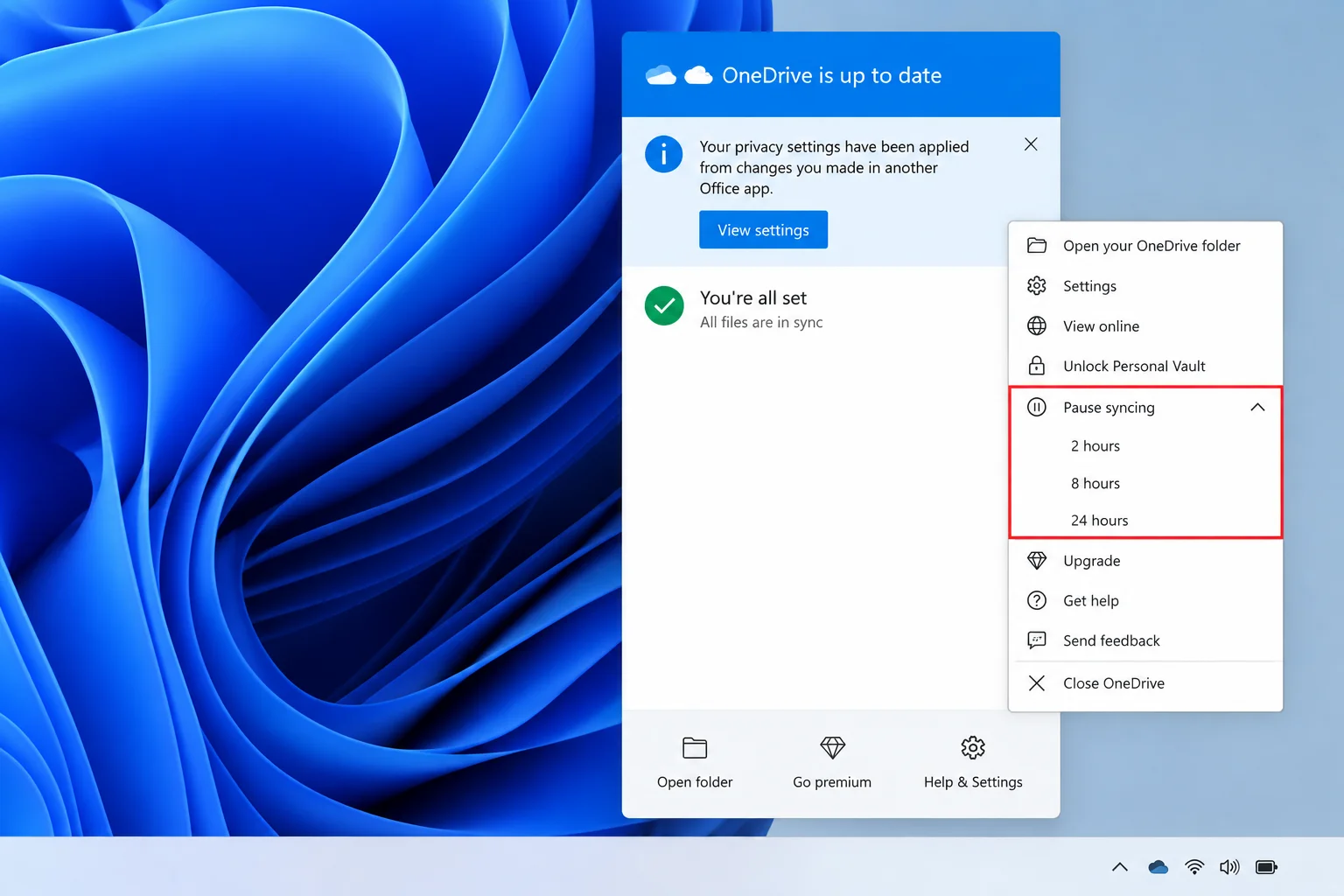
- Click the OneDrive cloud icon located in your Windows system tray or macOS menu bar.
- If syncing shows as paused, open the settings menu and select the resume option.
- Install any pending OneDrive updates offered in the flyout menu.
- Allow the synchronization process to finish completely before attempting to reopen the workbook.
Fix #5: Delete the Leftover ~$ Temporary File
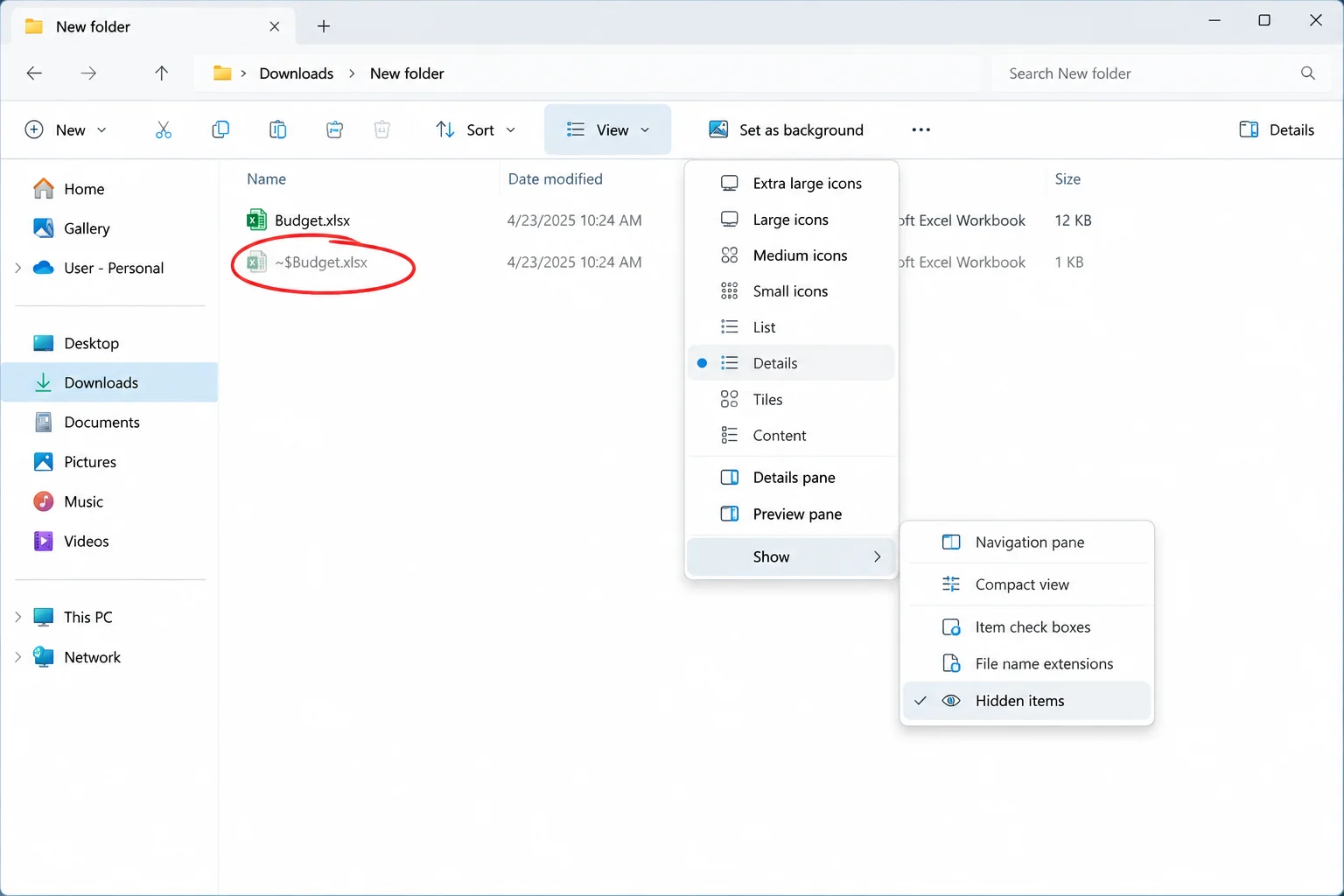
When a workbook stored in a local or network folder remains locked even after all users have closed it, a hidden remnant file may be to blame. While a workbook is active, Excel creates a hidden temporary file starting with ~$ followed by the document name (for example, ~$Budget.xlsx). Normally, Excel deletes this file upon closure, but crashes can leave it stranded.
Important Safety Warning: This is an unofficial troubleshooting step and only applies to files stored in local or network folders. Never attempt this workaround for cloud files stored in OneDrive or SharePoint; use the OneDrive sync fixes instead. Only proceed after confirming with absolute certainty that no other user has the file open.
- Open File Explorer and navigate to the directory containing the locked workbook.
- Ensure hidden items are visible (on Windows 11, check the View menu; on Windows 10, use the View tab checkbox; on Mac, press Command + Shift + . in Finder).
- Locate and delete the
~$temporary file matching your workbook’s name. - Reopen your workbook. Excel will automatically generate a fresh temporary file upon opening.
Fix #6: Fix Co-Authoring Requirements and Formats
If you and a coworker find yourselves permanently blocked from simultaneous editing, your setup may violate Microsoft’s technical requirements for co-authoring.
- Verify everyone’s version by going to File > Account. Co-authoring requires modern Microsoft 365 apps on Windows or Mac, or Excel for the web. Older one-time purchase suites like Excel 2016, 2019, or 2021 LTSC do not support real-time co-authoring.
- Ensure files are stored in OneDrive or SharePoint. Network shares or third-party synchronization folders like Dropbox, Box, or Google Drive generally do not support Microsoft co-authoring architecture and force single-editor locking.
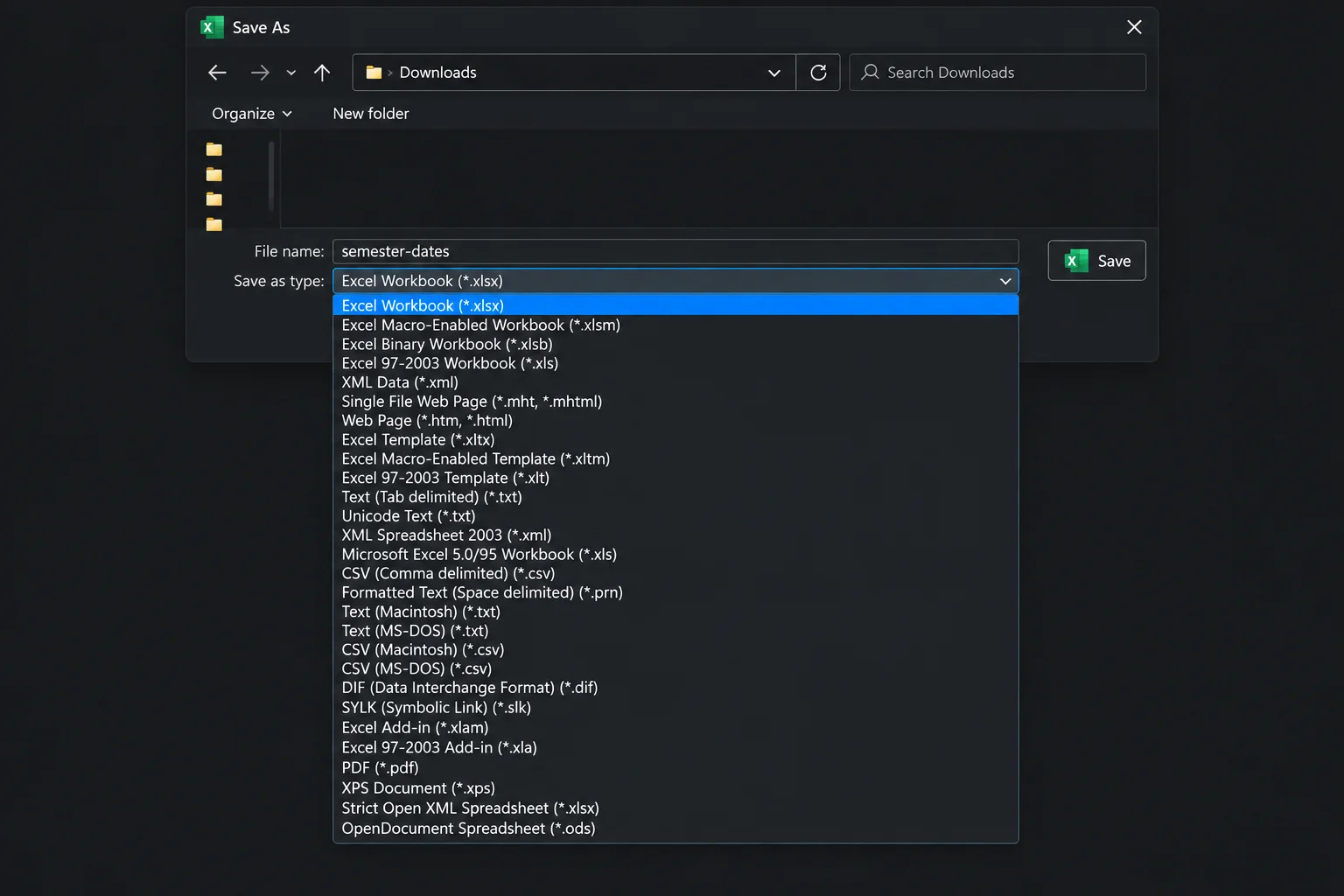
- Save the workbook in a modern format (
.xlsxor.xlsmif macros are present) via File > Save As before sharing.
Fix #7: Remove In-Workbook Co-Authoring Blockers
Even with Microsoft 365 and proper cloud storage, certain embedded workbook settings can block simultaneous editing.
Platform-Specific Tips for Windows and Mac
Navigating file locks varies slightly depending on your operating system environment. On Windows 10 and 11, managing hidden temporary files requires using File Explorer’s view settings to reveal hidden items. If Excel freezes on Windows, Task Manager provides a direct route to terminate background EXCEL.EXE instances.
On macOS, force quitting a frozen application requires pressing Option + Command + Esc, selecting Microsoft Excel, and clicking Force Quit. To check background sync status on a Mac, look to the OneDrive icon in the menu bar. If you need to locate hidden temporary files in macOS Finder, press Command + Shift + . to toggle hidden file visibility, keeping the same strict rule in mind: only delete ~$ files in local or network directories after confirming zero active users.
Best Practices to Prevent Future File Locks
Adopting proactive habits minimizes the chances of encountering frustrating file locks during busy workdays:
- Always close your workbooks on one device before opening them on another.
- Keep OneDrive synchronization running continuously, pausing it only when strictly necessary and resuming it promptly.
- Rely on modern file formats like
.xlsxstored natively within OneDrive or SharePoint environments. - Protect desktop workstations with an uninterruptible power supply (UPS) to guard against sudden power-loss crashes that strand temporary lock files behind.
Frequently Asked Questions
Why does Excel think I have the file open when I don’t?
This typically happens when an open session remains active on another device, a mobile app, or an open browser tab running Excel for the web. Alternatively, a previous application crash may have left a background process or temporary file hanging. Closing all instances and waiting a few minutes usually resolves the conflict.
When is it safe to delete ~$ temporary files?
It is safe to delete these hidden files *only* when you have confirmed that no one else on your network has the file open, and the workbook resides in a local or network folder. Never delete temporary files for cloud-stored documents in OneDrive or SharePoint.
Does paused OneDrive syncing cause file lock problems?
Yes. While synchronization is paused, lock status updates cannot communicate across devices or servers, causing cloud workbooks to appear permanently stuck in a locked state until syncing resumes and updates finish.