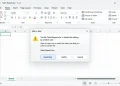

When browsing the web, encountering an error message can instantly disrupt your workflow. One particularly frustrating issue that pops up in Google Chrome is the ERR_CACHE_MISS message. Usually accompanied by a box labeled “Confirm Form Resubmission,” this error indicates that the browser is unable to read data it previously saved from an earlier visit, prompting it to stop and ask before sending your information a second time.
While seeing this notification once may not mean much, frequent sightings point to deeper issues within the browser itself—such as spoiled cached files, unacceptable preference values, or a conflicting browser extension. Fortunately, fixing this problem is straightforward once you understand its root causes. The troubleshooting steps detailed below apply whether you are working on a single personal laptop or managing an entire fleet of corporate machines.
What Does ERR_CACHE_MISS Mean?
The ERR_CACHE_MISS error belongs exclusively to Google Chrome. Other browsers like Mozilla Firefox and Apple Safari display entirely different wording when faced with the same underlying situation. Chrome raises this specific notification when it cannot successfully retrieve data saved from a previous visit, forcing it to pause and verify whether you want to resend form details.
Because the fault originates inside the browser application, the underlying operating system does not matter. Users encounter this on Windows, macOS, and ChromeOS machines alike. The specific Chrome release number often holds more significance than the platform you are using.
In most instances, only a single device is affected. That specific device attempts to open a page—whether public or internal—that has changed since its last visit, causing Chrome to trip over the stale copy it kept in storage.
What Causes the ERR_CACHE_MISS Error?
According to Nexthink, an organization that tracks technical errors across corporate endpoints, five primary roots cause this specific issue:
- Damaged saved browser data
- Preference values that the browser can no longer accept
- Add-ons or toolbars running inside Chrome
- An outdated Chrome browser release
- Faults on the outgoing network connection to the web
The first three potential causes live directly on your local device. The last two can impact dozens of machines simultaneously, which completely changes how system administrators approach the repair process.
How to Fix ERR_CACHE_MISS: 7 Proven Methods
Work your way through these solutions from top to bottom. Each step becomes progressively more disruptive than the last, and most users resolve the issue long before reaching the end of the list.
- Reload the page without the cache: Press
CTRL+F5on Windows orShift+Cmd+Ron a Mac. This forces Chrome to pull a fresh copy directly from the server rather than reading the stored local version. Because the fault is usually short-lived, a hard reload clears it more often than not. - Clear browsing data: Old cached files can easily become corrupted. Open the three-dot menu, select “Delete browsing data,” and make sure to pick the “Basic” tab so that your saved passwords and personal settings remain intact.
- Flush the DNS cache: This is especially useful if the site you are trying to open has recently moved to a new server. Type
chrome://net-internals/#dnsdirectly into the address bar and click the button to clear the host cache. This action touches nothing else in your browser. - Update Chrome: Google releases updates frequently. Navigate to Help, select “About Google Chrome,” and relaunch the browser if an update is waiting. On a Chromebook, the browser updates alongside the operating system, so you will need to check “About ChromeOS” instead.
- Remove junk toolbars and suspect extensions: Poorly coded toolbars or malware-laden add-ons frequently trigger this fault. Open
chrome://extensions, switch everything off, and reload the failing page. Turn your extensions back on one by one until the error reappears to isolate the culprit. - Check the network configuration: Incorrect DNS values on the client side can stop Chrome from reaching the correct server. On a DHCP network, run
ipconfig /renewfrom a command prompt. If your addresses are set manually, type the correct DNS server values directly into your network adapter’s IP settings. - Reset Chrome to factory preferences: A complete reset clears clashing preferences. Open Settings, choose Reset settings, and select “Restore settings to their original defaults.” On ChromeOS, this option is located directly inside the browser settings. Warning: A full reset wipes out every saved preference, bookmark, password, and autofill entry, so make sure to export any vital data before proceeding.
Browser Error Message Comparison
Different browsers handle cached form data failures with unique messaging. The table below outlines how Chrome compares to other major browsers in the exact same scenario.
| Browser | Error Message / Terminology | Underlying Cause |
|---|---|---|
| Google Chrome | ERR_CACHE_MISS (Confirm Form Resubmission) | Inability to read saved cache data from an earlier visit. |
| Mozilla Firefox | Document Expired | Stale form data or expired cache during a page navigation attempt. |
| Microsoft Edge | Confirm Form Resubmission (Chromium-based variations) | Stale form or cache data requiring manual user confirmation. |
Troubleshooting ERR_CACHE_MISS in Enterprise Environments
When multiple employees report encountering this error simultaneously, IT administrators must measure the spread of the issue before making any changes. Nexthink recommends evaluating four key questions:
- Has Chrome rolled out a new release recently?
- Has the corporate network shifted, causing traffic to take a new path to the target site?
- Do the affected machines rely on a fixed proxy to reach their target?
- Has the target application or website itself been altered or swapped?
Analyzing where the errors gather helps pinpoint the exact cause. Faults tied to a single application typically mean that web application changed. Faults tied to a specific Chrome release indicate the browser version is responsible. Meanwhile, errors concentrated in a single office or hierarchy node usually point to a network edit or proxy machine. Issues occurring at specific hours often signal a scheduled job, such as a nightly backup consuming valuable network capacity.
Administrators can utilize automated tools like Nexthink’s Remote Actions to clear browser data, flush DNS caches, and reset preferences across affected machines without requiring a physical desk visit. For widespread outbreaks, pairing these automated actions with an on-screen notification ensures staff understand that maintenance work is underway.
Frequently Asked Questions
What does ERR_CACHE_MISS mean?
ERR_CACHE_MISS means Chrome could not read a file it had saved from an earlier visit. It usually appears alongside a “Confirm Form Resubmission” prompt and stems from corrupted cached data, incompatible preferences, problematic extensions, an outdated browser release, or a network fault.
How do I fix ERR_CACHE_MISS in Chrome?
Perform a hard reload first using CTRL+F5 or Shift+Cmd+R. If the error persists, clear your basic browsing data, flush the DNS cache at chrome://net-internals/#dns, update Chrome, disable conflicting extensions, and reset Chrome to its default settings as a final resort.
Why does Chrome keep asking to confirm form resubmission?
Chrome independently blocks the automatic resending of form data to protect users. When you reload or navigate back on a page that previously posted a form, the browser pauses and asks for confirmation. A repeating pattern points to damaged cached files or a web page that has changed since your last visit.
What do Reddit users recommend for ERR_CACHE_MISS?
Community threads across tech support forums generally settle on a consistent order of operations: executing a hard reload, clearing the cache, and disabling extensions. Many users also report that the error disappears entirely after updating Chrome or opening the problematic page in an incognito window.
Does ERR_CACHE_MISS happen in Firefox or Edge?
No. The exact ERR_CACHE_MISS label is entirely unique to Google Chrome. While Firefox displays a “Document Expired” message in similar situations and other browsers word their prompts differently, the core root cause remains identical across platforms.