

Modern CPUs deliver far more performance than older generations, but they also generate more heat under heavy loads. That is why a reliable cpu temperature monitor has become important for gamers and power users, especially on Windows 11 systems.
A lot of people only notice overheating after performance problems start appearing. Games may suddenly stutter, frame rates can drop without warning, and fans often become noticeably louder during long gaming sessions.
In many cases, the issue is thermal throttling. When a processor gets too hot, it automatically lowers its speed to protect itself from damage. The result is lower performance right when you need stable FPS the most.
According to research published on arXiv, CPU thermal throttling can reduce system performance within seconds under sustained workloads, especially when cooling is insufficient.
This becomes more obvious in modern AAA games, video rendering, streaming, and multitasking. Casual workloads like browsing or watching videos usually do not stress the processor long enough to create major thermal issues.
Gaming and rendering workloads are different because they keep the CPU under pressure for extended periods. That is why many players now prefer to monitor cpu temp while gaming instead of checking temperatures only after performance drops appear.
Another reason monitoring matters is accuracy. A proper real time cpu temperature monitor helps users spot unusual spikes before they become serious problems. It also helps identify airflow issues, unstable overclocks, or background applications consuming too many resources.
Some tools even display temperatures directly on-screen while gaming, making it easier to keep an eye on thermals without leaving the game.
Good cpu temperature monitoring software is no longer just for enthusiasts. Even casual PC users benefit from understanding how heat affects long-term performance and hardware lifespan. Preventing overheating while gaming can help maintain smoother gameplay, quieter cooling, and more stable system performance over time.
Quick Comparison Table for the Best CPU Temperature Monitor Tools
Some cpu temperature monitor tools focus heavily on gaming overlays and live tracking, while others keep things simple with lighter hardware monitoring and cleaner interfaces.
| Tool | Best For | Overlay Support | GPU Monitoring | Lightweight | Free/Paid |
|---|---|---|---|---|---|
| HWiNFO | Advanced monitoring | Yes | Yes | Moderate | Free |
| HWMonitor | Beginners | No | Yes | Lightweight | Free |
| MSI Afterburner | Gaming overlays | Excellent | Yes | Moderate | Free |
| Core Temp | Older PCs | Limited | No | Very Lightweight | Free |
| NZXT CAM | Clean interface | Yes | Yes | Moderate | Free |
| Open Hardware Monitor | Open-source users | Limited | Yes | Lightweight | Free |
| AIDA64 | Advanced diagnostics | Yes | Yes | Heavy | Paid |
Gaming-focused users usually care more about overlays, FPS tracking, and real-time temperature data during gameplay. Simpler tools tend to work better for casual monitoring or older PCs where lower background usage matters more.
7 Best CPU Temperature Monitor Tools for Gaming and Real-Time Tracking
Gaming PCs can generate a surprising amount of heat once the CPU and GPU stay under load for long periods. Some users only need a lightweight app for quick temperature checks, while others want live overlays, advanced sensor readings, or detailed hardware logs during gameplay.
The tools below cover different types of users, from casual players to enthusiasts who constantly monitor system performance.
1. HWiNFO — Best Overall CPU Temperature Monitor

HWiNFO is easily one of the most detailed monitoring tools available right now. The software goes far beyond basic temperature tracking and shows nearly every sensor your system can report. CPU package temperatures, per-core readings, voltages, fan speeds, clock behavior, and motherboard sensors are all displayed in real time.
That level of detail makes HWiNFO especially popular among enthusiasts and overclockers. During gaming or rendering workloads, the software updates quickly enough to catch sudden thermal spikes that smaller apps sometimes miss. Users who care about sensor accuracy usually end up sticking with HWiNFO long term because the monitoring feels more complete and reliable.
Logging support is another major advantage. The software can record temperature changes over time, which becomes useful when diagnosing unstable cooling, airflow problems, or inconsistent performance during heavy workloads. Compared to many lightweight apps, this feels much closer to professional hardware monitoring software.
The downside is the interface. First-time users often open HWiNFO and immediately see an overwhelming amount of data. People looking for a quick cpu temp monitor may find the layout too technical at first.
Best For
Advanced monitoring, sensor tracking, and enthusiasts who want deeper hardware data.
Downsides
The interface can feel intimidating for beginners.
2. HWMonitor — Best Beginner-Friendly CPU Temperature Checker

HWMonitor keeps things much simpler. The software focuses on fast temperature checks without filling the screen with unnecessary graphs or advanced controls. That simplicity is a big reason casual users still prefer it for everyday monitoring.
Installation takes less than a minute, and the application runs quietly in the background with very little resource usage. Older systems and lower-end PCs handle it easily, making it a practical cpu temperature checker for users who only want essential readings.
The layout is also straightforward enough that most people can understand it immediately. Temperatures, voltages, and fan speeds are grouped cleanly without complicated menus. Users who simply want to monitor cpu temperature Windows 11 during gaming or multitasking usually do not need much more than this.
Gaming-focused features are limited, though. HWMonitor works well as a cpu heat monitor, but it does not include overlays or real-time FPS tracking like some modern gaming tools.
Best For
Users who want a simple cpu temperature monitor with minimal setup.
Downsides
No in-game overlay or advanced gaming features.
3. MSI Afterburner — Best CPU Temperature Monitor for Gaming Overlays

MSI Afterburner remains one of the most useful tools for gamers who want live system information during gameplay. Instead of checking temperatures in the background, the software places CPU and GPU stats directly on-screen through its overlay system.
That overlay is the main reason so many players continue using MSI Afterburner years after release. Temperatures, FPS, frame times, clock speeds, and usage percentages can all appear while gaming. For anyone trying to monitor cpu temp while gaming, this setup feels much more practical than constantly tabbing out to check another application.
The software becomes even better when paired with RivaTuner Statistics Server. RTSS allows extensive overlay customization, giving users control over layout, colors, positioning, and which hardware statistics appear on-screen. Competitive players and PC enthusiasts often rely on this combination to monitor performance changes in real time.
MSI Afterburner also works well as a gpu and cpu temperature monitor because both components can be tracked simultaneously during demanding games. That makes it easier to spot overheating issues, unstable overclocks, or cooling problems during long sessions.
Non-gamers may find the software excessive, though. The interface includes tuning controls and monitoring features that casual users probably will never touch.
Best For
Gaming overlays, FPS tracking, and real-time performance monitoring.
Downsides
Can feel overly complex for users who only want basic temperature readings.
4. Core Temp — Best Lightweight CPU Temp Monitor

Core Temp has stayed popular for years because it does exactly what many users want without adding unnecessary extras. Open the software and the CPU temperature readings appear almost instantly. There are no oversized dashboards, account systems, or complicated hardware menus to deal with.
That simplicity makes Core Temp a strong choice for older PCs and lower-end systems where background usage matters more. The software uses very little RAM, launches quickly, and stays lightweight even during long gaming sessions. Users who only care about basic temperature tracking usually appreciate how minimal everything feels.
Another advantage is readability. Core Temp focuses heavily on processor information, so temperatures are easy to spot at a glance. Current readings, minimum values, and maximum spikes are clearly visible without digging through multiple tabs. For someone who just wants a lightweight cpu temperature monitor running quietly in the background, this approach works well.
The software does lack some of the advanced features found in larger monitoring suites. There is no polished gaming overlay experience like MSI Afterburner, and sensor coverage is narrower compared to HWiNFO or AIDA64. Still, many users prefer that tradeoff because the program stays fast and uncomplicated.
Startup impact is also minimal. On lower-end hardware, Core Temp feels noticeably lighter than bulkier monitoring applications that constantly load extra background services.
Best For
Minimalist monitoring and older PCs with limited system resources.
Downsides
Limited advanced features and fewer customization options.
5. NZXT CAM — Best CPU Temperature Monitor With Modern UI

NZXT CAM takes a very different approach from traditional monitoring software. Instead of focusing on raw sensor data, the application puts more attention on presentation and usability. Large temperature readouts, clean graphs, and organized layouts make the software feel far more approachable for newer PC users.
The dashboard is one of its biggest strengths. CPU and GPU temperatures are displayed clearly without overwhelming the screen with technical information. Gamers who prefer a cleaner pc temperature monitor often end up liking CAM because everything looks modern and easy to follow.
The software also includes gaming-focused visuals and real-time hardware tracking during gameplay. Temperatures, clock speeds, and usage stats update smoothly while keeping the interface visually polished. Compared to older monitoring utilities, NZXT CAM feels much more aligned with modern Windows 11 aesthetics.
Ease of use is another reason people gravitate toward it. Most features work immediately after installation, so beginners do not need to spend time configuring sensors or custom layouts. For casual users, that convenience matters more than deep hardware customization.
The downside is resource usage. CAM is noticeably heavier than smaller monitoring apps like Core Temp or HWMonitor. Users running older systems may prefer something lighter if background performance is a concern.
Best For
Users who want visual simplicity and a cleaner monitoring interface.
Downsides
Heavier background usage than minimalist monitoring tools.
6. Open Hardware Monitor — Best Open-Source CPU Temperature Monitor
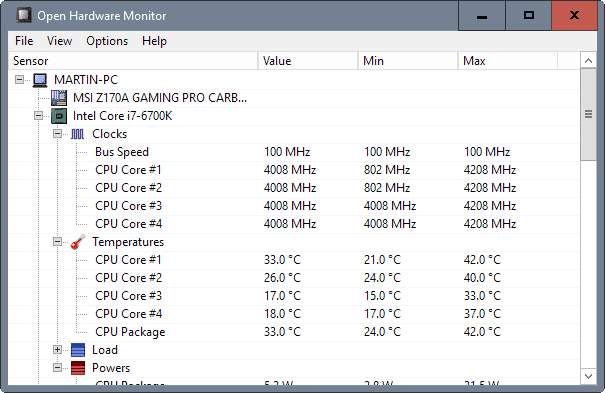
Open Hardware Monitor still has a loyal following among users who prefer lightweight utilities without extra background services or unnecessary visual effects. The software is open-source, easy to run, and focuses mainly on core hardware monitoring features instead of flashy presentation.
Temperature readings, fan speeds, voltages, and clock speeds are all displayed in a straightforward layout. The interface looks dated compared to modern monitoring tools, but many users actually prefer that simpler design because it keeps everything easy to scan. People searching for a lighter alternative to larger cpu temperature monitoring software often end up using this tool for everyday tracking.
Another advantage is flexibility. Open Hardware Monitor works well across many hardware configurations and supports a wide range of sensors without forcing users into complicated setup steps. Resource usage also stays low, which helps on older gaming systems or PCs with limited memory.
Community trust is another reason this tool remains relevant. Since it is open-source, users can inspect the project themselves instead of relying entirely on closed software ecosystems. That transparency appeals to enthusiasts who care about privacy, customization, or long-term compatibility.
The biggest weakness is the interface. Compared to newer applications, the software feels visually outdated and lacks the polished overlays or customization features gamers often expect today.
Best For
Users who prefer open-source software with lightweight monitoring features.
Downsides
The interface feels old compared to newer monitoring tools.
7. AIDA64 — Best for Advanced Diagnostics and Sensor Monitoring

AIDA64 is far more than a standard cpu temperature monitor. The software combines advanced sensor tracking, stress testing, benchmarking, and system diagnostics into a single package aimed at enthusiasts and power users.
The amount of hardware information available is impressive. CPU temperatures, memory behavior, fan speeds, motherboard sensors, storage health, and voltage readings can all be tracked in real time. During stress testing or rendering workloads, AIDA64 provides extremely detailed monitoring data that many smaller utilities simply cannot match.
One area where AIDA64 stands out is stability testing. Users can push the CPU under sustained load while watching temperatures, voltages, and cooling behavior at the same time. That makes it useful for diagnosing overheating problems, checking cooling upgrades, or validating overclock stability.
The software also feels more premium than many free alternatives. Sensor layouts are cleaner, reporting tools are more advanced, and customization options go much deeper. For enthusiasts who constantly tweak hardware, AIDA64 delivers a level of detail closer to enterprise-grade advanced cpu monitoring tools.
The biggest drawback is pricing. Unlike most apps in this list, AIDA64 is paid software. Casual users who only need quick temperature checks will probably find free tools more practical.
Best For
Power users, diagnostics, stress testing, and advanced hardware monitoring.
Downsides
Requires a paid license for full access.
How to Choose the Best CPU Temperature Monitor
A good cpu temperature monitor should do more than display numbers on a screen. Some tools focus on deep hardware statistics, while others keep things simple with lightweight tracking and cleaner layouts. The better option usually depends on how you actually use your PC.
Accuracy and Real-Time Sensor Updates
Accuracy matters first. An inaccurate reading can make troubleshooting frustrating, especially during gaming or stress testing. The best cpu monitoring software updates quickly enough to catch sudden spikes instead of showing delayed information several seconds later. Fast sensor polling becomes important when the processor is constantly boosting under load.
Overlay Support for Gaming
Overlay support also makes a noticeable difference for gamers. Opening a monitoring app every few minutes gets annoying during long sessions. A gaming cpu temperature monitor with live overlays keeps temperatures visible without forcing players to leave the game. This is one reason MSI Afterburner remains popular even years after release.
Lightweight Performance and Background Usage
Lightweight performance matters more than many people realize. Some monitoring tools quietly consume extra RAM and CPU usage in the background, which can slightly affect lower-end systems. A smaller cpu temperature monitor often feels smoother on older hardware because it avoids unnecessary services and visual effects.
GPU Monitoring and Full System Tracking
GPU monitoring is another feature worth checking. Modern games stress both the processor and graphics card at the same time, so watching only CPU temperatures gives an incomplete picture. A tool capable of tracking total system thermals is usually more useful during gaming sessions.
Logging Support for Long Gaming Sessions
Logging support helps diagnose long-term problems. Sudden thermal spikes can happen so quickly that users miss them in real time. Temperature logs make it easier to identify unstable fan curves, airflow restrictions, or inconsistent cooling behavior during demanding workloads.
Ease of Use for Beginners and Enthusiasts
Ease of use matters just as much as features. Enthusiasts often prefer detailed sensor-heavy applications like HWiNFO or AIDA64, while casual users may want a simpler interface with fewer distractions. The most accurate cpu temperature monitor is not always the best choice if the layout feels overwhelming.
| Feature | Why It Matters |
|---|---|
| Real-Time Monitoring | Detects overheating instantly |
| Overlay Support | Useful while gaming |
| Lightweight Usage | Prevents FPS loss |
| GPU Monitoring | Tracks full gaming thermals |
| Logging | Helps diagnose thermal spikes |
A cpu temperature monitor should match the way the PC is actually used. Competitive gamers, casual users, streamers, and enthusiasts all prioritize different features, so there is no single perfect solution for everyone.
What Is a Safe CPU Temperature While Gaming?
Gaming temperatures rarely stay fixed because workloads constantly change from one game to another. A lighter esports title may keep the processor relatively cool, while large open-world games or shader-heavy releases can push temperatures much higher within minutes.
For most systems, a safe cpu temperature for gaming usually falls somewhere between 65°C and 85°C under sustained load. Short spikes slightly above that range are not always dangerous, especially with newer processors designed to run hotter than older generations. Problems start appearing when temperatures remain excessively high for long periods.
According to Avast’s hardware monitoring guide, most gaming CPUs typically operate between 65°C and 85°C under load, while prolonged temperatures above that range may shorten component lifespan.
Idle temperatures also matter. A system sitting around 30°C to 45°C while browsing or watching videos is generally considered healthy. Heavy rendering, stress testing, or poorly ventilated cases can raise temperatures much higher than standard gaming workloads.
| CPU State | Safe Temperature |
|---|---|
| Idle | 30°C–45°C |
| Gaming | 65°C–85°C |
| Heavy Rendering | 70°C–90°C |
| Dangerous Range | 90°C+ |
Thermal throttling usually starts becoming aggressive near the dangerous range. Once the processor approaches 90°C or higher, clock speeds may drop automatically to prevent hardware damage. This is often where FPS instability, stuttering, and inconsistent performance begin appearing.
Intel and Ryzen processors also behave differently under load. Ryzen chips tend to boost aggressively and can report higher temperatures even during normal gaming. Intel processors sometimes stay cooler at idle but spike harder during short bursts of activity. That variation is one reason many users install a cpu temperature monitor instead of relying on guesswork.
People often ask how hot should cpu get while gaming, but there is no single answer for every build. Cooling quality, case airflow, ambient room temperature, and processor model all affect thermals differently. A compact gaming PC with poor airflow may run noticeably hotter than a larger tower with stronger cooling.
Checking the normal cpu temperature range regularly helps catch problems early. Dust buildup, failing fans, or aging thermal paste can slowly raise temperatures over time without obvious warning signs at first.
How to Reduce CPU Temperature While Gaming
Lower temperatures usually come down to airflow and cooling efficiency. Even a powerful gaming system can struggle with heat if airflow inside the case is restricted.
Several small changes can make a noticeable difference:
- Clean dust from fans, filters, and heatsinks regularly.
- Improve case airflow with proper intake and exhaust fan placement.
- Replace old thermal paste if the system is several years old.
- Adjust fan curves for more aggressive cooling under load.
- Close unnecessary background apps during gaming sessions.
- Avoid cramped PC cases with poor ventilation.
- Upgrade from a stock cooler if temperatures remain too high.
Cleaning dust is one of the easiest improvements. Dust buildup blocks airflow through fans and heatsinks, trapping hot air inside the system. Many overheating problems disappear after a proper cleaning.
Case airflow matters too. Front intake fans and rear exhaust fans should move air consistently across the case instead of trapping heat around the processor. Poor airflow cases often cause unnecessary temperature spikes during gaming.
Replacing thermal paste can also help older systems. Over time, thermal compound dries out and transfers heat less effectively between the CPU and cooler.
Fan curves are another overlooked factor. Aggressive fan settings keep temperatures lower during heavy workloads, although the system may become louder.
Closing unnecessary background apps can reduce heat as well. Browser tabs, launchers, recording software, and RGB utilities all add extra workload in the background. A lighter system usually runs cooler.
Users searching for a cpu overheating fix should also check the cooler itself. Stock coolers often struggle with high-end processors during long gaming sessions. Upgrading to a larger air cooler or liquid cooling setup can dramatically reduce cpu temperature while gaming.
Final Verdict: Which CPU Temperature Monitor Should You Use?
The best cpu temp monitor depends heavily on how the PC is being used. Some people only need quick temperature checks, while others want overlays, detailed hardware logs, and advanced diagnostics running constantly in the background.
HWiNFO remains the strongest overall choice for advanced monitoring and deeper sensor accuracy. MSI Afterburner makes the most sense for gamers who want live overlays and FPS tracking during gameplay. Core Temp stays one of the better lightweight options for older systems or users who prefer minimal software.
HWMonitor works well for beginners who want a simpler cpu temperature monitor without complicated settings. AIDA64 fits enthusiasts and power users who need stress testing, diagnostics, and extensive hardware tracking in one package.
A good cpu monitoring software setup should match actual usage habits instead of adding features that never get used. Gaming style, cooling setup, hardware performance, and monitoring depth all matter when deciding which tool deserves a permanent place on the system.
FAQs About CPU Temperature Monitor Tools
What is the best CPU temperature monitor for gaming?
MSI Afterburner is one of the best options for gaming because it supports live overlays, FPS tracking, and real-time hardware monitoring during gameplay.
Can CPU temperature monitors affect FPS?
Lightweight tools usually have little impact, but heavier monitoring software with overlays and background services can slightly affect lower-end systems.
What CPU temperature is considered too high?
Temperatures above 90°C under sustained load are generally considered too high for long gaming sessions.
How do I monitor CPU temperature in real time?
Install a cpu temperature monitor with live tracking or overlay support, then keep the software running during gaming or heavy workloads.
Which CPU temperature monitor is most accurate?
HWiNFO is widely considered one of the most accurate monitoring tools because of its detailed sensor reporting and fast polling behavior.


