

If you accidentally deleted an important document, photo, video, or work file, don’t panic just yet. In many cases, it is still possible to recover deleted files in Windows 11, even when they no longer appear in the folder where they were originally stored.
Windows includes several built-in recovery features, and there are additional options available when standard recovery methods fail.
The key is understanding what happened to the file and acting before new data overwrites the storage space it previously occupied.
A recently deleted file may still be sitting in the Recycle Bin, while a permanently removed file could remain recoverable through backups, restore points, or specialized recovery tools.
This guide explains how to recover deleted files in Windows 11 using a step-by-step approach that starts with the easiest methods and gradually moves toward more advanced solutions. You’ll learn when to use the Recycle Bin, File History, Windows Backup, OneDrive recovery, and Microsoft’s official recovery utility.
By the end, you’ll know which option makes the most sense for your situation and how to maximize your chances of getting important data back.
Can Deleted Files Be Recovered in Windows 11?
Yes, deleted files can often be recovered in Windows 11, but the outcome depends on several factors. The most important factor is whether the storage space previously occupied by the file has been overwritten by new data.
When a file is deleted, Windows usually removes its reference from the file system instead of immediately erasing the contents. Until new information takes its place, recovery may still be possible.
Many users assume that deleting a file means it is gone forever. In reality, there is a major difference between a deleted file and an overwritten file. A deleted file may still exist on the drive, while an overwritten file has had its original data replaced, making successful recovery far more difficult.
Based on research published by ACM, 46% of participants reported experiencing data loss at least once, showing that losing important files is a widespread problem rather than a rare event.
So, can deleted files be recovered in Windows 11? In many situations, yes. Whether you need to restore deleted files Windows 11 after a simple mistake or recover permanently deleted files Windows 11 following a Shift + Delete action, your chances are often better than you might expect.
The recovery method, storage type, and time elapsed since deletion all play a role in determining success.
What to Do Immediately After Deleting Important Files
Before attempting to recover deleted files in Windows 11, take a few precautions that can significantly improve the odds of success.
First, stop using the affected drive whenever possible. Continuing to save files, install applications, or move data increases the likelihood that Windows will write new information to the same storage area where the deleted file still resides.
Avoid downloading recovery software directly onto the drive that contains the missing files. If a download is necessary, use another drive or external storage device instead. The same principle applies when copying large files or creating new folders.
Why Acting Quickly Improves Recovery Success
The sooner you respond, the better your chances of recovering lost data. Every write operation performed by the operating system creates a possibility that deleted content will be overwritten. Once that happens, even advanced tools may struggle to recover deleted files in Windows 11 successfully.
Quick action does not guarantee recovery, but it often prevents a recoverable file from becoming permanently inaccessible. For that reason, it is best to pause normal activity and begin the recovery process as soon as you realize important data has disappeared.
8 Proven Methods to Recover Deleted Files in Windows 11
There is no single recovery method that works in every situation. The best approach depends on how the file was deleted, whether it was removed recently, stored in the Recycle Bin, backed up previously, or permanently deleted.
The methods below are arranged from the quickest and easiest solutions to more advanced recovery techniques, helping you recover deleted files in Windows 11 with the least amount of effort first.
Method 1 – Use Undo Delete (Ctrl + Z)

One of the fastest ways to recover deleted files in Windows 11 is by using the Undo Delete shortcut. When a file is accidentally removed from a folder, Windows often allows you to reverse the action immediately by pressing Ctrl + Z on your keyboard.
This shortcut tells Windows to undo the most recent action. If the last action was deleting a file, the file may instantly return to its original location. You can also right-click inside the folder and select Undo Delete if the option is available.
To use this method:
- Open the folder where the file was originally located.
- Press Ctrl + Z on your keyboard.
- Wait for Windows to reverse the deletion.
- Verify that the file has been restored.
This solution takes only a few seconds and does not require backups, recovery tools, or administrative permissions.
When This Method Works Best
Undo Delete works best immediately after a file is removed. If you continue working, move files, restart the computer, or perform other actions, Windows may no longer be able to reverse the deletion.
For users trying to restore deleted files Windows 11 after an accidental click or keyboard shortcut, this should always be the first recovery method to try before moving to more advanced options.
Method 2 – Restore Files from Recycle Bin

The Recycle Bin is the first place Windows sends most deleted files. Unless a file was permanently deleted or the Recycle Bin was bypassed, there is a good chance the missing item is still stored there.
To check the Recycle Bin:
- Double-click the Recycle Bin icon on the desktop.
- Browse the list of deleted files and folders.
- Locate the item you want to recover.
- Right-click the file and select Restore.
- Windows will return the file to its original location.
This method is simple, safe, and often successful when recovering recently deleted documents, images, videos, and other personal files.
How to Recover Files Deleted Recently
If the deletion happened only minutes or hours ago, the Recycle Bin should be your primary recovery destination. You can sort files by deletion date, original location, or file type to quickly find the missing item.
Many users who need to recover files deleted from recycle bin Windows 11 first assume the file is gone forever, only to discover it is still available and can be restored with a few clicks.
Why Some Files Never Appear in Recycle Bin
Not every deleted file is sent to the Recycle Bin. Files removed using Shift + Delete, items deleted from certain external drives, and files that exceed the Recycle Bin size limit may bypass it completely.
In addition, if the Recycle Bin has already been emptied, you may need more advanced recovery methods. While it can be harder to recover emptied recycle bin Windows 11 scenarios, recovery is often still possible using backup features or dedicated recovery tools discussed later in this guide.
Method 3 – Recover Files Using File History

File History is one of the most useful backup features built into Windows. If it was enabled before the file was deleted, you may be able to restore an earlier copy without relying on third-party tools.
The Recycle Bin temporarily holds deleted files, but File History serves a different purpose. It automatically saves backup versions of files stored in folders like Documents, Pictures, Videos, Music, and Desktop, making it possible to restore older copies when needed.
To access File History:
- Open the Start menu and search for Control Panel.
- Select File History.
- Click Restore personal files.
- Browse available backup versions.
- Select the file or folder you want to restore.
- Click the green Restore button.
If a backup exists, Windows will return the selected item to its original location.
Check Whether File History Is Enabled
Before relying on this method, verify that File History was configured before the deletion occurred. Open the File History settings page and check whether backups have been created.
Many users discover the feature was never enabled, which means there are no previous versions available to restore. If File History is active, however, it can significantly improve your chances of recovery.
A successful file history windows 11 recovery often restores files exactly as they appeared before deletion, making it one of the most reliable built-in recovery options.
Restore Previous File Versions
File History stores multiple versions of files over time. This means you are not limited to restoring the latest backup.
For example, if a document was deleted last week, you may be able to browse earlier backup snapshots and recover the exact version you need. This is especially helpful when important files have been accidentally replaced or edited.
Users looking to recover files using file history windows 11 frequently find it easier than using advanced recovery tools because the process is entirely graphical and requires no command-line knowledge.
Method 4 – Restore Previous Versions of Files and Folders

Windows 11 includes another recovery feature called Previous Versions, which can sometimes restore deleted files and folders from restore points or backup snapshots.
This method is different from File History, although both can provide access to older copies of files. Previous Versions works at the folder level and may allow you to recover content that is no longer available through normal browsing.
To check for previous versions:
- Open File Explorer.
- Navigate to the folder that originally contained the deleted file.
- Right-click the folder and select Properties.
- Open the Previous Versions tab.
- Choose an available version.
- Click Restore or Open to review its contents.
This feature can be surprisingly effective when recovering deleted folders, project files, and other important data.
How Previous Versions Work
Previous Versions relies on restore points, backup snapshots, or other system protection mechanisms created before the deletion occurred.
When available, Windows stores historical copies of folders and allows users to roll back to an earlier state. Instead of recovering a single file, you may gain access to an entire folder as it existed on a previous date.
For users attempting to restore previous versions windows 11, this can provide a convenient alternative to dedicated recovery software.
Limitations of This Method
The biggest limitation is availability. If System Protection, File History, or backup features were never enabled, there may be no previous versions to restore.
In addition, some folders may not have historical snapshots available, especially on newly configured systems. While this method does not work in every situation, it is worth checking before moving to more advanced recovery solutions because it can restore files quickly without scanning the drive or modifying existing data.
Method 5 – Recover Files from OneDrive Backup

If you use OneDrive to sync files between devices, you may be able to recover deleted files even after they disappear from your local Windows 11 system. Because OneDrive stores copies of synced files in the cloud, it provides an additional layer of protection against accidental deletion.
When a synced file is deleted, it is often moved to the OneDrive Recycle Bin instead of being permanently erased. This gives users another opportunity to restore important documents, photos, and other files without relying on local recovery methods.
To begin, sign in to your OneDrive account and open the Recycle Bin section. Browse the deleted items, select the files you want to restore, and confirm the recovery action.
Restore Deleted Files from OneDrive
The OneDrive Recycle Bin typically retains deleted files for a limited period before permanent removal. During that retention window, restoring a file usually takes only a few clicks.
This option is particularly useful when a file has already been removed from the Windows Recycle Bin or when the deletion occurred on another synced device. In many situations, OneDrive restore deleted files can be faster and more reliable than scanning a storage drive for recoverable data.
Recover Older Versions of Documents
OneDrive also supports version history for many file types. If a document was modified incorrectly before being deleted, you may be able to restore an earlier version instead of recovering the most recent copy.
This feature is especially helpful for work documents, spreadsheets, and collaborative files where changes occur frequently over time.
Method 6 – Use Windows Backup to Recover Lost Files

Windows Backup is another built-in option that can help recover missing files when backups were created before the deletion occurred. This recovery method works by restoring files from existing backups. If a backup was created before the deletion occurred, Windows can retrieve that saved copy without searching the drive for recoverable data.
If Windows Backup was configured and running regularly, recovering lost data can be a straightforward process. The exact steps may vary depending on how the backup was created, but the overall goal remains the same: restore files from an earlier backup set.
To get started, open the backup settings in Windows and locate the available backup versions associated with your account or storage device.
Restore Files from a Backup
Select the backup that contains the missing files and follow the restoration prompts. Windows will allow you to recover individual files, folders, or larger groups of data depending on the available backup.
A successful windows backup restore files windows 11 process can recover content that is no longer available through the Recycle Bin, File History, or local storage recovery methods.
This method works best for users who routinely create backups and want the safest recovery option available. Since the files already exist in a backup archive, there is no need to scan the drive or rely on the possibility that deleted data has not yet been overwritten.
Method 7 – Use Windows File Recovery (WinFR)
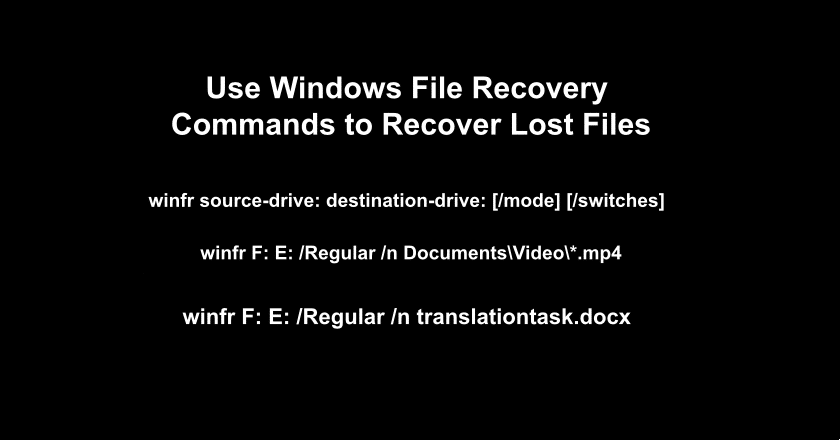
When deleted files are no longer available in the Recycle Bin and no usable backup exists, Windows File Recovery may be your best option. This free utility software is developed by Microsoft and designed to recover data from internal drives, external hard drives, SSDs, memory cards, and USB storage devices.
WinFR does not use the typical buttons-and-menus interface found in most recovery programs. All recovery tasks are performed through Command Prompt commands, which can feel unfamiliar at first but provide powerful recovery capabilities when other options come up short.
According to Microsoft, files that can no longer be restored from the Recycle Bin may still be recoverable using Windows File Recovery, Microsoft’s official recovery utility for Windows devices.
This tool is particularly valuable when users need to recover deleted files in Windows 11 after using Shift + Delete, emptying the Recycle Bin, or losing files due to drive corruption.
What Is Windows File Recovery?
Windows File Recovery is a command-line utility available from the Microsoft Store. It scans storage devices for recoverable data and attempts to restore files that are no longer accessible through normal Windows recovery methods.
The tool supports multiple file systems, including NTFS, FAT, exFAT, and ReFS. Because it works directly with storage structures, it can often locate files that are no longer visible within File Explorer.
Many users searching for a windows file recovery app are surprised to learn that Microsoft already provides an official solution at no additional cost.
Install Windows File Recovery
To install the utility:
- Open Microsoft Store.
- Search for Windows File Recovery.
- Download and install the application.
- Launch Command Prompt with administrative privileges.
- Run WinFR commands based on the recovery scenario.
Anyone researching how to use windows file recovery windows 11 should begin by reviewing Microsoft’s documentation and understanding which recovery mode is appropriate for the affected drive.
Basic WinFR Commands
The general command structure follows this format:
winfr source-drive: destination-drive: /mode /switches
The source drive is the location where files were deleted, while the destination drive should be a different storage device used to save recovered data.
Understanding the available recovery modes is important because different file systems and deletion scenarios require different approaches.
Recover Documents
For recently deleted documents on an NTFS drive, WinFR can often locate common file types such as DOCX, PDF, XLSX, and TXT files.
This approach is useful when important work files have been removed and no backup is available.
Recover Photos
Photos are among the most frequently recovered file types. WinFR can search for JPG, PNG, RAW, and other image formats depending on the storage device and file system involved.
Users who accidentally delete entire photo collections often turn to windows file recovery winfr when the Recycle Bin no longer contains the missing files.
Recover Files from USB Drives
USB drives and memory cards are also supported. If files were deleted from removable media, WinFR may be able to recover them as long as the original data has not been overwritten.
For many users, the windows 11 file recovery tool provides a practical middle ground between basic Windows features and third-party recovery software. Since it comes directly from Microsoft, it is often the next logical step before exploring commercial recovery solutions.
Relevant searches related to this method include microsoft windows file recovery, which remains one of the most powerful built-in options available for advanced data recovery scenarios.
Method 8 – Use Free File Recovery Software for Windows 11

If none of the built-in recovery methods work, dedicated recovery software may provide another opportunity to retrieve lost data. This option is typically recommended after you have checked the Recycle Bin, reviewed backups, tried File History, and used Windows File Recovery without success.
Recovery applications scan storage devices for traces of deleted files that may still exist on the drive. Depending on the condition of the storage media and how much new data has been written since the deletion occurred, these tools can sometimes recover documents, photos, videos, and other file types that Windows can no longer access normally.
While no recovery tool can guarantee success, many users turn to free file recovery software for windows 11 when they need a deeper scan than the built-in features can provide.
When Recovery Software Makes Sense
Recovery software is most useful when files were permanently deleted, the Recycle Bin has been emptied, or no backup is available.
It can also help when storage devices become corrupted or inaccessible. In these situations, the software attempts to identify recoverable file fragments and reconstruct them whenever possible.
Many users searching for data recovery software for windows 11 are dealing with scenarios where standard recovery options have already failed. At that stage, a specialized recovery application may be worth considering.
Features to Look For
Not all recovery tools offer the same capabilities. When evaluating available options, look for features such as:
- Support for multiple file systems.
- Deep scanning capabilities.
- Preview functionality before recovery.
- Recovery from SSDs, HDDs, USB drives, and memory cards.
- Selective file restoration.
These features can make the recovery process more efficient and reduce the risk of restoring unnecessary data.
If you are comparing options, you may also encounter recommendations for the best free file recovery software for windows 11. Focus on reliability, recovery performance, and transparency rather than marketing claims alone.
Risks of Using Recovery Software
Although recovery software can be effective, there are potential risks. Installing a recovery application on the same drive where files were deleted may overwrite recoverable data and reduce the chance of a successful recovery.
Some tools also exaggerate recovery capabilities or lock important features behind paid upgrades. For this reason, it is important to research any application before installing it.
Users looking for deleted file recovery software windows 11 should treat recovery software as a final recovery layer rather than the first solution. Whenever possible, start with Windows’ built-in recovery options and move to third-party tools only when simpler methods fail. This approach minimizes risk while maximizing the likelihood of recovering important files successfully.
Comparison of Windows 11 Recovery Methods
Some solutions work only when a file was deleted recently, while others depend on backups that were created before the data was lost. The right choice often comes down to how the file disappeared and what recovery features were already enabled on the system.
If you need to recover deleted files in Windows 11, starting with the most appropriate method can save time and improve the likelihood of success. The table below provides a quick comparison of the recovery options covered in this guide.
| Recovery Method | Difficulty | Requires Backup | Best For |
|---|---|---|---|
| Undo Delete | Easy | No | Recently deleted files |
| Recycle Bin | Easy | No | Standard deletions |
| File History | Medium | Yes | Previously backed-up files |
| Previous Versions | Medium | Sometimes | Folder recovery |
| OneDrive | Easy | Cloud Sync | Synced files |
| Windows Backup | Medium | Yes | Backup users |
| WinFR | Advanced | No | Permanently deleted files |
| Recovery Software | Medium | No | Deep recovery scenarios |
For most users, the easiest methods should always come first. Features such as the Recycle Bin, File History, and Windows Backup require less effort and carry minimal risk. More advanced options like WinFR and recovery software are better reserved for situations where simpler solutions no longer work.
Which Recovery Method Should You Try First?
One of the biggest mistakes people make when trying to recover deleted files in Windows 11 is jumping straight to recovery software. Doing so can waste time and, in some cases, reduce recovery chances if new files are written to the affected drive.
A more practical approach is to move from the simplest recovery methods to the most advanced ones. This allows you to rule out easy solutions before spending additional effort on deeper recovery techniques.
Recommended Recovery Order for the Best Results
- Undo Delete (Ctrl + Z)
- Recycle Bin
- File History
- Previous Versions
- OneDrive
- Windows Backup
- Windows File Recovery (WinFR)
- Recovery Software
This sequence works well because it prioritizes built-in Windows features first. Many users successfully recover deleted files in Windows 11 through the first few methods and never need to install additional tools.
If a file was removed with Shift + Delete or is no longer available in any backup, WinFR becomes the next logical option. Recovery software should remain the final step when every other method has been exhausted.
Conclusion
Learning how to recover deleted files in Windows 11 becomes much easier when you follow a structured recovery process. Start with the fastest methods, including Undo Delete and the Recycle Bin, before moving to File History, Previous Versions, OneDrive, and Windows Backup.
If those options fail, Windows File Recovery can help recover deleted files in Windows 11 that are no longer accessible through standard recovery features. Dedicated recovery software should be viewed as a final layer rather than the first solution.
Acting quickly is equally important. The longer a drive continues to receive new data, the greater the risk of overwriting recoverable files. To avoid future problems, enable File History, maintain regular backups, and use cloud synchronization whenever possible.
FAQs About How to Recover Deleted Files in Windows 11
Can deleted files be recovered in Windows 11?
Yes. In many situations, you can recover deleted files in Windows 11 through the Recycle Bin, File History, Windows Backup, OneDrive, or Windows File Recovery.
How do I recover deleted files in Windows 11 without Recycle Bin?
You can use File History, Previous Versions, OneDrive backups, Windows Backup, or WinFR if the file is no longer available in the Recycle Bin.
How do I recover deleted files in Windows 11 after Shift Delete?
Shift + Delete bypasses the Recycle Bin. Recovery options include File History, Windows Backup, WinFR, or recovery software.
Can I recover permanently deleted files in Windows 11 without software?
Yes. Built-in features such as File History, Previous Versions, OneDrive backups, and Windows Backup may help recover permanently deleted files Windows 11 without installing third-party applications.
What is the best Windows 11 file recovery tool?
For advanced recovery, many users consider Microsoft’s WinFR utility one of the most effective options because it is designed specifically for Windows storage devices.


